Create a Broadcast
Walk through the five-step wizard from audience to confirm
The broadcast wizard has five steps, in this order: Audience → What to send → Pick the payload → When to run → Review. You can move forward only after each step is valid; the broadcast is persisted at the end of step 5.
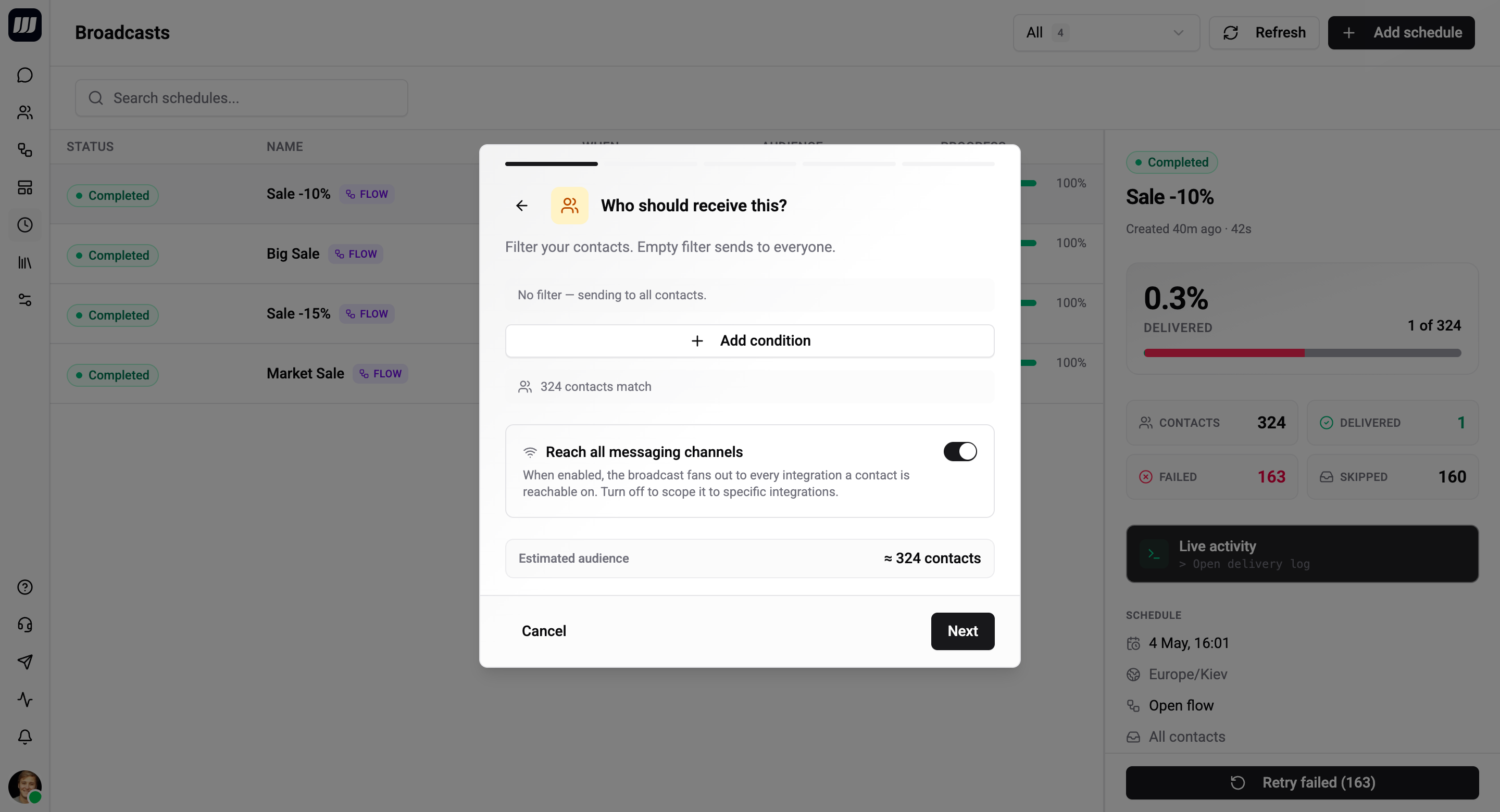
Step 1 - Audience
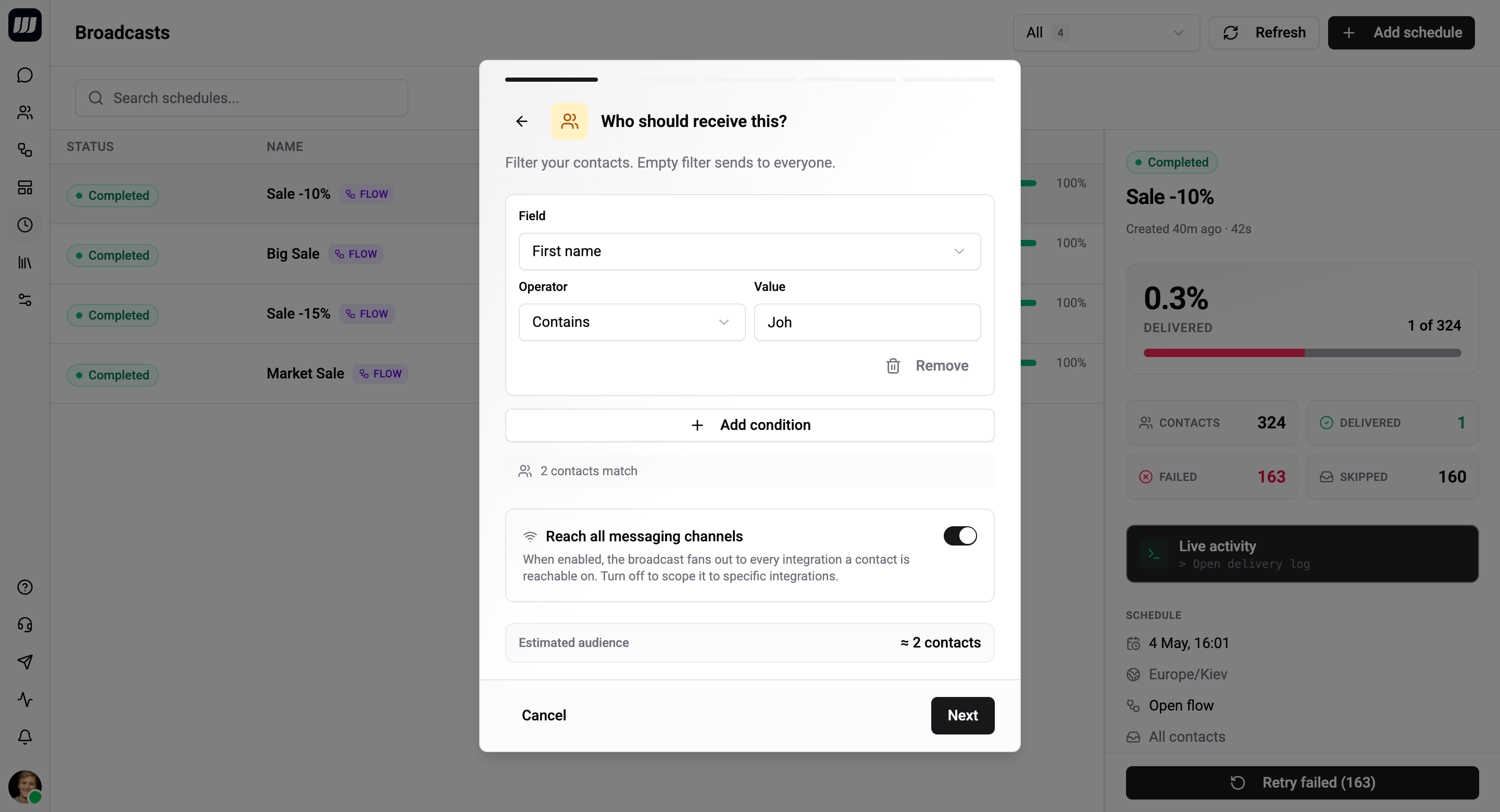
Define who receives the broadcast. The audience is a list of profile conditions ANDed together.
| Field | Description |
|---|---|
| Filter conditions | Each condition is a (field, operator, value) triplet. Add as many as you need. |
| Live count | Updates as you edit (debounced 300ms). Shows the current matching contact count from your live directory. |
- Empty filter → every contact in the organisation. (Usually you'll want at least one condition like
language EQUALS "en"ortags CONTAINS "newsletter".) - The filter is re-evaluated at fire time, not at save time - people added or removed before the broadcast fires are picked up automatically.
See Audience Filter for the full operator reference and field options.
Step 2 - What do you want to send?
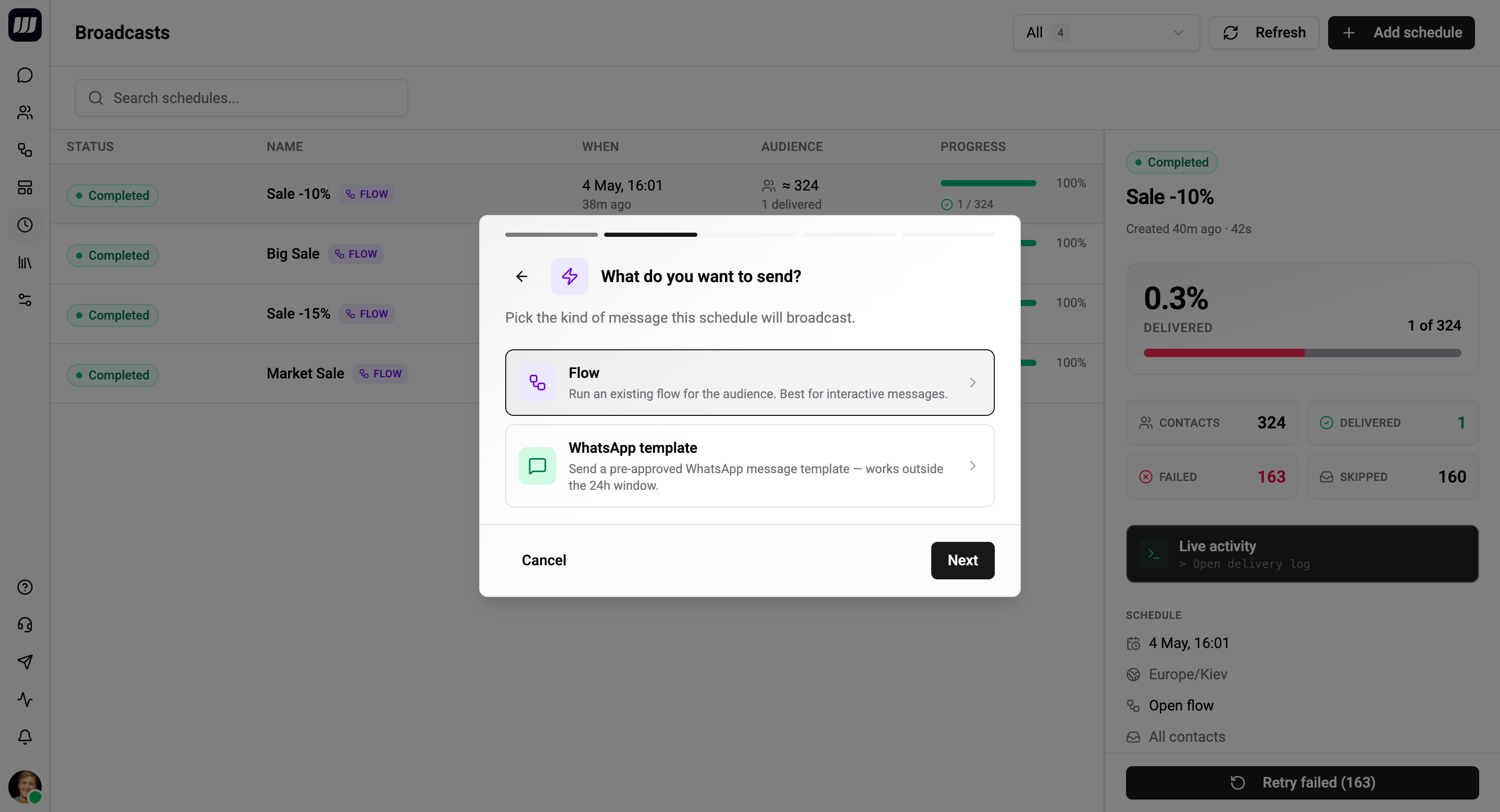
Pick one of two send-kinds:
| Send-kind | What runs |
|---|---|
| Flow | One of your published flows runs end-to-end for each contact. Supports any cards (text, media, AI, conditions, sub-flows, templates). |
| Template | A single WhatsApp template is sent per contact through one of your WA Business integrations. |
Each broadcast also has a name (shown in the broadcasts list) - the wizard prompts for it in this step alongside the send-kind picker.
The choice locks the next step's picker. You can't switch send-kind after saving - clone the broadcast as a new one if you need that.
Step 3 - Pick a Flow or Pick a Template
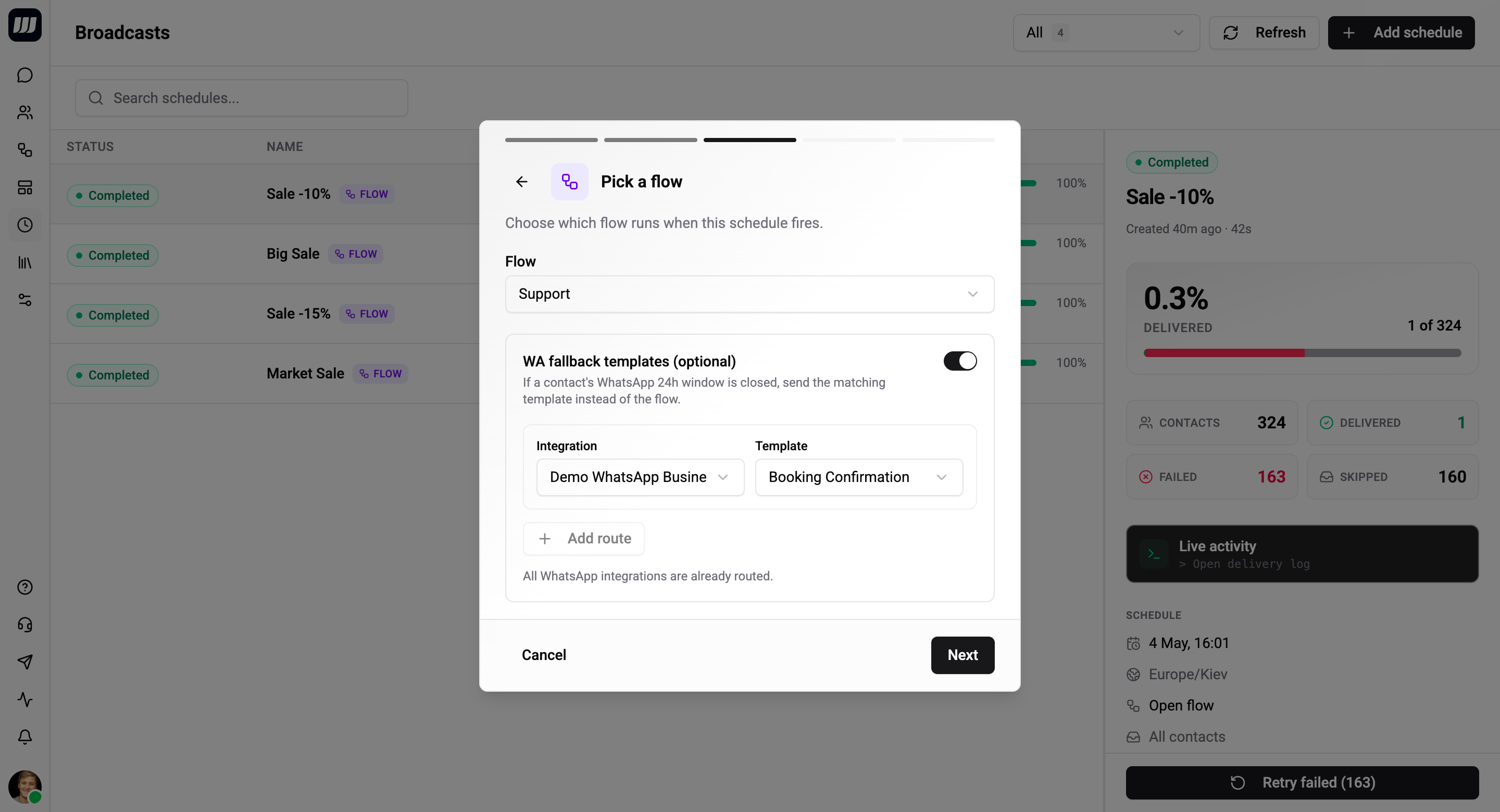
The picker depends on what you chose in step 2.
If you chose "Flow"
| Field | Description |
|---|---|
| Flow | One of your published flows. Drafts are hidden from the picker. |
| Template fallbacks (optional) | A list of WhatsApp template fallbacks. If the flow can't reach a contact through their primary channel - typically because the WhatsApp 24h window is closed - the system falls back to one of these templates via the matching integration. |
Add as many fallbacks as you need; the dispatcher picks the one whose integration matches the contact's WhatsApp chat.
See Fallbacks & Template Routes for the per-contact decision logic and how multiple fallbacks are resolved.
If you chose "Template"
| Field | Description |
|---|---|
| Template routes | One or more (template, integration) pairs. Each route pairs a WhatsApp template with the integration that should deliver it. |
The system picks the route whose integration matches each contact's chat. If a contact has no chat on any of the configured route integrations, that contact is skipped.
Multiple routes let one broadcast cover several WhatsApp numbers (e.g. one for EU contacts, one for US contacts) without splitting it into separate broadcasts.
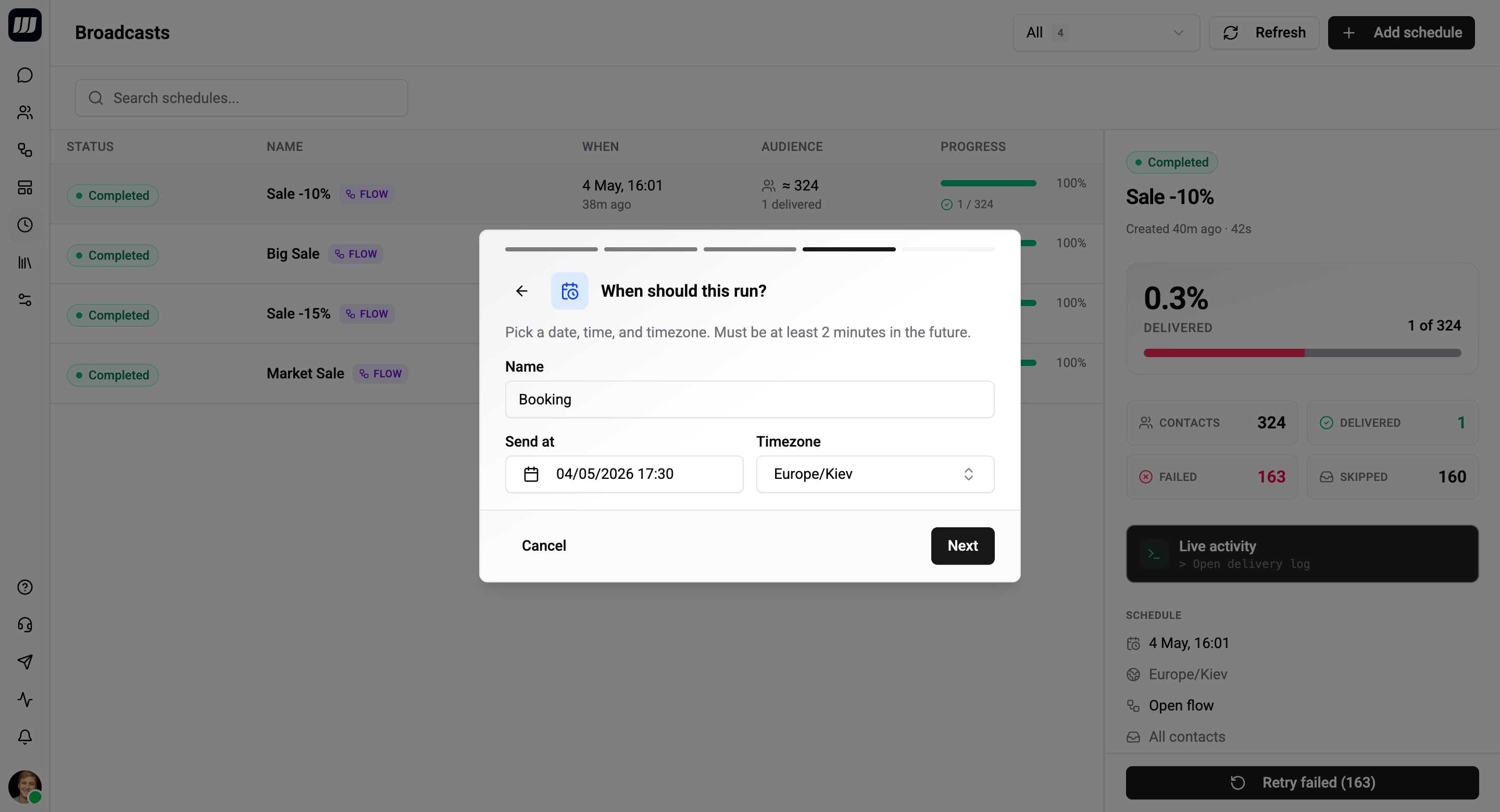
Step 4 - When should this run?
| Field | Description |
|---|---|
| Run at | Datetime picker, minute precision. |
| Timezone | IANA zone (e.g. Europe/Kyiv). Defaults to your current timezone. |
The timezone is for display and round-tripping - the engine fires on the absolute UTC time. The zone preserves the original local-time label across DST transitions and across users in different timezones.
Minimum lead time: the run-at time must be at least 2 minutes in the future. The scheduler ticks every 60 seconds, so anything closer risks slipping past the first tick. The wizard's confirm button is disabled until you pick a time that satisfies the lead-time check.
Recurrence is not exposed for broadcasts. Use a recurring scheduled trigger for ongoing automations.
See Scheduling for the full details on lead time, late-fire policy, and what happens when a worker misses a tick.
Step 5 - Review
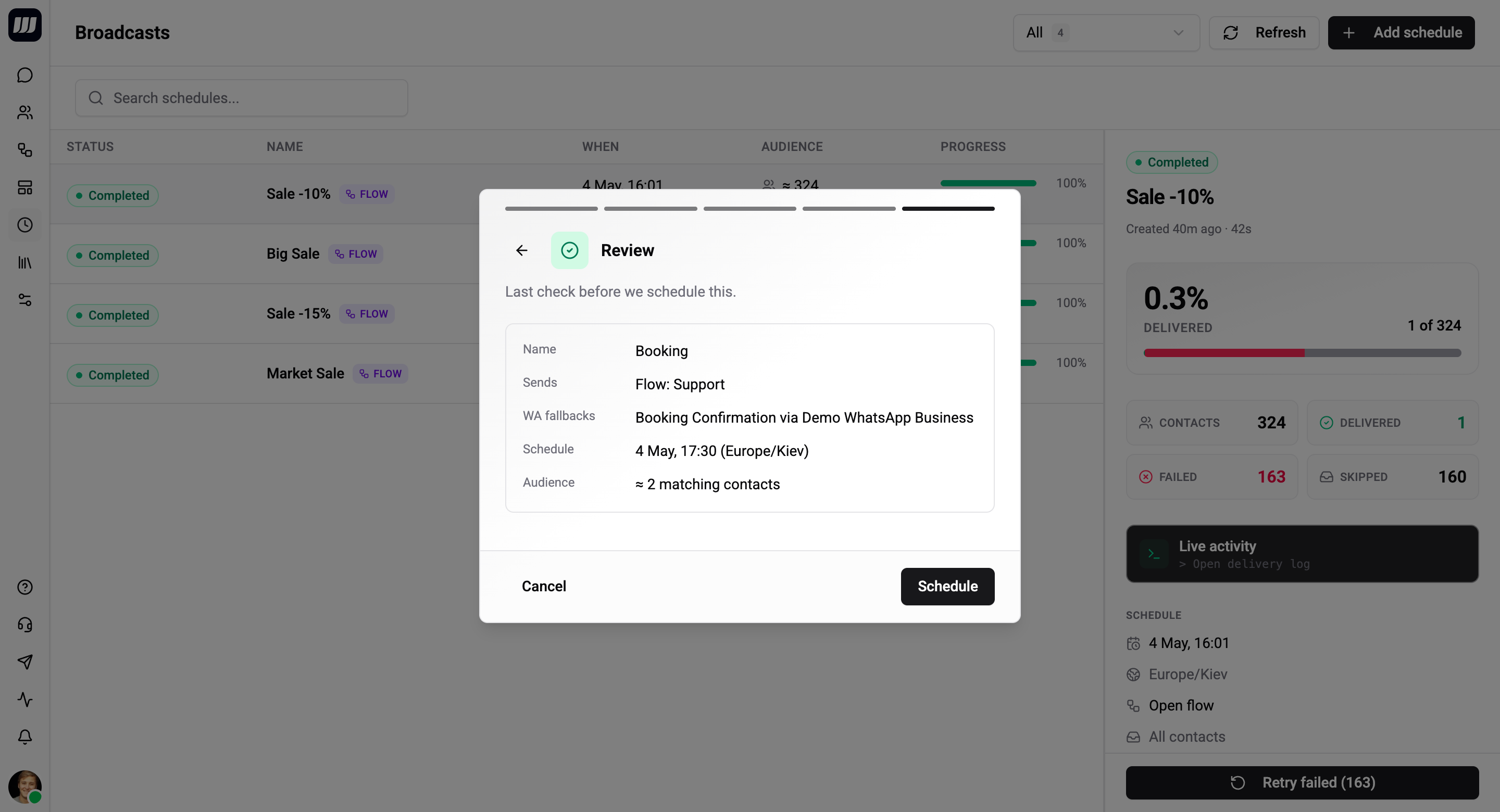
The Review step shows everything in one summary card:
- Summary line -
"Flow F will run for ≈ N contacts on Apr 30, 2026 at 10:00 Europe/Kyiv". - Provider breakdown -
≈ X Telegram · Y WhatsApp · Z Instagram · W Viber. Computed from your audience's reachable chats - useful for compliance and cost sanity-checks. - 24h-window warning - final reminder if the audience contains WhatsApp contacts whose first card isn't a template and you haven't configured fallbacks.
- Confirm - persists the broadcast with status
SCHEDULED.
The wizard is edit-friendly: clicking any earlier step from the review summary takes you back without losing data on the steps you've already filled.
After Confirming
The broadcast is now visible on the broadcasts list with a SCHEDULED status chip and a countdown to fire time.
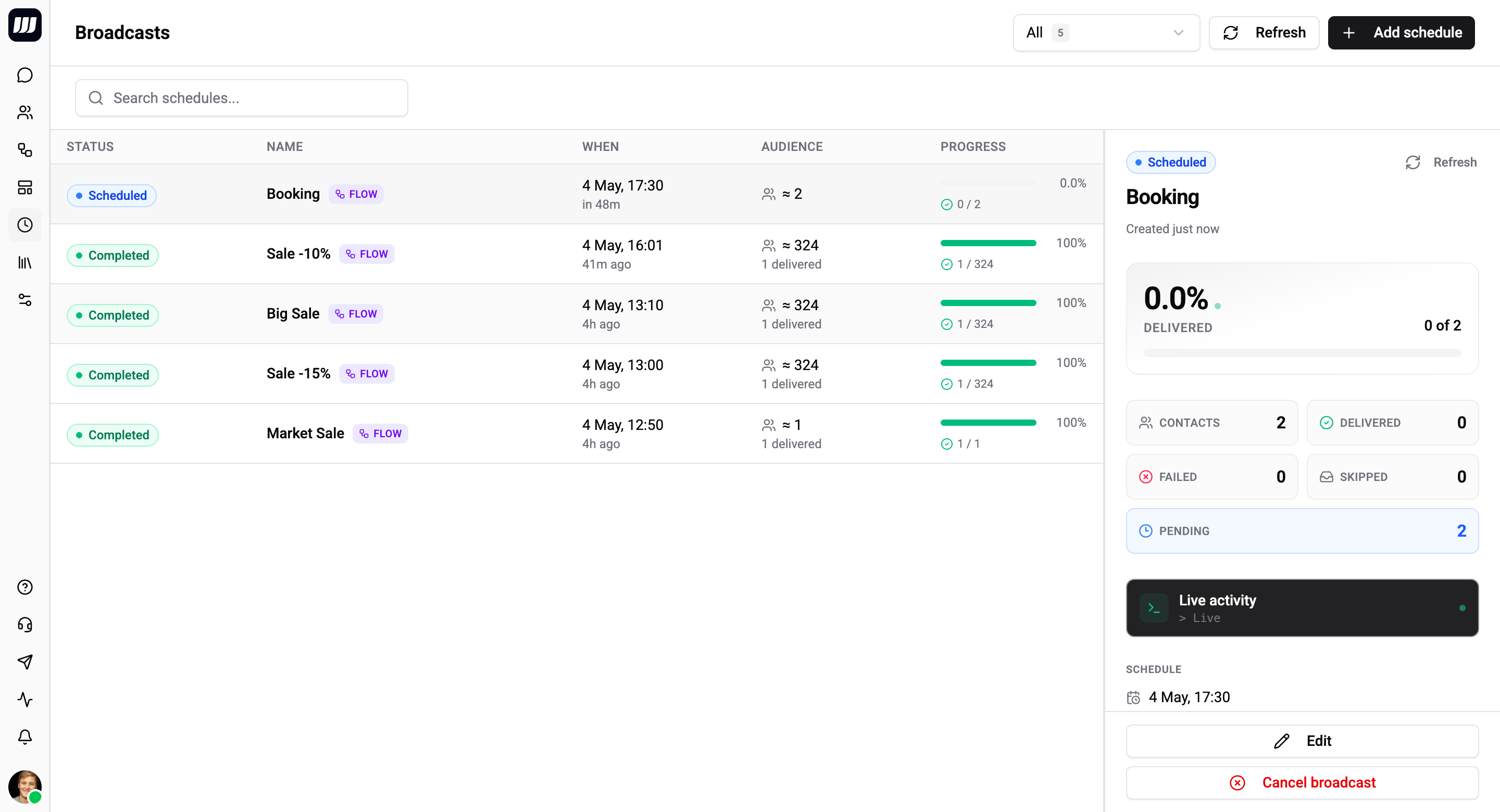
- Open the detail page to inspect or edit.
- Edit any field - only while
SCHEDULED. Once it transitions toSENDING, the schedule, audience, and payload are locked. - Cancel any time before firing completes - see Cancellation.