Support Tickets
Submit and track support tickets directly from your Wexio workspace.
Create support tickets to report bugs, request features, or get help - all without leaving your workspace. Track the status of every request and communicate with the support team through ticket comments.
Ticket Dashboard
The Support page gives you an overview of all your tickets with status counters at the top:
- Open Tickets - Newly submitted tickets awaiting review
- In Progress - Tickets the support team is actively working on
- Needs Response - Tickets waiting for your reply
- Resolved - Completed tickets
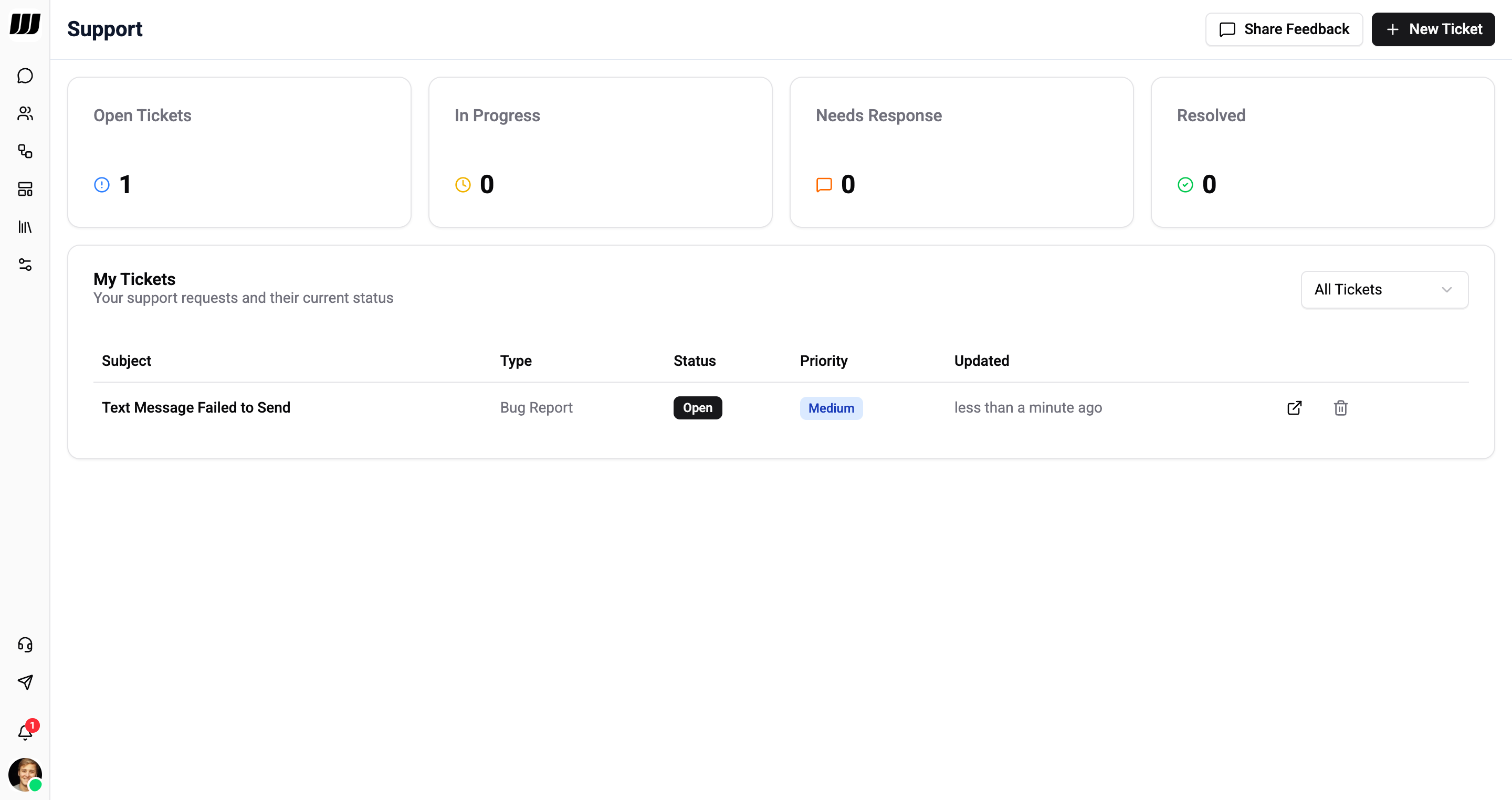
The ticket list shows every ticket with its subject, type, status, priority, and last updated time. Use the All Tickets dropdown to filter by status.
Creating a Ticket
Click + New Ticket in the top-right corner to open the ticket form.
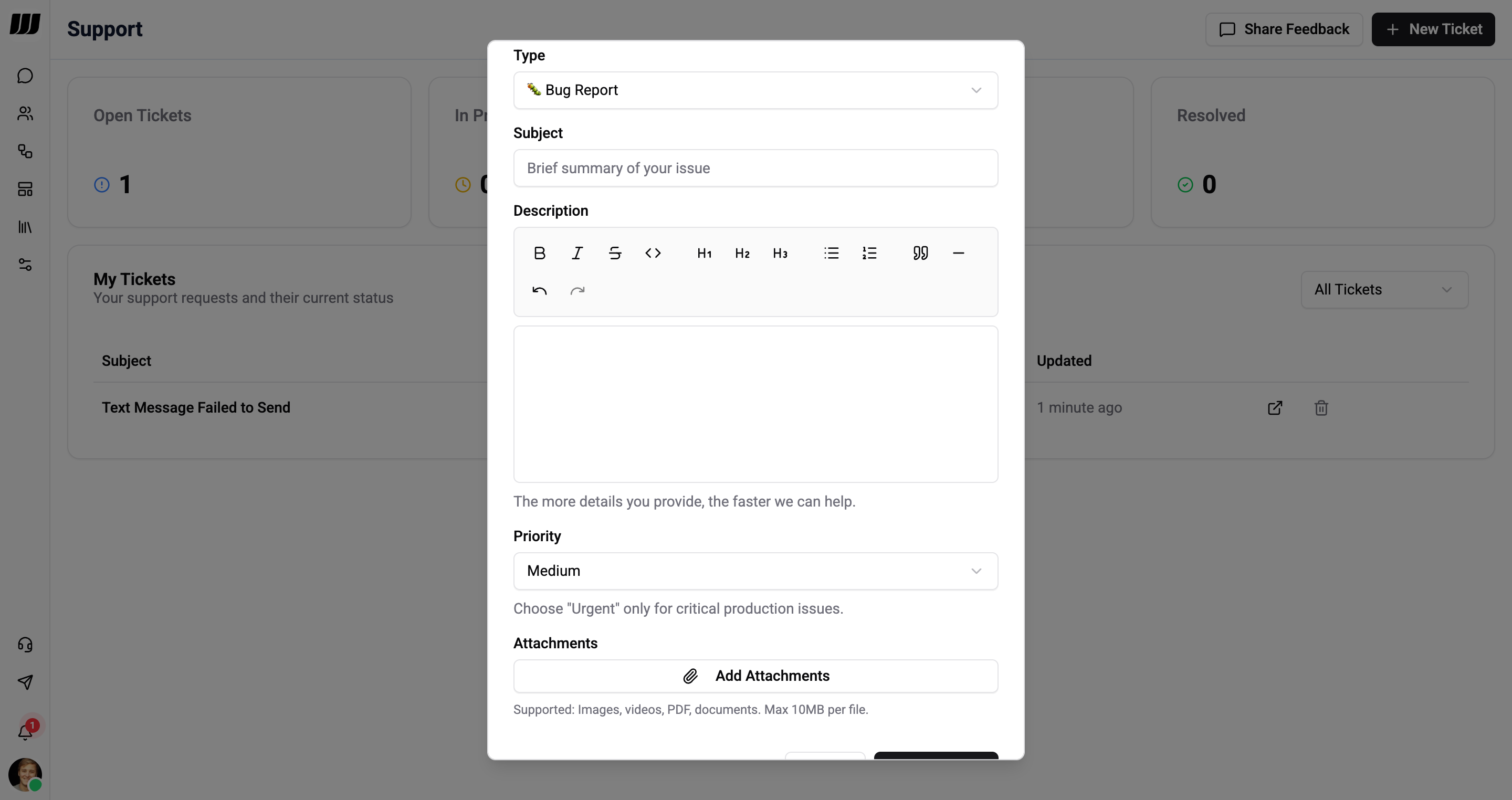
Fill in the following fields:
| Field | Description |
|---|---|
| Type | Select a category: Question, Bug Report, Feature Request, or Account |
| Subject | Brief summary of your issue |
| Description | Detailed explanation - the more context you provide, the faster the team can help |
| Priority | Urgency level (Low, Medium, High, Urgent) |
| Attachments | Upload screenshots, videos, PDFs, or documents (max 10 MB per file) |
Choose Urgent priority only for critical production issues that are blocking your operations.
Click Submit Ticket to create the request, or Cancel to discard.
Ticket Types
| Type | When to use |
|---|---|
| Question | General questions about features or how things work |
| Bug Report | Report a problem or unexpected behaviour |
| Feature Request | Suggest a new feature or improvement |
| Account | Account access or billing issues |
Priority Levels
| Priority | When to use |
|---|---|
| Low | Non-urgent, can wait for a standard response |
| Medium | Standard issues affecting your workflow |
| High | Important issues that need prompt attention |
| Urgent | Critical production issues blocking operations |
Tracking a Ticket
Click any ticket in the list to open its detail view. Here you can see the full ticket information and communicate with the support team.
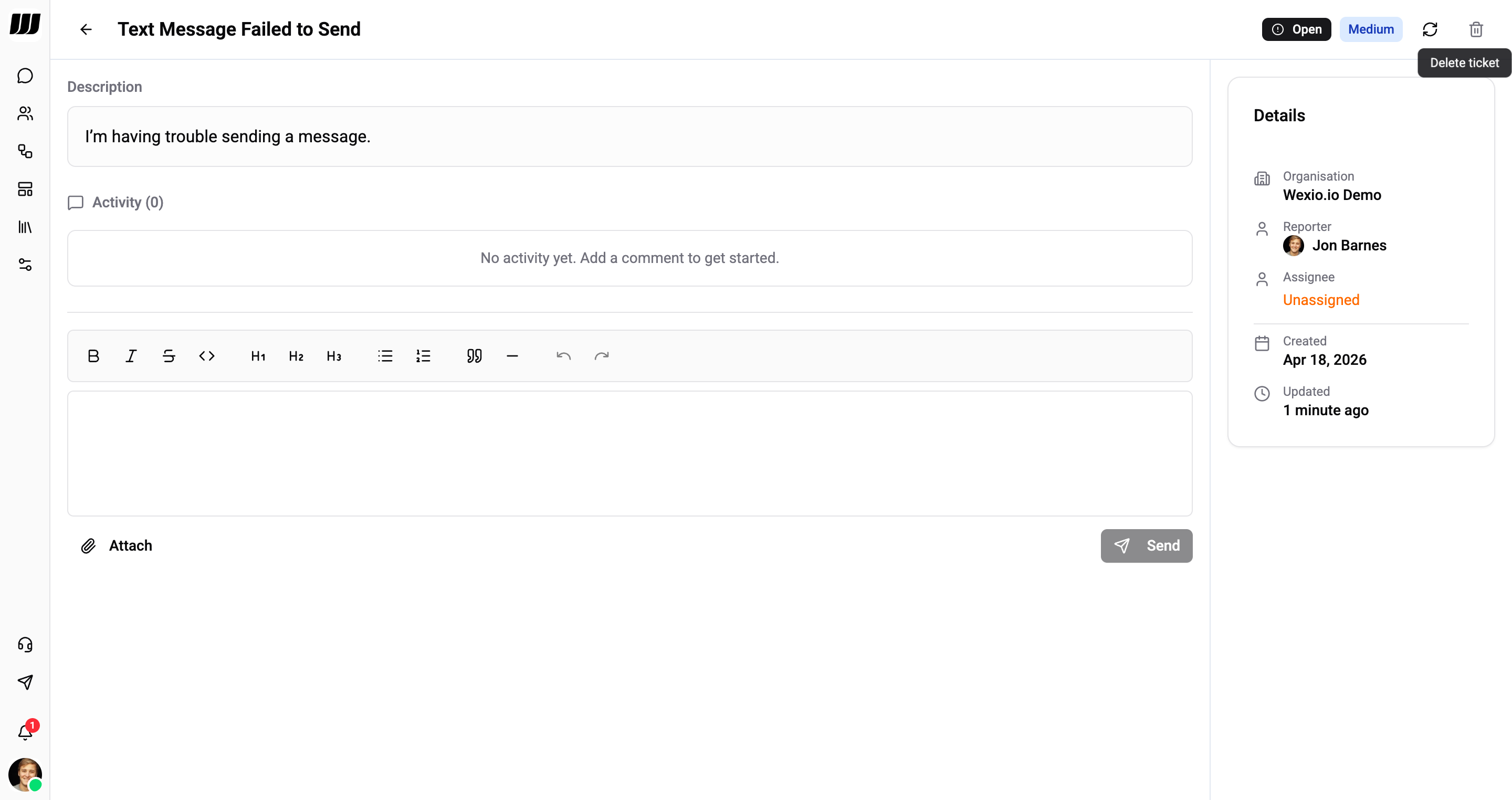
The ticket detail view includes:
Description - Your original issue description.
Activity - A threaded conversation where you and the support team can exchange comments. Type your message, optionally attach files, and click Send.
Details panel - Shows ticket metadata:
| Field | Description |
|---|---|
| Organisation | The workspace the ticket belongs to |
| Reporter | Who created the ticket |
| Assignee | Support team member handling the ticket (or Unassigned) |
| Created | When the ticket was submitted |
| Updated | Last activity timestamp |
Ticket Lifecycle
| Status | Description |
|---|---|
| Open | Ticket has been submitted and is awaiting review |
| In Progress | Support team is actively working on it |
| Needs Response | The team has replied and is waiting for your input |
| Resolved | Issue has been addressed and the ticket is closed |
Share Feedback
Use the Share Feedback button in the top-right corner to send general feedback about the platform. This is a quick way to share ideas or suggestions without creating a formal ticket.