Telegram
Connect a Telegram bot to send and receive messages
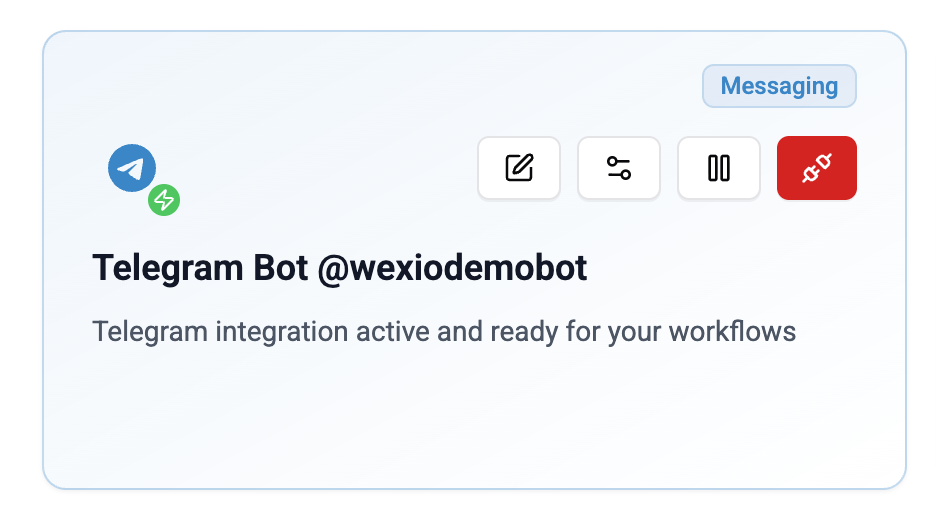
Wexio integrates with Telegram via the Bot API. Once connected, all messages sent to your Telegram bot appear in your Wexio inbox, and agents can reply directly from the platform.
Prerequisites
- A personal Telegram account (iOS or Android)
- A Telegram bot with an API token from @BotFather
If you don't have a bot yet, follow the steps below to create one before connecting.
Creating a Telegram Bot
If you already have a bot and its API token, skip to Connecting Telegram.
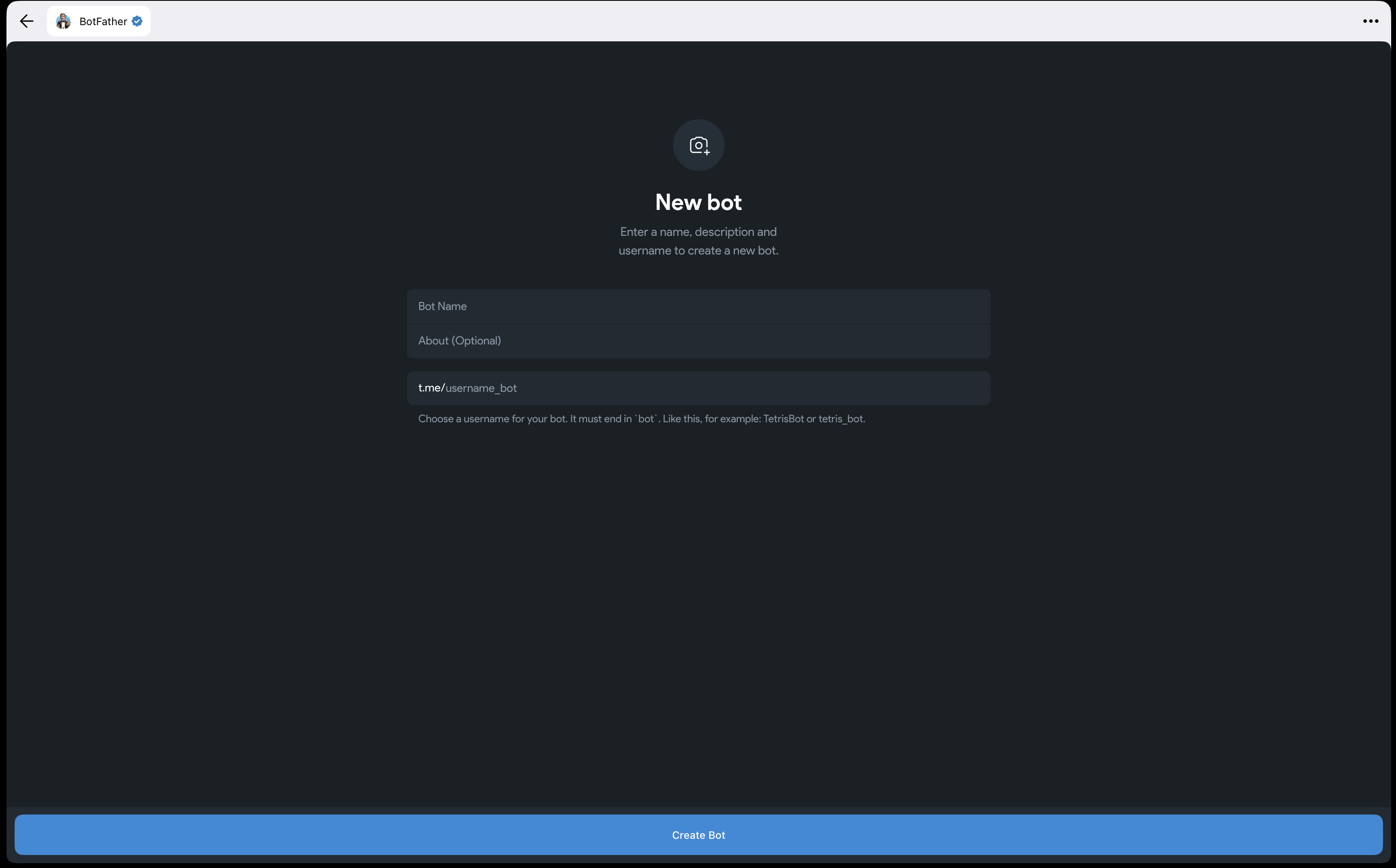
- Open Telegram and search for @BotFather, or go to t.me/BotFather.
- Send the command
/newbot. - Choose a display name for your bot (e.g. "Acme Support").
- Choose a username - it must end in
bot(e.g.acme_support_bot). - BotFather will reply with your API token. It looks like this:
110201543:AAHdqTcvCH1vGWJxfSeofSAs0K5PALDsaw - Copy the token - you'll need it in the next step.
Keep your API token secret. Anyone with the token can control your bot. If your token is compromised, send /token to @BotFather to regenerate it.
Connecting Telegram
- Go to Settings → Integrations.
- Click Connect next to Telegram.
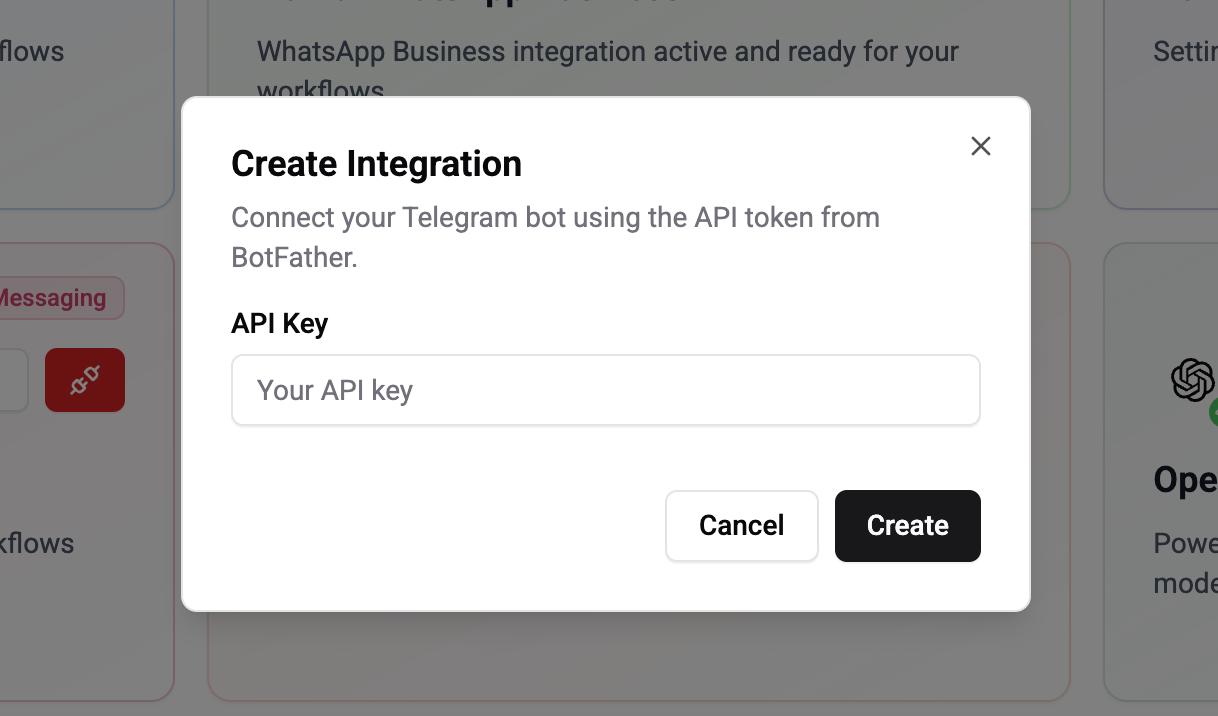
- Paste your bot's API token from BotFather.
- Click Connect - the webhook is auto-configured and your bot is now live.
Once connected, send a test message to your bot on Telegram to confirm messages appear in your Wexio inbox.
Troubleshooting Connection
| Problem | Solution |
|---|---|
| Invalid token error | Verify the token matches exactly what BotFather provided. Send /token to BotFather to view or regenerate it |
| Not receiving messages | Make sure your bot is not connected to another platform. Each bot can only have one active webhook |
| Bot blocked by user | The contact has blocked your bot. They will need to unblock it or message you again |
Supported Message Types
| Type | Send | Receive | Limits |
|---|---|---|---|
| Text | Yes | Yes | Up to 4,096 characters. Supports HTML and Markdown formatting |
| Photos | Yes | Yes | Up to 10 MB |
| Video | Yes | Yes | Up to 50 MB |
| Audio | Yes | Yes | Up to 50 MB. Displayed as a music player |
| Voice | Yes | Yes | Up to 50 MB. Displayed as a waveform bubble |
| Documents | Yes | Yes | Up to 50 MB |
| Animations (GIF) | Yes | Yes | - |
| Stickers | Yes | Yes | - |
| Video Notes | Yes | Yes | Round circular videos, max 60 seconds |
| Location | Yes | Yes | Static, live (up to 24 hours), and venue |
| Contact | Yes | Yes | vCard format |
| Media Groups | Yes | Yes | Up to 10 photos/videos per album |
| Reactions | Yes | Yes | Emoji and custom emoji (premium) |
Interactive Features
- Inline keyboard buttons - unlimited buttons arranged in rows with callback data
- Reply keyboard - custom keyboard layout shown to the user
- Message editing - update text, captions, and media of sent messages
- Message deletion - remove sent messages
Bot Settings
Once connected, click on the Telegram integration to open Telegram Bot Settings. The settings panel has six tabs:
Edit Info
Update your bot's public profile information visible to users:
| Field | Limit | Description |
|---|---|---|
| Profile Photo | - | Managed via BotFather only |
| Name | 64 characters | Bot display name |
| Description | 512 characters | Shown on the bot's profile page |
| About (Short Description) | 120 characters | Shown in the chat list and when sharing the bot |
Click Sync at the top to pull the latest info from Telegram.
Commands
Manage the list of commands displayed in the bot's menu (the / menu in Telegram chats).
- Enter the command name and a description
- Click Add Command to add more (up to 100 commands)
- Click Save to push the commands to Telegram
Mini Apps
Configure the mini app and menu button for your bot:
- Main Mini App - controls the button shown next to the text input in chats. Managed via BotFather only
Bot Settings
View your bot's current configuration flags synced from Telegram:
| Setting | Description |
|---|---|
| Inline queries | Whether the bot supports inline queries |
| Read all messages | Whether the bot can read all messages in groups |
| Add to groups | Whether the bot can be added to groups |
| Business account | Whether the bot can connect to a Telegram Business account |
These flags can only be changed via BotFather - they are read-only in Wexio.
Games
Manage game settings for your Telegram bot:
- Games must be created via BotFather using the
/newgamecommand - Use the
tg_callback_gamebutton type in your flows to launch registered games
Payments
Configure payment settings for your Telegram bot:
- Payment Provider Token - created via BotFather under
/mybots → Payments. Each payment provider issues its own token - Telegram Stars (XTR) - does not require an external payment provider. Leave the provider token empty to use Stars
- Use the
tg_paybutton type in your flows to accept payments from users
Telegram Business
If you use Telegram Business, the bot can answer the chats on your own personal profile - the customer messages you, not a bot, and the conversation still lands in the Wexio inbox.
| What the customer sees | Your personal Telegram profile. They never see a bot. |
| What you see | A normal conversation in the inbox, replied to like any other. |
| Scope | One-to-one chats only. |
Connect the bot to your Business profile in Telegram's own settings; nothing extra is needed on the Wexio side.
This has no equivalent on WhatsApp or Instagram. Both route through a business account, so there is no way to answer from a personal profile the way Telegram Business allows.
Every reply in a Business chat is tied to the specific profile connection it came from. If that connection is removed in Telegram, replies to those conversations stop going out - reconnect the bot to the Business profile to restore them.
Identity Field
Telegram contacts are identified by telegram_id - a numeric ID assigned by Telegram to each user.
Telegram has no messaging window restriction. You can message users at any time after they start a conversation with your bot.
Troubleshooting
| Issue | Solution |
|---|---|
| Invalid token error | Verify the token with @BotFather - regenerate if needed |
| Webhook not receiving messages | Check that the bot is not connected to another service (only one webhook allowed) |
| Duplicate messages | Ensure the bot is connected only once in Wexio |
| Media not sending | Check file size limits (photos 10 MB, video 50 MB, documents 50 MB) |
| Bot not responding | Confirm the bot is not blocked by the user and the integration is active |