AI Actions
AI-powered message enhancement, image generation, and text-to-speech
The AI Actions dropdown provides powerful AI tools directly within the message editor.
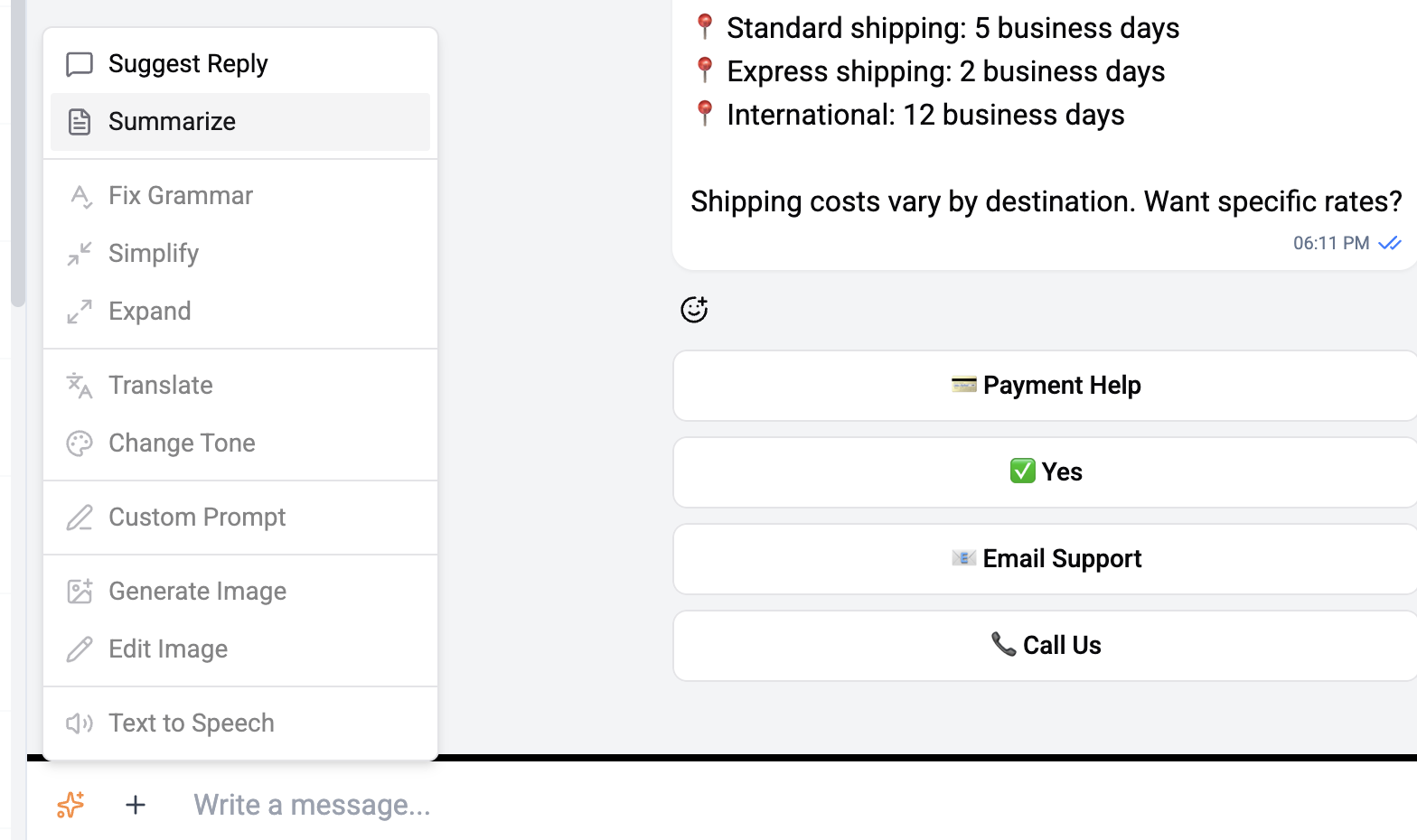
Text Enhancement
Select text in the editor and use AI to enhance it:
| Action | Description |
|---|---|
| Suggest Reply | Generate a contextual reply based on the conversation |
| Summarize | Condense the text into key points |
| Fix Grammar | Fix spelling and grammar errors |
| Simplify | Rewrite text in simpler, clearer language |
| Expand | Elaborate on the text with more detail |
| Translate | Translate text to another language (multi-language support) |
| Change Tone | Adjust tone - professional, casual, friendly, or formal |
| Custom Prompt | Send a custom instruction to transform the text |
Image Generation
Generate images from text prompts using AI:
- Open AI Actions dropdown
- Select Generate Image
- Enter a text prompt describing the desired image
- Configure options:
| Option | Values |
|---|---|
| Size | 1024×1024, 1024×1792, 1792×1024 |
| Style | Vivid, Natural |
| Model | Depends on configured AI provider |
- The generated image is attached to the message for review before sending
Edit Image
Modify an existing image using AI:
- Open AI Actions dropdown
- Select Edit Image
- Upload or select the image to edit
- Enter a text prompt describing the desired changes
- The edited image is attached for review before sending
Text-to-Speech
Convert text to spoken audio using AI voice synthesis:
- Type or compose your message
- Open AI Actions dropdown
- Select Text-to-Speech
- Choose a voice and speed
- Preview the generated audio before sending
| Option | Description |
|---|---|
| Voice | Multiple voice options depending on provider |
| Speed | Adjustable playback speed |
Text-to-Speech is currently supported with OpenAI models only. It is not available when using Anthropic as the AI provider.
AI Preferences Bar
The AI Preferences Bar appears as a horizontal bar below the editor with pill-shaped buttons for configuring AI behavior:
Assistant
Select which AI assistant handles copilot responses:
- Choose from your configured assistants
- See cost multiplier for each assistant
- Per-chat selection overrides workspace and per-operator defaults
- Configure Summarize Messages count - how many messages to include when summarizing (Auto, 10, 20, 30, 50, 75, 100)
Tone
Set the AI response tone:
| Tone | ||
|---|---|---|
| Professional | Friendly | Casual |
| Formal | Empathetic | Enthusiastic |
| Supportive | Authoritative | Conversational |
| Informative |
- Auto - Uses the assistant's default tone
- Custom - Enter a custom tone (up to 100 characters)
Image Model
Choose which model to use for image generation:
- Lists models with image generation capability
- Shows cost multiplier per model
- Auto defaults to DALL-E 3
Image model selection is only available with OpenAI providers. It is hidden when using Anthropic.
Text-to-Speech
Configure TTS voice, speed, and model:
- Voice - 9 universal voices (Alloy, Ash, Coral, Echo, Fable, Nova, Onyx, Sage, Shimmer) plus 4 GPT-4o exclusive voices (Ballad, Verse, Marin, Cedar)
- Speed - 0.5x to 4x playback speed
- Model - Select from available TTS models
- Preview any voice before selecting
TTS settings are only available with OpenAI providers. They are hidden when using Anthropic.
Usage Indicator
Monitor your AI usage in real time:
- Operations usage - Used vs. limit with progress bar
- AI usage - Used vs. limit with progress bar
- Color-coded: green (normal), amber (80%+), red (over limit)
All preferences are saved automatically and persist across sessions.
Copilot Streaming
When the AI Copilot is active, AI responses stream in real-time into the editor, allowing you to:
- Watch the response being generated
- Edit the AI-generated text before sending
- Cancel generation mid-stream