AI Settings
Configure AI assistants, knowledge base, providers, and actions
Configure AI-powered features for your workspace - create assistants, upload knowledge base documents, connect providers, and manage AI actions.
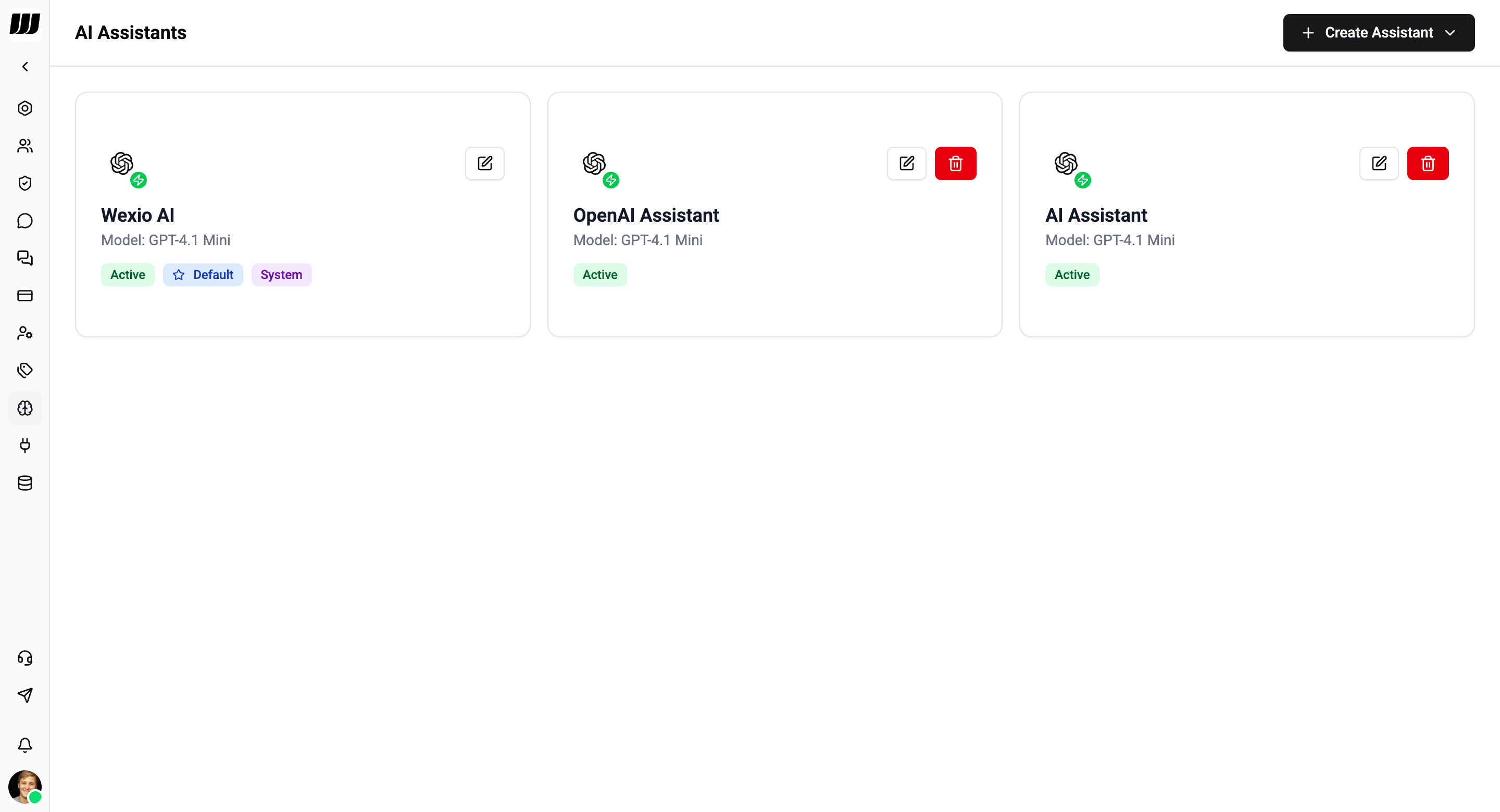
Assistants
AI Assistants are autonomous agents that handle conversations, answer questions, and escalate to humans when needed.
Creating an Assistant
- Go to Settings → AI
- Click Create Assistant
- Select your AI provider (OpenAI or Anthropic)
- Configure the settings below
You can also start from a pre-built template for your industry - templates provide ready-to-use context and model settings that you can customise.
Basic Settings
| Setting | Description |
|---|---|
| Name | Identifier for the assistant |
| AI Provider | OpenAI or Anthropic (must be connected first) |
| Model | Primary AI model for chat responses |
Context Configuration
Define how your assistant behaves:
| Setting | Description |
|---|---|
| Identity | Who the assistant is - name, role, company |
| Objective | What the assistant should accomplish |
| Tone | Communication style - formal, friendly, professional, casual |
| Language | Preferred response language |
| Capabilities | What the assistant can and cannot do |
| Instructions | Detailed behavioural guidelines |
Advanced Settings
Fine-tune the model's behaviour:
| Setting | Description | Default |
|---|---|---|
| Temperature | Creativity level (0 = precise, 2 = creative) | 0.7 |
| Top-P | Nucleus sampling parameter | 1.0 |
| Frequency penalty | Reduce repetition of common phrases | 0 |
| Presence penalty | Encourage topic diversity | 0 |
| Max tokens | Maximum response length | Model default |
Per-Purpose Models
Configure specialised models for different tasks:
| Purpose | Description |
|---|---|
| Chat | Primary model for conversation replies |
| Image generation | DALL-E or GPT Image for creating images |
| Text-to-speech | TTS model for voice generation |
| Audio transcription | Whisper for speech-to-text |
| Vision | Multimodal model for understanding images |
For a full walkthrough including per-chat control and the AI preferences bar, see Assistants.
Knowledge Base
Upload documents so your assistant can reference them when answering questions. Knowledge base content takes priority over the model's general knowledge.
Uploading Documents
- Select an assistant in Settings → AI
- Open the Knowledge Base section
- Click Upload and select files
Supported Formats
| Format | Description |
|---|---|
| Documents, manuals, guides | |
| TXT | Plain text files |
| Markdown | .md files with formatting |
Resolution Priority
When answering, the assistant checks sources in this order:
- Knowledge base (highest priority)
- Conversation context
- Assistant instructions
- General model knowledge (lowest priority)
For managing documents and best practices, see Knowledge Base.
Providers
Connect your AI provider API keys to power assistants and AI actions.
| Provider | Models |
|---|---|
| OpenAI | GPT-4o, GPT-4.1, o4-mini, DALL-E, Whisper, TTS |
| Anthropic | Claude Sonnet, Claude Haiku |
Go to Settings → AI → Providers, click Add Provider, and enter your API key.
For setup details, see AI Providers.
Actions
AI Actions are one-click tools available in the inbox editor. They use your connected provider to perform tasks on messages:
- Suggest reply - draft a response based on conversation context
- Summarise - condense a conversation into key points
- Translate - translate messages to another language
- Improve writing - fix grammar and improve clarity
- Transcribe - convert audio messages to text
- And more
For the full list of actions and configuration, see AI Actions.