InboxChatEditor
Template Sending
Send pre-approved WhatsApp message templates from the editor
For WhatsApp conversations, you can send pre-approved message templates directly from the editor.
When to Use Templates
WhatsApp requires using pre-approved templates when:
- Starting a new conversation - First message to a contact
- Outside the 24-hour window - More than 24 hours since the contact's last message
- Marketing messages - Promotional or marketing content
Sending a Template
- Click the + menu in the editor
- Select WhatsApp Templates
- The template selector modal opens
- Browse or search available templates
- Select a template
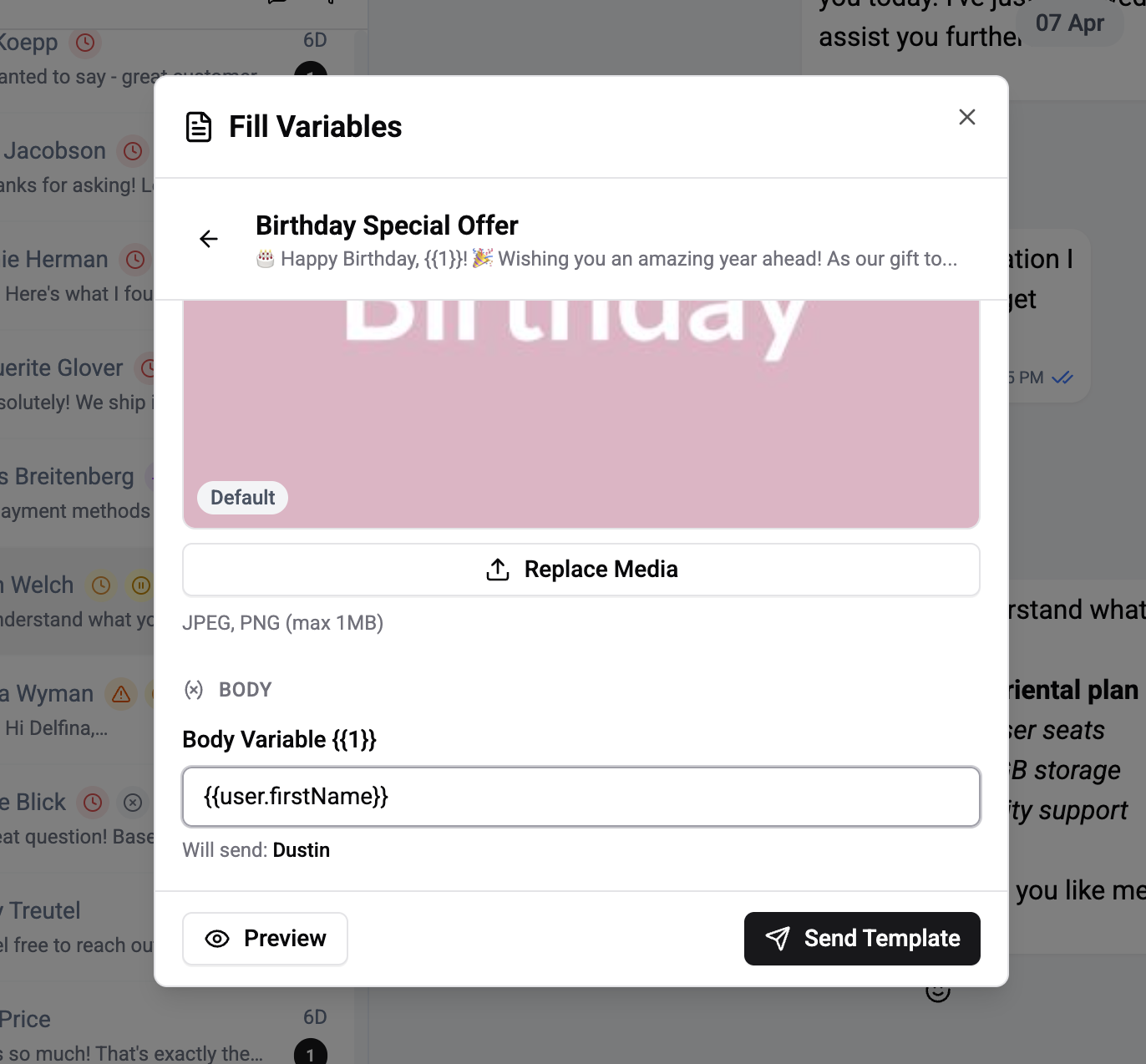
- Fill in any variable values (e.g.,
{{1}}for customer name) - Preview the final message
- Click Send
Template Selector Modal
The modal shows all approved templates for your workspace:
- Search by template name
- Filter by category
- Preview template structure (header, body, footer, buttons)
- View template status (approved, pending, rejected)
Variable Pre-filling
Templates with variable placeholders ({{1}}, {{2}}, etc.) require values before sending:
- Text fields for each variable
- Dynamic preview as you fill in values
- Validation ensures all required variables are populated
Templates must be created and approved in your WhatsApp Business Manager before they can be sent from the inbox.