Account
Account Security
Two-factor authentication, passkeys, and session management
Protect your account with multiple layers of security.
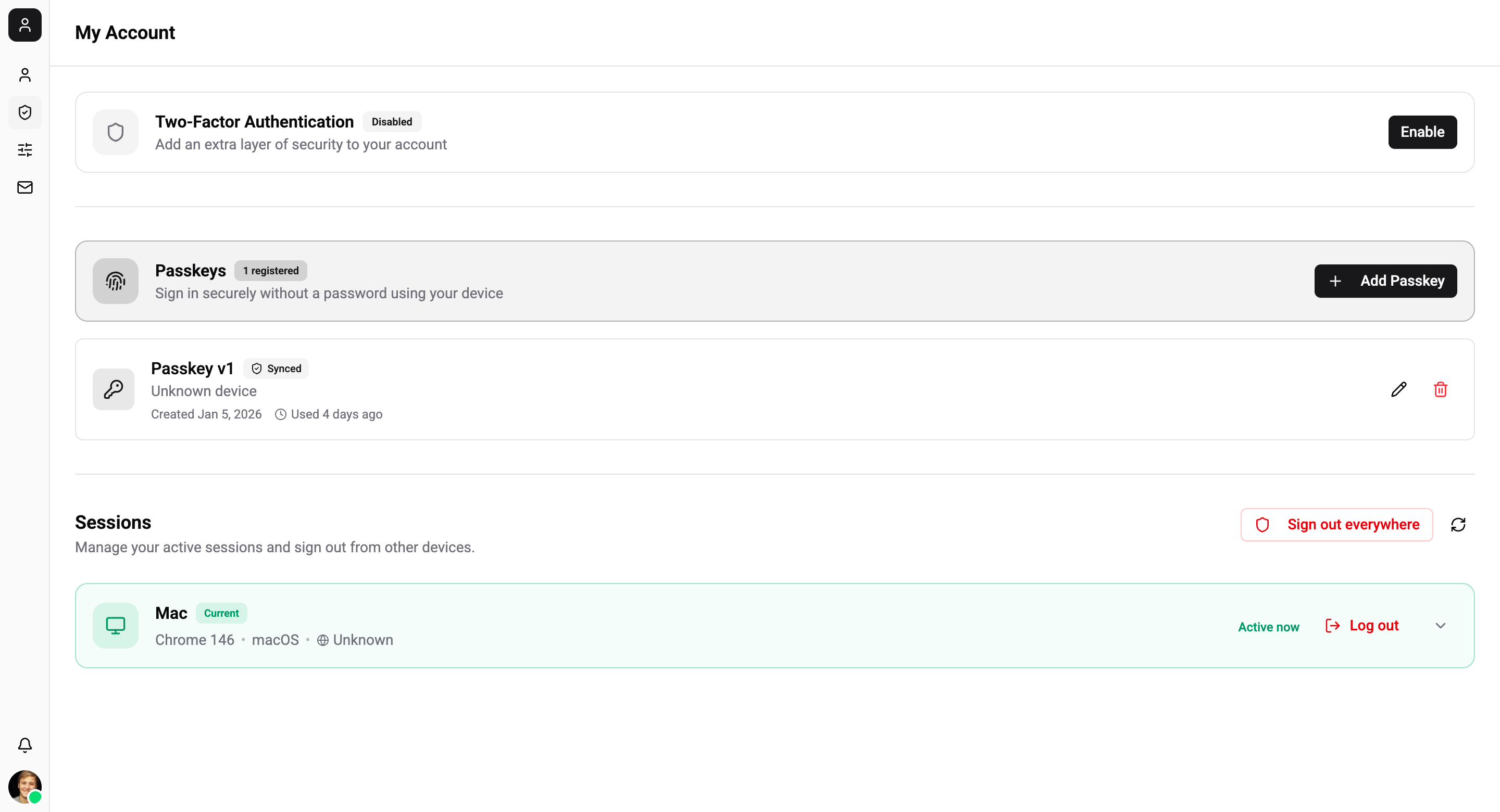
Two-Factor Authentication (2FA)
Add an extra verification step when logging in.
Setting up 2FA:
- Go to Account → Security
- Click Enable 2FA
- Scan the QR code with an authenticator app (Google Authenticator, Authy, 1Password)
- Enter the 6-digit verification code
- Save your recovery codes in a safe place
Once enabled, you'll need to enter a code from your authenticator app each time you log in.
Passkeys
Use biometric authentication for passwordless login - fingerprint, Face ID, or hardware security keys.
Registering a passkey:
- Go to Account → Security
- Click Add Passkey
- Follow your browser's WebAuthn prompt (Touch ID, Windows Hello, USB key, etc.)
- Give your passkey a name for identification
Supported transport types:
- Internal (Touch ID, Face ID, Windows Hello)
- USB (YubiKey, other FIDO2 keys)
- NFC
- Bluetooth (BLE)
- Hybrid (cross-device authentication)
Active Sessions
View and manage all devices where you're currently logged in.
- Go to Account → Security → Sessions
- See a list of active sessions with device info and last activity
- Click Revoke to sign out from a specific device
- Use Sign out all to terminate all sessions except the current one
If you notice a session you don't recognize, revoke it immediately and consider changing your password.