Quickstart
Create a widget and embed it on your site in about five minutes
To get a working widget, create one in the dashboard, copy the script tag, and paste it on your site. It takes about five minutes.
1. Create the Widget
- In the Wexio dashboard, go to Settings → Integrations, find the Web Messenger card, and click Connect.
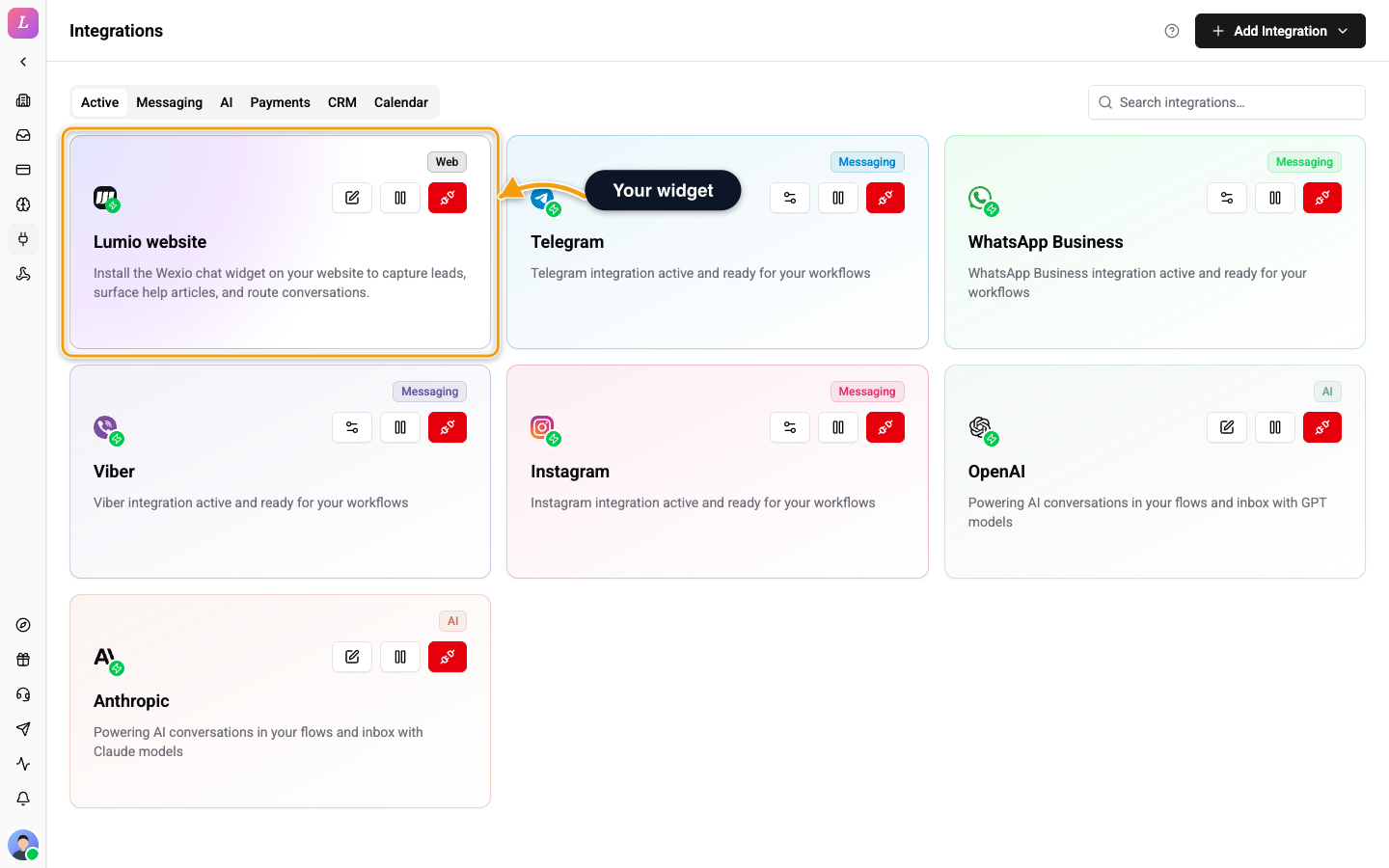
- In the Create Web Messenger modal, enter a Widget name (up to 100 characters, an internal label never shown to visitors) and click Create widget.
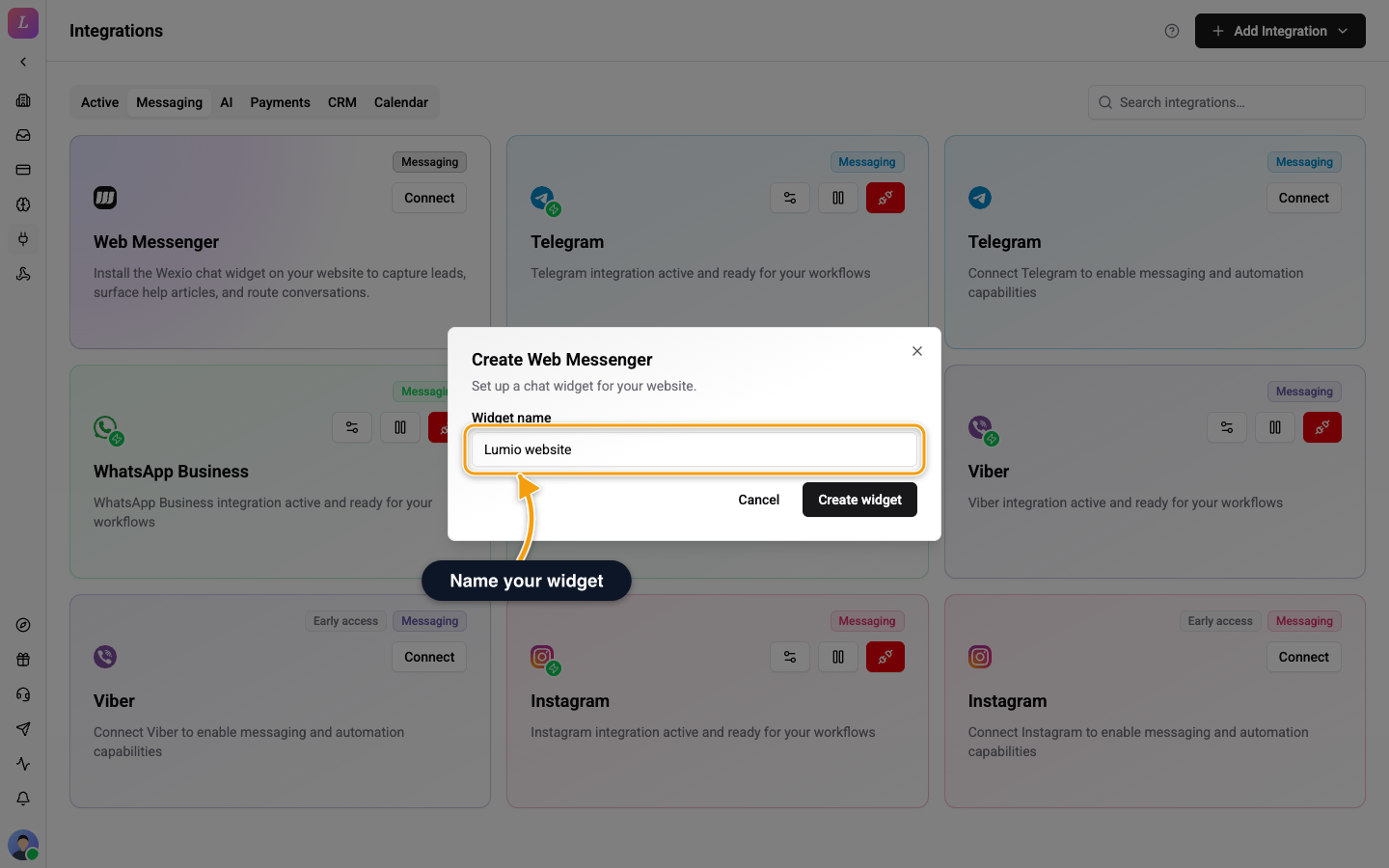
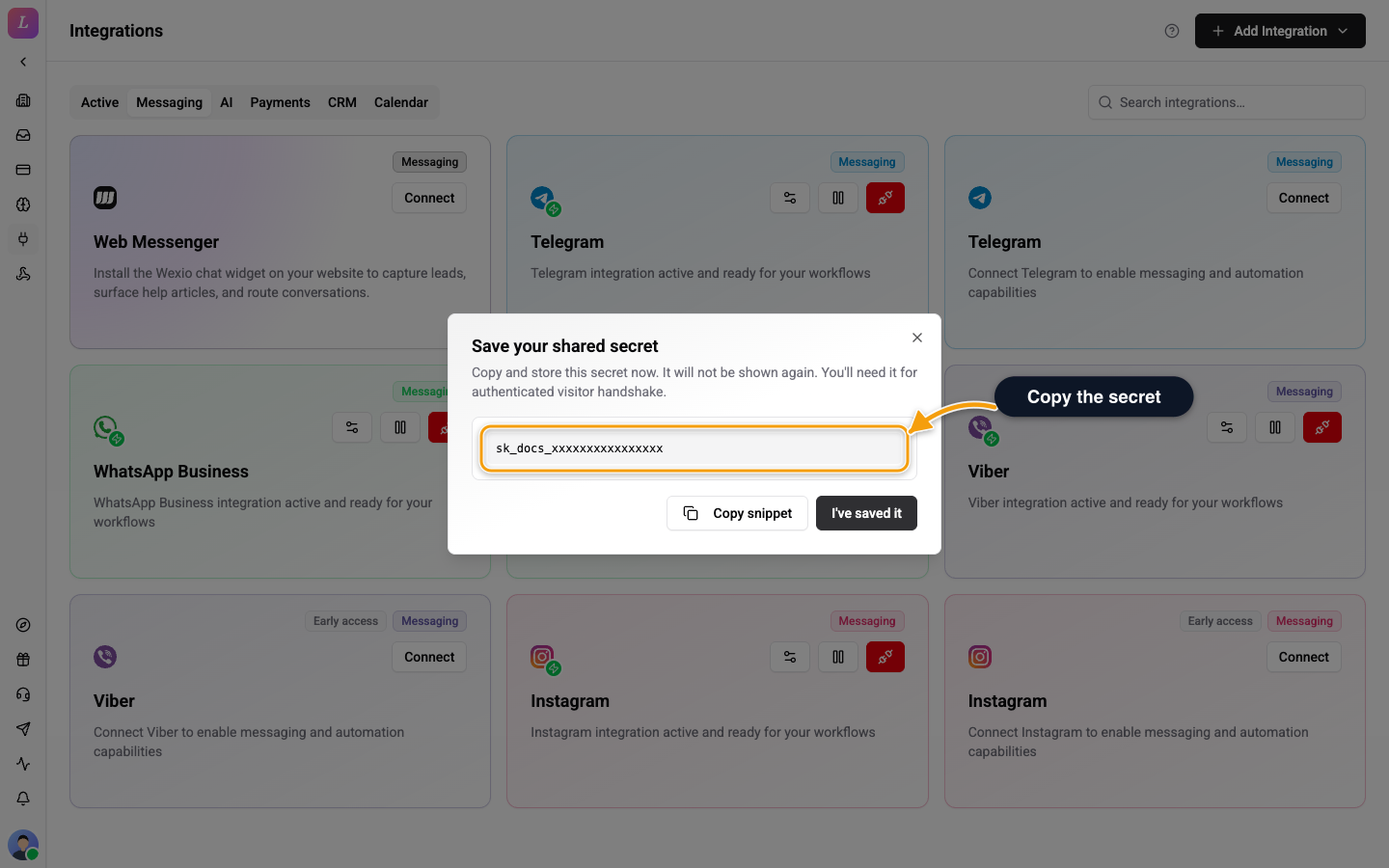
- In the Save your shared secret step, click Copy snippet and store the secret in a secrets manager. It is shown once, and you need it later for authenticated visitors. Click I've saved it.
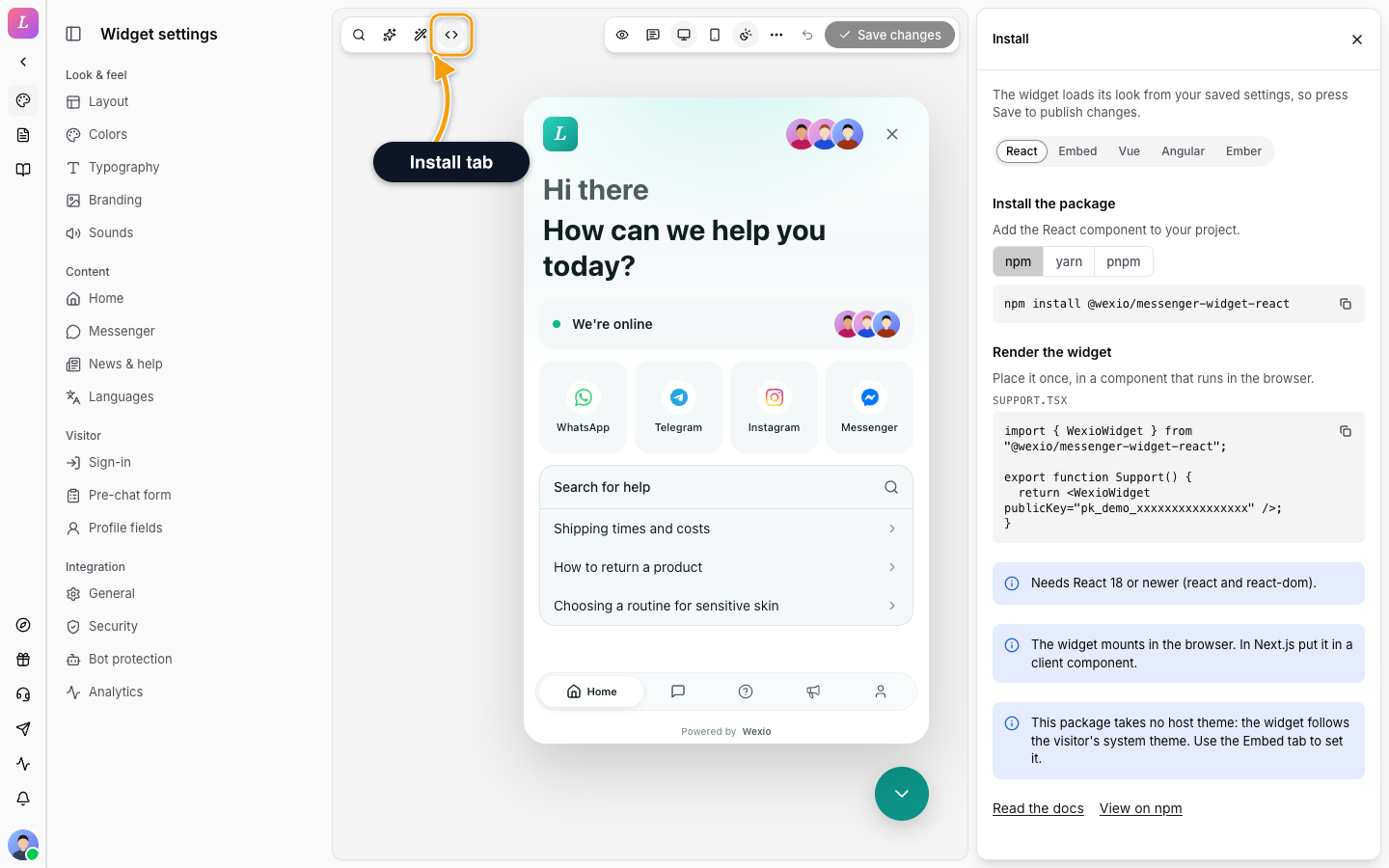
You land in the Widget settings. A new widget starts with sensible defaults, and you can customise it later.
Every plan can build and preview one widget. To embed it on your site, you need the Standard plan or higher. On Free an embedded widget stays hidden, and the Connect button is locked: open Brand in the sidebar and Wexio creates the widget for you.
2. Copy Your Embed Snippet
In the Widget settings, click Install in the left toolbar. Open the Embed tab and copy the script tag. It already contains your public key (pk_live_…).
3. Paste It on Your Site
Paste this before the closing </body> tag on any page. Replace pk_live_... with your public key.
<script
  async
  src="https://cdn.wexio.io/widget/loader.js"
  data-public-key="pk_live_..."
></script>
Reload the page and the launcher appears in the corner.
What You Get Out of the Box
- A launcher bubble. It opens the widget panel.
- Five tabs. Home, Messages, Help, News, and Profile. Toggle any off in Configure.
- AI auto-reply. It uses your organisation's default assistant.
- The default theme. Near-monochrome, following the visitor's light/dark system preference.
Related
- Configure - colours, logo, copy, tabs, and languages in the Widget settings.
- Install - Web Component or React instead of the script loader.
- Authentication - sign logged-in users in so conversations are attributed.
- Content - knowledge-base articles and announcements.