Passkeys
Add, rename and delete passkeys to sign in with a fingerprint, Face ID or a security key
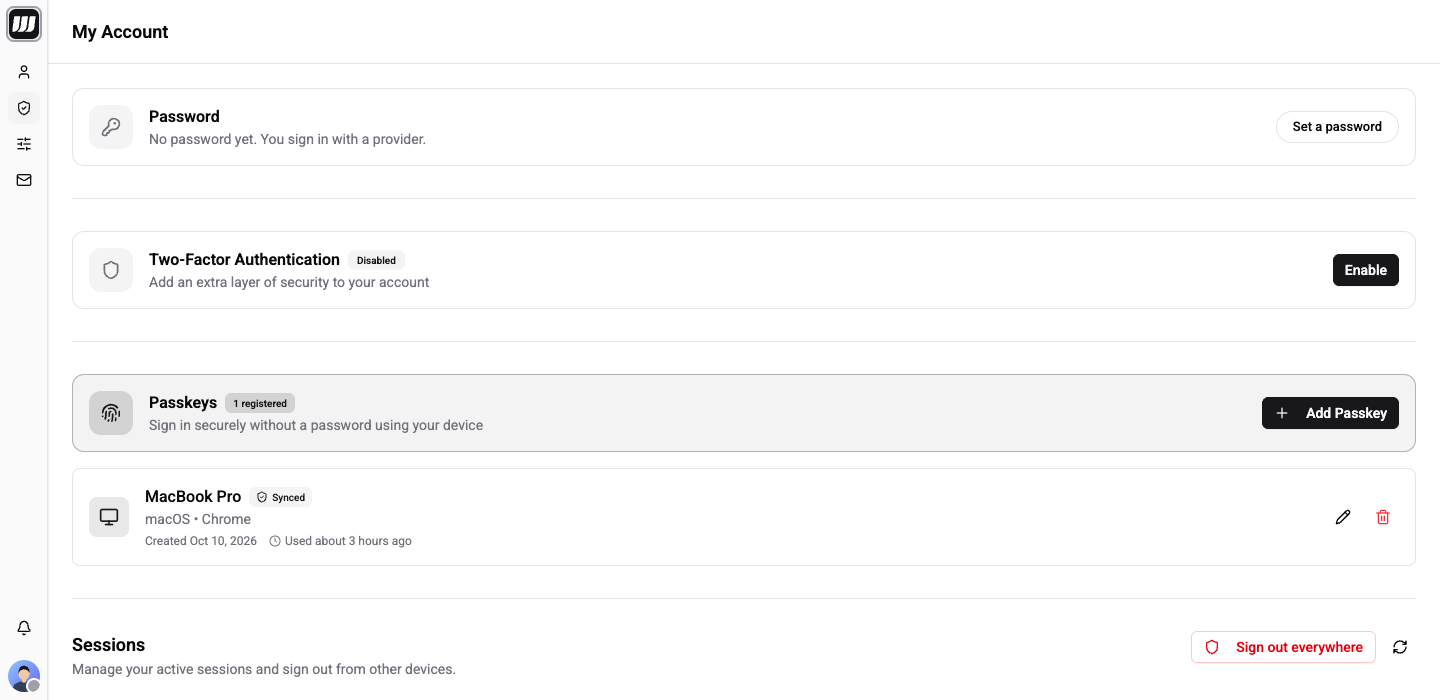
A passkey signs you in without a password or a code. You confirm with Face ID, Touch ID, Windows Hello or a hardware security key.
Add a Passkey
- Go to Account → Security.
- Under Passkeys, click Add Passkey (or Add your first passkey).
- Follow your browser prompt.
If you already have a second factor, Wexio asks you to confirm it is you first. The passkey then appears in the list with when it was created and last used. Synced marks a passkey your device backs up and shares across your devices.
If the section shows Passkeys Not Available, the page is not on HTTPS or your browser does not support passkeys. Use a current Chrome, Safari, Firefox or Edge.
Rename or Delete a Passkey
- Rename. Choose Rename, type a name such as
MacBook Prounder Device Name, and click Save Changes. - Delete. Choose Delete, then Delete Passkey. You can no longer sign in with it. Wexio asks you to confirm it is you first.
You can delete your last passkey. There is no limit on how many you add. Deleting needs a fresh confirmation, and afterwards you sign in another way until you add a new one.
Sign In with a Passkey
On the sign-in screen, choose Sign in with Passkey. The button shows only when your browser supports passkeys. See Sign In.
If your organisation enforces single sign-on, passkeys are refused for your email and you cannot add one.