API Keys in the Dashboard
Create, limit, review and revoke an Org API key from Settings, step by step
Create an API key in the dashboard, choose what it may do, and copy the secret once. This page covers the screens; for the model behind scopes and limits, see Authentication.
Before You Start
- Plan. Creating a key needs the Standard plan or higher. On a lower plan the page shows Creating API keys requires a Standard plan or higher. Existing keys can still be reviewed and revoked.
- Role. Owners and Admins create, edit and revoke keys. A key cannot do any of this itself, so a leaked key can never create another.
- Where. Open Settings, then Webhooks and API, then API keys. The same group holds Webhooks and MCP.
Create a Key
- Click New key. The Create an API key dialog opens.
- Enter a Label (optional), for example
Billing sync. It is only for you, to tell two keys apart in the list. - Tick the Permissions the key needs. Pick the narrowest set; see Permissions.
- Under Limits (optional), set a daily send cap, an expiry date or allowed IP addresses. Leave a field empty for no limit.
- Click Create key.
- Copy the key from Your new key, then click I've copied it.
This is the only time the key is shown. Once this dialog closes it cannot be retrieved - you would have to create a new one. Store it in your secret manager before you close the dialog.
If creation fails, the dialog shows Could not create the key.
Permissions
Permissions are fixed when you create the key. To change them, create a new key and revoke the old one. The dialog groups them by what they act on. Hover the info icon beside a permission to see what it allows. Four sensitive ones print their warning under the checkbox: Start new conversations, Delete chats and conversations, Read personal data (unmasked) and Erase contacts (GDPR).
| Group | Permission in the dialog | API scope |
|---|---|---|
| Messaging | Read messages | MESSAGES_READ |
| Send messages | MESSAGES_SEND | |
| Start new conversations | CONVERSATIONS_START | |
| Manage conversations | CONVERSATIONS_MANAGE | |
| Write notes | NOTES_WRITE | |
| Delete chats and conversations | CONVERSATIONS_DELETE | |
| Contacts | Read contacts | CONTACTS_READ |
| Manage contacts | CONTACTS_MANAGE | |
| Content | Read content | CONTENT_READ |
| Manage content | CONTENT_MANAGE | |
| Workspace | Manage channels | CHANNELS_MANAGE |
| Read team | TEAM_READ | |
| Manage team | TEAM_MANAGE | |
| Personal data | Read personal data (unmasked) | PII_READ |
| Erase contacts (GDPR) | CONTACTS_ERASE | |
| Partner | Partner administration | PARTNER_ADMIN |
The Partner group appears only for integration partner organisations. See Authentication for what each scope unlocks.
Send messages on its own is reply-only: the key can answer chats that already exist but cannot start a new one. Tick Start new conversations only for systems that must message a contact first. A leaked key with it can spam your contacts.
Limits
All limits are optional. Empty means no limit, and you can change them later with Edit limits.
| Field | What it does |
|---|---|
| Daily send cap | Most messages the key may send per day (UTC). Reactions and edits do not count. A whole number from 1 to 1,000,000. |
| Expires | After this moment every call with the key is refused. Pick a moment in the future. |
| Allowed IP addresses | Press Enter after each address or range, for example 203.0.113.0/24 or 2001:db8::1. At most 20 entries. A /0 range is not accepted. |
Review a Key
Each row shows the label (or Unlabelled key), a status of Active, Revoked or Expired, and when it was last used (Never used if it has not been). Anyone who can open Settings sees the list. Only Owners and Admins create, edit and revoke keys.
Key Logs
Click Logs in a key's row to open a panel with what that key changed and what it was refused. Everyone who sees the key can open it, also for a revoked key. There is no separate audit page.
The API keys page is not available in an organisation that a tech provider manages through the API. Opening it sends you back to Settings, so those organisations have no Logs button either.
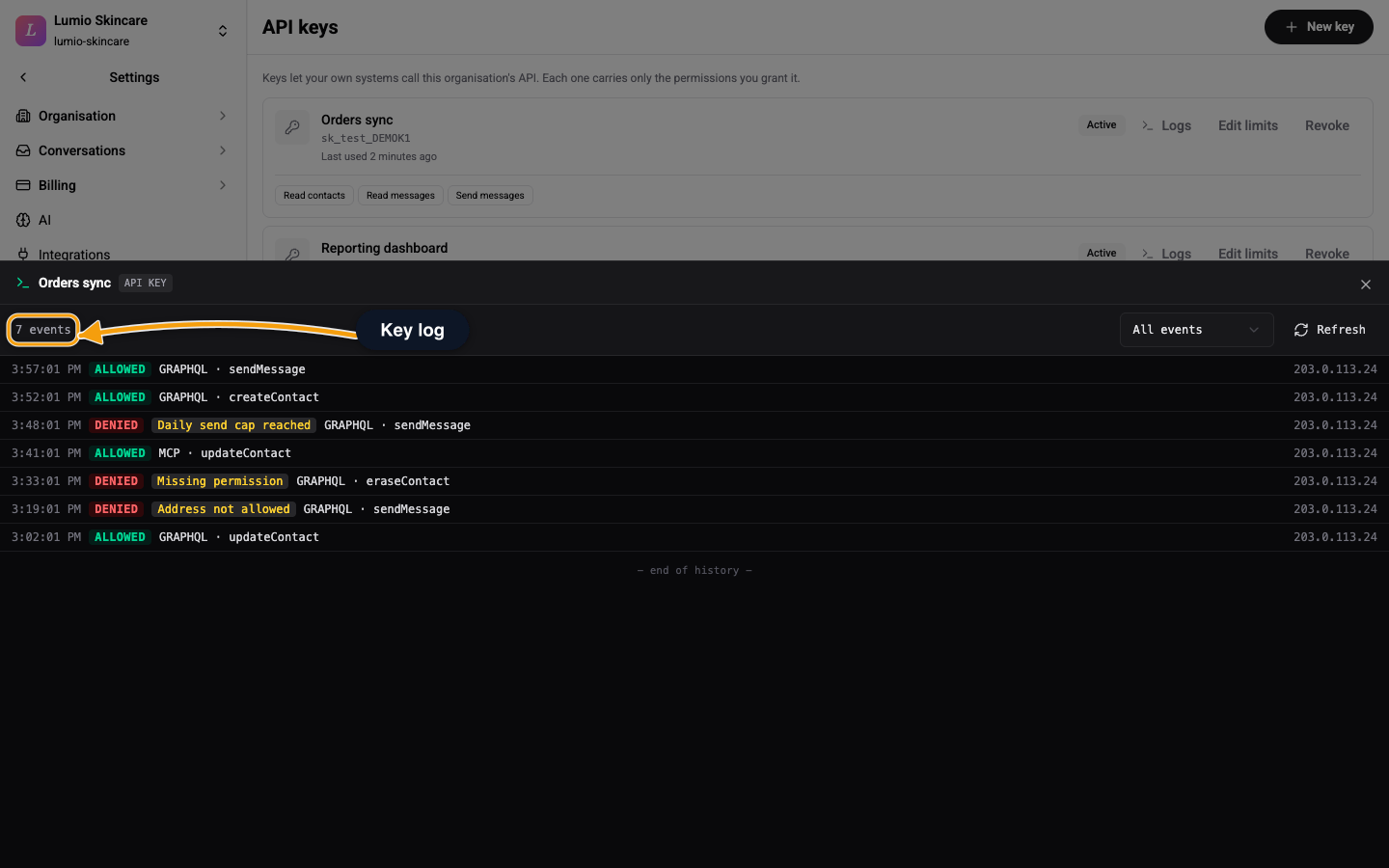
The panel keeps events for 90 days. Only writes and refused calls are recorded; allowed reads are not. Use the filter to show All events, Changes made or Refused calls. A refused call shows the reason:
| Reason | Meaning |
|---|---|
| Missing permission | The key lacks the permission the call needs |
| Daily send cap reached | The key used its daily cap |
| Address not allowed | The call came from outside Allowed IP addresses |
| Key expired | The expiry date has passed |
| Key revoked | The key was revoked |
| Wrong secret | The secret did not match |
| Rate limited | The key went over a rate limit |
Edit Limits or Extend a Key
Click Edit limits on an active key to change its daily send cap, expiry or allowed IP addresses. Permissions are fixed. An expired key shows Extend instead: set a later date, or clear the expiry, and the key works again.
Revoke a Key
Click Revoke on the row, then Revoke in Revoke this key?. Anything using the key stops working immediately and this cannot be undone. The row stays in the list as Revoked.
Connect an AI Agent
The same key connects an MCP client on the Pro and Enterprise plans. Create a key just for the agent with only the permissions it needs, then follow Connect an MCP Client.
Related
- Authentication - scopes, bound keys, the daily send cap and the audit log in the API.
- Connect an MCP Client - use a key with Claude, Cursor or any MCP client.
- Connecting an AI Agent - how to keep an agent's key narrow.
- API Keys (GraphQL) - the same operations from code.