Explore
Use the Explore screen to finish setting up your new workspace
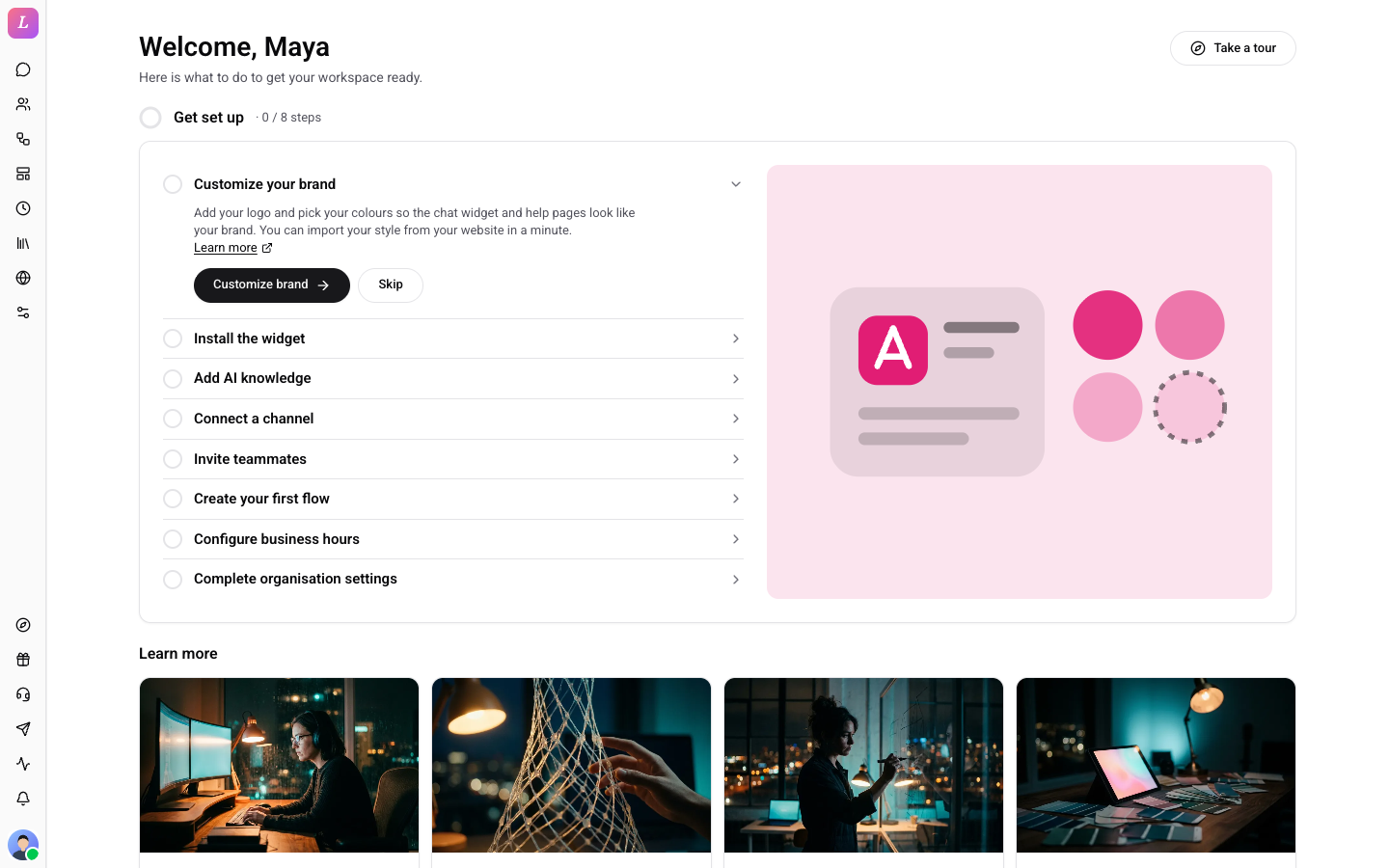
Explore is the first screen of a new workspace and the home of your setup checklist. It greets you and lists the steps that get your workspace ready.
Who Sees Explore
Explore is for people who can manage the organisation, which means Owners and Admins. Other roles do not get the sidebar item. If they open the page, Wexio sends them to the Inbox. Plans do not close it. Tech-provider organisations and their managed client organisations do not get it either.
The Explore item has a compass icon and sits at the top of the lower group of the sidebar, above Support and Feedback. Its badge shows the steps still open. When nothing is left to do, the badge goes away and the item stays.
When You Land on Explore
Wexio checks this every time you enter an organisation, including after you switch organisations.
- Three steps or fewer done. You land on Explore, every time.
- More than three steps done. You land in the Inbox.
- Members. They have no checklist and always land in the Inbox.
After onboarding, whether you pay or choose Free, Wexio opens Explore. Locked steps never count as done. If an organisation has not finished onboarding, Wexio reopens its onboarding first.
The Screen
- Welcome.
Welcome, {name}with your first name, the line Here is what to do to get your workspace ready. and Take a tour, which starts the guided tour. - Get set up. The checklist, with the count of finished steps, for example 2 / 8 steps.
- Learn more. Cards for Inbox, Flow, AI and Web widget, and a few how-to articles.
The Setup Checklist
Click a step to open it. An open step explains what to do, links to its docs with Learn more, and has a button that takes you to the right page.
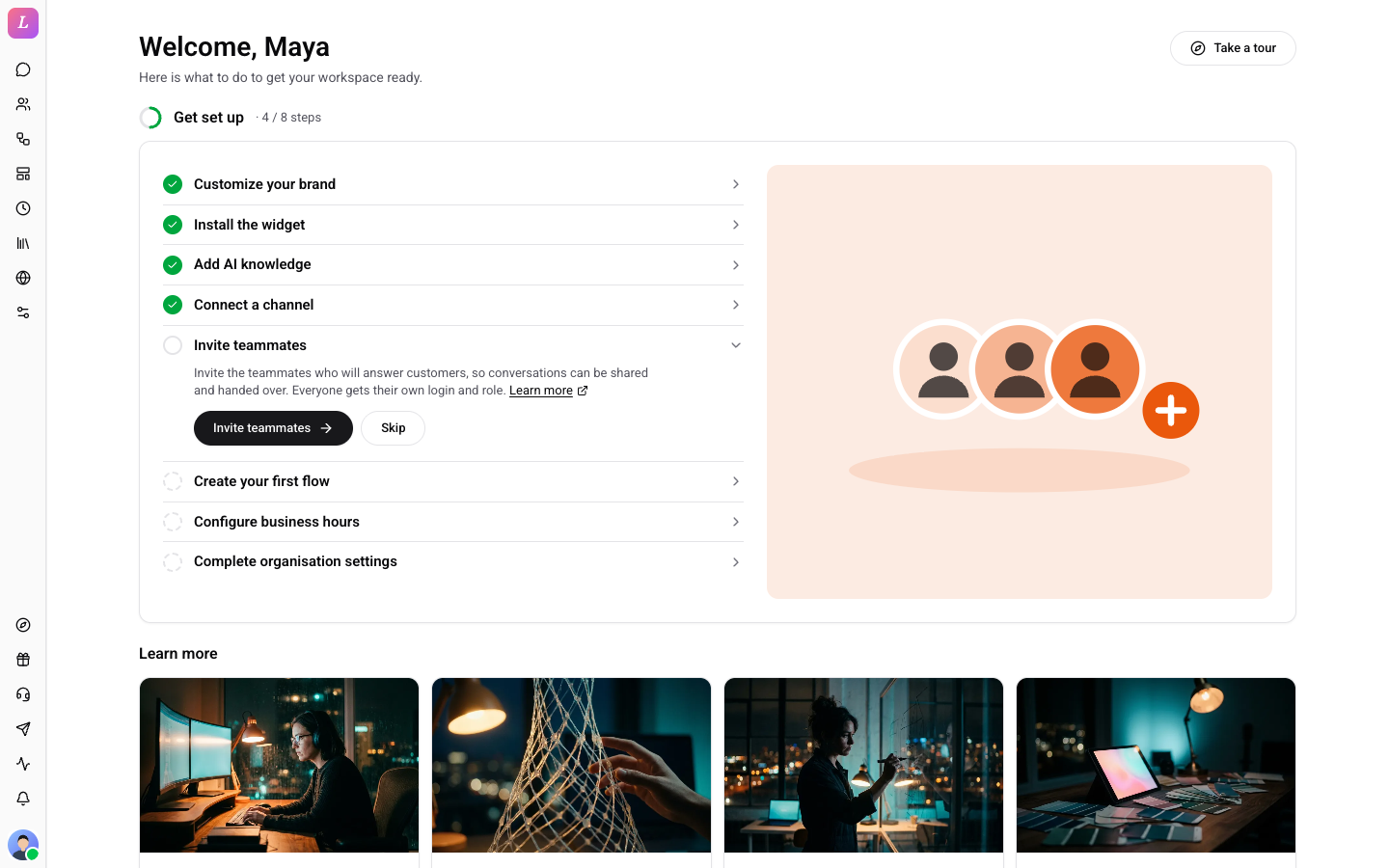
| Step | Button | Done when | Locked on |
|---|---|---|---|
| Customize your brand | Customize brand | Your brand is set up (Web > Brand) | Never |
| Install the widget | Install widget | Wexio sees the widget load on your site (Install tab) | Free, unless the widget is already installed |
| Add AI knowledge | Add knowledge | You add knowledge or have an AI persona ready (Settings > AI) | Never |
| Connect a channel | Connect channel | A channel is connected (Settings > Integrations > Messaging) | Never |
| Invite teammates | Invite teammates | You invite a teammate (Settings > Team) | Free |
| Create your first flow | Build a flow | A flow exists (Flow) | Never |
| Configure business hours | Set business hours | You save business hours (Settings > General) | Never |
| Complete organisation settings | Complete profile | You complete your organisation profile (Settings > General) | Never |
Each step is done (a green check), to do, skipped (a dashed circle) or locked (a lock). The heading shows progress as, for example, 2 / 8 steps, and locked steps stay in the total.
Skip. On an open step, choose Skip to mark it skipped. A skipped step still counts as open. Choose Do it now to bring it back.
Upgrade to unlock. A locked step shows Upgrade to unlock and links to billing. See Plan & Billing.
You do not tick steps off by hand. Wexio marks a step done when you finish it on its own page, so open Explore again to see the new count.