Home Block Kinds
What each Home block shows to the visitor and every setting of the Ask a question card, Recent message, Featured article, Help search, Pinned articles, News preview, Team status, Rich text and Divider
Each block is one card on the Home tab. This page lists what the visitor sees and the settings in Edit block for every kind except Quick Actions. To add a block, see Home.
Ask a Question Card
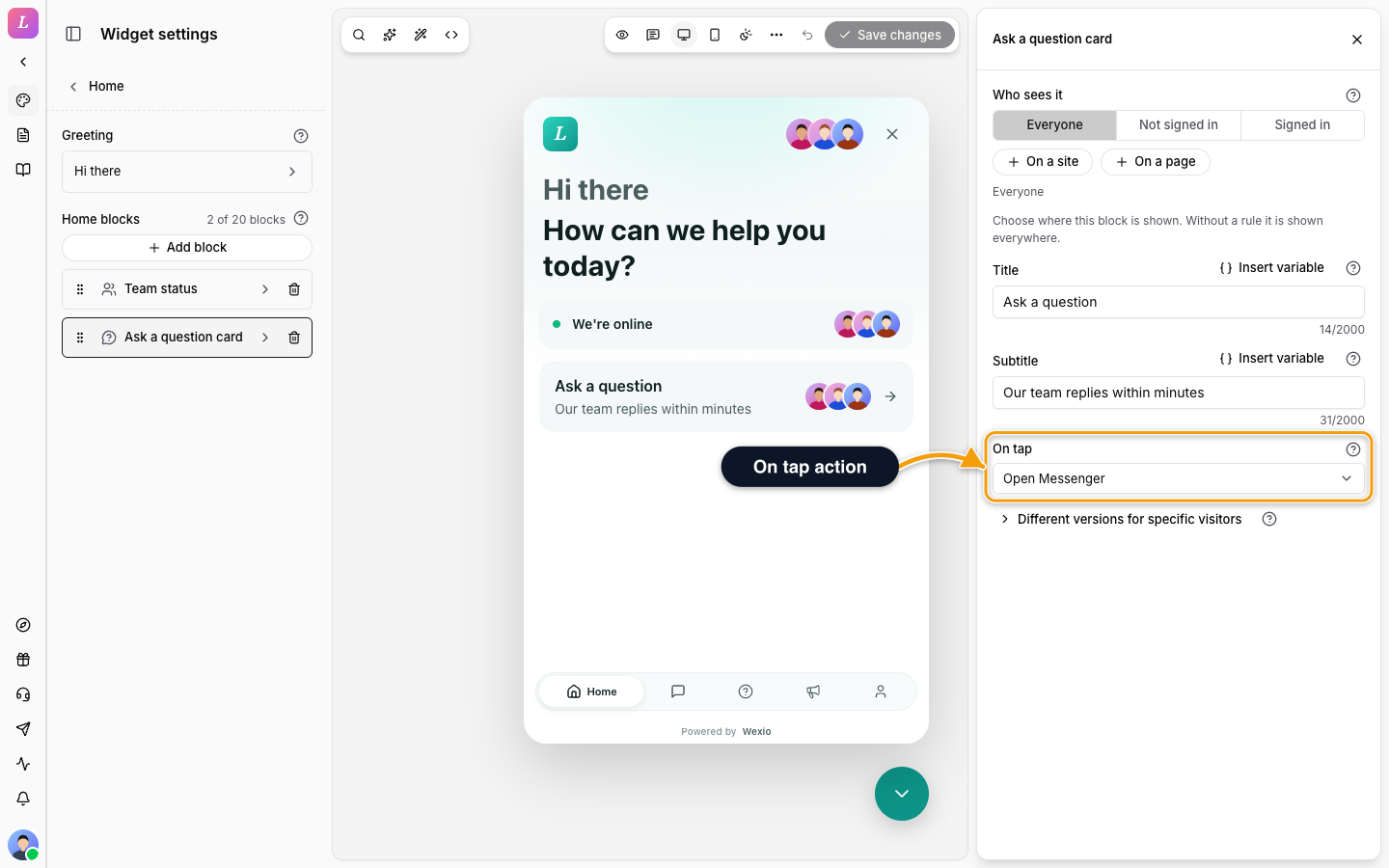
The visitor sees a card with your title and subtitle, a stack of your operator avatars and a chevron. A tap on the card opens the tab you choose.
| Setting | Notes |
|---|---|
| Title | Placeholder: Ask a question. Accepts variables. |
| Subtitle | Placeholder: Our bot and team can help. Accepts variables. |
| On tap | Open Messenger (default), Open Help or Open News. |
The avatars come from the operator avatars of your widget. With none set, the card shows no stack.
Recent Message
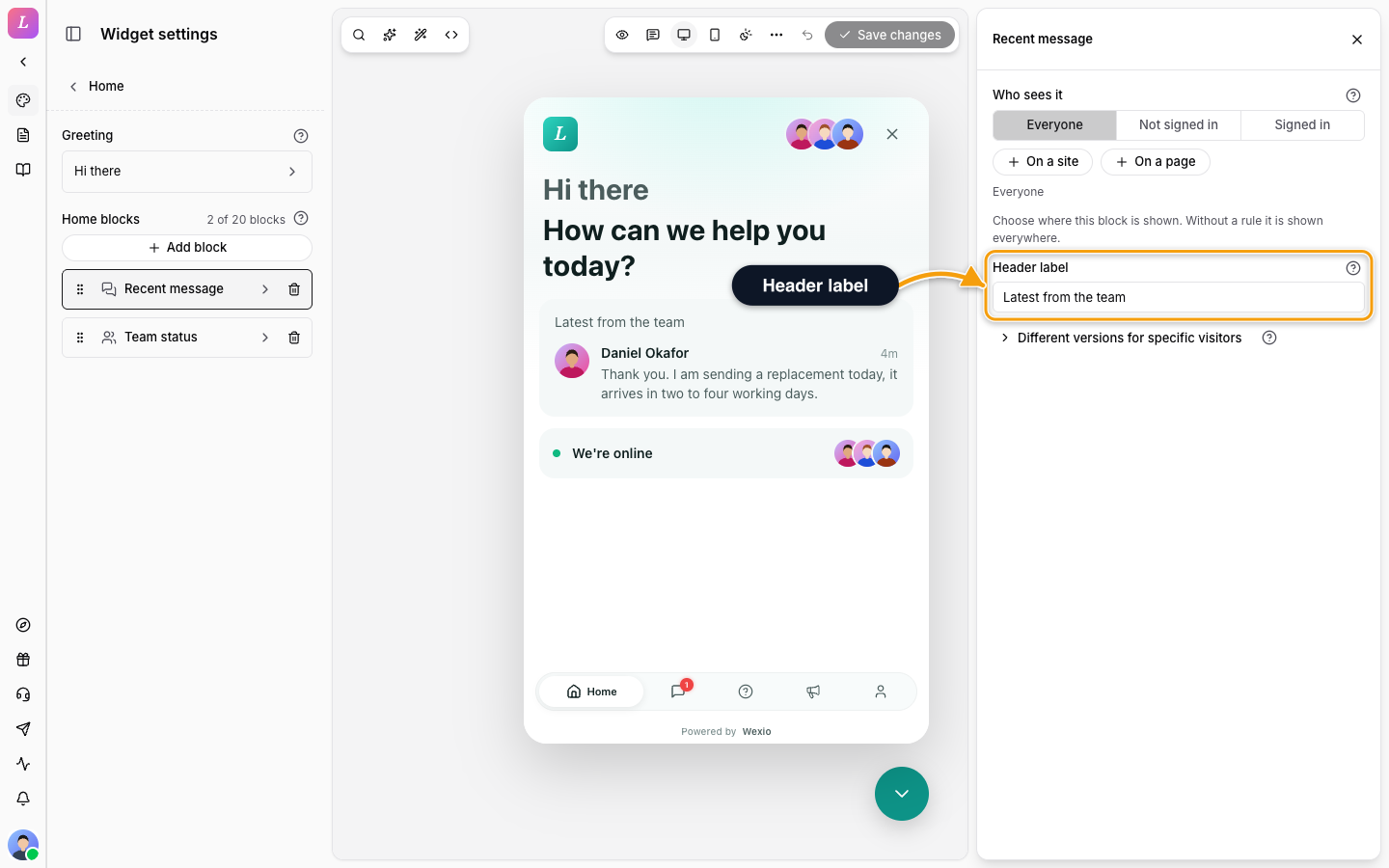
The visitor sees the latest message your team, bot or AI sent them. A tap opens that conversation. The block hides itself when the visitor has no chat history. It can appear once.
| Setting | Notes |
|---|---|
| Header label | Placeholder: Recent message. Left empty, the widget uses its own Recent message text in the visitor's language. |
Featured Article
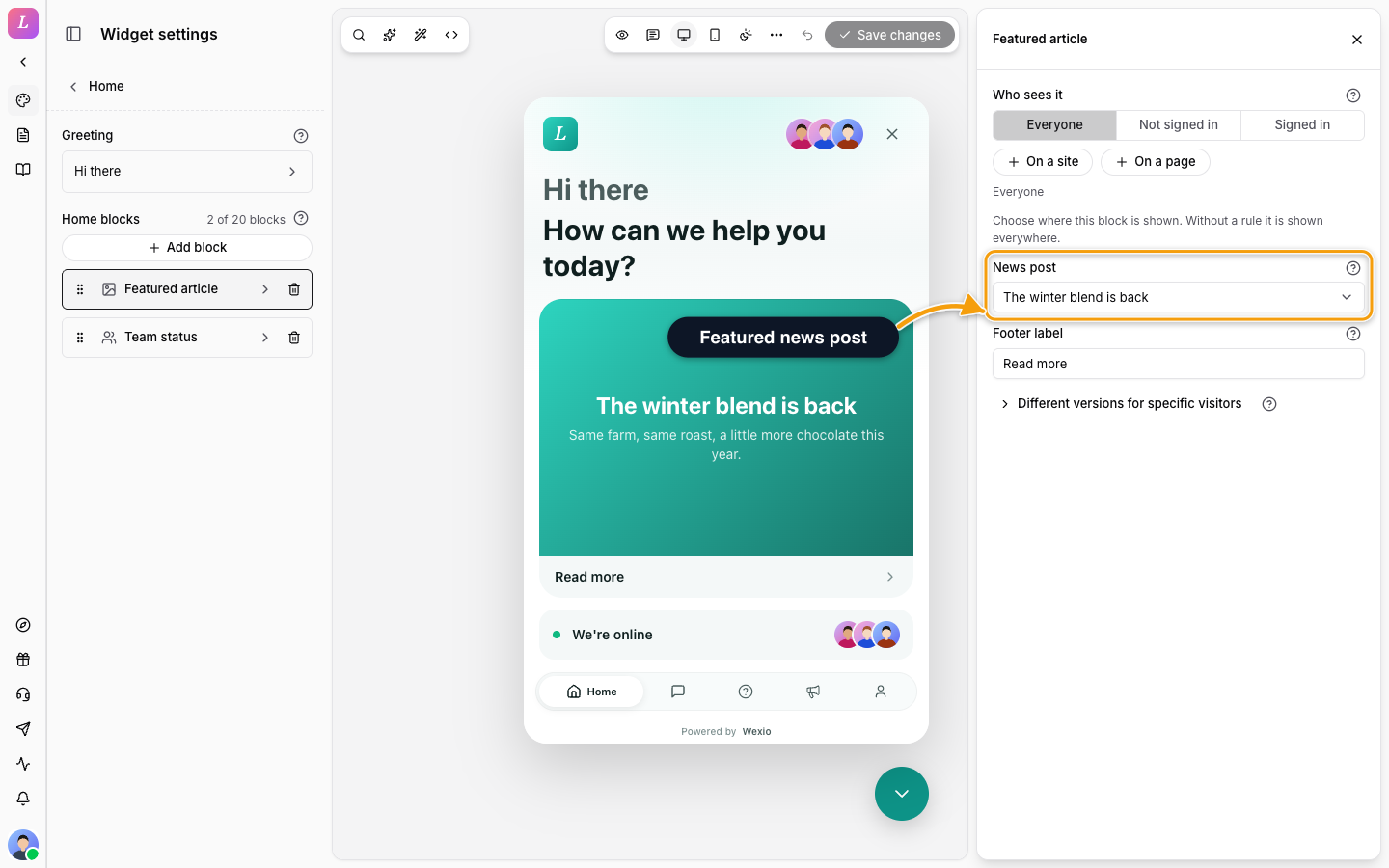
The visitor sees a full-width hero card with the cover image, title and excerpt of one published news post. A tap opens the post. With no post picked, or a post that is no longer published, the card shows the theme gradient and no post.
| Setting | Notes |
|---|---|
| News post | A published news post. The list shows the newest 50. Default: No post selected. |
| Footer label | Placeholder: See the launch agenda. Left empty, the widget shows Tap to read in the visitor's language. |
The post comes from News. Publish it there first.
Help Search
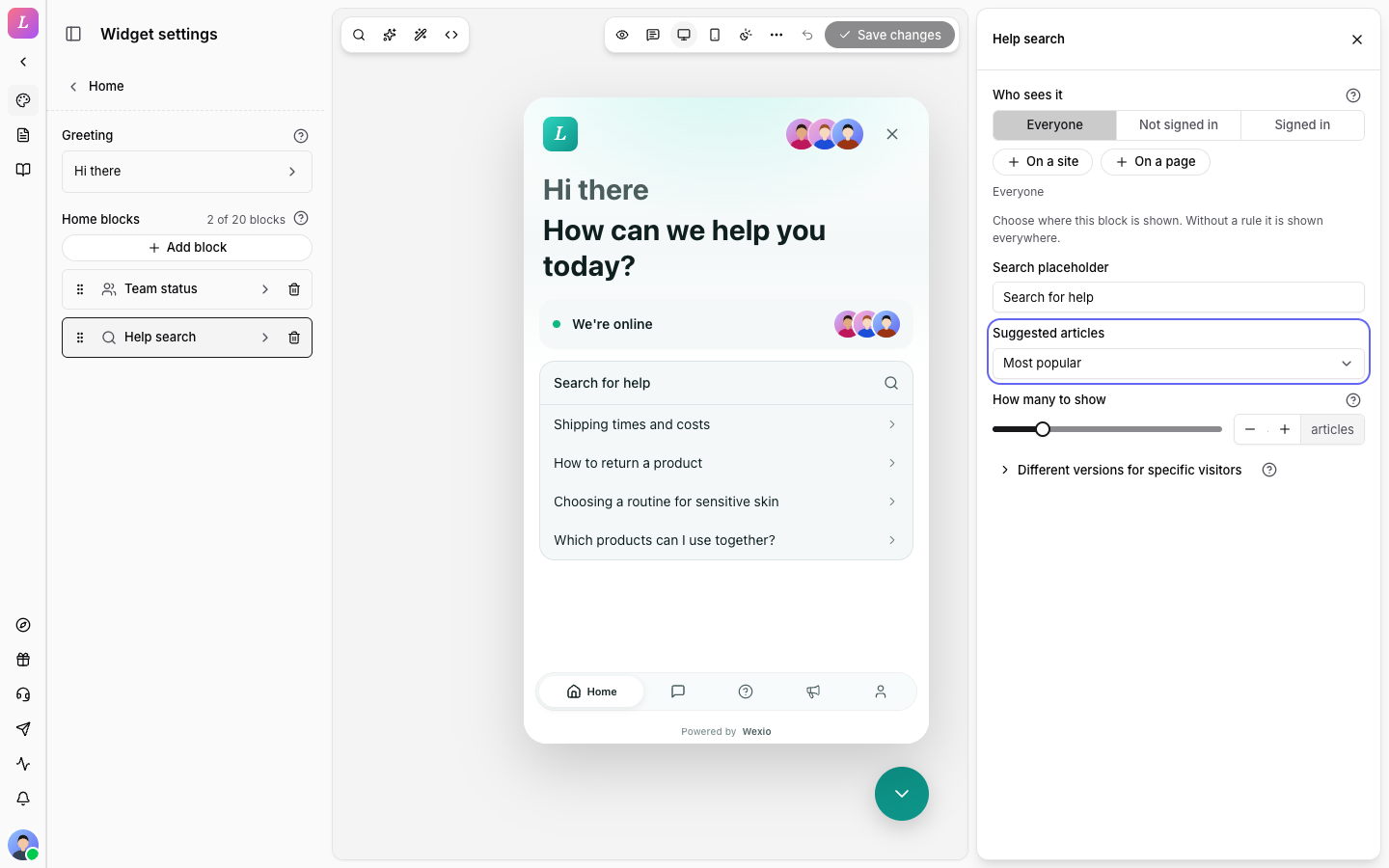
The visitor sees a search box with suggested articles. A tap on a suggestion opens the article. The block can appear once.
| Setting | Notes |
|---|---|
| Search placeholder | Placeholder: Search for help. |
| Suggested articles | Most popular (default), Recently updated, From a category or Hand-picked. |
| Category | Shown for From a category. Pick a help folder, or Whole knowledge base for all of it. |
| How many to show | 3 to 8 articles. A new block starts at 4. Not shown for Hand-picked. |
| Articles to show | Shown for Hand-picked. Up to 8 published help articles, shown in the order you queue them. |
Pinned Articles
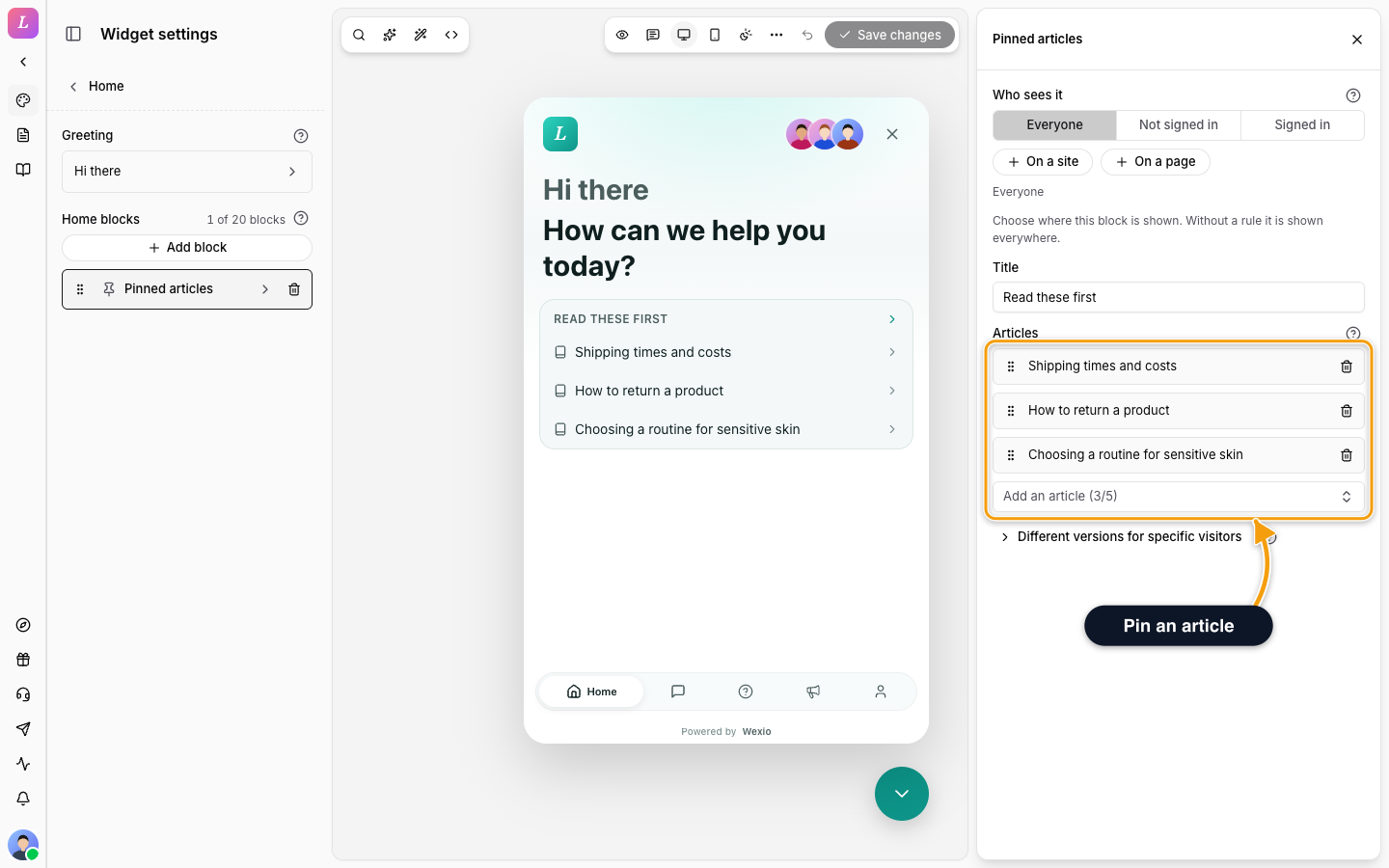
The visitor sees a short list of the help articles you chose. A tap opens the article.
| Setting | Notes |
|---|---|
| Title | Placeholder: Read these first. |
| Articles | Up to 5 published help articles. Drag to reorder, use the bin to remove. |
An article you later delete or unpublish stays in the queue as Article unavailable (deleted or unpublished). It counts toward the 5. Remove it.
News Preview
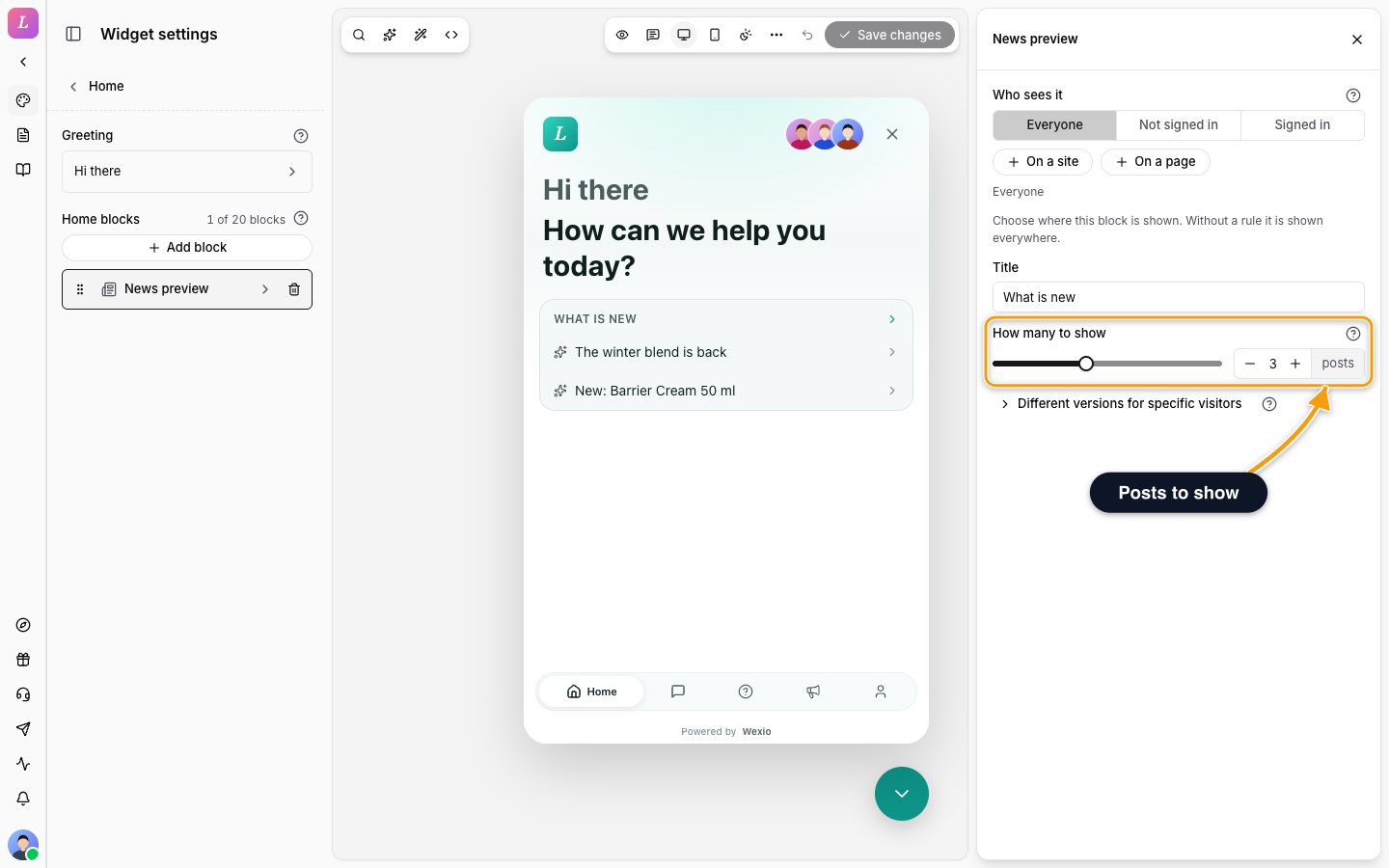
The visitor sees the titles of your latest published news posts. A tap opens the post. With no posts, the block is hidden. It can appear once.
| Setting | Notes |
|---|---|
| Title | Placeholder: Latest news. |
| How many to show | 1 to 6 posts. A new block starts at 3. |
Team Status
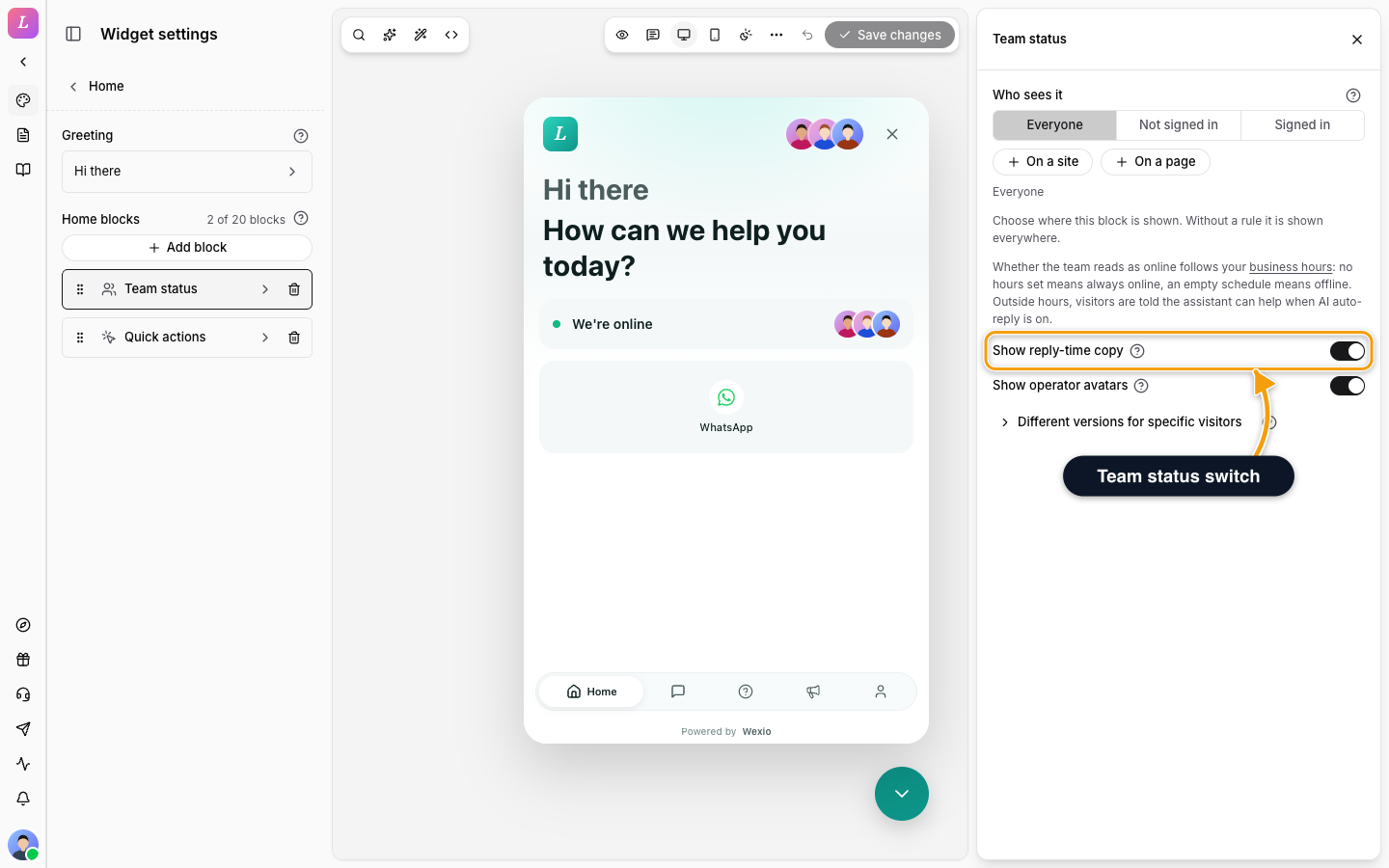
The visitor sees who can answer now. The block can appear once.
| Setting | Notes |
|---|---|
| Show reply-time copy | On by default. Shows a line such as Usually replies in a few minutes. |
| Show operator avatars | On by default. A small stack of your team's avatars. |
Whether your team reads as online follows your business hours. With no hours set, the team is always online. With an empty schedule, it is offline. Outside hours, visitors are told the assistant can help when AI auto-reply is on.
| Presence | What the visitor sees |
|---|---|
| Operators online | We're online, plus a response-time line. |
| AI available | The assistant by name, for example Gaia can help right now. |
| Offline | We're away, with when the team is back. |
The reply-time line appears once there is enough data: at least five answered web chats in the last 30 days. It is a bucket, not a number: instantly, in a few minutes, within a few hours, or within a day. When nobody is available, the block shows the next opening time from your business hours, or back soon if it cannot tell.
Rich Text
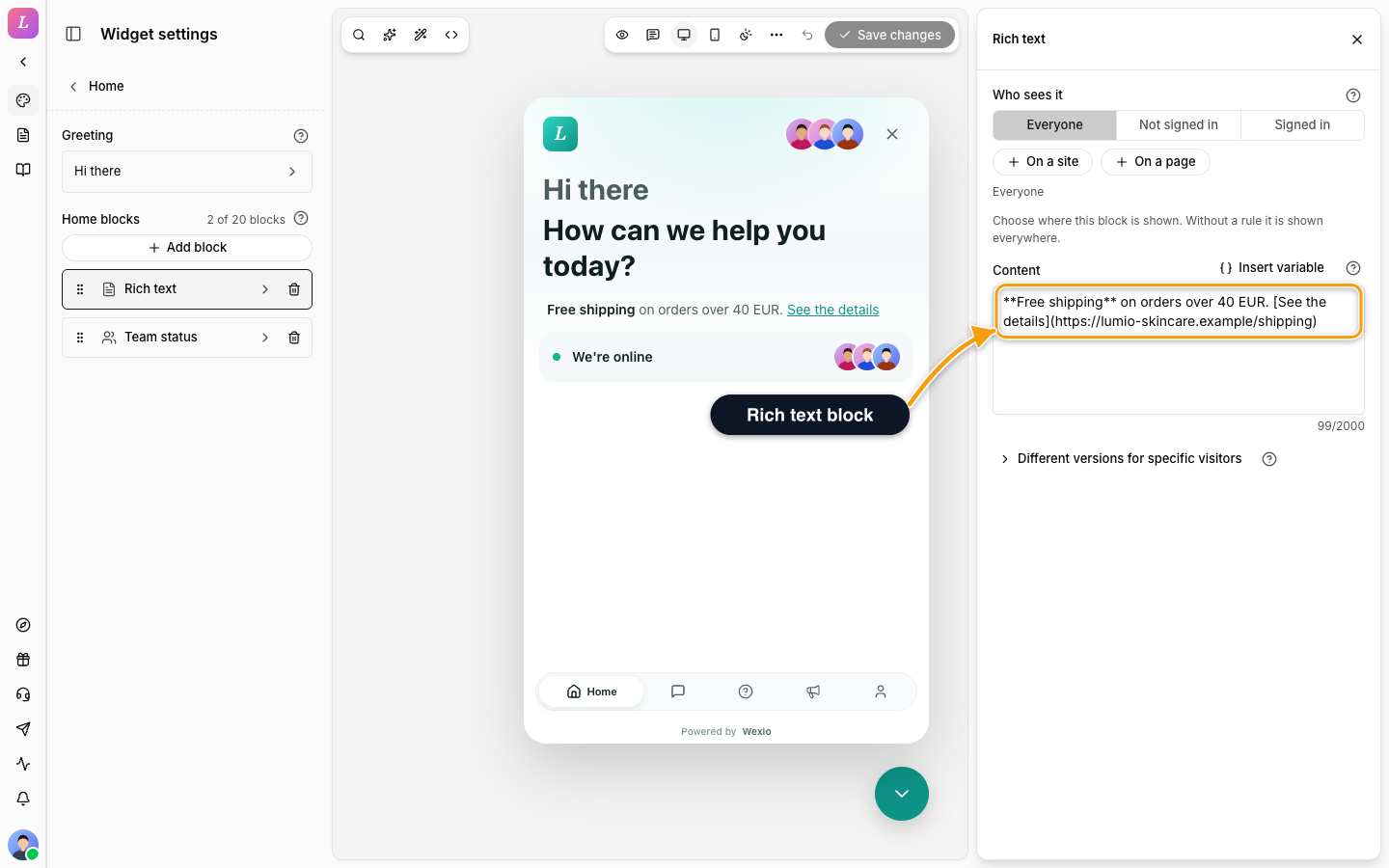
The visitor sees your own text.
| Setting | Notes |
|---|---|
| Content | Markdown: bold, italic and links. No headings or images. Accepts variables. Placeholder: Write a custom announcement… |
Divider
A hairline between two blocks. It has no settings.
Related
- Home - add, reorder and remove blocks, and the greeting.
- Quick Actions - buttons and tiles with icons.
- Message Targeting - show a block to some visitors.
- News & Help - the posts and articles these blocks show.