Collections
Organize your inbox with custom filtered views
Collections are saved filter configurations that create custom views of your inbox. They appear in the left sidebar for one-click access to specific groups of conversations.
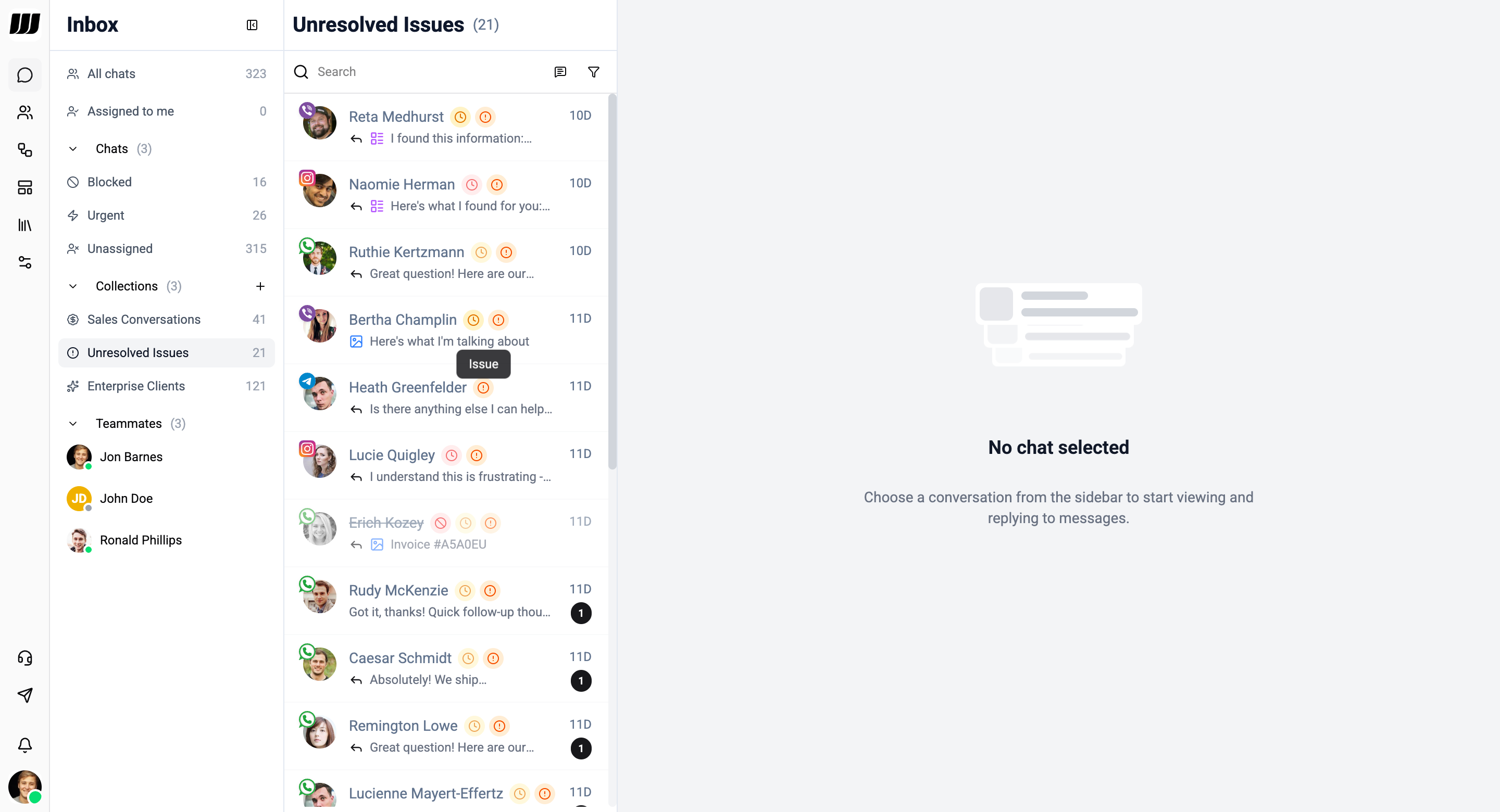
Default Collections
Every workspace comes with built-in collections:
| Collection | Description |
|---|---|
| All Chats | Every conversation across all channels |
| Assigned to Me | Chats assigned to the current user |
| @Mentions | Internal notes that mention you - switches the right panel from a chat list to a flat list of mentions with unread/read filters and search |
| Blocked | Conversations marked as blocked |
| Urgent | Conversations flagged as urgent |
| Unassigned | Conversations not assigned to any operator |
The Blocked, Urgent, and Unassigned collections can be reordered in the sidebar but cannot be edited or deleted.
@Mentions behaves a little differently from the other built-ins. The other collections all show a filtered list of chats; @Mentions shows a flat list of messages (specifically internal notes that mention you), with its own unread badge, filters (All / Unread / Read), and "Mark all read" affordance. See Mentions & Internal Notes for the full surface.
Creating a Collection
- Open the Filter panel and configure your filter criteria (direction, labels, channels, assignee, etc.).
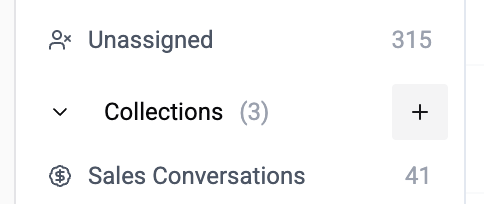
- Once your filters are applied, click Save as Collection in the filter bar.
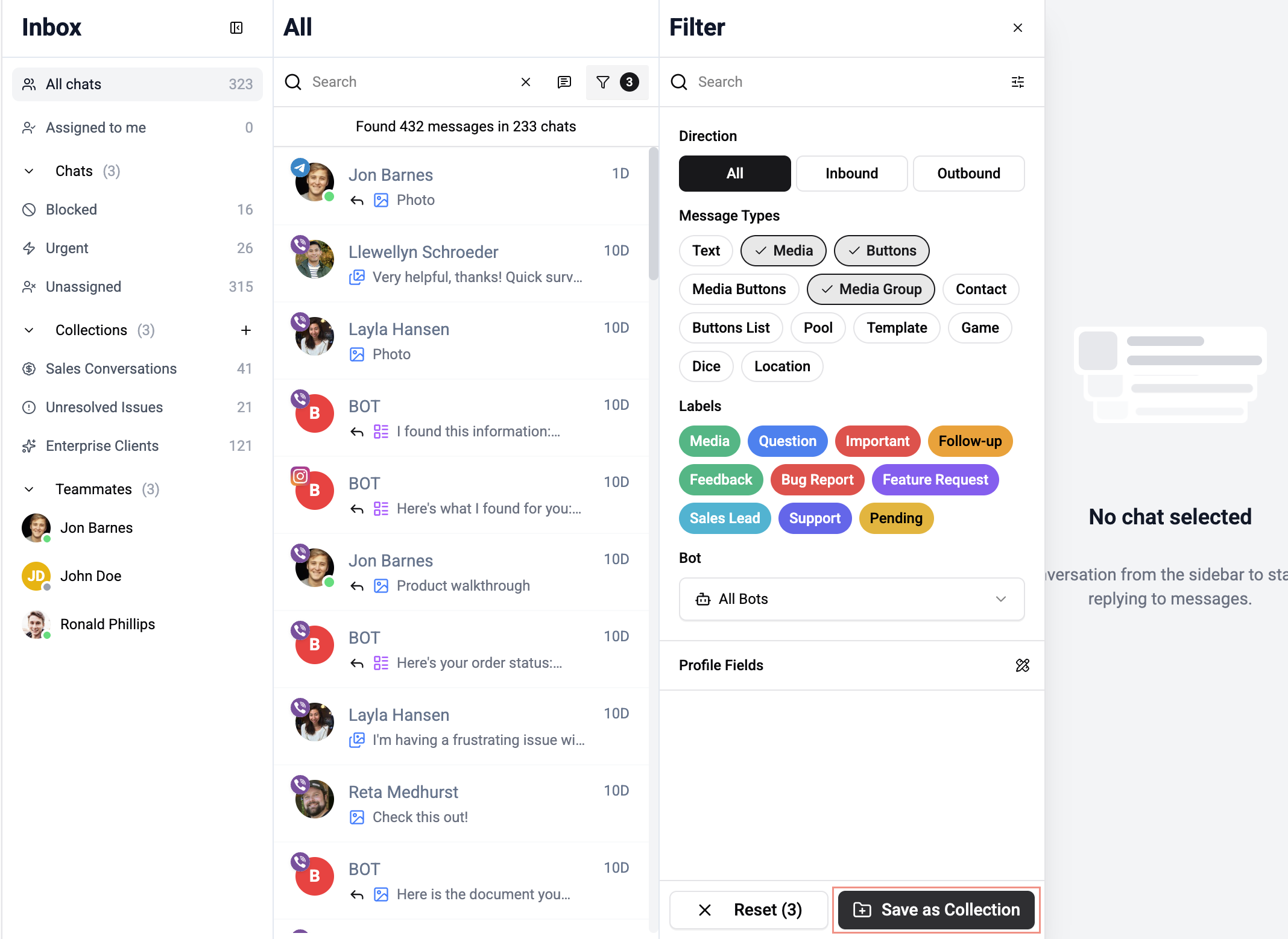
- In the modal, enter a Name, Slug (URL-friendly identifier), and optional Description.
- Choose an icon for visual identification.
- Click Create Collection.
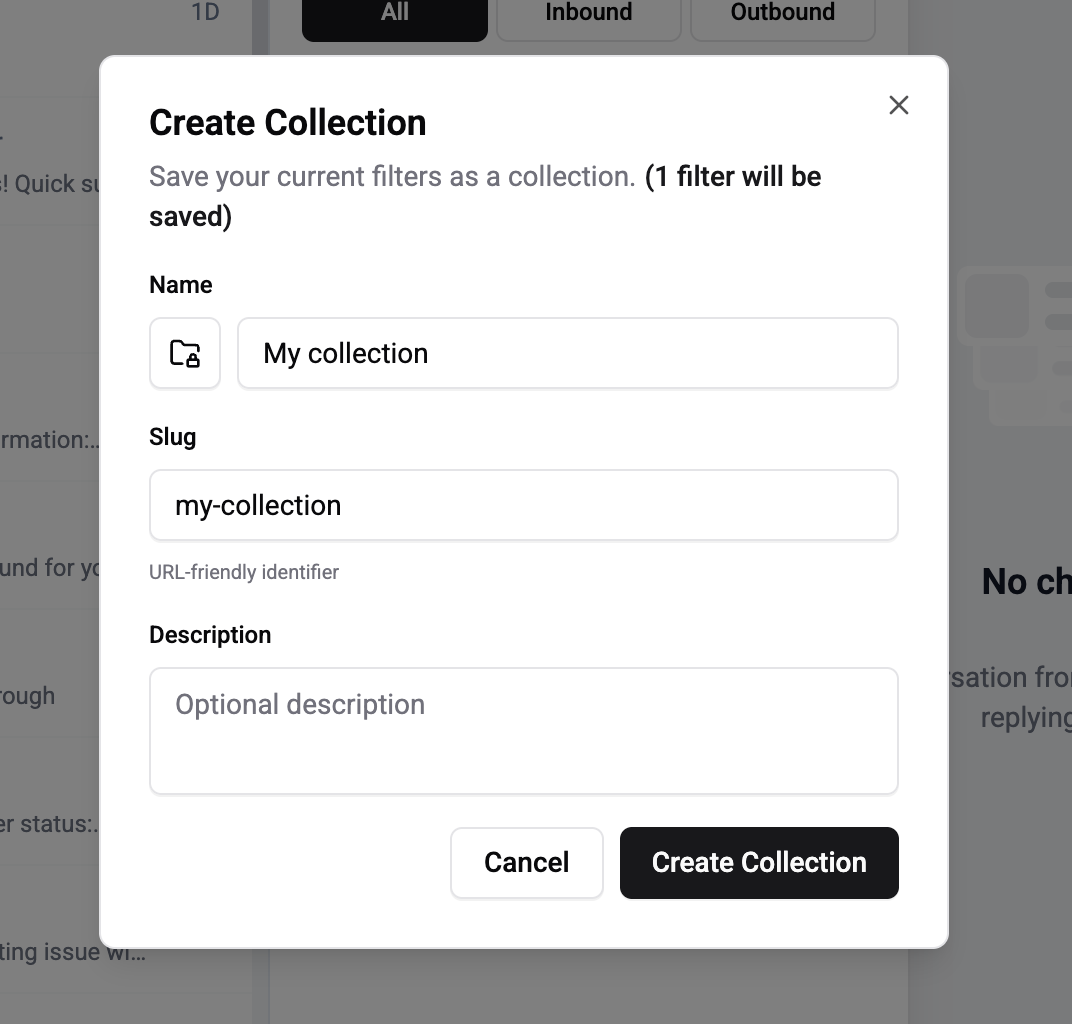
The new collection appears in the sidebar under Collections with a live count of matching conversations.
Managing Collections
| Action | Applies To | Description |
|---|---|---|
| Reorder | All collections | Drag and drop to change sidebar position |
| Edit | Custom collections only | Update name, description, icon, and filter rules |
| Delete | Custom collections only | Remove the collection |
Deleting a collection does not delete the conversations within it - they remain accessible in "All Chats".
Teammates
The sidebar also shows your teammates and their online status, so you can quickly see who's available for reassignment.
Real-time Updates
Collections update in real time - chat counts refresh as conversations are added or removed based on filter criteria.