Message Received
Fire a flow when a contact sends a message that matches a rule
The Message Received trigger matches an incoming message against a rule. It's the everyday workhorse of flow building - use it for keyword menus, slash commands, media filters, and routing by profile data on top of the message.
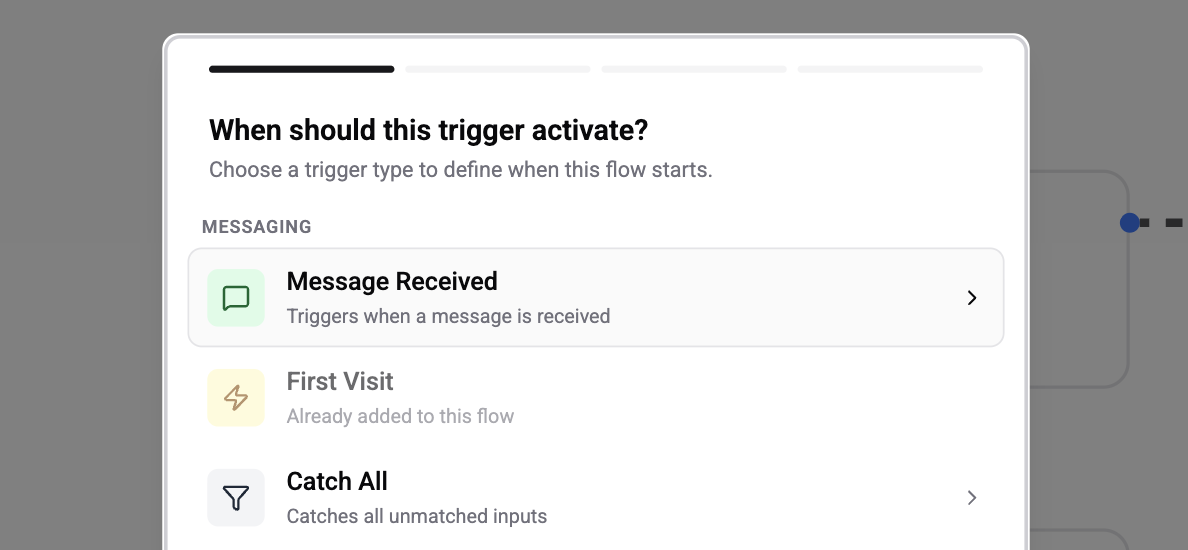
What It Matches
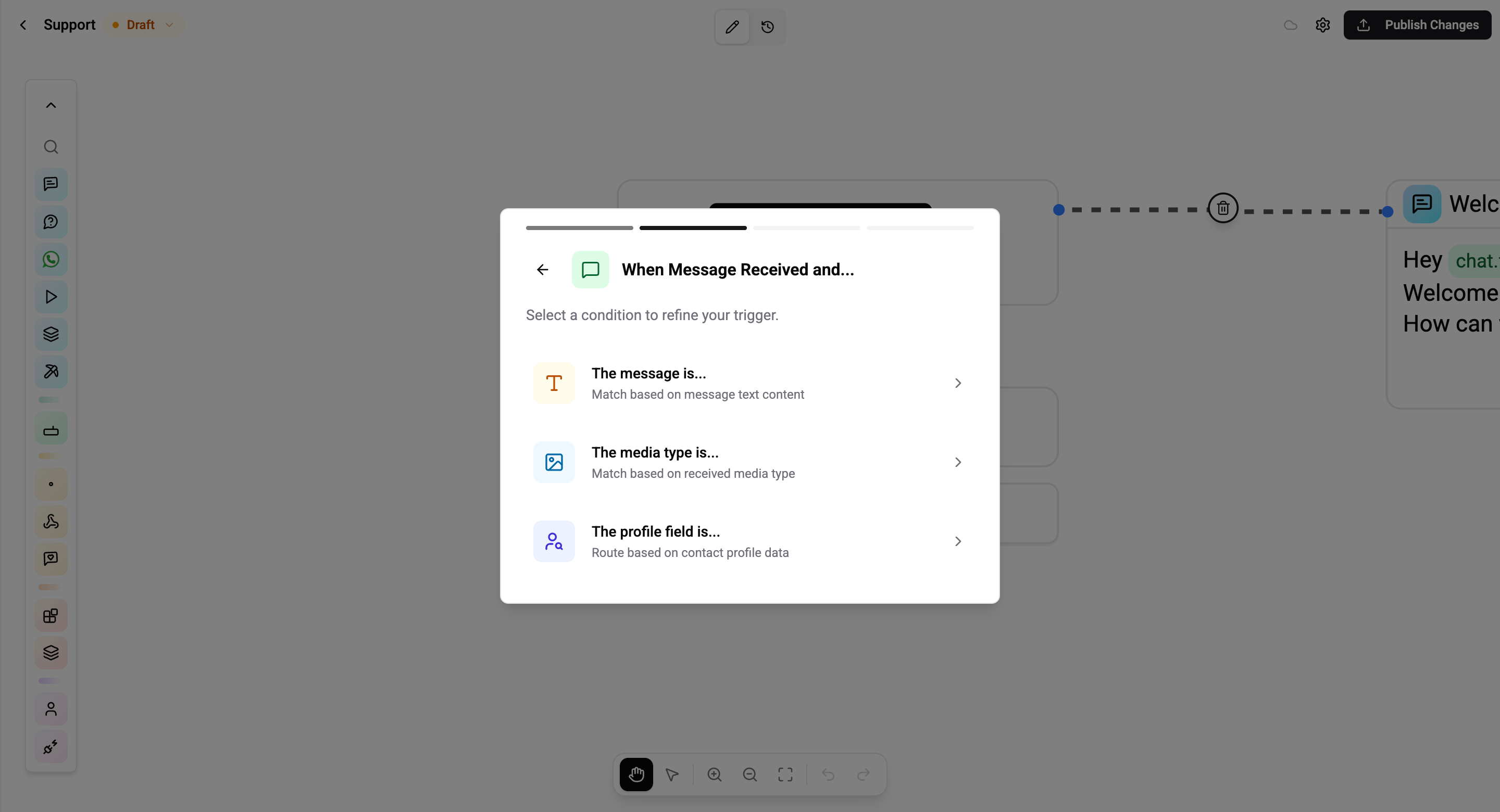
In the second step of the setup modal you pick what the trigger should look at. The rule editor shown in the next step adapts to that choice.
| Refinement | What it matches | Typical use |
|---|---|---|
| The message is… | The text content of the message | Keyword menus, slash commands, exact greetings |
| The media type is… | The non-text type of the message | Route photos to an OCR flow, voice notes to transcription, documents to a file handler |
| The profile field is… | A field on the contact's profile at the moment the message arrives | Route by language, tags, custom CRM fields |
Text Matching
Pick The message is… to match on the text body of the message.
Operators
| Operator | Behavior |
|---|---|
| Equals | Text matches exactly (case-sensitive) |
| Not equals | Text is anything except the given value |
| Contains | Text includes the value anywhere in the body |
| Not contains | Text does not include the value |
| Starts with | Text begins with the value |
| Ends with | Text ends with the value |
| Matches regex | Text matches the supplied regular expression |
| Is empty | Message has no text body |
| Is not empty | Message has any text body |
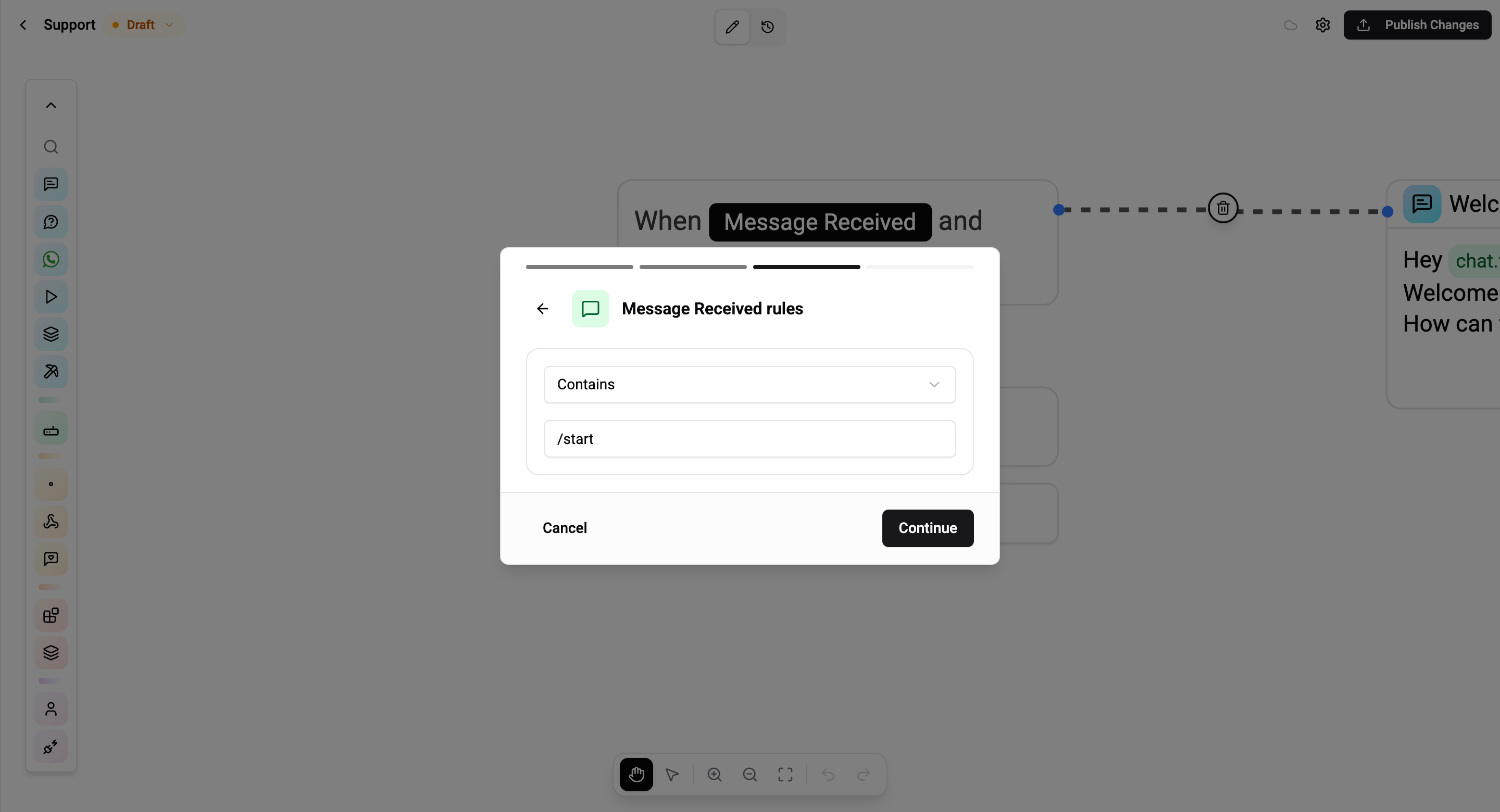
Example - keyword menu: Operator Contains, value /support → matches "/support", "/support please", "hi /support".
Command matching
Messages that start with / (like /start, /menu, /support) use word-boundary matching rather than a plain substring search. This prevents /start from accidentally matching /starting or /starter.
| Rule | Matches | Does not match |
|---|---|---|
Contains /start | "/start", "/start help", "please /start now" | "/starter", "/starting" |
Equals /menu | "/menu" | "/menu now", "main /menu" |
The / prefix is a convention inherited from Telegram bot commands. Use it in your rules the way Telegram users type them - the engine normalises the boundary for you.
Media Type Matching
Pick The media type is… to trigger on non-text messages.
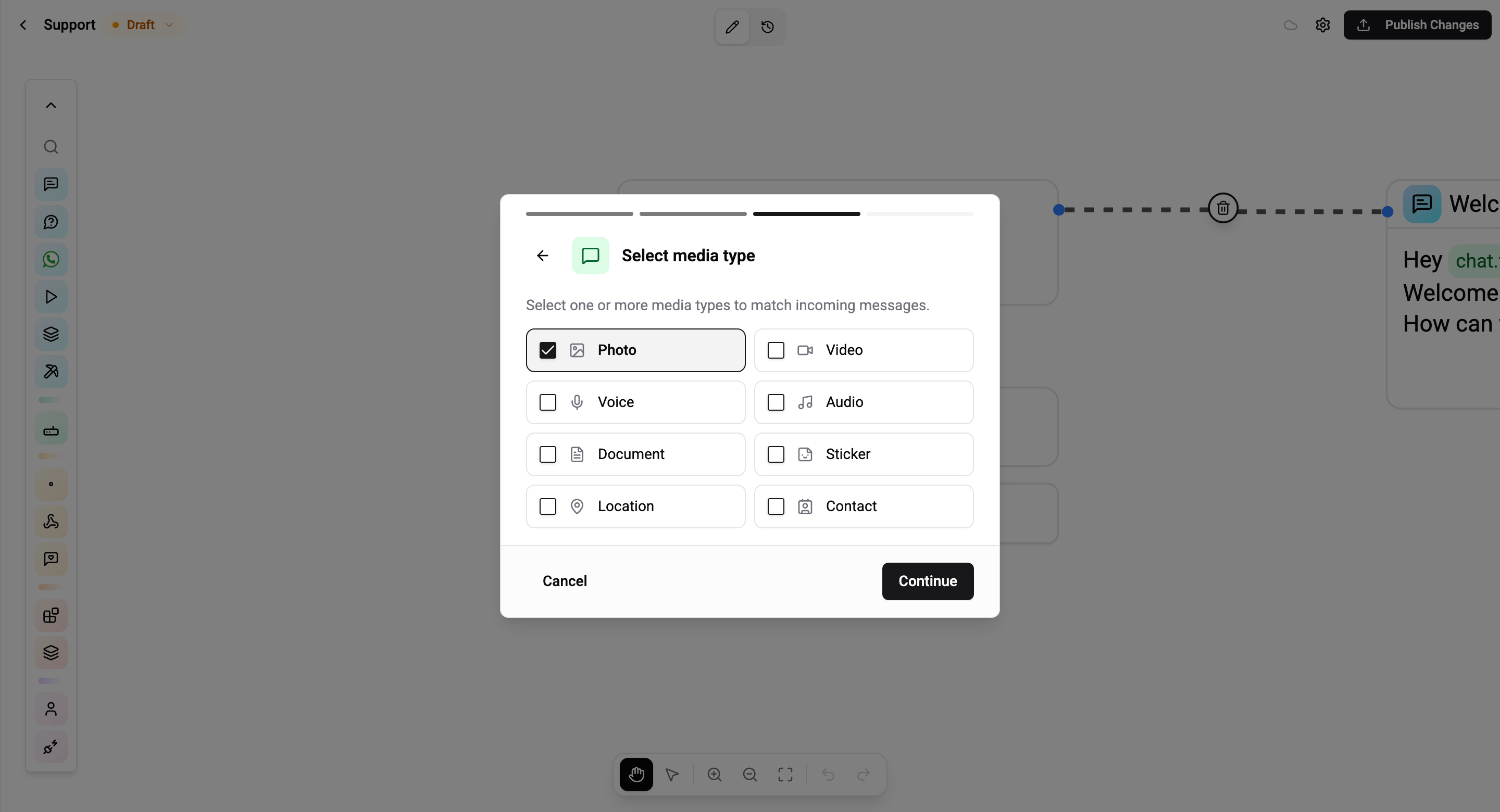
Supported media types:
| Value | What it is |
|---|---|
PHOTO | An image attachment |
VIDEO | A video attachment |
VOICE | A voice note (push-to-talk audio) |
AUDIO | An audio file (song, sent audio) |
DOCUMENT | A generic file attachment |
STICKER | A sticker |
LOCATION | A shared location pin |
CONTACT | A shared contact card |
Example - route voice notes to AI transcription: Refinement The media type is…, value VOICE → runs an AI Text-to-Speech flow on every voice note.
Profile Matching on Message
Pick The profile field is… to match the sending contact's profile fields at the moment the message arrives.
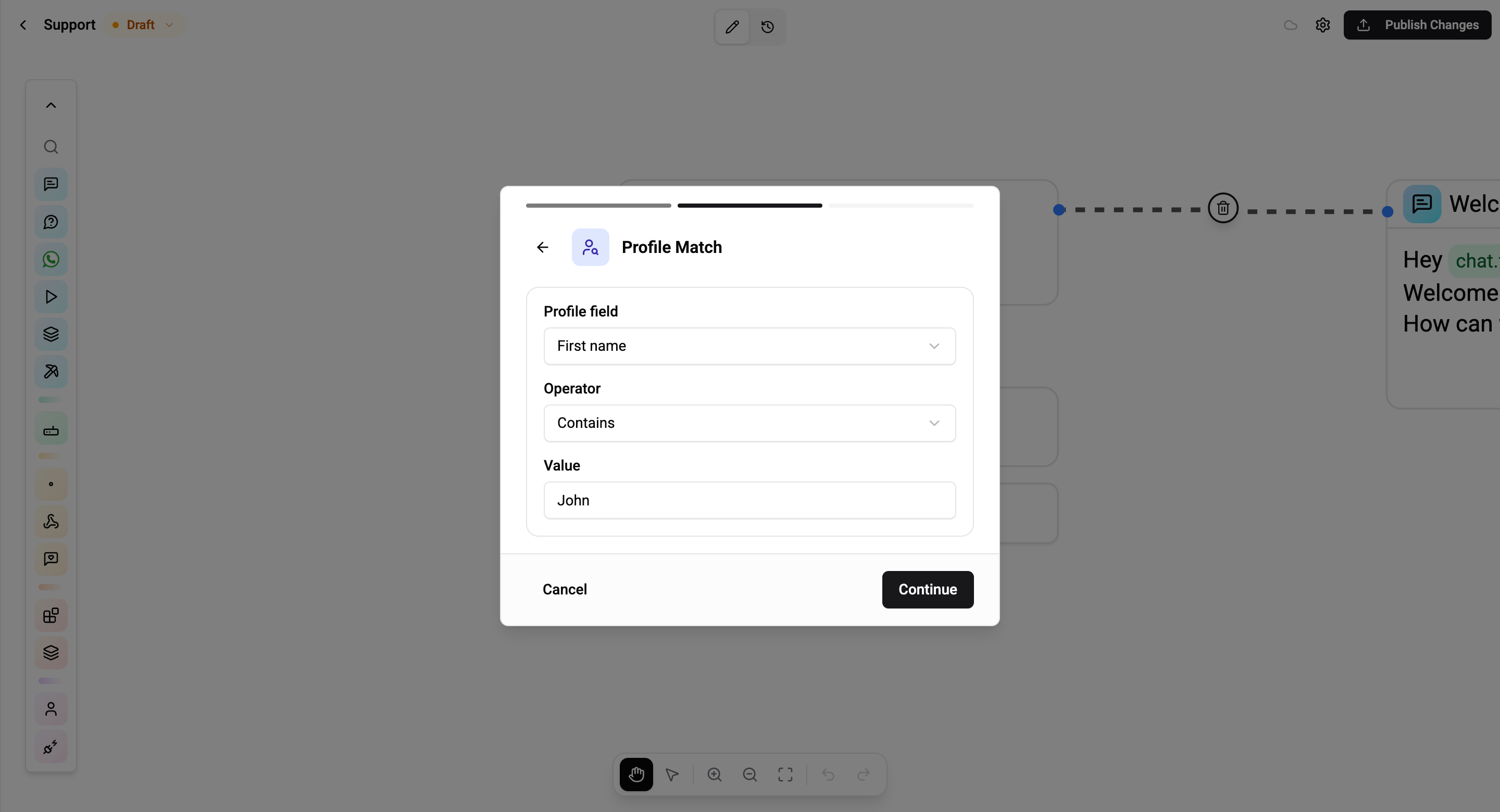
Combine with AND connectors to build narrow routes:
- "German-speaking VIPs asking for help":
profile.language EQUALS deANDmessage CONTAINS helpANDprofile.tags CONTAINS VIP.
The field picker covers system fields (language, tags, phone, email), and every custom field defined in your CRM. The same picker is used for the audience filter on Scheduled triggers.
Review & Create
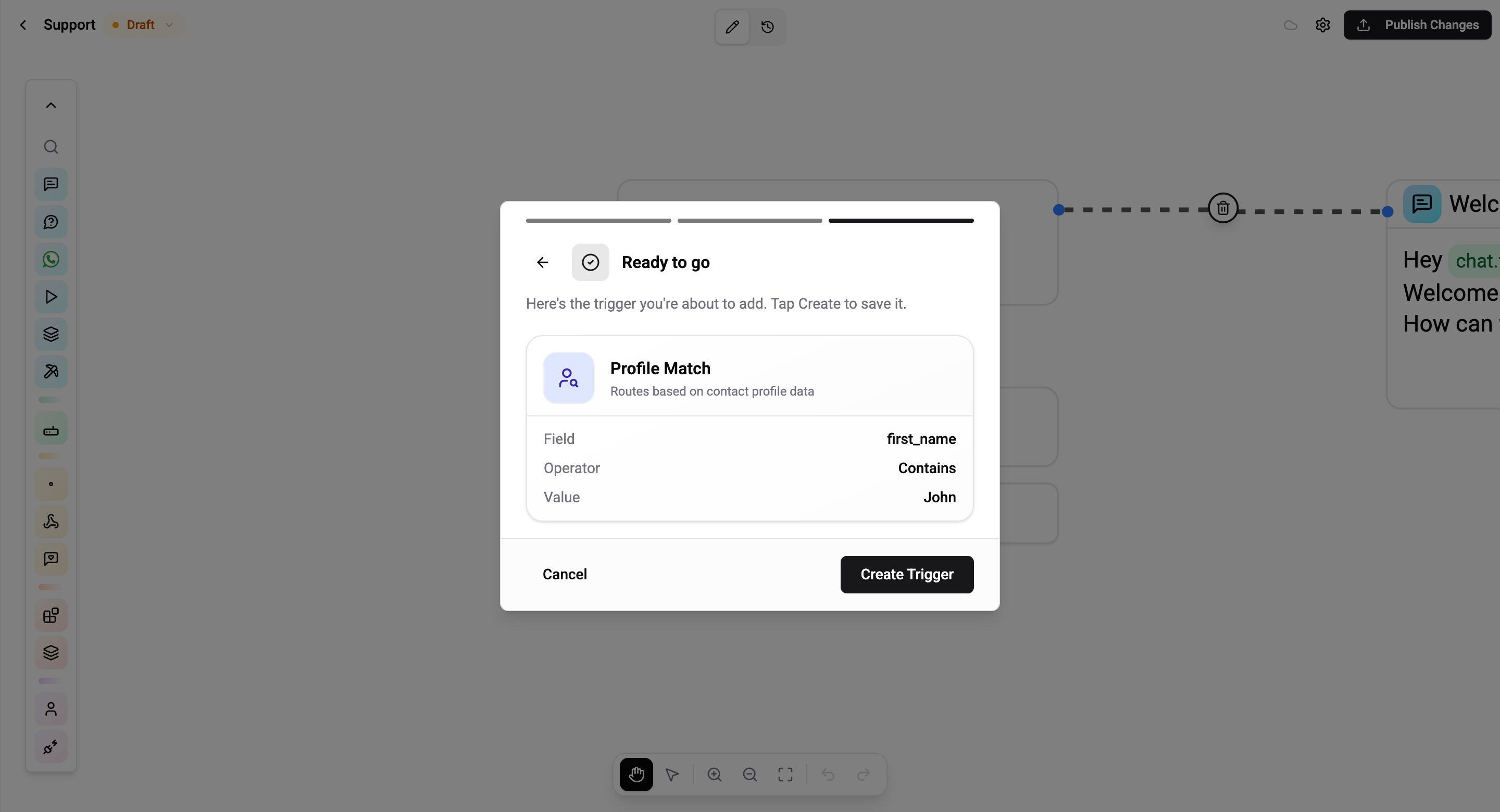
The final step shows a single summary card with the attribute, operator, and value you picked. Tap Create Trigger to save; use the back arrow to adjust any value.
Priority & Overlaps
Message Received is a mid-priority trigger. When multiple flows match the same message, the engine prefers:
- More specific matches - three rules all matching beats one rule matching
- Webhook, schedule, first-visit, and returning-user triggers (all higher priority than a plain Message Received)
- The most recently updated flow (tiebreaker)
Use Catch All for the fallback - don't write not equals "" rules to emulate it.