Settings
Team Management
Invite members and manage roles
Manage who has access to your workspace and what they can do.
Roles
Wexio uses a four-tier role-based access control (RBAC) system:
| Role | Description |
|---|---|
| Owner | Full access - billing, workspace deletion, ownership transfer |
| Admin | Manage settings, integrations, team, AI assistants |
| Editor | Manage flows, templates, library, people - no settings |
| Agent | Inbox access and conversation replies only |
Permission Matrix
| Permission | Owner | Admin | Editor | Agent |
|---|---|---|---|---|
| Access Inbox | ✅ | ✅ | ✅ | ✅ |
| Reply to conversations | ✅ | ✅ | ✅ | ✅ |
| Manage People | ✅ | ✅ | ✅ | ❌ |
| Create/edit Flows | ✅ | ✅ | ✅ | ❌ |
| Manage Templates | ✅ | ✅ | ✅ | ❌ |
| Manage Library | ✅ | ✅ | ✅ | ❌ |
| Manage Settings | ✅ | ✅ | ❌ | ❌ |
| Manage Integrations | ✅ | ✅ | ❌ | ❌ |
| Configure AI | ✅ | ✅ | ❌ | ❌ |
| Manage Team | ✅ | ✅ | ❌ | ❌ |
| Manage Billing | ✅ | ❌ | ❌ | ❌ |
| Delete Workspace | ✅ | ❌ | ❌ | ❌ |
Seat Limits by Plan
| Plan | Maximum Seats |
|---|---|
| Free | 1 |
| Basic | 2 |
| Standard | 4 |
| Pro | 20 |
| Enterprise | Unlimited |
When downgrading to a plan with fewer seats, excess team members are automatically downgraded to Agent role.
Inviting Members
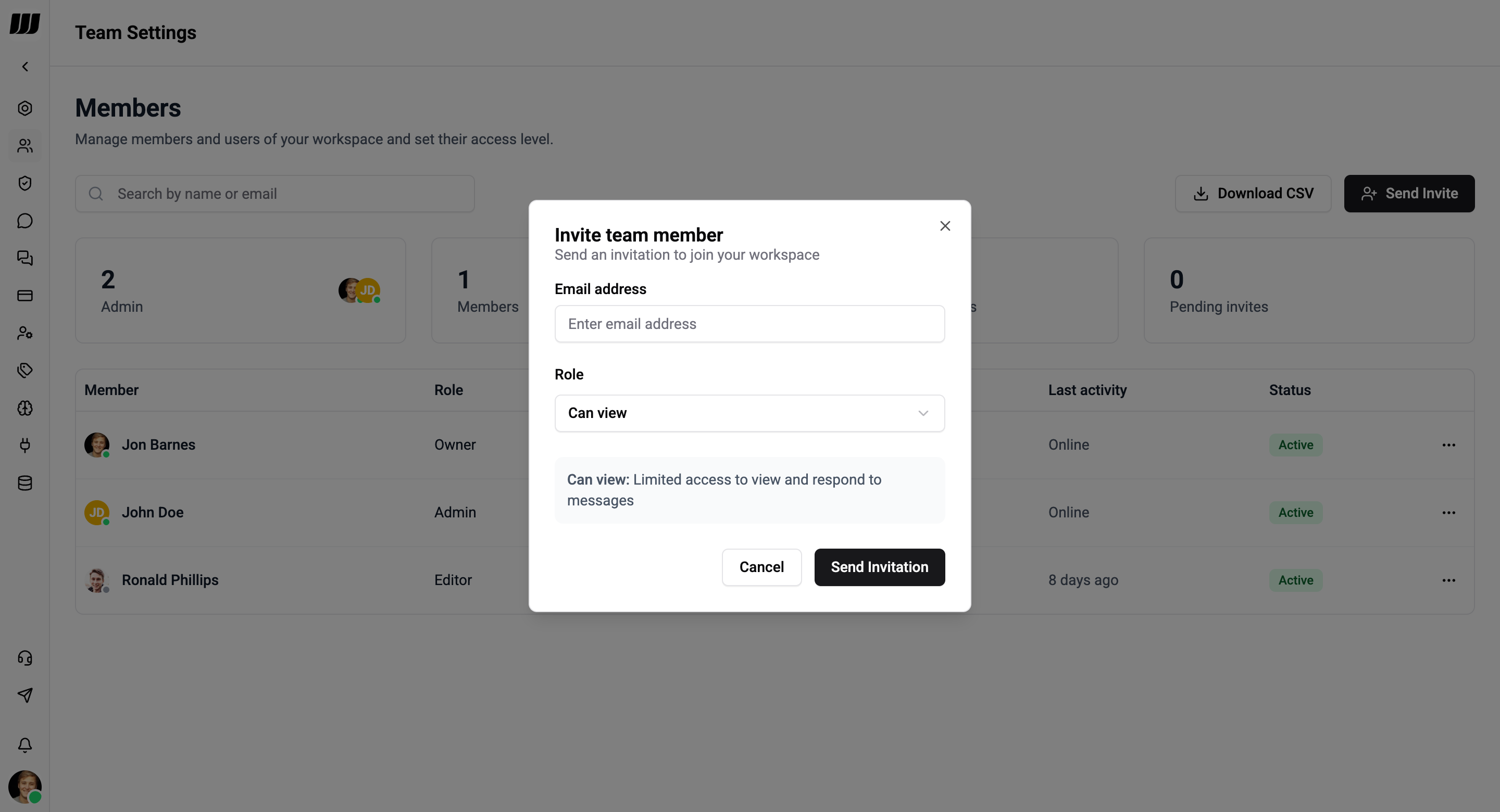
- Go to Settings → Team
- Click Send Invite
- Enter their email address
- Select a role
- Click Send Invitation
The invitee receives an email with a link to join the workspace. They must create a Wexio account if they don't already have one.
Managing Members
- Change role - Click on a member and update their role
- Remove member - Revoke access from the workspace
- View status - See pending invitations and active members
- Transfer ownership - Owner can transfer ownership to another Admin
Pending Invitations
Invited users who haven't accepted yet appear as "Pending":
- Resend - Resend the invitation email
- Revoke - Cancel the invitation before it's accepted