Settings
Security Settings
Configure Enterprise SSO (SAML 2.0) for your organisation
Security settings are only available on the Enterprise plan.
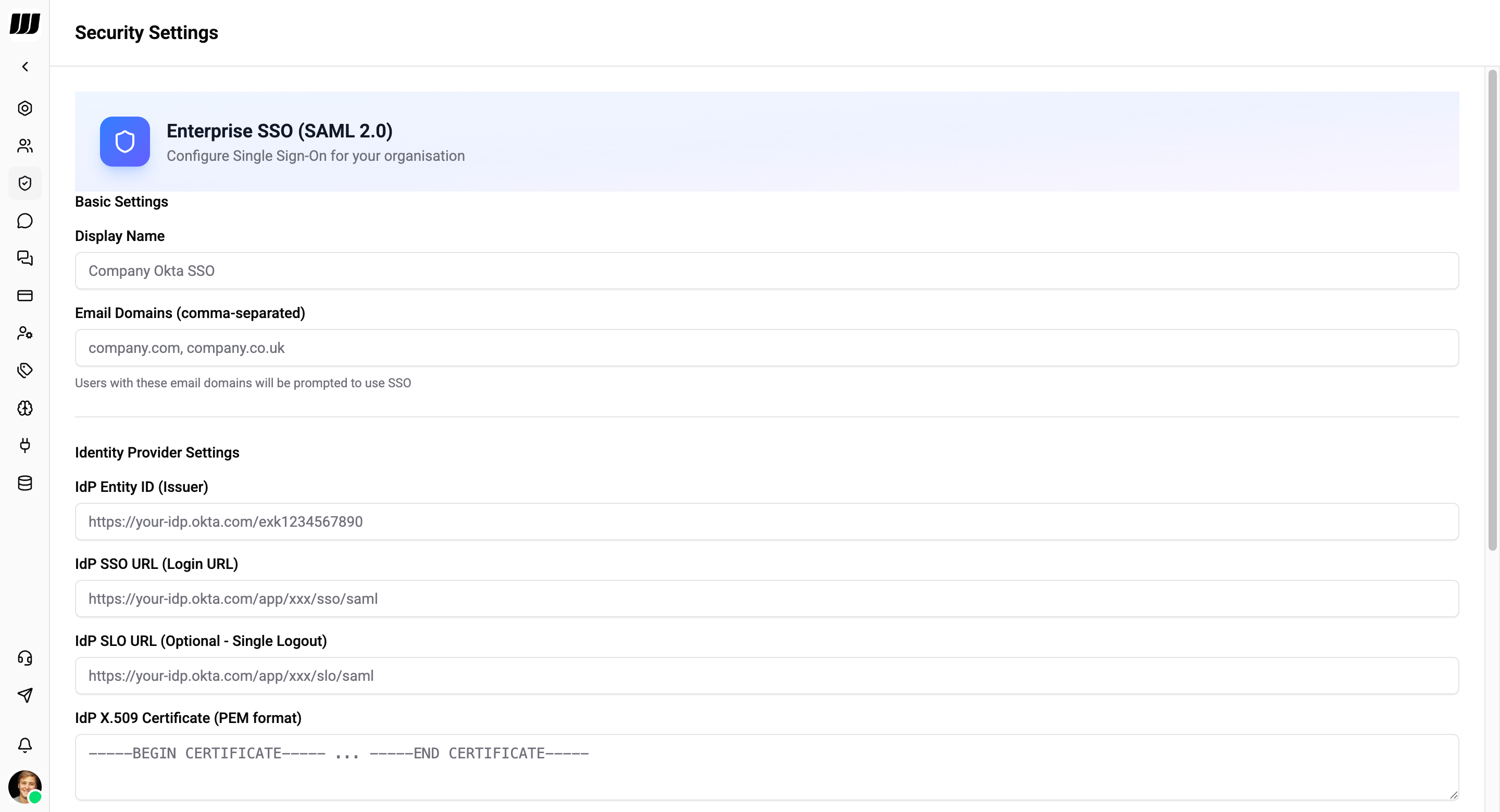
Enterprise SSO (SAML 2.0)
Configure Single Sign-On for your organisation using SAML 2.0. This allows your team to authenticate through your Identity Provider (Okta, Azure AD, Google Workspace, OneLogin, Auth0, PingFederate, etc.).
How It Works
- User clicks Sign in with SSO or enters an email with a configured SSO domain
- Wexio redirects the user to your Identity Provider
- The user authenticates with your IdP
- The IdP sends a SAML response back to Wexio
- Wexio validates the response, creates or links the user, and starts a session
Basic Settings
| Field | Description |
|---|---|
| Display Name | A friendly name for this SSO configuration (e.g. "Company Okta SSO") |
| Email Domains | Comma-separated list of email domains (e.g. company.com, company.co.uk). Users with these email domains will be prompted to use SSO |
Identity Provider Settings
| Field | Description |
|---|---|
| IdP Entity ID (Issuer) | Your Identity Provider's entity identifier URL |
| IdP SSO URL (Login URL) | The SAML login endpoint of your IdP |
| IdP SLO URL (Optional - Single Logout) | The SAML logout endpoint for single logout support |
| IdP X.509 Certificate (PEM format) | The public certificate from your IdP used to verify SAML response signatures |
Advanced Settings
| Setting | Description |
|---|---|
| Require all users to authenticate via SSO | When enabled, all organisation members must log in through SSO. Password and social logins are disabled |
| Allow account linking | Existing users can link their accounts to SSO |
| Auto-create users | Create new users automatically on first SSO login |
| Default role | The role assigned to auto-created users (e.g. Member) |
Setup Steps
- Go to Settings → Security
- Fill in the Basic Settings - display name and email domains
- Enter your Identity Provider Settings - Entity ID, SSO URL, SLO URL, and X.509 certificate from your IdP
- Configure Advanced Settings as needed
- Save
Identity Provider Setup Guides
When configuring your IdP, you'll need to provide these Service Provider (SP) values from Wexio:
| SP Field | Value |
|---|---|
| ACS URL (Reply URL) | https://app.wexio.io/auth/sso/{your-org-slug}/callback |
| Entity ID (Audience URI) | https://app.wexio.io/auth/sso/{your-org-slug}/metadata |
| Name ID format | EmailAddress |
Replace {your-org-slug} with your organisation's slug (visible in your Wexio URL).
You'll also need to configure Attribute Statements in your IdP so Wexio receives the correct user data:
| Attribute name | Value |
|---|---|
email | User's email address |
firstName | User's first name |
lastName | User's last name |
Troubleshooting
If you downgrade from Enterprise, SSO is automatically disabled and team members revert to standard authentication.