Search & Filters
Find conversations and messages across your entire inbox
Wexio provides powerful search and filtering to help you find specific conversations or messages instantly.
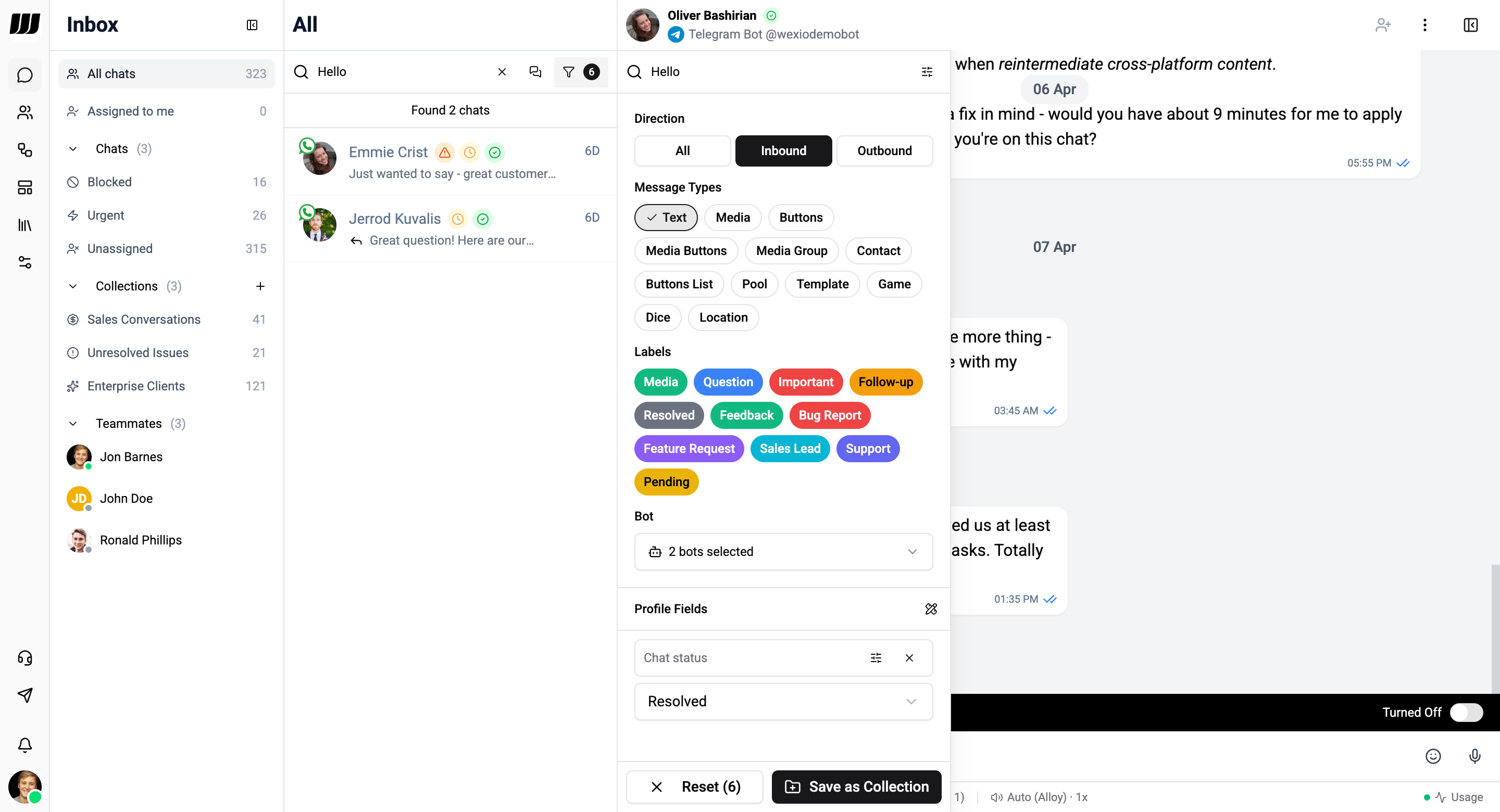
Search Modes
The search bar supports two distinct modes, toggled by the search mode icon:
Search by Chats
Search across conversation names and contact details. Results show matching chat threads with preview snippets.
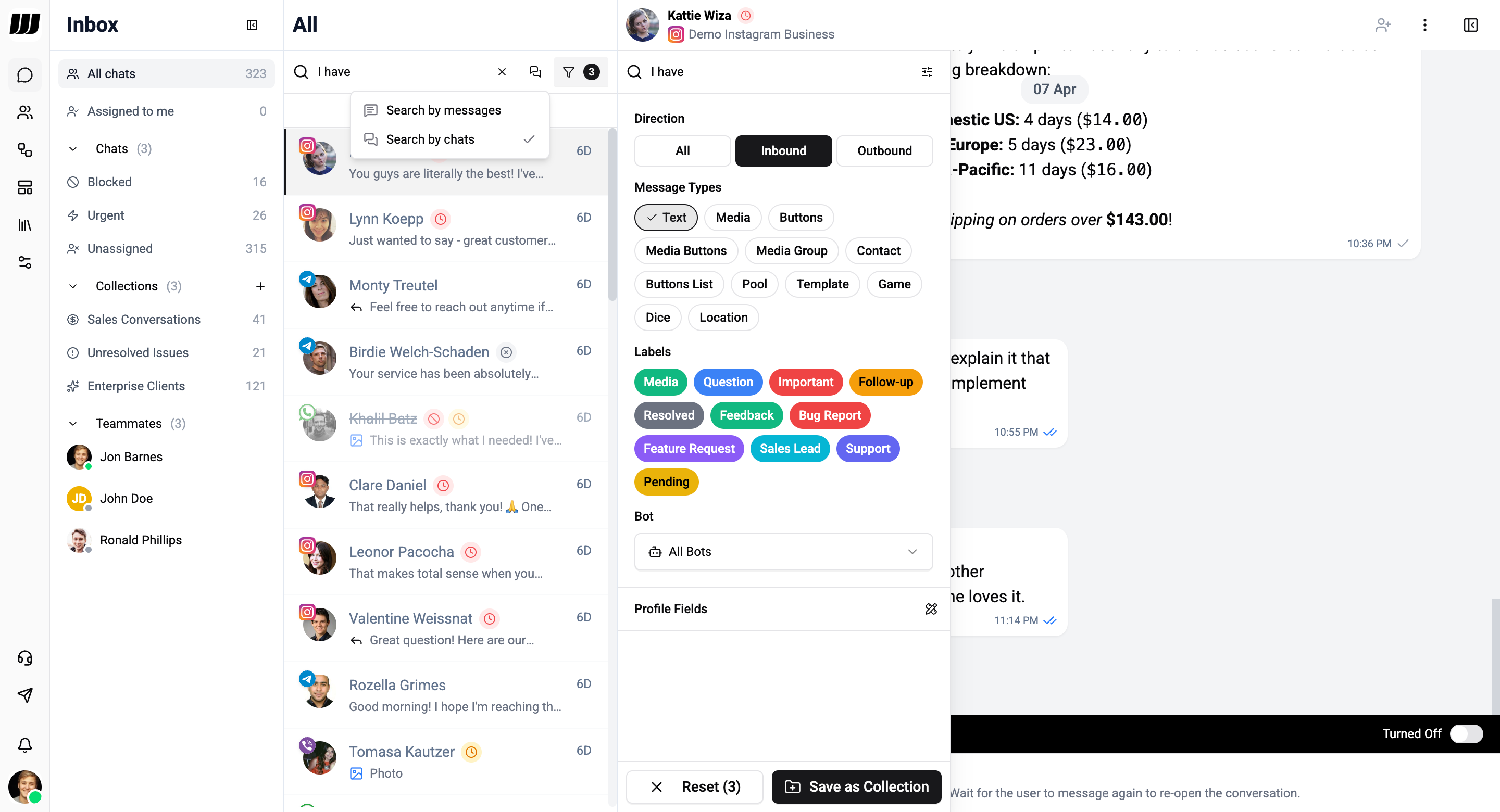
Search by Messages
Full-text search across all message content. Results show individual messages with highlighted matches and links to their parent conversations.
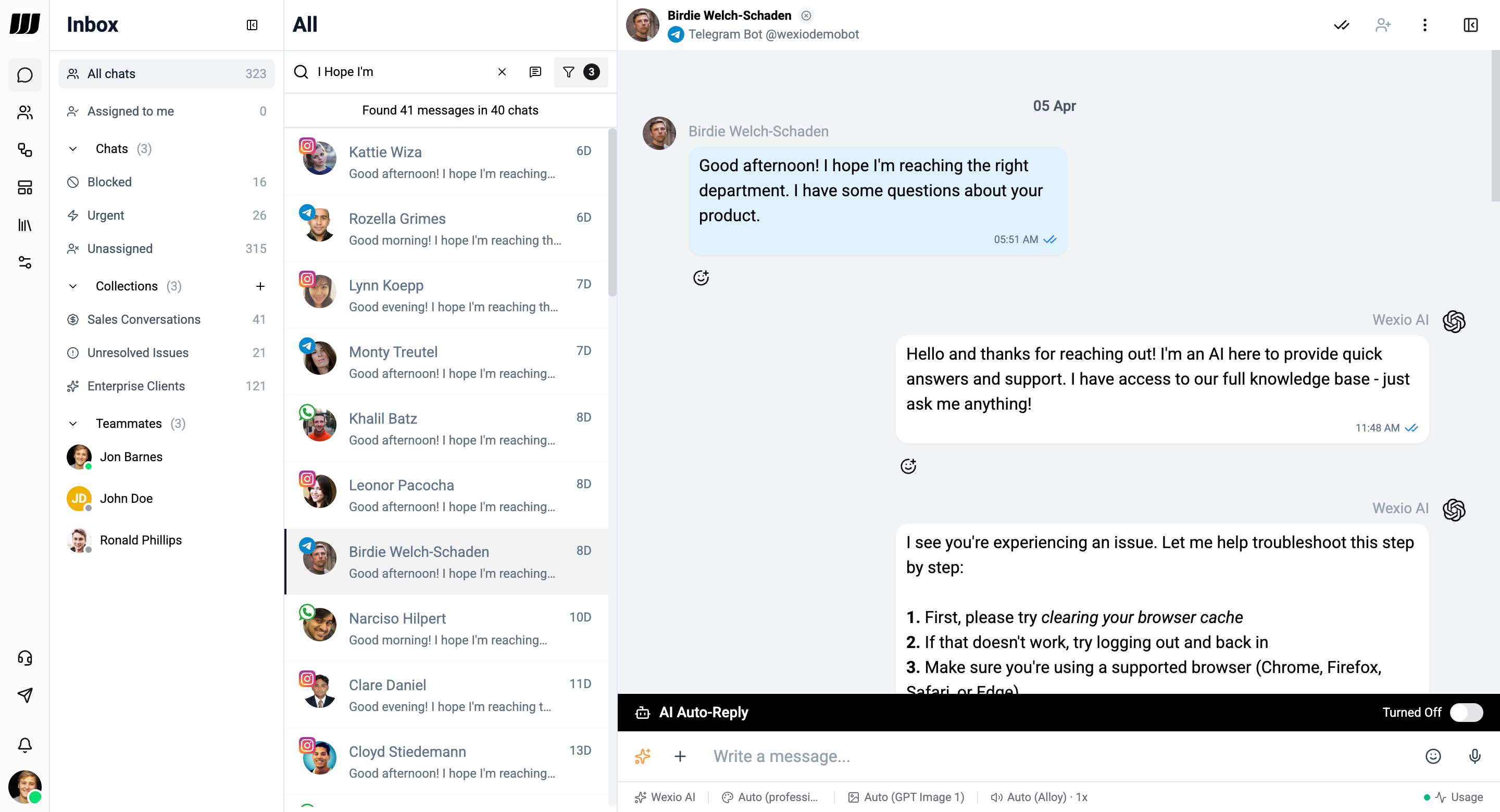
Filter Sidebar
Click the filter icon (funnel) to open the advanced filter sidebar. The sidebar has two states:
- Search - Quick filtering with active filters displayed as badges
- Edit - Full filter configuration mode with rule builder
Filter Fields
| Filter | Description |
|---|---|
| Direction | All, Inbound, or Outbound |
| Message Types | Text, Media, Buttons, Media Buttons, Media Group, Contact, Buttons List, Poll, Template, Game, Dice, Location |
| Labels | Filter by message labels (e.g. Media, Question, Important, Follow-up, Resolved, Feedback, Bug Report, Feature Request, Sales Lead, Support, Pending) |
| Bot | Filter by a specific bot or select All Bots - see Integrations |
| Profile Fields | Filter by any custom contact profile field |
Rule Logic
All filter conditions are combined with AND logic - every condition must match for a conversation to appear in the results.
Active Filters
Active filters appear as badges above the chat list. Click × on any badge to remove it, or use the Reset button to clear all filters at once.
Filters you configure in the sidebar can be saved as a Collection for quick reuse. See Collections.
Saving Filters as Collections
When you've configured a useful filter combination, you can save it as a Collection for quick reuse:
- Click Save as Collection in the filter sidebar
- Give it a name and optional description
- Choose an icon for visual identification
- The collection appears in the left sidebar for one-click access
Learn more about managing collections in the Collections documentation.
In-Chat Message Search
You can also search within a specific conversation. Click the search icon in the chat header to open the in-chat search bar.
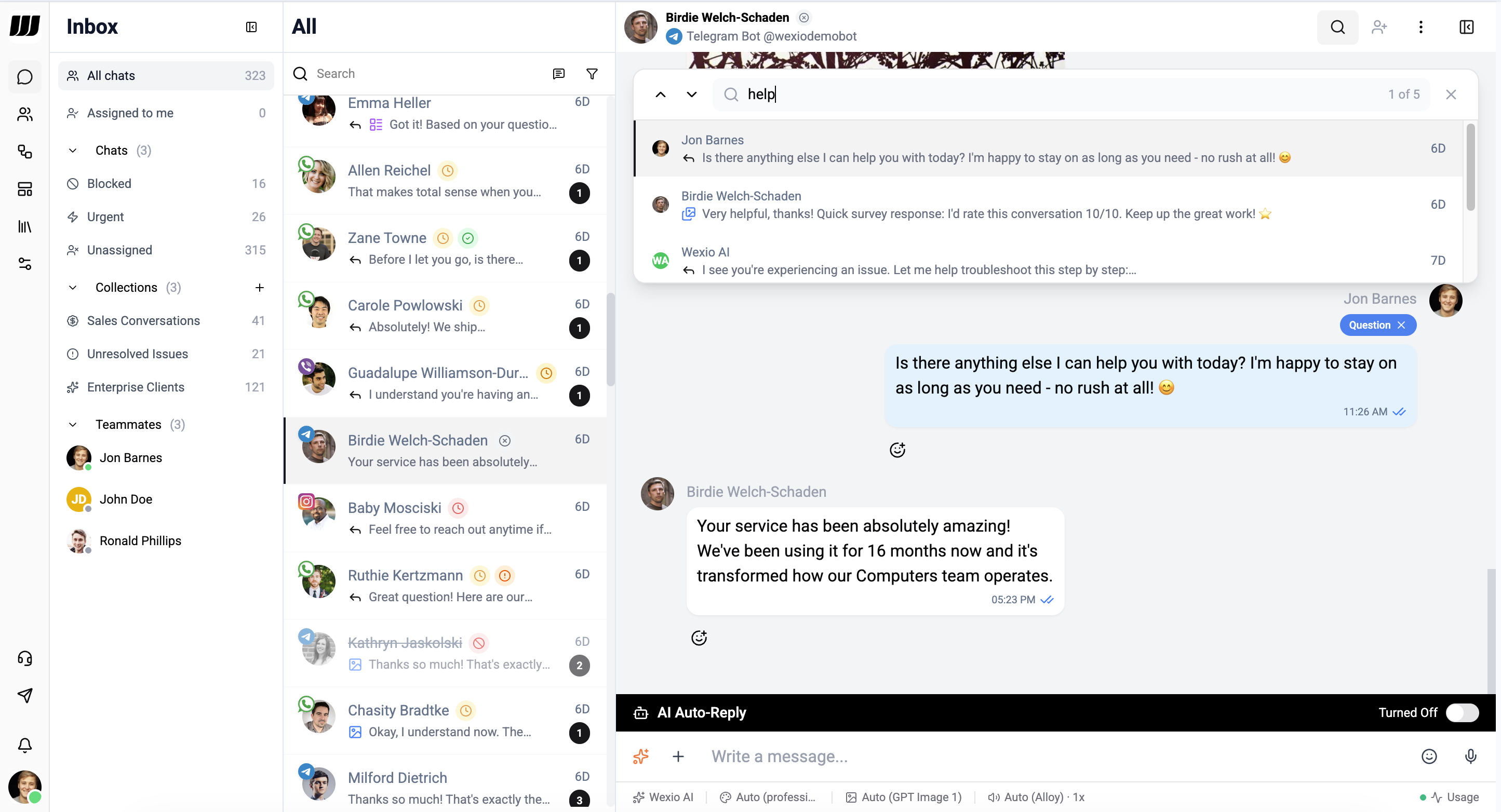
- Type your query to find matching messages within the current chat
- The counter shows the current match and total results (e.g. 3 of 9)
- Use the up/down arrows or your keyboard to navigate between matches
- Click on a result to jump directly to that message in the thread
- Press × to close the search bar