Database
Dedicated database and Redis isolation for your organisation
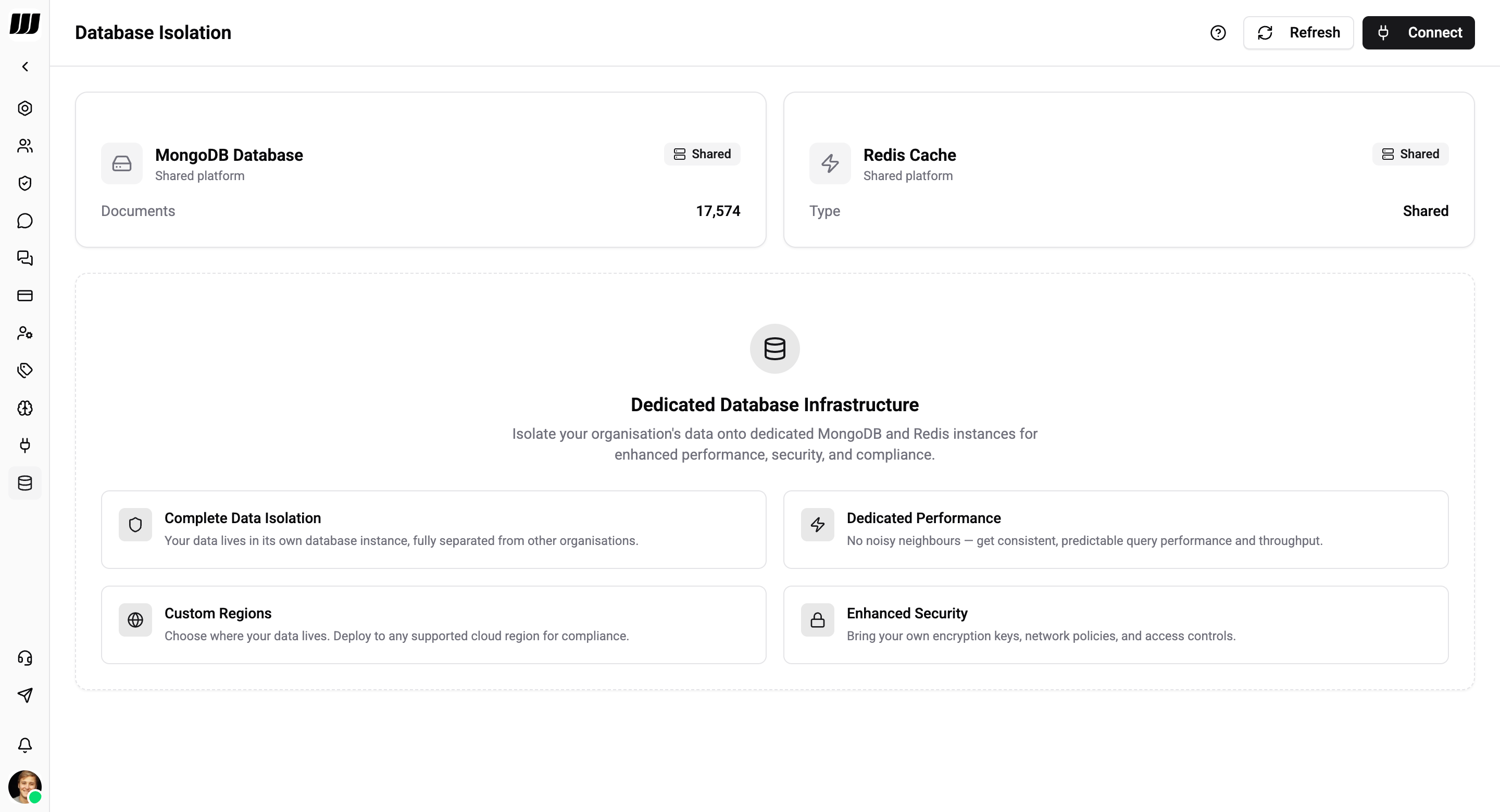
The Database page shows the current state of your organisation's data infrastructure and lets you connect dedicated MongoDB and Redis instances.
Dedicated database infrastructure requires the Pro or Enterprise plan. Only workspace Owners can configure database settings.
Overview
By default, every organisation runs on Wexio's shared platform infrastructure. The Database page displays your current status:
| Infrastructure | Default | Description |
|---|---|---|
| MongoDB Database | Shared | Stores all your chats, messages, contacts, flows, and configuration |
| Redis Cache | Shared | Handles caching, sessions, and real-time features |
You can see the total document count for your organisation and the connection status of each service.
Dedicated Database Infrastructure
Isolate your organisation's data onto dedicated MongoDB and Redis instances for enhanced performance, security, and compliance.
Benefits
| Benefit | Description |
|---|---|
| Complete Data Isolation | Your data lives in its own database instance, fully separated from other organisations |
| Dedicated Performance | No noisy neighbours - get consistent, predictable query performance and throughput |
| Custom Regions | Choose where your data lives. Deploy to any supported cloud region for compliance |
| Enhanced Security | Bring your own encryption keys, network policies, and access controls |
Connecting a Dedicated Database
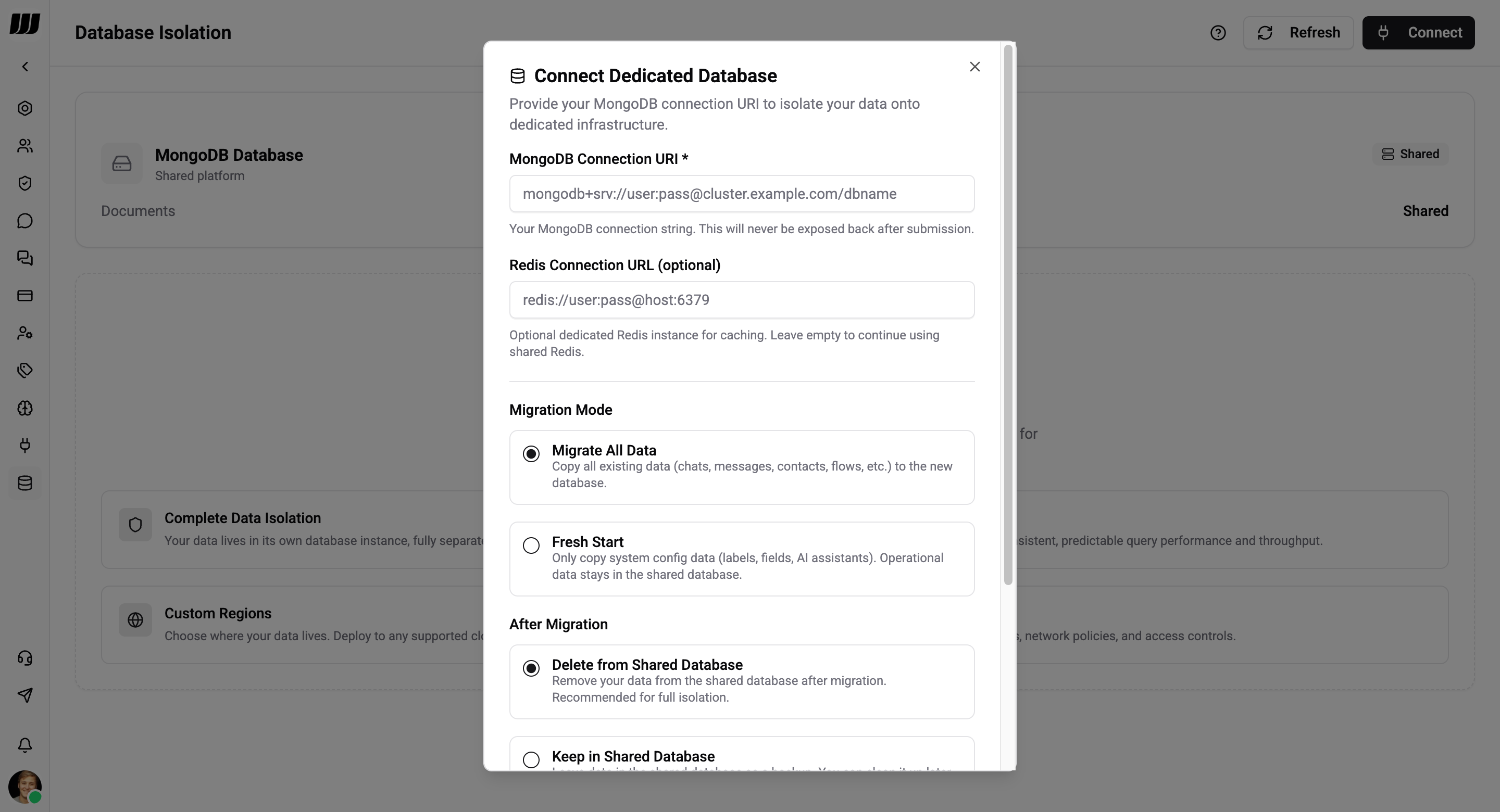
- Go to Settings → Database.
- Click Connect.
- Choose a migration mode (see below).
- Enter your MongoDB connection URI.
- Optionally enter a Redis connection URL.
- Choose what to do with data in the source database after migration.
- Click Connect to start the migration.
Migration Modes
When moving to a dedicated database, choose how to handle your existing data:
| Mode | What's Copied | Best For |
|---|---|---|
| Migrate | All data - chats, messages, contacts, flows, media, and configuration | Existing organisations with data to preserve |
| Fresh | System configuration only - labels, custom fields, collections, AI settings, bots, integrations | New setups or starting clean |
Source Data Action
After migration completes, choose what happens to your data in the original (shared) database:
| Action | Description |
|---|---|
| Delete | Remove your organisation's data from the shared database after migration (recommended - prevents duplication) |
| Keep | Leave a copy in the shared database as a backup |
Migration duration depends on your data volume. During migration, your workspace remains operational but may experience brief interruptions.
Connection Requirements
Both MongoDB and Redis can be configured independently. You only need to provide the connection URIs.
Connection URIs are encrypted at rest and never displayed after submission. Ensure your database allows connections from Wexio's platform IP addresses.
Connection Status
After connecting, the Database page shows the health of each service:
| Status | Meaning |
|---|---|
| Shared | Organisation uses the shared platform infrastructure (no dedicated instance) |
| Connected | Dedicated instance is configured and healthy (latency displayed in ms) |
| Disconnected | Dedicated instance is configured but unreachable - check your connection URI and network access |
Use the Refresh button to re-check connection health and update document counts at any time.
Data Collections
The Database page shows a breakdown of your data across MongoDB collections, split into two categories:
System Collections
Configuration data that defines your workspace setup:
| Collection | Description |
|---|---|
| Labels | Organisation labels |
| Chat collections | Inbox collections |
| People field definitions | Custom contact field definitions |
| AI assistants | AI assistant configuration |
| Bots | Messaging bot configuration |
| Integrations | Channel integrations |
| WhatsApp templates | WhatsApp template configuration |
Operational Collections
Day-to-day data generated through usage:
| Collection | Description |
|---|---|
| Conversations | The inbox row per contact |
| Chats | The channel threads inside a conversation |
| Messages | Chat messages |
| People | Contacts |
| Flows | Automation flows |
| Cards | Flow cards |
| Media | Uploaded media files |
Conversations and Chats are two levels, not two names for one thing: a conversation is the inbox row for a contact, and it holds one chat per channel thread. Both live on your own database when you have one.
Each collection shows its document count and accessibility status. The total document count is displayed at the top.
Migrating Back to Shared
If you need to revert to the shared platform database:
- Go to Settings → Database.
- Click Migrate Back to Shared.
- Choose the source data action - whether to keep or delete your data from the dedicated database after migration.
- Confirm the action.
If you choose Delete, your data will be removed from the dedicated database after migration. This cannot be undone.
Your organisation's data will be copied back to the shared platform and the dedicated connection will be removed.