FlowsEditor
Canvas
Pan, zoom, select, and connect cards on the flow canvas
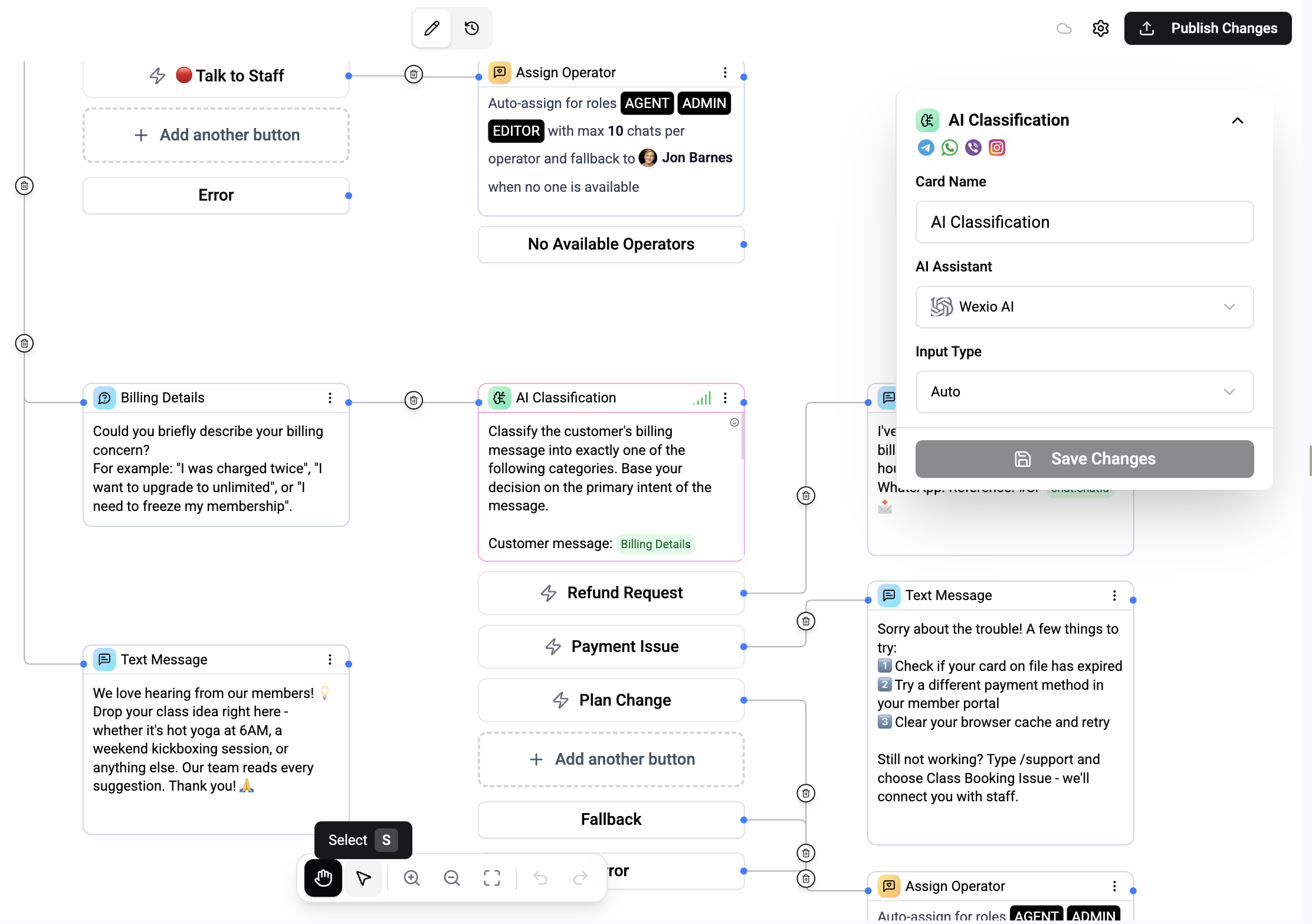
The canvas is the main workspace area where you place and connect flow cards.
Navigation
| Action | How |
|---|---|
| Pan | Click and drag the canvas background (or press P for pan mode) |
| Zoom in | Cmd+ or scroll wheel up |
| Zoom out | Cmd- or scroll wheel down |
| Fit view | Cmd+Shift+0 - fits all cards in view with 15% padding |
Selecting Cards
| Action | How |
|---|---|
| Select one | Click a card |
| Multi-select | Press S for select mode, then drag a selection box |
| Add to selection | Hold Shift and click cards |
Connecting Cards
Each card has input and output ports:
- Hover over a card's output port (bottom or right side)
- Click and drag to another card's input port
- Release to create the connection
Connection Rules
- Each output port connects to one input port only.
- Cards with multiple routes (like Button, Condition, WA List) have separate output ports - one per branch.
- Assign Operator cards have a main output and an error output.
- HTTP Request cards have next, timeout, and error outputs.
- Cards execute in sequence following connection paths.
Toolbar
The bottom-center toolbar provides:
| Tool | Shortcut | Description |
|---|---|---|
| Pan mode | P | Switch to drag-to-pan mode |
| Select mode | S | Switch to box-select mode |
| Zoom in | Cmd+ | Zoom in with animation |
| Zoom out | Cmd- | Zoom out with animation |
| Fit view | Cmd+Shift+0 | Frame all nodes |
| Undo | Cmd+Z | Undo last action |
| Redo | Cmd+Shift+Z | Redo last action |
Keyboard Shortcuts
| Shortcut | Action |
|---|---|
Cmd+C | Copy selected cards |
Cmd+V | Paste cards |
Cmd+Z | Undo |
Cmd+Shift+Z | Redo |
Delete / Backspace | Remove selected cards |
Cmd+A | Select all cards |
P | Pan mode |
S | Select mode |
Layout Helpers
- Snap-to-grid - Cards snap to an invisible grid for alignment
- Helper lines - Visual guides appear when cards align horizontally or vertically
- Minimap - Overview of the entire canvas in the corner