Connect WhatsApp Business API to reach customers
Wexio integrates with WhatsApp via the Meta Cloud API using OAuth 2.0 (Meta Business Login). Messages from your WhatsApp Business number appear in your Wexio inbox, and agents can reply directly.
Prerequisites
Before connecting, make sure you have:
- A Meta Business account (you can create one during setup if needed)
- A phone number that can receive SMS or calls for verification
- Admin access to your Meta Business account
If your phone number is currently used with the WhatsApp personal app or WhatsApp Business app, you will need to delete that account first before using it with the API.
Phone Number Options
| Option | Details |
|---|---|
| Use your own number | Must be able to receive SMS or a call for OTP verification. Cannot be currently registered with another WhatsApp app |
| Use a Meta virtual number | Meta can provide a free virtual number during sign-up - no physical phone needed |
Connecting WhatsApp
- Go to Settings → Integrations.
- Click Connect next to WhatsApp.
- Click Connect with Facebook and log in to your Meta account.
- Grant permissions for Wexio to manage your WhatsApp Business account.
- Select or create a Meta Business portfolio and WhatsApp Business Account.
- Add your phone number (or choose a virtual number from Meta).
- If using your own number, verify it with the OTP sent via SMS or call.
- Review the permissions and click Finish.
The webhook is auto-configured - your WhatsApp number is now live in Wexio.
Once connected, send a test message to your WhatsApp Business number to confirm messages appear in your Wexio inbox.
Troubleshooting Connection
| Problem | Solution |
|---|---|
| Phone number already registered | Delete your WhatsApp or WhatsApp Business app account for that number before connecting |
| OAuth flow fails | Ensure you have Admin access to your Meta Business account and that your business complies with WhatsApp Business Policy |
| Messages not arriving | Verify the number is not connected to another Business Solution Provider (BSP). Each number can only be active with one BSP at a time |
Messaging Window
WhatsApp enforces a 24-hour customer service window. After 24 hours since the customer's last message, you can only send pre-approved template messages.
Within the 24-hour window, you can send any supported message type freely. Outside the window, only approved templates can be sent.
Supported Message Types
| Type | Send | Receive | Limits |
|---|---|---|---|
| Text | Yes | Yes | Up to 4,096 characters. URL previews supported |
| Images | Yes | Yes | JPEG, PNG - up to 5 MB |
| Video | Yes | Yes | MP4, 3GP - up to 16 MB |
| Audio | Yes | Yes | AAC, MP3, OGG, AMR - up to 16 MB |
| Documents | Yes | Yes | PDF, DOC, XLSX, etc. - up to 100 MB |
| Stickers | Yes | Yes | WEBP - up to 500 KB (static), 100 KB (animated) |
| Location | Yes | Yes | Static location with name and address |
| Location Request | Yes | Yes | Prompts the user to share their location |
| Contacts | Yes | Yes | Rich contact cards with vCard data |
| Reactions | Yes | Yes | Any emoji. Send empty string to remove |
Interactive Messages
| Type | Description |
|---|---|
| Reply buttons | Up to 3 buttons (max 20 characters each) with optional header (text, image, video, document) and footer |
| Interactive list | Selectable list with up to 10 sections and 10 rows total. Row titles max 24 characters |
| CTA URL button | Single tappable URL button with body text |
Feature Notes
| Feature | Supported |
|---|---|
| Read receipts | Yes |
| Typing indicator | Yes |
| Message editing | No |
| Message deletion | No |
Template Messages
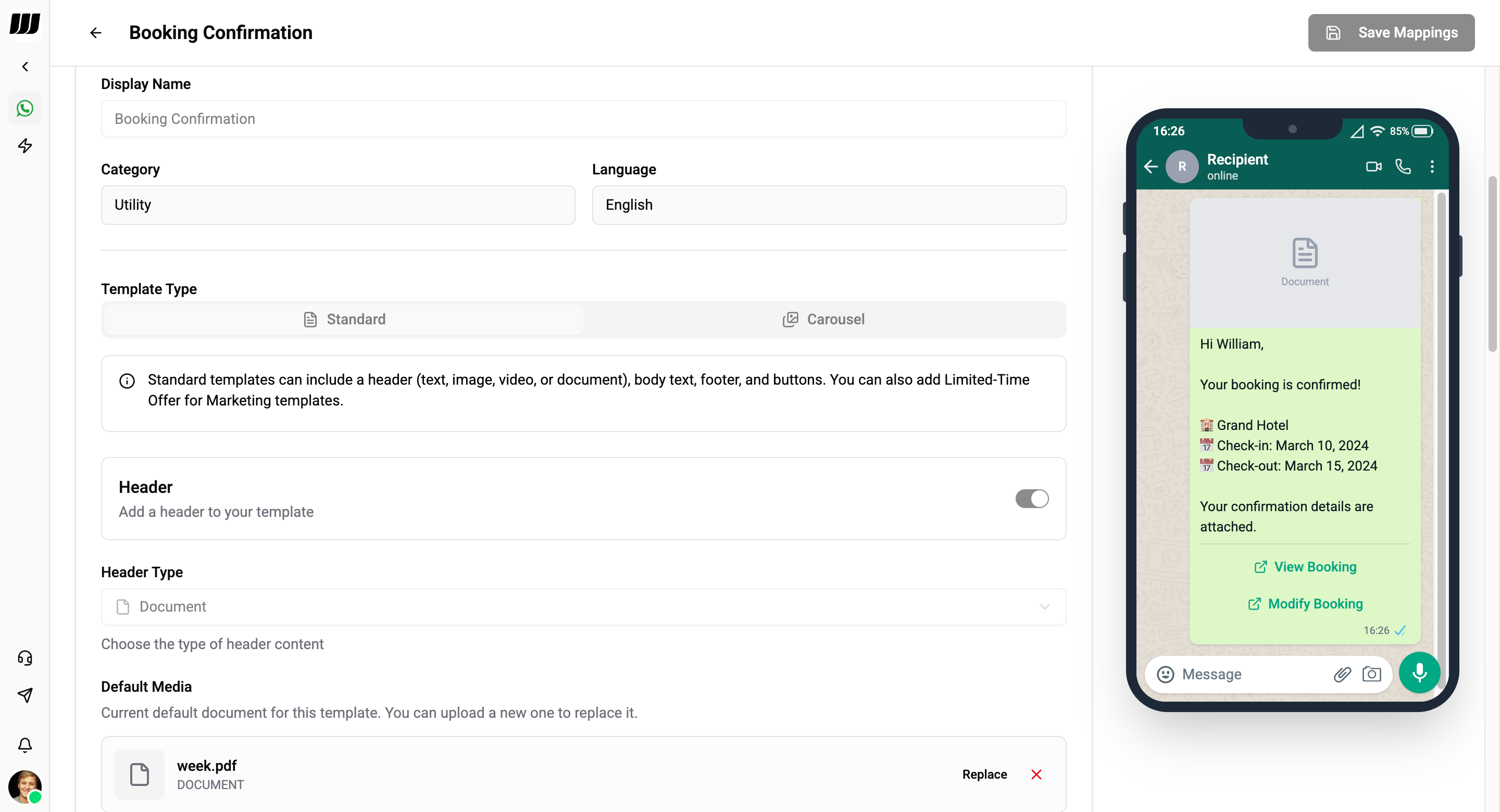
Templates are pre-approved message formats that can be sent outside the 24-hour window. They must be submitted to Meta for approval before use.
Templates must be approved by Meta before they can be sent. Approval can take up to 24 hours.
Categories
| Category | Description |
|---|---|
| Marketing | Promotional content, offers, announcements |
| Utility | Order updates, account alerts, appointment reminders |
| Authentication | One-time passwords, verification codes |
Components
| Component | Description |
|---|---|
| Header | Text (with optional variable), image, video, document, location, or product |
| Body | Main message content with variable placeholders ({{1}}, {{2}}, etc.) |
| Footer | Small text at the bottom |
| Buttons | Interactive buttons (see types below) |
| Limited-Time Offer | Countdown timer with expiration for time-sensitive offers |
| Carousel | 2–10 scrollable cards with media or product headers |
Button Types
Carousel Templates
Bot Settings
After connecting, configure your WhatsApp integration in Wexio:
- Welcome message - automatic greeting for new conversations
- Collection assignment - route incoming chats to a collection
- AI assistant attachment - attach an AI assistant for automated responses
- Catalog connection - connect your Facebook Commerce Manager catalog to enable product messages (Catalog, MPM, SPM buttons and Product Card Carousels)
Identity Field
WhatsApp contacts are identified by whatsapp_id - the phone number in international format (e.g. 15551234567).