Inbox
Manage all customer conversations in one unified inbox
The Inbox is the heart of Wexio - a unified hub where all customer messages from connected channels appear in real time.
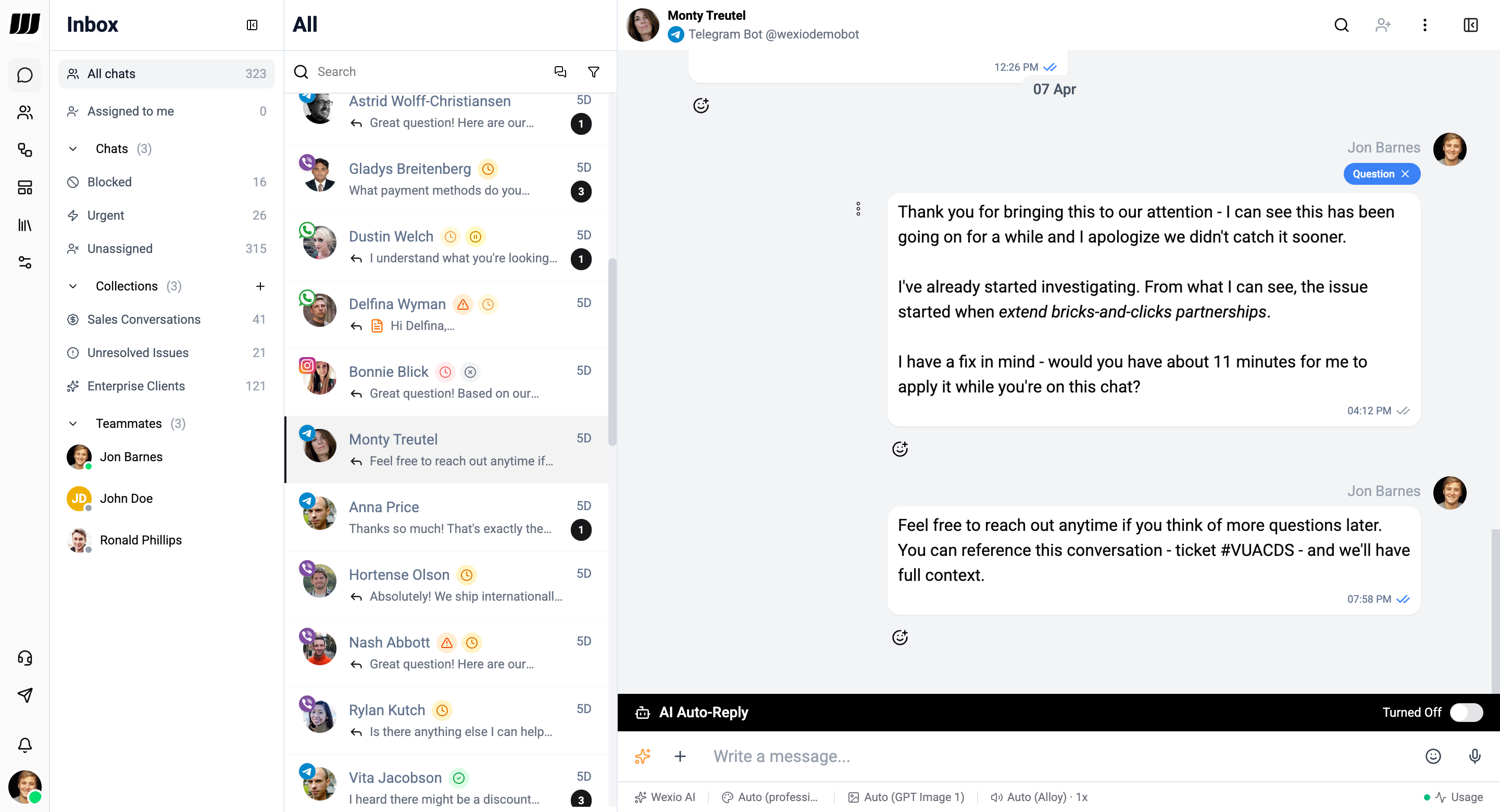
One row is one person, not one channel. A contact who has written on WhatsApp and Instagram is a single row holding two threads, and a single channel can carry several threads when the customer asks about separate things. See Conversations & threads.
Overview
When you navigate to Inbox, you'll see a three-panel layout:
- Left sidebar - Collections, teammate statuses, and navigation
- Center panel - Conversation list with search, filters, and unread counts
- Right panel - The active conversation, its thread picker, message input and contact profile
Layout
The inbox uses a responsive layout that adapts to your screen size. On mobile, panels stack vertically with swipe navigation.
Collections Sidebar
The left sidebar shows your chat collections - custom filtered views of your conversations. Built-in collections include All Chats, Assigned to Me, Unassigned, Urgent, and Blocked. You can create custom collections with filter rules.
A separate @Mentions row sits next to Assigned to Me - it switches the right panel from a chat list to a flat list of internal notes that mention you, with an unread count badge.
Conversation List
The center panel shows conversations matching the current collection. Each item displays:
- Contact name and avatar
- Last message preview with timestamp
- Unread count - the total across all the conversation's threads
- Status indicator (color-coded)
- An icon per channel the contact has used
Real-time subscriptions keep the list updated as new messages arrive, statuses change, or threads are reassigned.
Conversation View
The right panel opens when you select a conversation, showing the message thread, input editor, and AI controls.
When the contact has more than one thread, a thread picker appears in the header, along with an All view that merges every thread into one timeline. Status and assignment live on the thread, so two threads of the same contact can be owned by different operators - the row rolls that up. See Conversations & threads.
Posts
The inbox also has a Posts view, where you answer comments on your social posts - publicly, or by opening a private conversation. See Posts & comments.
Chat Status
Each conversation has a status to help you track progress:
| Status | Color | Description |
|---|---|---|
| Pending | Yellow | New conversation awaiting response |
| In Progress | Blue | Actively being handled |
| Resolved | Green | Issue resolved, conversation closed |
| Closed | Gray | Manually closed by operator |
| Issue | Red | Flagged for follow-up |
Priority Levels
Mark conversations as Low, Medium, or High priority to ensure critical issues surface first.
Operator Assignment
Assign conversations to specific team members. View all chats assigned to you via the "Assigned to me" collection.
Chat Actions
Use the action menu on a conversation for:
- Assign operator - Route to a team member
- Change status - Update the conversation status
- Set category - Categorize the conversation
- Set priority - Mark as urgent or normal
- Block/Unblock - Block a contact from messaging
AI & Flow Status
See at a glance if a chat has:
- AI Active - An AI assistant is responding
- Flow running - An automation flow is in progress
24-Hour Window
For channels like WhatsApp, Instagram, and Viber, there's a 24-hour messaging window. Once a user replies, all messages within that 24-hour session are free. After the window expires:
- WhatsApp & Instagram - Outbound messages are blocked. You must use approved templates to re-initiate contact.
- Viber - You can send a new initiated message, but it is a paid outbound message.
Search & Filters
Find conversations and messages
Chat
Chat view, messages, and editor
Collections
Organize with filtered views
Mentions & Internal Notes
Tag a teammate inside a chat without exposing it to the customer
Live Collaboration
Two operators on one chat - shared cursors, presence, AI typing
Profile
Contact sidebar and details