Chat Header
Status controls, assignment, and chat actions
The chat header sits at the top of the conversation view and provides quick access to chat actions and metadata.
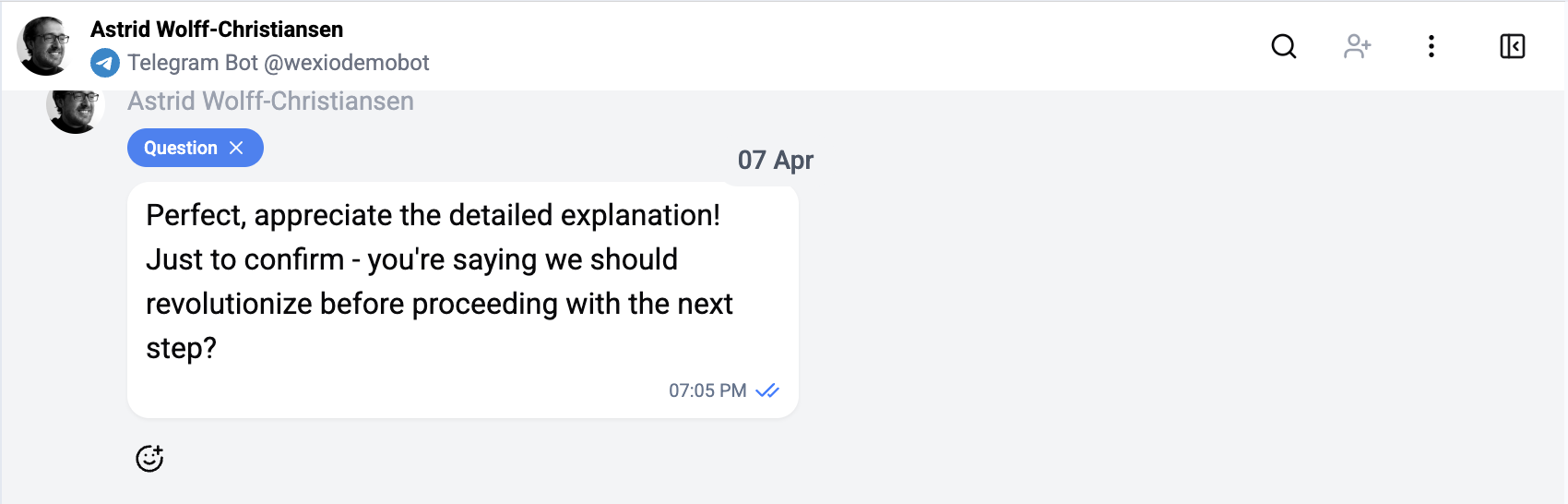
Status Indicator
The header displays the current chat status with a color-coded badge:
| Status | Color | Description |
|---|---|---|
| Pending | Yellow | Awaiting first response |
| In Progress | Blue | Being actively handled |
| Resolved | Green | Issue completed |
| Closed | Gray | Manually closed |
| Issue | Red | Flagged for follow-up |
Click the status badge to change it.
Chat Assignment
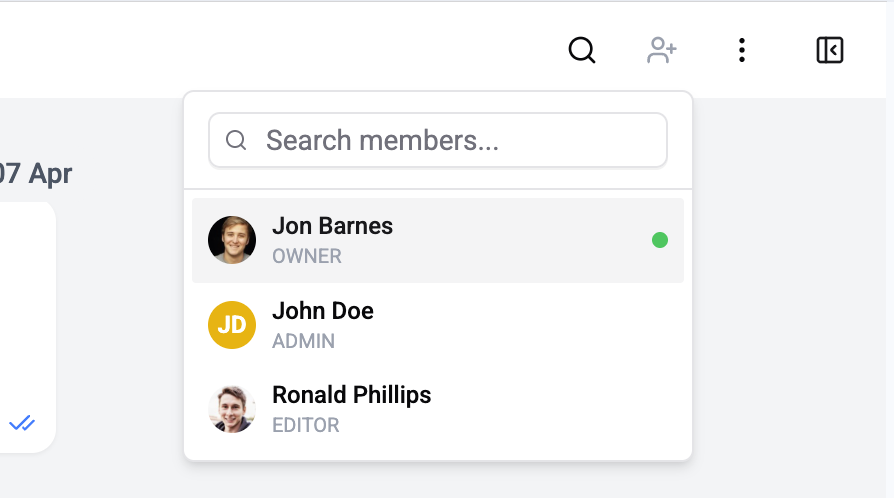
The assignment dropdown lets you assign or reassign the conversation to a team member:
- Search for team members by name
- See the currently assigned operator (highlighted with a checkmark)
- Quick assign with one click
- Unassign to return to the queue
Header Actions
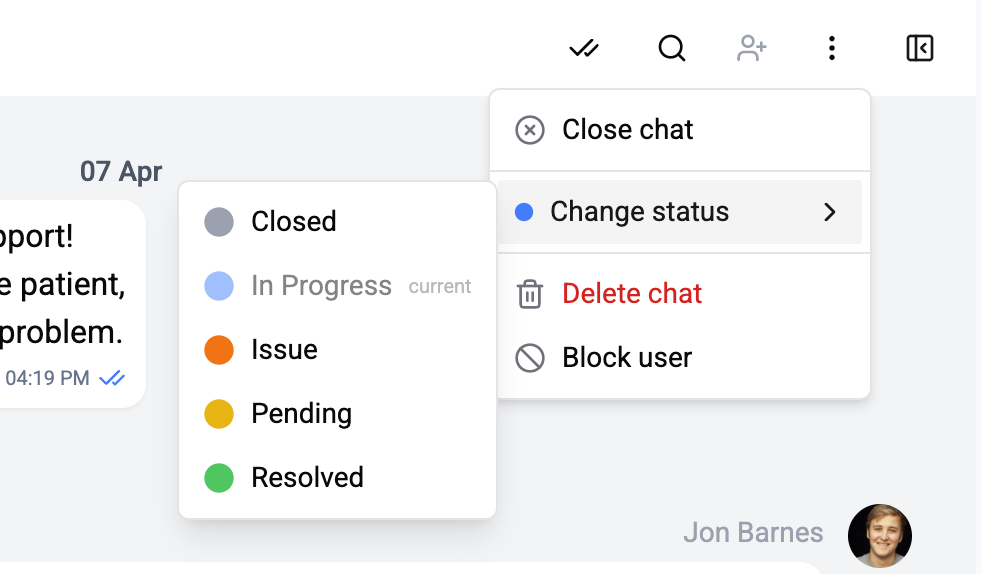
| Action | Description |
|---|---|
| Mark as Read | Mark all messages in the conversation as read |
| Block / Unblock | Toggle the contact's blocked status |
| Delete Chat | Delete the conversation (permission required) |
| Close Chat | Close the conversation |
| Change Status | Change the conversation status |
| Search | Toggle in-chat message search |
| Profile Toggle | Show or hide the contact profile sidebar |
In-Chat Search
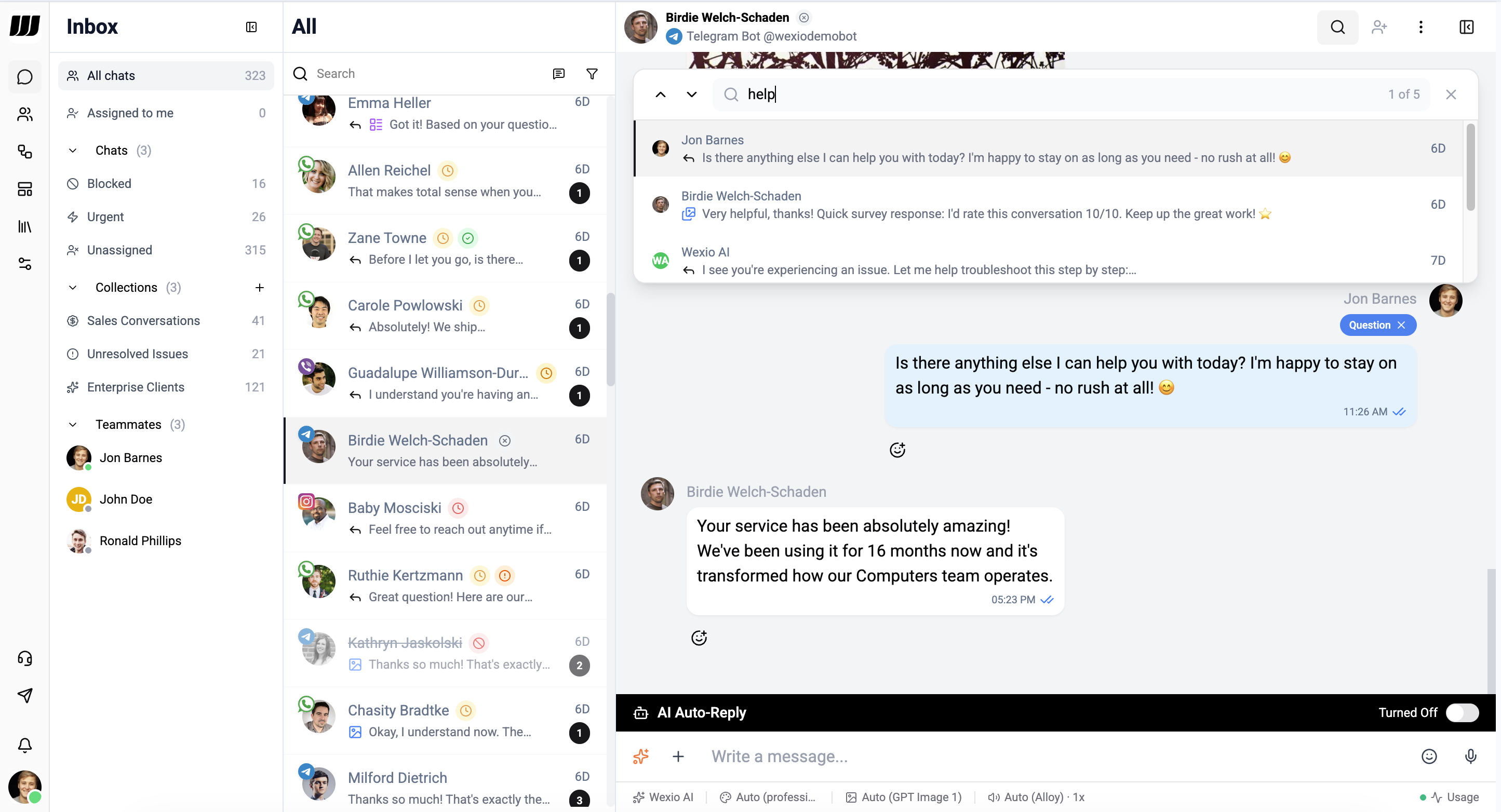
Click the search icon in the header to activate in-chat message search (also accessible from the global search):
- A search input appears below the header
- Type to search within this specific conversation
- Matching messages are highlighted in the thread
- Navigate between results with arrow buttons
- Click a result to scroll to that message
Channel Info
The header also shows:
- Provider icon - Which messaging channel (Telegram, WhatsApp, Instagram, Viber)
- Contact name - The contact's display name
- Chat statuses - Indicators for AI activity, flow status, and priority level
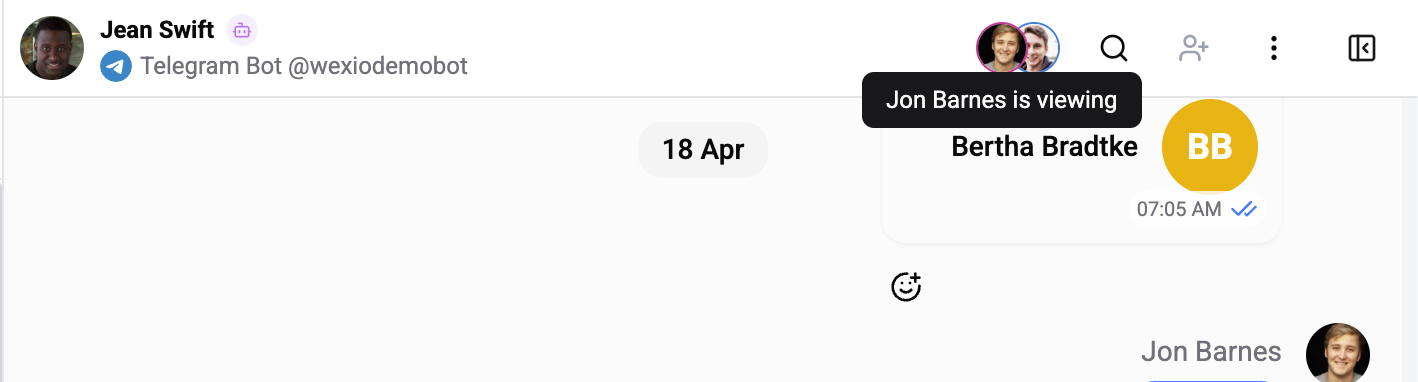
Presence Avatars
When another teammate has the same chat open, their avatar joins yours in the header - stacked next to the contact info. Hover an avatar to see the teammate's name and current activity (viewing, typing, recording, running an AI action).
| Behavior | Detail |
|---|---|
| Live | Avatars appear the moment a teammate opens the chat and disappear the moment they close the tab - no 30-second lag. |
| Same operator, multiple tabs | Wexio dedupes by user ID, so you won't see two of yourself even if you have the chat open in two tabs. |
| No hard limit | Every operator who has the chat open participates; in practice 2–4 is most common for tricky tickets. |
Presence avatars are part of the live co-editor surface, which is Pro+ only. On Free and Standard plans the header shows only your own state - see Live Collaboration for the full picture, including shared cursors, multiplayer composer, and AI / contact typing indicators.