Google & Passkey
No-backend visitor sign-in - Google (FedCM) and passkeys (WebAuthn)
If you have no backend to sign tokens, the widget can sign visitors in with Google or with passkeys. Both run inside the widget panel.
Google sign-in
When you enable Google, the widget renders a Google sign-in button, runs Google Identity Services in-panel, and forwards the resulting id_token to the backend, which verifies it against your OAuth client id.
Set It Up
- Create an OAuth client id in the Google Cloud console.
- Add the origin the sign-in button runs on to the client's Authorized JavaScript origins. For the React, Vue, Angular, Ember and Web Component embeds that is your own site's origin. For the script loader it is the frame's origin,
https://cdn.wexio.ioby default. - In the Widget settings under Sign-in (in the Visitor group), turn on Google sign-in and provide the client id.
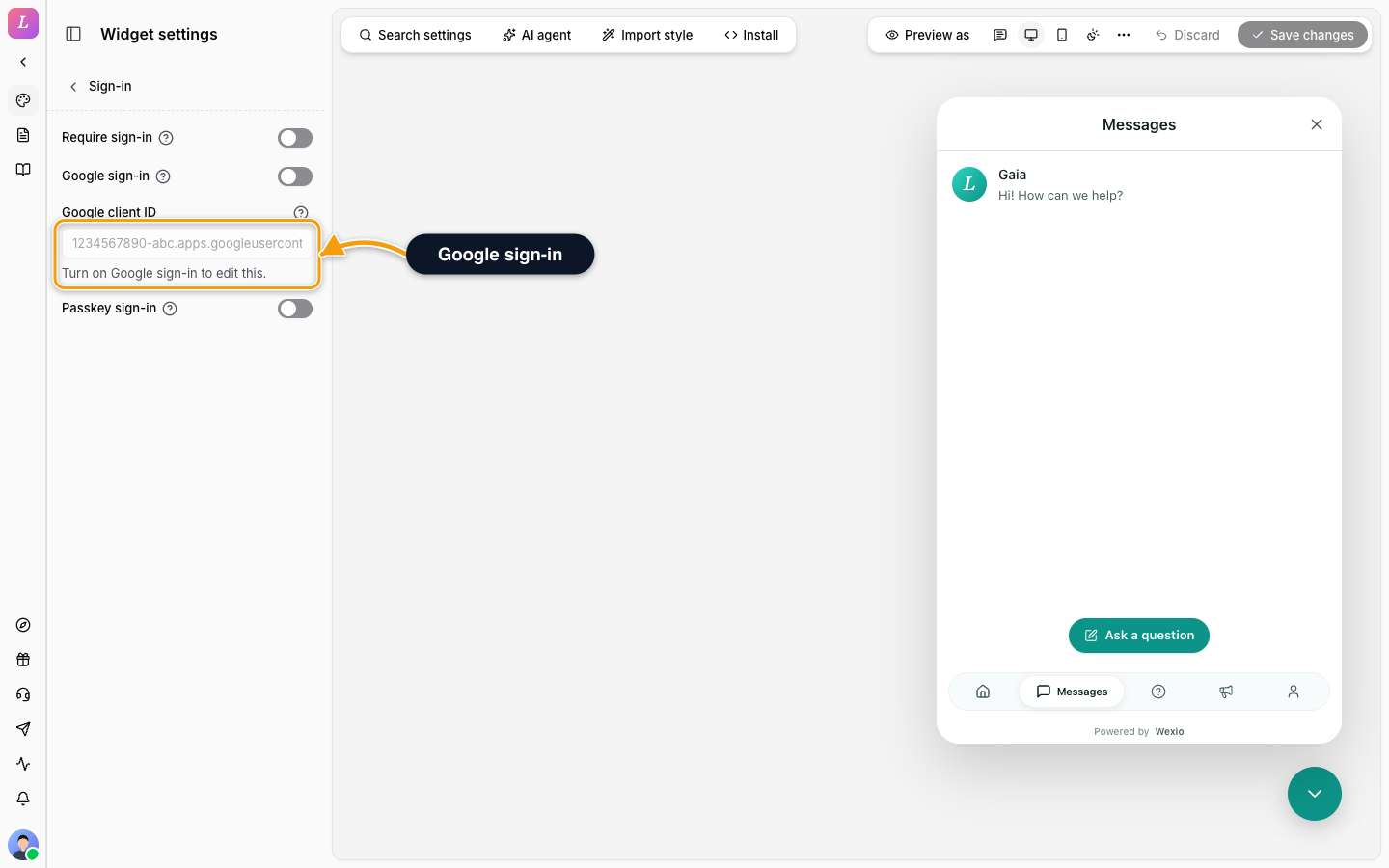
The visitor sees a Sign in with Google button in the panel. The backend verifies the token's signature, its expiry, and that its audience matches your configured client id. It ignores unverified Google emails. The client id is public by Google's design, and no client secret is used or stored.
Pre-Supply a Google Token
If your host already has a Google id_token, pass it directly:
<WexioWidget
  publicKey="pk_live_..."
  user={{ googleIdToken: "<google-id-token>", name: "Ada Lovelace", email: "ada@example.com" }}
/>
Troubleshooting
| Symptom | Cause | Fix |
|---|---|---|
| Sign-in does nothing | Google not enabled, or client id empty | Turn on Google sign-in under Sign-in and enter the Google client ID |
| Sign-in fails verification | Audience mismatch, expired token, or backend clock skew | Confirm the configured client id matches the token's audience; check server time |
Passkey sign-in
Passkeys (WebAuthn) give visitors passwordless sign-in backed by their device: Touch ID, Face ID, Windows Hello, or a security key. To turn them on, turn on Passkey sign-in under Sign-in.
Passkeys need at least one entry in Allowed origins. With an empty list, passkey sign-in is refused. Two ceremonies run in the widget:
- Registration. The visitor taps First time? Set up a passkey and creates a passkey, anchored to a random handle that syncs across their devices (iCloud Keychain, Google Password Manager).
- Authentication. On return, the visitor taps Sign in with a passkey. If the device has none, the widget says No passkey on this device yet. Tap “Set up a passkey” to create one.
The Relying Party Is the Embedding Site
The passkey's relying-party id comes from the embedding origin, validated against your allowedOrigins. Credentials are scoped to (integration, credential), so a passkey created on one integration can never authenticate on another.
Passkeys work in in-page embeds (React, Web Component), where the widget shares the host origin. For the iframe (script loader) embed, the host page must delegate WebAuthn to the iframe with an allow="publickey-credentials-get; publickey-credentials-create" permission policy. This is a documented limitation.
Pinned Profile Fields
A verified sign-in pins the fields the proof carried, so the visitor can't edit them in the Profile tab:
| Proof | Pins |
|---|---|
| name, email (if verified), avatar | |
| Signed JWT | whatever the token signed (name / email / phone / fields.*) |
| HMAC | nothing |
| Passkey | nothing |
Pins are recomputed on every identify. If your host stops sending a claim, the field becomes editable again.
Related
- Authentication - compare all proofs.
- Visitor sign-in - turn on Google and passkey sign-in.
- Allowed Origins - the allow-list passkeys are checked against.