Plan & Billing
Manage your subscription, usage, payments, and invoices
Manage your subscription, view usage, and upgrade your plan.
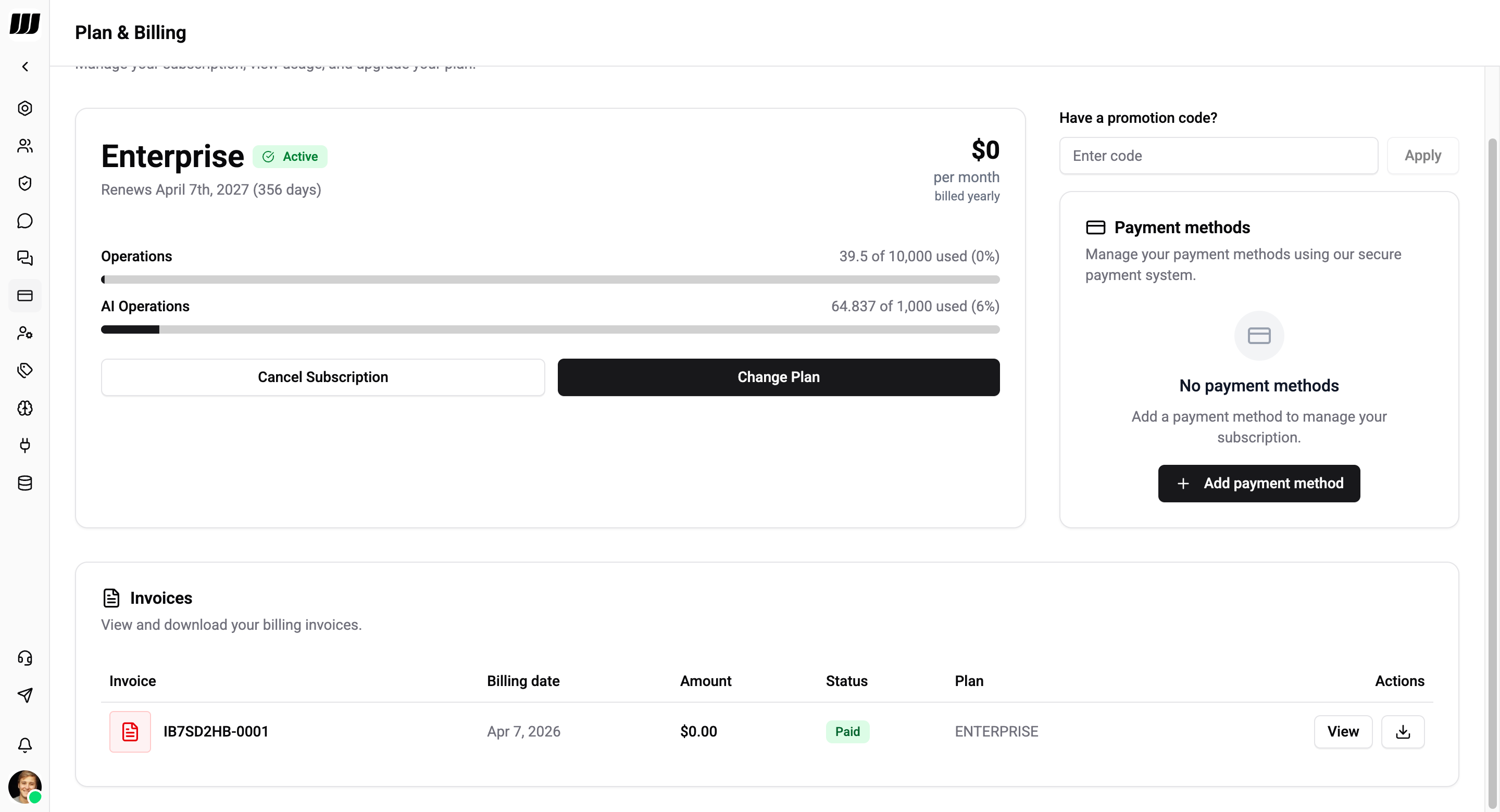
Current Plan
The top of the page shows your active subscription:
- Plan name and status badge (Active, Trialing, Past Due, etc.)
- Renewal date and days remaining until the next billing cycle
- Price - monthly or yearly amount
Usage
Two progress bars show how much of your plan's quota you've used in the current billing period:
| Metric | Description |
|---|---|
| Operations | Message sends, flow executions, and other platform operations |
| AI Operations | AI assistant responses, transcriptions, image analysis, and other AI features |
Usage counters reset automatically at the start of each new billing period.
Actions
- Cancel Subscription - cancels at the end of the current billing period. You keep access until the period ends, then revert to the Free plan.
- Change Plan - upgrade or downgrade your subscription (see below).
Changing Plans
Upgrade (to a higher plan)
When you upgrade (e.g. Free → Standard, Standard → Pro):
- Takes effect immediately
- New limits apply right away
- You are charged a prorated amount for the remainder of the current billing period
- No cooldown - you can upgrade at any time
Downgrade (to a lower plan)
When you downgrade (e.g. Pro → Standard, Enterprise → Free):
- Scheduled for the end of your current billing period
- You keep your current plan and limits until the period ends
- 30-day cooldown between downgrades to prevent abuse
- No refund for the remaining period
Upgrades are always available instantly. Downgrades are scheduled - your current plan stays active until the billing period ends.
What a Downgrade Locks
When the downgrade takes effect, anything above the new plan's limits is enforced automatically. Wexio shows you this as a preview before you confirm, so there are no surprises:
| Resource | What happens |
|---|---|
| Channels | Integrations above the new limit are paused. They are not deleted - re-upgrade and they come back. |
| Flows | Flows above the new limit are unpublished. The flows themselves are kept. |
| AI assistants | Deactivated if the new plan has no AI. AI features need Standard or higher. |
| Team members | Members above the new seat count are downgraded in role. |
| Custom collections | Collections above the new limit are plan-locked - hidden, not deleted. |
| SSO / SAML | Disabled below Enterprise. Users sign in with email/password or OAuth instead. |
| API keys | Stop working below Standard. The keys are kept, not revoked, and work again after an upgrade. |
| MCP server | Stops below Pro. |
| Webhooks | Delivery pauses below Pro and connections are kept. Inbound webhooks are rejected. You can still list, view, pause and delete connections and read delivery history on any plan; creating, editing or reactivating one needs Pro. |
| Data retention | Shortened to the new plan's retention window. |
Nothing is deleted by enforcement - it is paused, unpublished, hidden or deactivated. Upgrading again restores channels, collections, SSO and API access. Read the preview before confirming: it names exactly which flows and channels will stop.
If you have an integration running, a downgrade will break it silently from your side. Your API keys survive and nothing in Wexio looks deleted, but every call your backend makes starts failing until the plan is restored. Webhook deliveries pause and resume within about a minute of upgrading. See plan feature not allowed.
Partner-Managed Organisations
An organisation provisioned and managed by a tech provider is exempt from retail billing enforcement. It has no plan of its own to downgrade, no limits applied against it, and none of the locks above. Its usage rolls up to the provider, who is billed wholesale.
Such an organisation also cannot open, switch or cancel a subscription, and cannot grant or redeem coupons or referrals - those are the provider's terms to set, not yours. This is distinct from an organisation merely referred by a distribution partner, which stays an ordinary retail customer with its own plan and keeps all of the above.
If you reached Wexio through a partner's product, your plan and limits are theirs to manage, not yours.
Billing Intervals
| Interval | How it works |
|---|---|
| Monthly | Charged once per month on the same date |
| Yearly | Charged once per year (full amount upfront) with a 15% discount |
Yearly billing is a single upfront payment, not 12 monthly instalments.
Promotion Code
Enter a promotion code on the right side of the page and click Apply to receive a discount on your subscription.
Payment Methods
Manage the payment methods used for your subscription. Click Add payment method to add a credit or debit card.
At least one valid payment method is required for any paid plan.
Invoices
View and download all your billing invoices. Each invoice shows:
| Column | Description |
|---|---|
| Invoice | Invoice reference number |
| Billing date | Date the invoice was issued |
| Amount | Total charged |
| Status | Payment status (Paid, Open, etc.) |
| Plan | Plan tier at the time of billing |
| Actions | View the invoice or download it as PDF |
Payment Failures & Account Status
If a payment fails, the system follows an escalation process to give you time to fix it:
Organisation Status
| Status | What happens |
|---|---|
| Active | Everything works normally |
| Past Due | Payment failed - you have a 7-day grace period. Flows and outbound messages are blocked, but you can still access settings and the billing page to update your payment method |
| Suspended | Grace period expired - everything is blocked except the billing page |
Escalation Timeline
| Day | Action |
|---|---|
| Day 0 | Payment fails. Status changes to Past Due. Warning email sent |
| Day 1–4 | Grace period - no additional emails |
| Day 5 | Urgent reminder email (2 days remaining) |
| Day 6 | Final warning email (1 day remaining) |
| Day 7+ | Account suspended. All features blocked except billing page |
Recovery
Once you update your payment method and the payment succeeds:
- Account status returns to Active immediately
- All features are restored
- Usage counters reset if a new billing period has started
If your account is suspended, you can still access the billing page to update your payment method and restore access.
Cancellation
When you cancel your subscription:
- Your current plan remains active until the billing period ends
- After the period ends, you revert to the Free plan
- Usage limits reset to Free tier levels
- You can re-subscribe at any time