CRM Integrations
Connect HubSpot, Salesforce, and BigQuery to sync contacts
Wexio integrates with CRM platforms to keep customer data synchronized. Connect your CRM, configure field mappings, and import or export contacts directly from the People page.
CRM integrations require the Pro plan or higher.
Supported CRMs
| CRM | Connection Method | Sync Direction |
|---|---|---|
| HubSpot | OAuth 2.0 | Import, Export, or Both Ways |
| Salesforce | OAuth 2.0 | Import, Export, or Both Ways |
| BigQuery | Service Account JSON | Import, Export, or Both Ways |
HubSpot
Prerequisites
- A HubSpot account with API access
- Admin permissions in your HubSpot portal
Connecting HubSpot
- Go to Settings → Integrations.
- Click Connect next to HubSpot.
- Click the Connect with HubSpot button to start the OAuth flow.
- Log in to HubSpot and grant Wexio access to your portal.
- Once authorized, you'll be redirected back to Wexio.
After connecting, you'll be prompted to configure field mappings.
Salesforce
Prerequisites
- A Salesforce account (any edition with API access)
- Admin permissions in Salesforce
Connecting Salesforce
- Go to Settings → Integrations.
- Click Connect next to Salesforce.
- Click the Connect with Salesforce button to start the OAuth flow.
- Log in to Salesforce and grant Wexio access.
- Choose the Object Type to sync with - Contact or Lead.
- Once authorized, you'll be redirected back to Wexio.
After connecting, you'll be prompted to configure field mappings.
In Salesforce, Wexio custom fields appear with the __c suffix (e.g. wexio_id__c). This is standard Salesforce convention for custom fields.
BigQuery
Prerequisites
- A Google Cloud project with BigQuery enabled
- A service account with BigQuery read/write permissions
- The service account's JSON key file
- A dataset and table in BigQuery to sync with
Connecting BigQuery
- Go to Settings → Integrations.
- Click Connect next to BigQuery.
- Enter your Dataset ID and Table ID.
- Paste the contents of your Google Cloud service account JSON credentials.
- Click Connect.
After connecting, you'll be prompted to configure field mappings.
Field Mappings
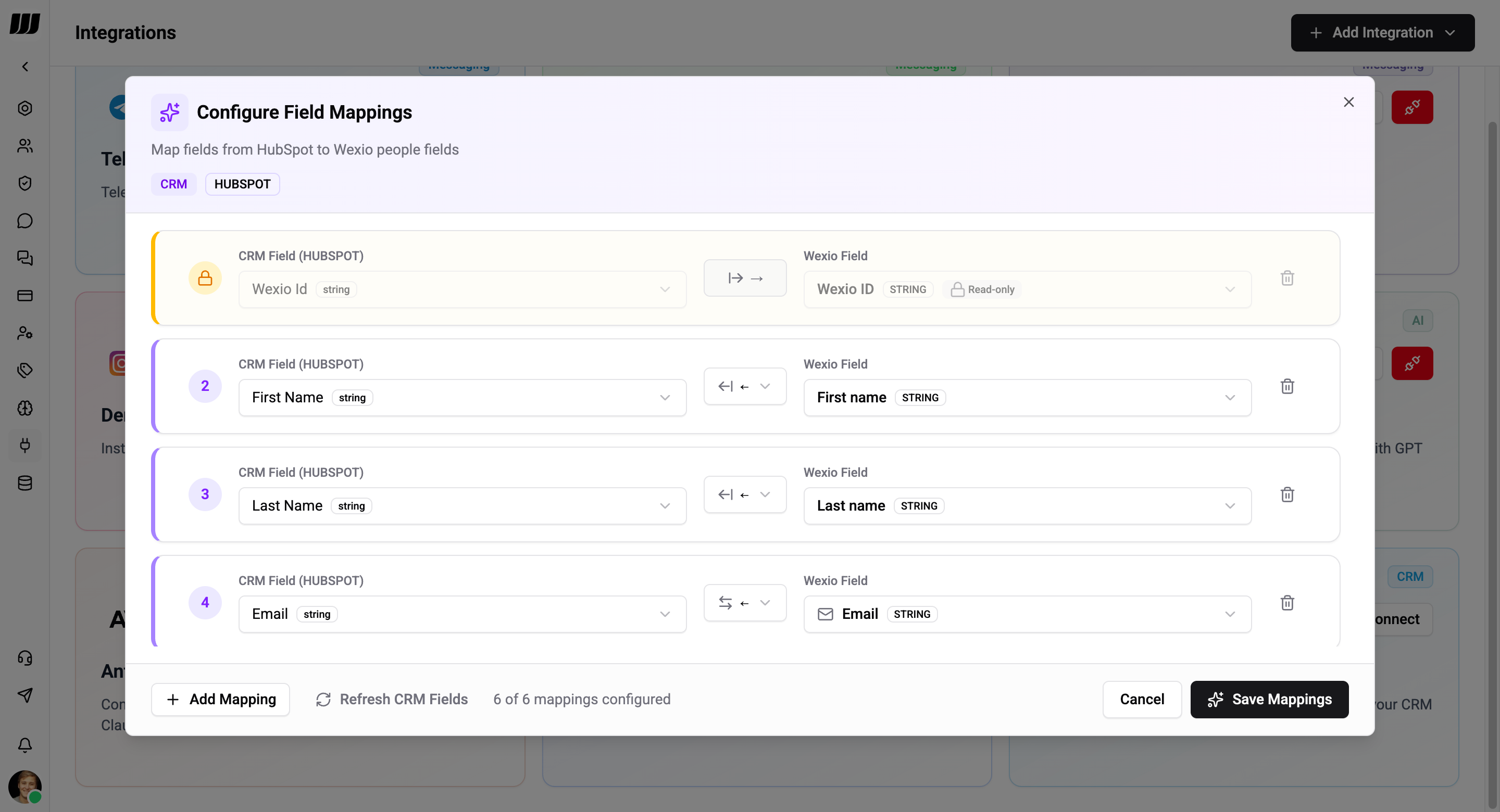
Field mappings define how data flows between your CRM and Wexio. After connecting any CRM, the Configure Field Mappings dialog opens.
Structure
Each mapping connects one CRM field to one Wexio field with a sync direction:
| Element | Description |
|---|---|
| CRM Field | A field from your CRM (with its type badge, e.g. string, number) |
| Sync Direction | How data flows between the two systems |
| Wexio Field | A field from your Wexio people profile (with its type badge) |
Sync Directions
Each field mapping can have one of three sync directions:
| Direction | Label | Description |
|---|---|---|
| Both Ways | ⇄ | Sync during import AND export |
| Import Only | ← | Only sync CRM → Wexio |
| Export Only | → | Only sync Wexio → CRM |
If a CRM field is read-only, the direction is automatically set to Import Only. If a Wexio field is read-only, it's set to Export Only.
Required Mapping: Wexio ID
The first mapping is always Wexio ID - this is the unique identifier that links a Wexio contact to a CRM record. It is locked and cannot be deleted or changed.
| CRM | Wexio ID Field Name |
|---|---|
| HubSpot | wexio_id |
| Salesforce | wexio_id__c |
| BigQuery | wexio_id |
Adding Mappings
- Click + Add Mapping at the bottom.
- Select the CRM field from the dropdown.
- Select the matching Wexio field.
- Choose the sync direction.
- Repeat for all fields you want to sync.
- Click Save Mappings.
Use Refresh CRM Fields to re-fetch the latest fields from your CRM if you've recently added new properties there.
Creating New Fields
If a matching field doesn't exist yet, you can create one during mapping:
Importing Contacts
Import contacts from your CRM into Wexio People.
- Go to People.
- Click the CRM import button.
- Configure import settings:
| Setting | Description |
|---|---|
| Scope | Import All contacts or Filtered by CRM field criteria |
| Create new | Create new Wexio contacts for unmatched CRM records |
| Update existing | Update existing Wexio contacts with CRM data |
| Incremental sync | Only import records modified after a specific date |
| Record limit | Maximum number of records to import |
| Duplicate key | Field used to match existing contacts (wexio_id, telegram_id, email, or a custom field) |
A live preview shows the estimated number of records to import before you start.
Exporting Contacts
Export contacts from Wexio People to your CRM.
- Go to People.
- Select contacts (or use filters) and click the CRM export button.
- Configure export settings:
| Setting | Description |
|---|---|
| Scope | Export Selected contacts, All, or Filtered results |
| Create new | Create new CRM records for contacts not yet in the CRM |
| Update existing | Update existing CRM records with Wexio data |
A live preview shows the estimated number of records to export before you start.
Sync History
After running an import or export, you can view the sync history to track job status and results.
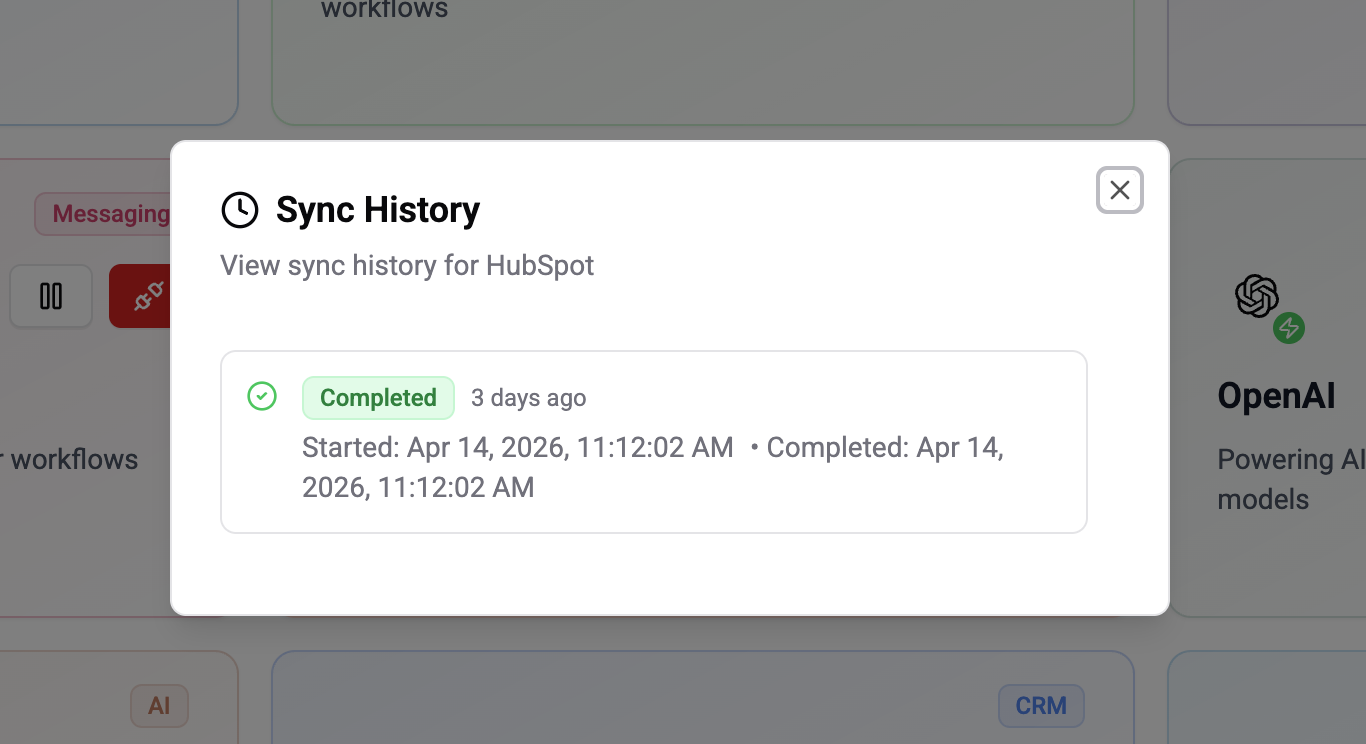
Each sync job shows:
| Field | Description |
|---|---|
| Status | Completed, Failed, Processing, Pending, or Cancelled |
| Started at | When the job began |
| Completed at | When the job finished (if applicable) |
| Records synced | Total records successfully processed |
| Records created | New records created |
| Records updated | Existing records updated |
| Records failed | Records that failed to sync |
| Error | Error details (if the job failed) |
You can cancel a running job or clear completed job history.
CRM in Flows
You can also push contact data to your CRM automatically using the CRM Card in flows. This lets you update CRM records as part of an automated conversation flow - for example, creating a lead in Salesforce after qualifying a contact.