Bulk Operations
Export and import contacts with CRM systems
Wexio supports bulk export and import of contacts through CRM integrations. Access bulk operations from the People page via the Export and Import buttons.
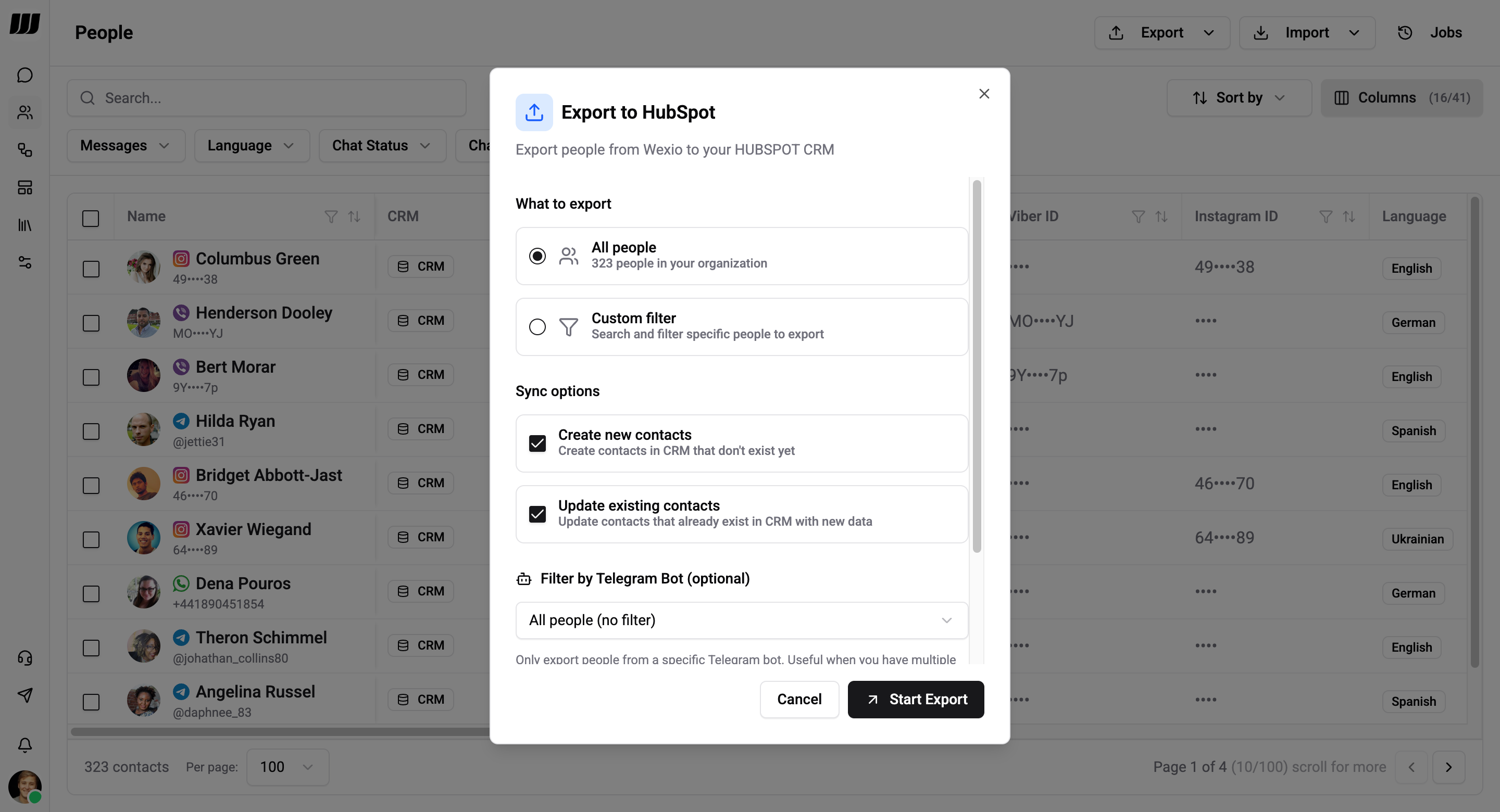
Export to CRM
Push contacts from Wexio to your connected CRM (HubSpot, Salesforce, BigQuery).
Steps
- Click Export on the People page
- Select the target CRM integration
- Optionally filter which contacts to export:
- Search by name, email, phone
- Advanced Filters - build conditions on any field (e.g. Wexio ID contains, Chat Status equals)
- Bot filter - only export people from a specific bot (useful with multiple bots)
- Start the export
Filtering
You can export:
- All people - no filter applied
- Filtered subset - apply search and/or advanced filters before exporting
Advanced filters support the same operators as the People table - combine multiple conditions on any system or custom field.
Make sure field mappings are configured before exporting. Only mapped fields will be synced to the CRM.
Import from CRM
Pull contacts from your CRM into Wexio.
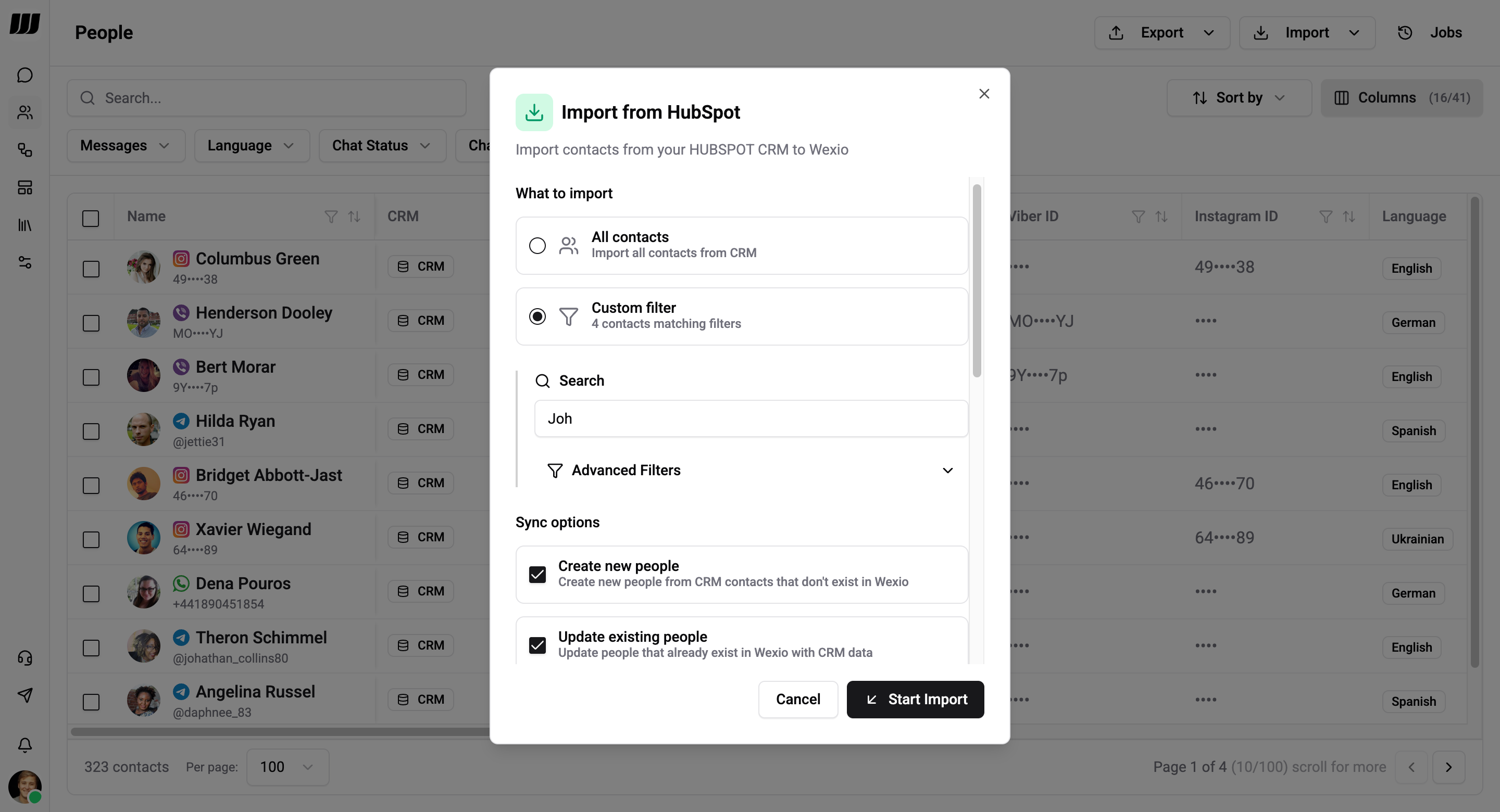
Steps
- Click Import on the People page
- Select the source CRM integration
- Optionally associate a bot (see below)
- Optionally set a record limit
- Start the import
Bot Association
Associate imported contacts with a messaging bot to enable matching by channel-specific IDs (e.g. telegram_id, username). Without a bot association, records are matched using:
- CRM Record ID - native CRM ID if the contact was previously synced
- Wexio ID - internal ID stored in the CRM
With a bot selected, additional matching keys become available (e.g. telegram_id, email, custom field).
Record Limit
Set a maximum number of contacts to import. Leave empty for no limit.
Make sure field mappings are configured before importing. Only mapped fields will be synced from the CRM.
File Export
Export contacts as a downloadable file from the People page:
- Formats: CSV, Excel, JSON
- Modes: Selected contacts, all contacts, or filtered results
File exports appear in the Jobs → File Exports tab with a download link that expires after 1 day.
Bulk Delete
Select multiple contacts with checkboxes on the People table, then click Delete to remove them in bulk (requires permission).
Job Tracking
All export and import operations run as background jobs. Track progress and results in People → Jobs.