Flows
Visual workflow automation builder
Flows is Wexio's visual automation builder that lets you create powerful workflows without writing code.
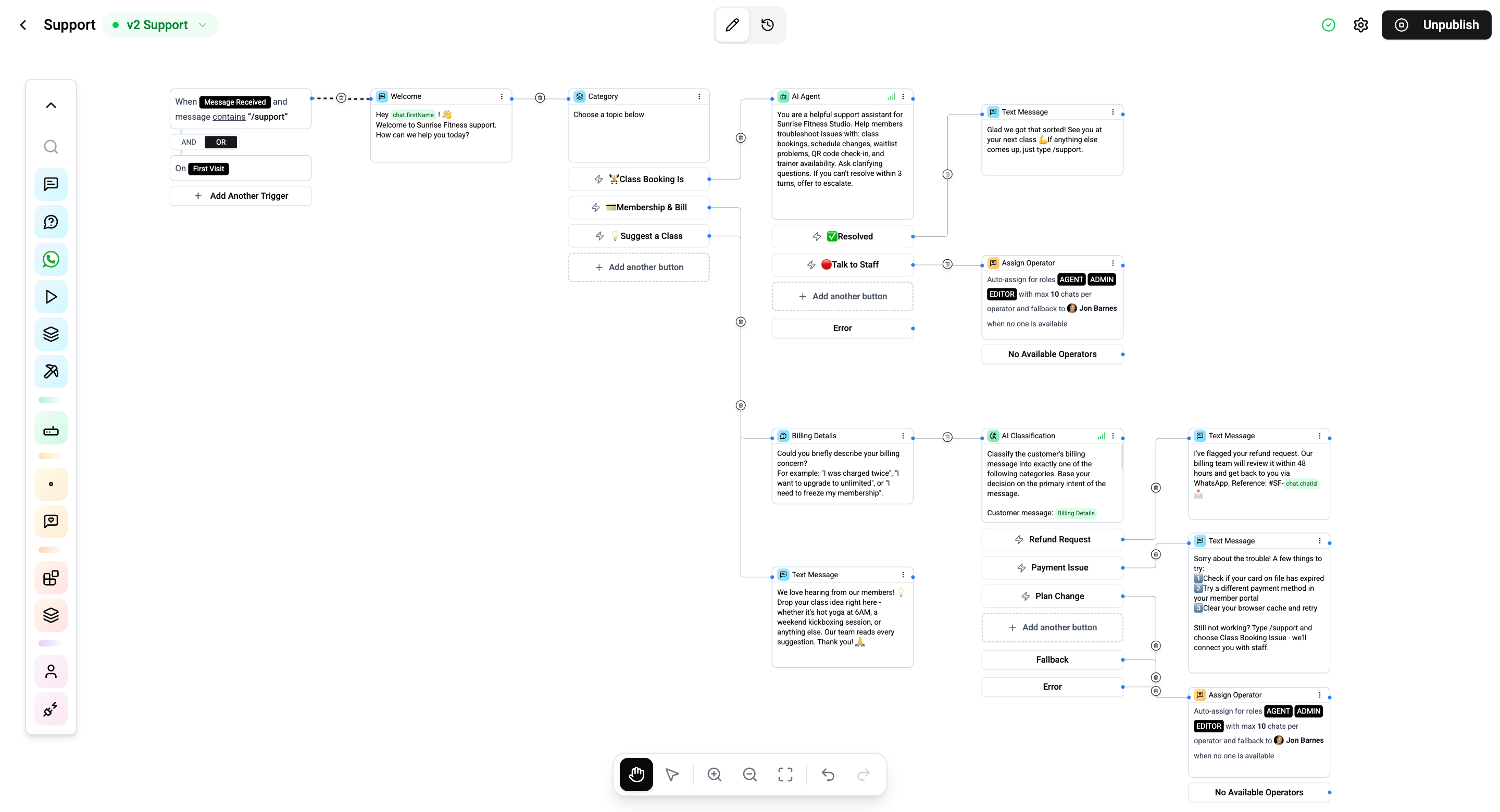
Overview
Flows use a node-based canvas where you connect triggers, conditions, and actions to automate customer interactions. Each flow is a directed graph of cards (nodes) that execute in sequence, built on top of a modular execution engine.
Getting Started
- Navigate to Flows from the sidebar
- Click Create Flow
- Give your flow a name and description
- You'll be taken to the visual flow editor
Flow Lifecycle
Every flow follows a Draft → Published lifecycle:
| State | Description |
|---|---|
| Draft | Edits happen here - the bot does not execute this state |
| Published | An immutable snapshot of the draft, actively running |
Editing a published flow is always safe - your changes stay in the draft and never affect live bot execution until you explicitly publish again. Each publish creates a new version and an entry in the activity log.
When you unpublish a flow, the bot stops triggering it. Your draft, version history, and activity log are all preserved - you can re-publish at any time.
Only a published flow can be started manually. Starting a flow from inside a chat - by an operator, or over the API - works on published flows only. A draft or archived flow is not offered and answers not-found if you try.
Flow Management
The flows list page shows all your automations:
| Column | Description |
|---|---|
| Name | Flow identifier |
| Status | Published (active) or Draft (inactive) |
| Trigger | What starts the flow |
| Last modified | When it was last updated |
| Created by | Who created the flow |
Quick Actions
| Action | Description |
|---|---|
| Edit | Open the flow editor |
| Duplicate | Create a copy of the flow |
| Publish / Unpublish | Activate or deactivate the flow |
| Delete | Remove the flow permanently |
How Execution Works
When a flow is published and a trigger fires:
- The execution engine loads the published snapshot (not the draft)
- A new execution context is created with variables (contact, chat, system, org)
- Cards execute in sequence following the connection paths
- When a card requires user input (e.g., Question, Button), the flow pauses and waits
- On user reply, the flow resumes from where it left off
- The flow completes when it reaches a card with no outgoing connection, or when the execution timeout expires
Timeouts
Each flow has a configurable execution timeout (default: 5 minutes). If the flow doesn't complete within this time, it's automatically terminated. Sub-flows have their own independent timeout (default: 1 minute).
Strict Mode
When strict mode is enabled in flow settings, the flow stops on any card error instead of silently continuing. You can configure a custom error message shown to the contact.
Use Cases
- Welcome messages - Automatically greet new contacts
- Auto-assignment - Route conversations to the right team member
- Follow-ups - Send reminders after a period of inactivity
- Data collection - Ask questions and save responses to contact fields
- Lead qualification - Classify and score leads with AI
- Support automation - Handle common requests with AI agents
- Escalation - Route complex issues to senior operators via Assign Operator
- CRM sync - Push contact data to external CRM systems