Message Actions
Edit, reply, delete, label and react to a message, and read its delivery status
Hover over a message to see what you can do with it. Which actions appear depends on the channel and on the message.
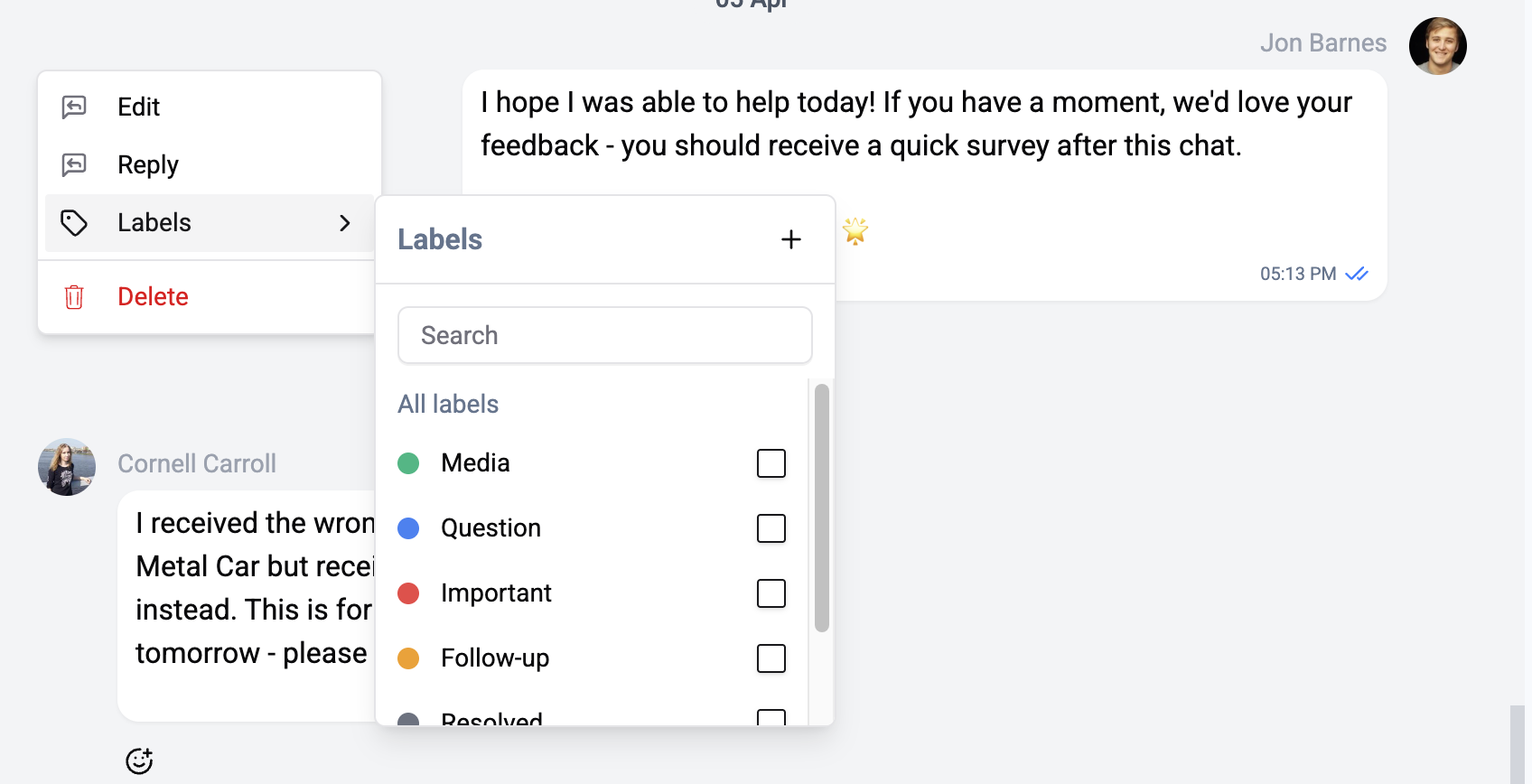
The Message Menu
Click the three dots beside a message to open the menu.
| Action | Where it shows |
|---|---|
| Edit | Your own sent messages on Telegram and the web widget. |
| Reply | Messages on every channel except Instagram. |
| Labels | Every message. Pick labels, search them, or add one if your role allows it. |
| Delete | Every message that is not deleted already. |
Edit, Reply and Delete are hidden when the operations limit is reached or when sending is blocked. Labels stays. There is no copy or forward action.
Edit
Choose Edit. The text moves into the editor under Editing message. Change it and send. On Telegram and the web widget the customer sees the edit. WhatsApp, Instagram and Viber cannot edit a sent message, so the menu hides Edit there.
Reply
Choose Reply. The editor shows Replying to {name}, and your message quotes the original. Instagram does not show quotes, so Reply is hidden there.
Delete
Choose Delete, type DELETE in the confirmation box and confirm. You see Message deleted successfully, or Failed to delete message. The message turns into This message was deleted by and your name, and its files are removed.
Telegram removes the message from the customer's app, and on the web widget it disappears for the visitor live. On WhatsApp, Instagram and Viber the customer keeps the message, and it is deleted in Wexio only.
React
Click the emoji button beside a message to pick a reaction, or click an existing reaction to remove yours. Customers' reactions appear on the message too.
| Channel | Your reaction |
|---|---|
| Telegram, WhatsApp, Instagram | Saved in Wexio and sent to the customer. |
| Viber, web widget | Saved in Wexio and shown to your team only. |
The editor shows no warning for the second case.
Delivery Status
An icon beside each message you sent shows where it stands.
| Icon | Meaning |
|---|---|
| Clock | Sending... |
| One grey tick | Sent |
| Two grey ticks | Delivered |
| Two blue ticks | Read |
| Red warning | Failed to send |
Which receipts you see depends on what the channel reports. For a failed message, hover over the icon to read the reason and the channel's code (Code {code}). Click the icon, or Click to retry, to send it again. For reasons specific to a channel, see Sending and Reply Windows.
Files can also carry a scan result: Scanning for malware…, File verified safe or Malware detected - file blocked.
Related
- Message Editor - where edits and replies are written.
- Message Types - every message the thread can show.
- Labels - create the labels you apply here.