Assignment & Status
Take a chat, hand it to a teammate, close it and reopen it
Every thread has a status and an owner. This page covers how to set both, what Connect does to AI, and who is allowed to do what.
Statuses
The status shows as a label in the thread header. To change it, open the thread menu (the three dots), choose Change status and pick one.
| Status | Use |
|---|---|
| Pending | The chat waits for a reply. |
| In Progress | Someone is handling it. |
| Issue | The chat needs follow-up. |
| Resolved | The request is done. |
| Closed | You closed the chat. |
Status belongs to the thread. Two threads of one person can be in different states. On the conversation screen, the profile panel rolls them up as Open or Closed. See Conversations & Threads.
Assign a Chat
- Click Assign in the thread header.
- Type in Search members... to find a teammate, then pick them.
- To hand the chat back to the queue, choose Unassign.
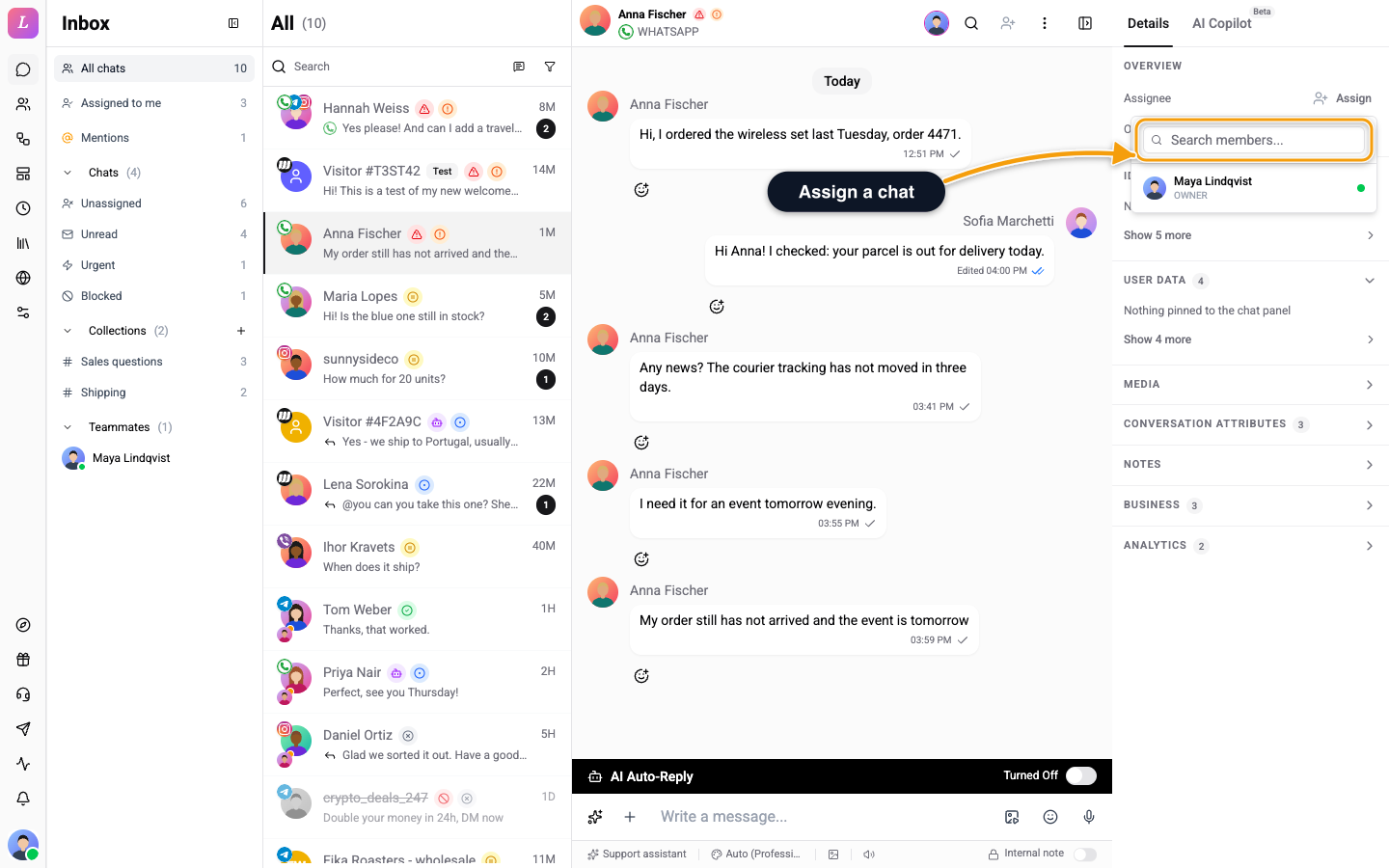
The button reads Assigned to {name} once someone owns the chat, or Several when its threads have different owners. The Assignee row in the profile panel does the same.
Assigning a chat sets it to In Progress. If the chat was Closed, it reopens and the thread shows a Chat reopened line.
Assigned chats show up in Assigned to me for that teammate. Chats nobody owns, and that are not closed, show in Unassigned. See Collections.
Connect and Disconnect
When a chat is assigned to you, you have not joined it yet. AI and flows stay active, and a Connect to chat button covers the message box. You can still read the whole thread. Click the button to join and reply.
Use Connect in the thread menu to take a chat for yourself. AI auto-reply pauses for that customer while you are connected, and the AI bar shows Stopped.
Disconnect / Resolve releases the chat. It unassigns you, sets the status to Resolved and adds a system line to the thread. AI auto-reply can answer again.
When a teammate is connected and you open the menu, you see both Connect to take over and Disconnect / Resolve.
Close and Reopen
Close chat sets the status to Closed and unassigns the owner. The item is not shown when the chat is already closed.
To reopen, set another status under Change status, such as In Progress, or assign the chat to someone.
Assign Automatically
A flow can assign chats for you. The Assign Operator card in Auto-assign mode picks the online teammate with the fewest open chats, within a limit you set, and falls back to an operator you name. See Assign Operator.
Who Can Do What
| Action | Agent | Editor, Admin, Owner |
|---|---|---|
| Read, reply, connect, change status | Yes | Yes |
| Block and unblock | Yes | Yes |
| Assign and Unassign | No | Yes |
| Delete chat, Delete conversation | No | Yes |
| Edit profile fields | No | Yes |
Related
- Chat Header - every action in the header menu.
- Collections - Assigned to me, Unassigned and Urgent.
- Assign Operator - automatic assignment in a flow.