Stripe for AI Payments
Connect your Stripe account so an AI assistant can look up a customer's payments and request refunds
Connect your Stripe account so an assistant can answer billing questions and request refunds. The assistant uses Stripe through a skill.
This page is about your Stripe account as an AI integration. To receive Stripe events in a flow, see Stripe webhooks.
Plans and Roles
Stripe needs the Pro or Enterprise plan. On a lower plan the Connect button shows Upgrade your plan to Pro or higher to connect this integration. Only Owners and Admins can connect, update, pause or disconnect integrations.
Connect Stripe
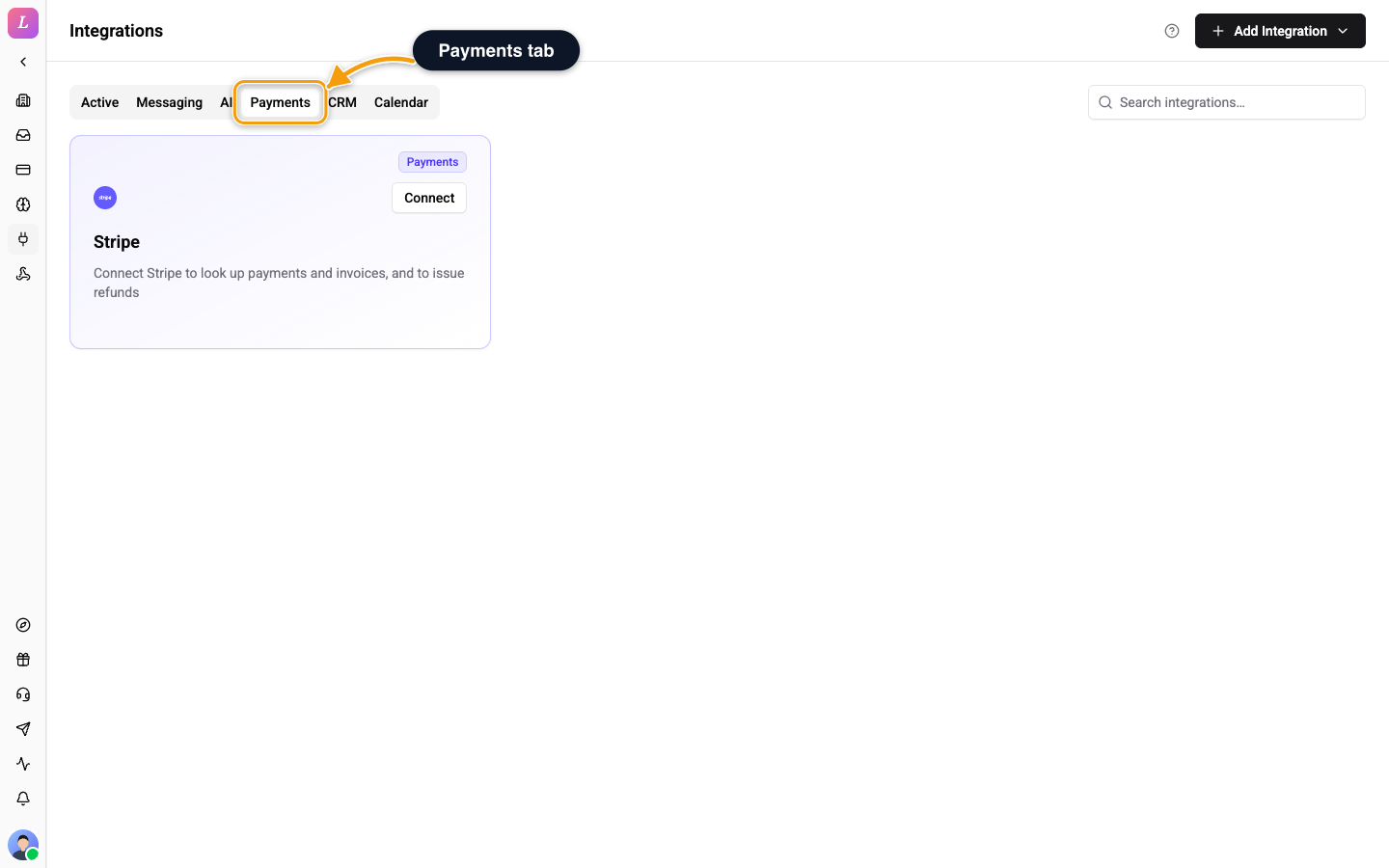
- Go to Settings → Integrations and open the Payments tab.
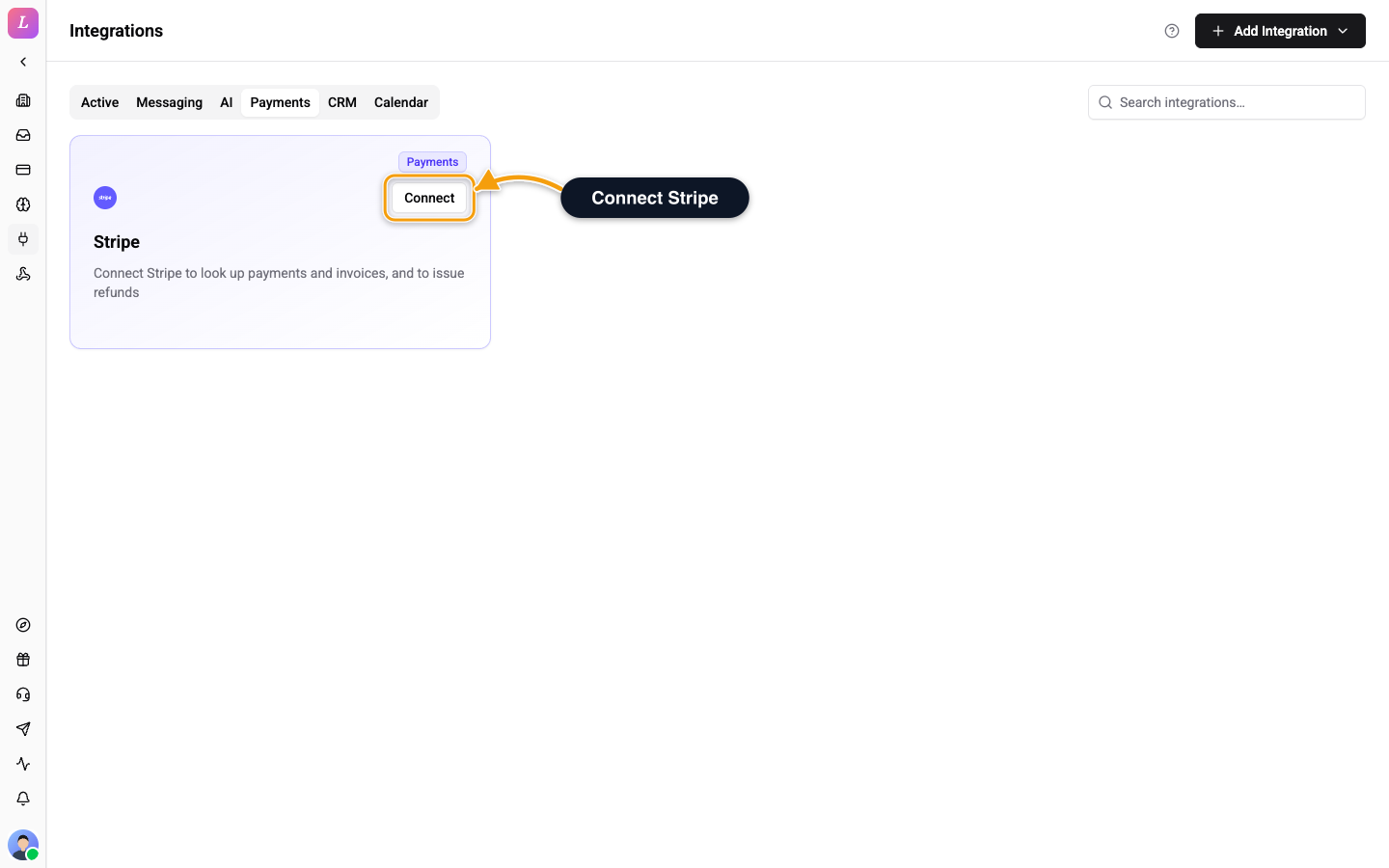
- Click Add Integration, then pick Stripe in the Payments group. You can also click Connect on the Stripe card.
- Click Connect with Stripe.
- Sign in to Stripe and allow access in the secure window that opens.
Connecting starts only from the dashboard and only for Owners and Admins. Editors and Agents see Only owners and admins can connect integrations. instead of the button. Old direct connect links no longer work, so open Settings → Integrations and connect from there. If the connection fails, Wexio shows a message such as The connection link expired. Start again. or Access was denied. Allow access to connect. Start the connection again from the card.
Wexio never sees your card data or secret keys. The card shows the status Connected when the sign-in is done.
What the Assistant Can Do
| Action | What it does | Default permission |
|---|---|---|
| Look up invoices | Lists the customer's recent invoices and one-off payments, newest first. | Auto |
| Find customers | Finds the customer's records in Stripe by email. | Auto |
| Issue a refund | Requests a refund for a payment. | Operator approval |
Before the assistant shares or refunds anything, the customer must prove they own the email. The assistant sends a code to that email and checks it. This always applies to Stripe actions.
For a refund, the assistant shows the customer's payments and asks which one. It never picks for them. The run then pauses until an operator approves it. See permission levels. You can also set a Refund window (days) on the skill to block refunds after a set time since the last payment.
Disconnect Stripe
Click the disconnect icon on the card and confirm Disconnect Integration. Wexio clears the stored credentials and keeps the associated data. Until you reconnect, a skill that needs Stripe shows No Payments integration connected. and the assistant cannot look up or refund payments.
Related
- Skills - the skills that use Stripe and how permissions work.
- Stripe webhooks - receive Stripe events in flows, a different feature.
- Calendar Integrations - let the assistant book meetings.