Configure
Branding
The Wexio badge, your logo, the launcher logo, the AI assistant avatar and operator avatars
The Branding section in the Look & feel group holds the pictures and credits visitors see. It follows the draft-and-Save model.
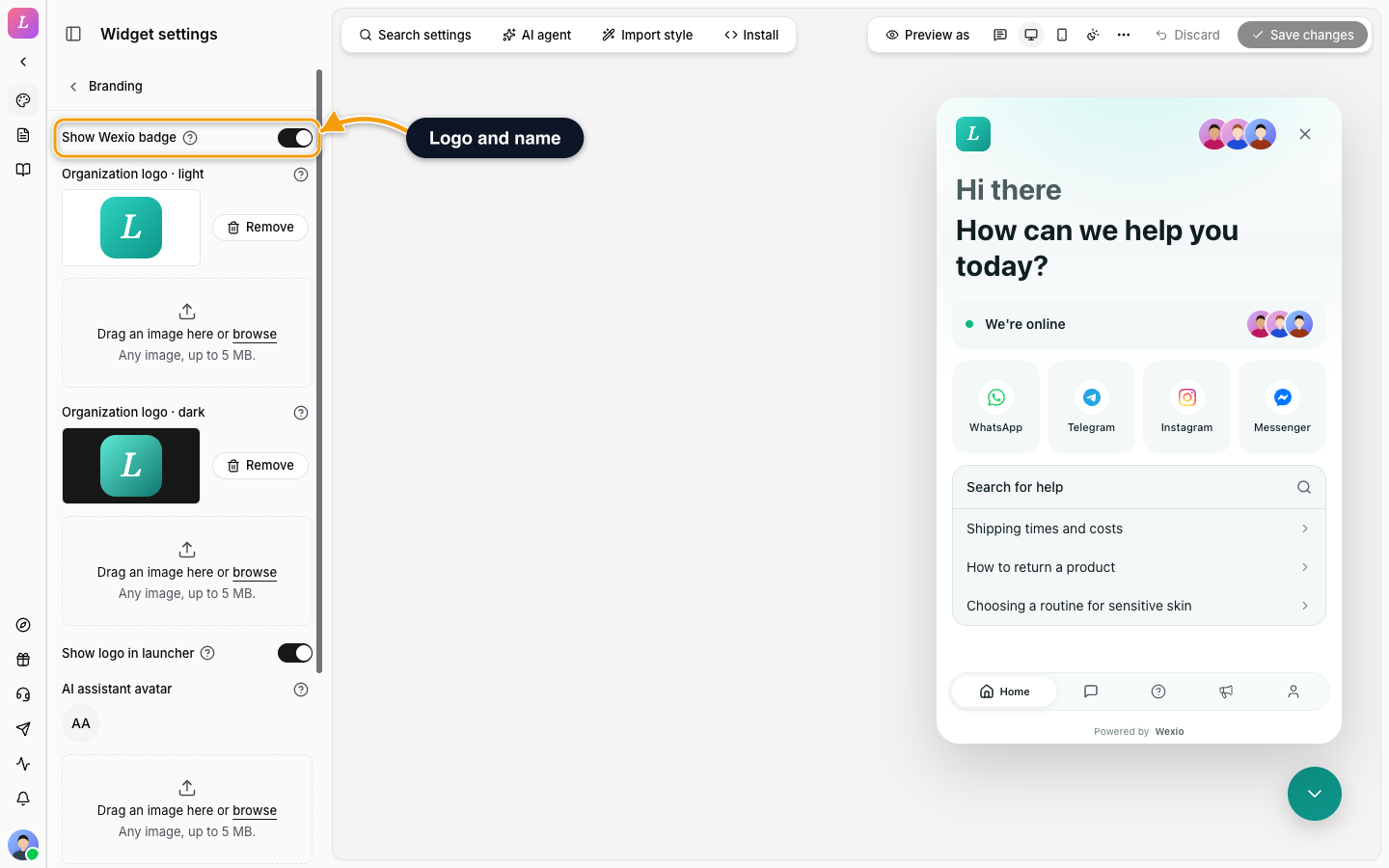
| Setting | Detail |
|---|---|
| Show Wexio badge | Shows or hides the small "Powered by Wexio" credit. It is shown on a new widget. Hiding it needs the Pro plan or higher (the server ignores the setting on lower plans). On lower plans the switch is locked and a note says Upgrade to Pro to hide the badge. |
| Organization logo · light | Your logo for the light theme. |
| Organization logo · dark | Your logo for the dark theme. |
| Show logo in launcher | Puts your logo on the launcher button. |
| AI assistant avatar | The picture shown for the AI assistant. |
| Operator avatars | The team pictures shown in the widget header and on Home. You can add up to 3. The widget shows all three, and a +N circle if more were saved. |
Uploading Images
Drag an image onto a slot or click browse. Any image up to 5 MB works. Use Remove to clear a slot.
Operator Avatars
Each avatar is either a team member or an uploaded photo. Click Add a team member or Upload an operator photo. A counter beside the title shows how many you have, for example 3 of 3.
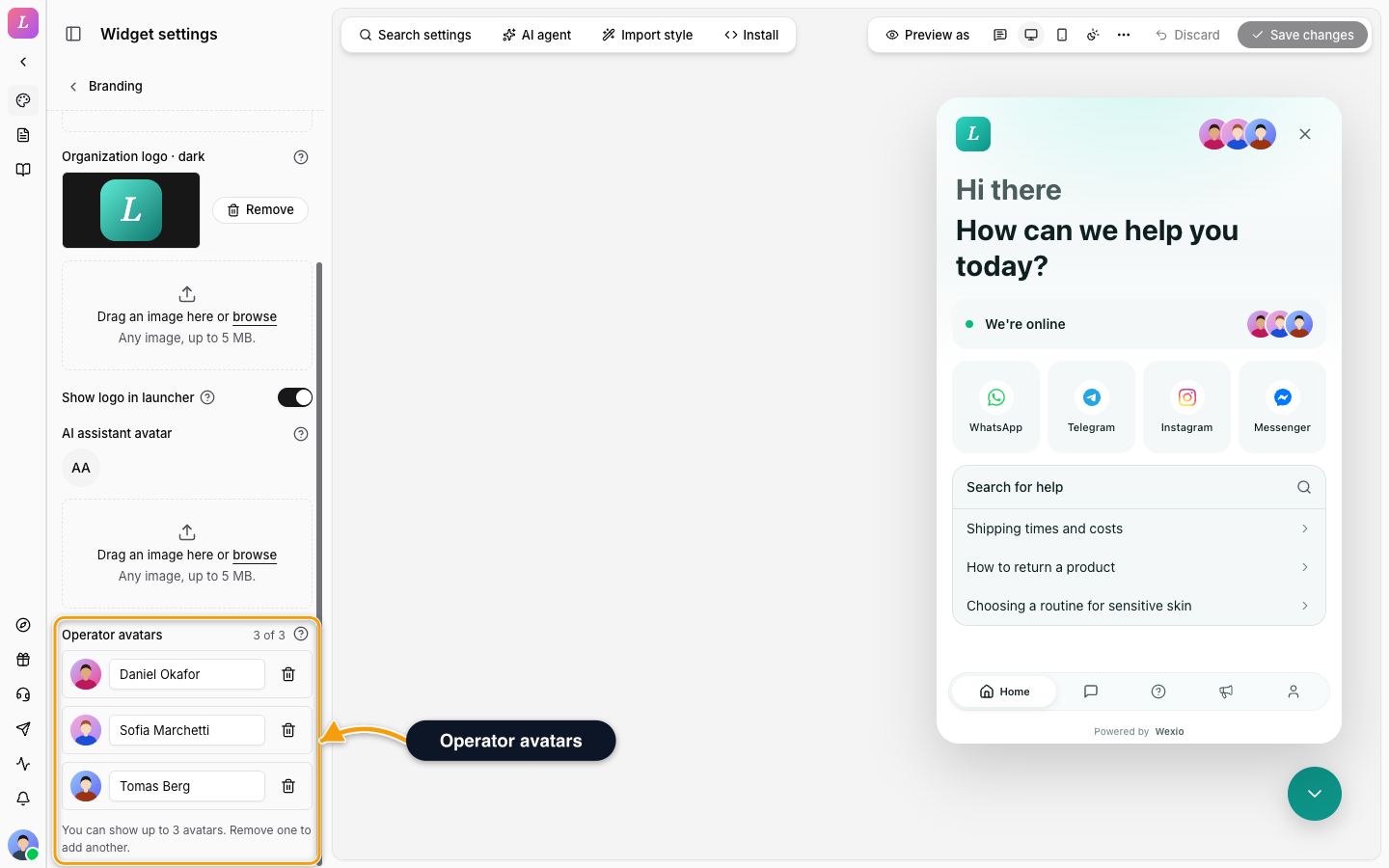
- A team member's name and photo come from their profile. If they have no photo yet, the widget shows their initials.
- Alt text is optional. For a team member it replaces their name.
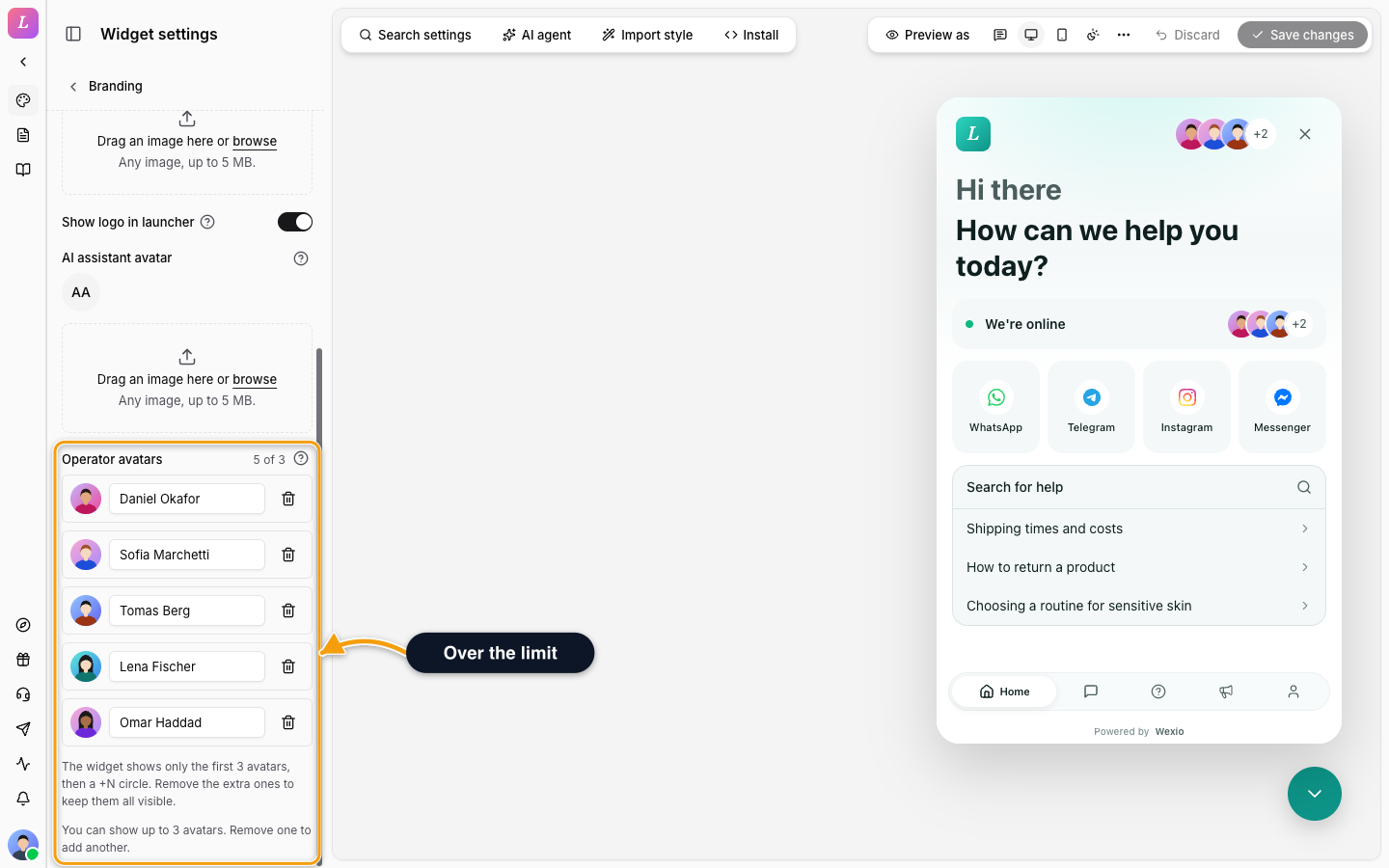
- Avatars saved before the limit was 3 are kept. If you have more than 3, the editor shows The widget shows only the first 3 avatars, then a +N circle. Remove the extra ones to keep them all visible. The counter then reads, for example, 5 of 3, and the widget shows a +2 circle.
- A saved avatar must be a member who is still active. If someone left, you see One of the chosen team members is no longer an active member of this organisation. Remove them and save again.
Related
- Import Your Style - fetch your logo from your website.
- Messenger - the header title and description.
- Plans - what each plan includes.