Messenger
Slash commands, welcome messages with variables and quick-reply buttons, and what visitors can send
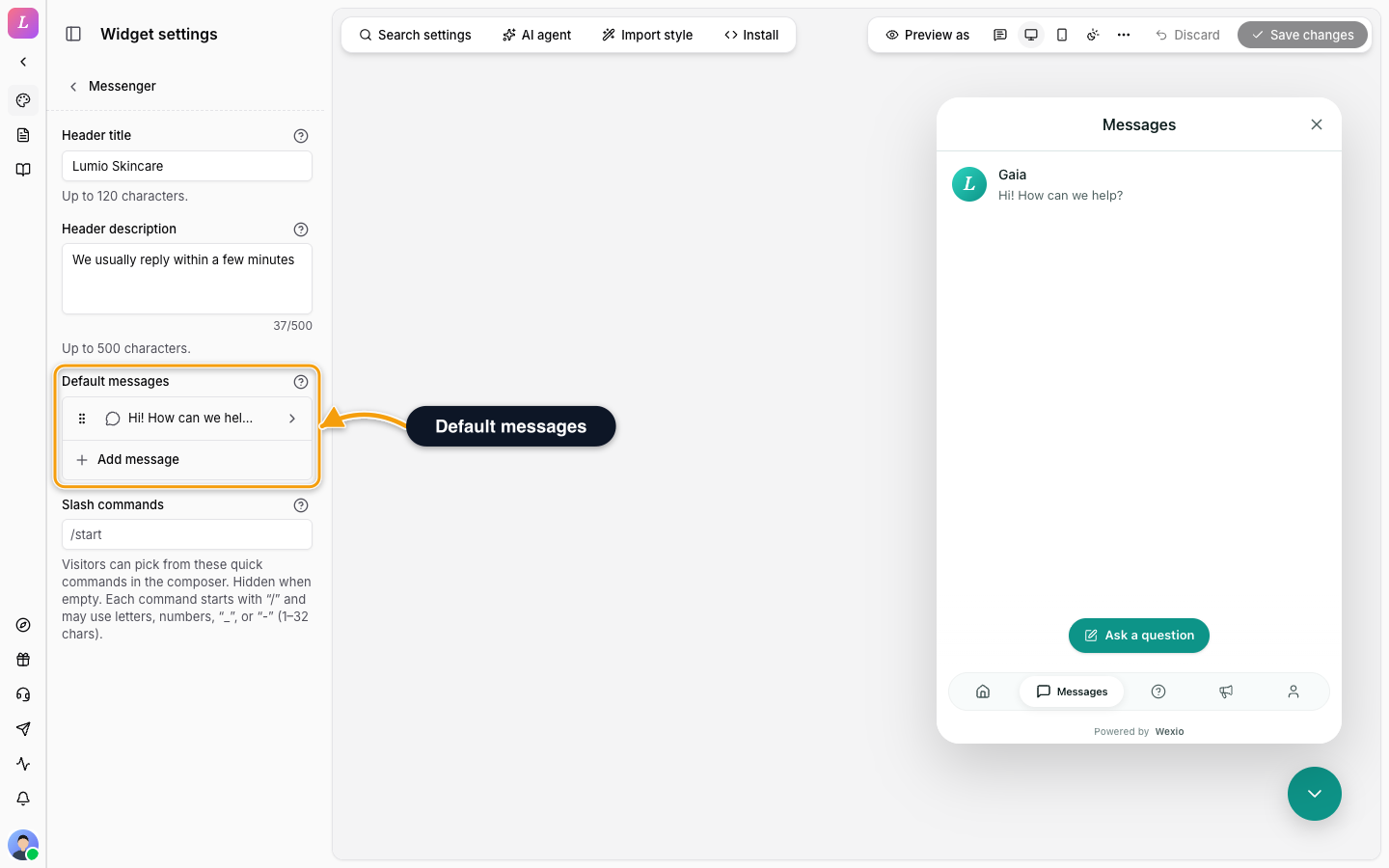
The Messenger section in the Content group sets what visitors meet when they open the Messages tab. It has the Header title and Header description, the Default messages list and the Slash commands. This page also covers what visitors can send from the composer.
The related-content and reaction-count switches are under News & Help.
Header
| Setting | Limit |
|---|---|
| Header title | Up to 120 characters. Placeholder: Gaia. |
| Header description | Up to 500 characters. Placeholder: Our team can also help. |
Both are translatable. The assistant's own name comes from the assistant's public name in the AI settings, not from this section.
Slash Commands
Quick commands a visitor can pick from the composer. The list is hidden when empty. Type a command and press Enter. Remove it with the × on its chip. A bad entry shows Use “/name” - letters, numbers, “_”, or “-”, up to 32 chars.
| Setting | Value |
|---|---|
| Format | Starts with /, then letters, numbers, _ or - (1–32 characters), for example /start |
| Limit | Up to 20 |
Welcome Messages
Under Default messages, add the messages shown at the top of the Messages tab when a visitor first opens the widget. Click Add message, drag to reorder, and click a row to open Edit message. Up to 10 messages. For each one, choose its Type and write its Text. Show again after (days) is under More options.
The widget picks messages in this order: a message for specific pages, then specific sites, then a kind of visitor, then one with no conditions. Among equals, the higher one in the list wins. Once a visitor has read a message, it is not shown again until you edit it.
Changing a message to a type other than Agent message removes its quick-reply buttons and its show-again setting. The editor asks first.
| Type | Renders as |
|---|---|
| Agent message | A regular chat message from your team. The only type that can carry quick-reply buttons. |
| Hint | An italic pill. |
| System note | A centred system row. |
A visitor can hold several conversations at once (see Conversations & threads). Each variant of a welcome message has its own conversation. Returning to your site reopens the conversation of the variant that applies there.
To show a message to some visitors only, or to give it different text for different visitors, see Message targeting. To show an Agent message as a bubble above the closed chat button, see Chat button bubble.
Variables
To put the visitor's name or your organisation's name into a message, click Insert variable, or type it:
Hi {{ contact.first_name | default: "there" }}, welcome to {{ organisation.name }}!| Variable | Value | Available |
|---|---|---|
contact.first_name | The visitor's first name | Signed-in visitors from their profile. Other visitors only if they typed it into the prechat form. A generated placeholder name is never used. |
contact.last_name, contact.full_name | The visitor's last or full name | Signed in only |
contact.email, contact.phone | The visitor's email or phone | Signed in only, and only if that field is one of your profile fields or the pre-chat form |
contact.<field> | Any custom field in your visitor profile fields | Signed in only |
page.title | The title of the page where the visitor's session started, up to 120 characters | Everyone. Empty if the page has no title or the widget does not pass one, so use default. |
page.path | The path of that page, without the site name, query or # part, up to 200 characters | Everyone. Empty if the widget does not pass one, so use default. |
organisation.name | Your organisation's name | Everyone |
assistant.name | Your AI assistant's name | Everyone |
Three filters change how a value is shown:
| Filter | Effect |
|---|---|
default: "there" | The text to use when the value is empty |
capitalize | Capitalises the first letter |
truncate: 40 | Shortens the value to that many characters |
| Rule | Detail |
|---|---|
| Empty values | With no value and no default, the space and punctuation around it are tidied: Hi {{ contact.first_name | default: "" }}, welcome shows as Hi, welcome, and Hi {{ contact.first_name | default: "" }}! as Hi!. |
| Plain text only | A name that contains formatting characters appears exactly as written. |
| Limits | Up to 20 variables per text, 2,000 characters per text, and a value is cut at 120 characters. |
| Where they work | In welcome messages and in the text of Home blocks. Not in button labels. |
| Unknown variables | The editor highlights a variable that does not exist, and Wexio refuses to save a text that uses one. |
The visitor never sees braces. Wexio fills the values in before the widget receives the text, so a visitor who is not signed in never receives anyone's personal data.
Quick-Reply Buttons
An Agent message can carry up to 3 buttons, and each variant has its own. A click sends the button's label as the visitor's own message, as if they had typed it, so your flows and the AI assistant react to it like any other message. Each click is recorded in the visitor's Recent activity.
| Detail | Value |
|---|---|
| Buttons per message | Up to 3 |
| Label | 1 to 40 characters, plain text, no variables. Under 25 is best: longer labels may wrap to two lines on a phone, and the editor warns you. |
| After a click | The buttons disappear once the visitor clicks one or sends their first message in the conversation. |
| Languages | Each label is translated separately, and the translated label is what is sent. |
What a Visitor Can Send
Beyond text, the composer offers:
| Control | What it does |
|---|---|
| Attach a file | Uploads an attachment. Max 10 MB; unsupported types are rejected with a clear message. |
| Record a voice message | Records audio, with pause, resume, preview and cancel before sending. Needs microphone permission, and is unavailable in browsers that do not support it. |
| Insert emoji | A searchable emoji picker. |
| GIFs & Stickers | A GIPHY picker. See GIFs and stickers. |
| Quick commands | The slash commands configured above. |
| Formatting | Bold, italic, underline, strikethrough, lists, links and monospace. |
GIFs and Stickers
The composer includes a GIPHY picker with two tabs, GIFs and Stickers, and a search box. It carries a "Powered by GIPHY" credit, and shows a retry on empty results or load failures instead of a blank panel.
A GIF sent from the widget reaches other channels in whatever form that channel supports. Telegram gets an animation, and WhatsApp, Instagram and Viber get a short mp4 video. If GIF search is not available, the picker is hidden. See the channel pages for the per-channel behaviour.
Related
- Message targeting - audiences, sites, pages and variants for a message.
- Chat button bubble - the welcome message above the closed chat button.
- Home - the greeting and blocks on the Home tab.
- News & Help - related content and reaction counts.
- Conversations & threads - how visitors hold several conversations.
- Config reference - the full option schema.