Testing Your Widget
Try the real widget from your settings as a visitor or as a signed-in user, on any site and page - and what a test leaves behind
The preview in your widget settings runs the real widget, not a mock-up. It talks to Wexio the way a visitor's browser does, so your flows run, the AI assistant really answers, and what you type shows up in the inbox. You see what a visitor would see before you Save and before anyone else does.
A test is real. A test conversation is treated exactly like a conversation from a visitor: it appears in your inbox, counts in your reports and operations usage, and reaches your webhooks and CRM. Read What a test leaves behind before you test something that sends or books.
Preview as
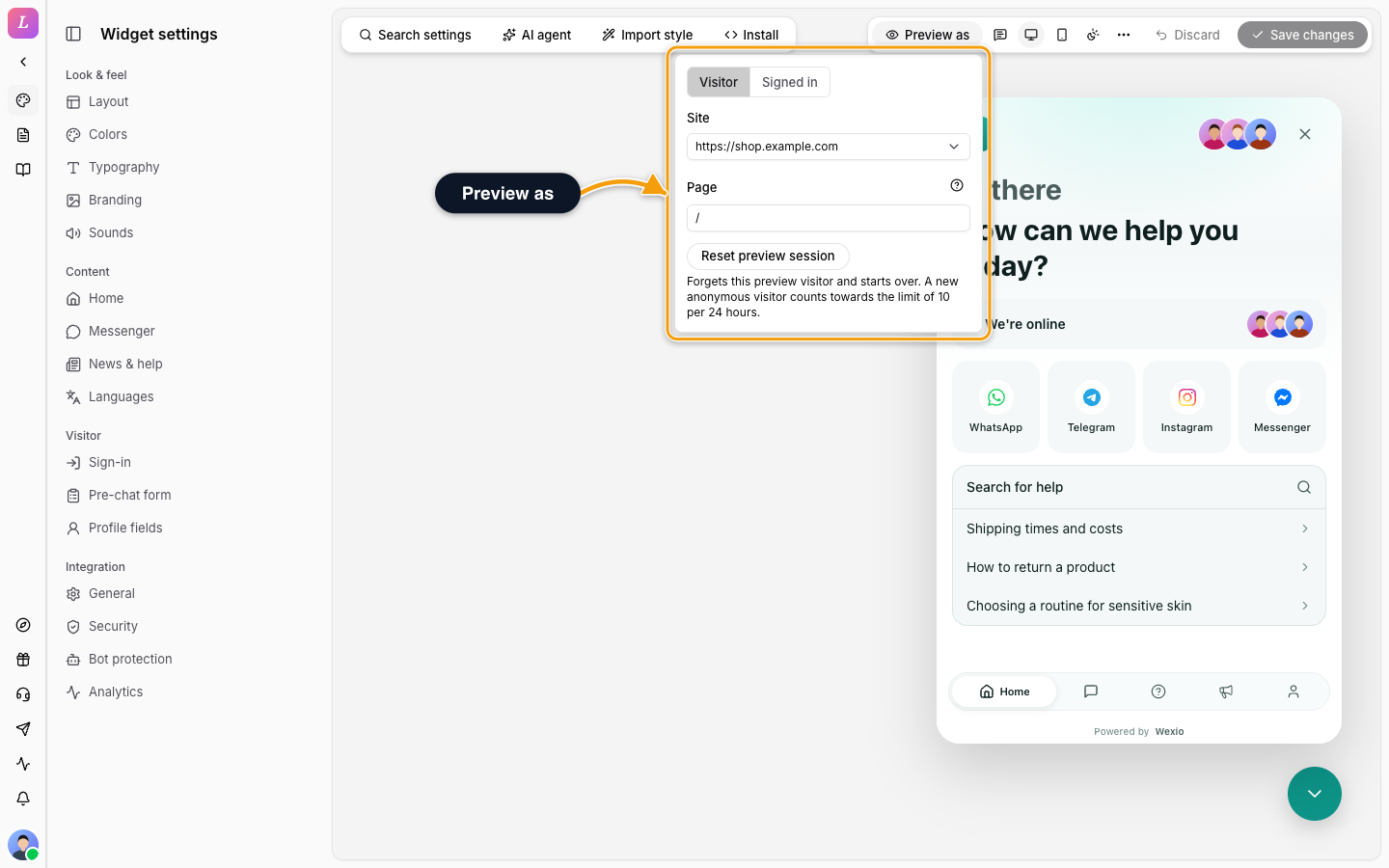
The Preview as control sets who the preview pretends to be:
| Setting | What it does |
|---|---|
| Who sees it | Visitor or Signed in. See Two ways to test. |
| Site | The site the widget behaves as if it were on. Messages and blocks limited to a site show only when it matches. |
| Page | The page path the widget is on, for example /pricing. Messages and blocks aimed at a page show only when it matches. |
| Launcher bubble | Show or hide the bubble above the closed chat button. |
This is how you check an audience, site or page rule without publishing it: change the settings, switch the preview to the visitor and the page you want to check, and see what appears.
Two Ways to Test
| Test as | What you get |
|---|---|
| Visitor | A normal anonymous visitor. Use it to check the first impression: the welcome messages and the bubble for visitors, the prechat form, and the AI's first answer. |
| Signed in | You, as a signed-in visitor, with the name and email of your own Wexio profile. Use it to check what signed-in visitors see, including messages that use variables. |
Signed in is a real contact. It is one contact per person per widget: the same contact, with the same conversations, from any browser and after any reload. Your email is not recorded as a verified identifier, and the contact is never merged into another contact.
Testing as signed in shows you as a Wexio user. It does not try out your own sign-in setup (a JWT or HMAC proof, Google or passkeys). To check those, use your real site.
You can click Reset preview session at any time. That forgets the current preview visitor and starts over with a new one.
What a Test Leaves Behind
Because a test runs as a real visitor, nothing is kept out of your data:
| Where | What happens |
|---|---|
| Inbox | The conversation appears like any other, with a test contact. Replying to it as an operator works, and the reply reaches the preview widget. |
| Reports and analytics | The conversation is counted. |
| Operations | Messages use your operations like any other. |
| AI | Replies are real and count towards your AI usage. |
| Webhooks, API and CRM | Events are sent as for any visitor, and the contact can be synced to your CRM. |
| AI actions | Actions that change something outside Wexio run for real: booking or cancelling a calendar appointment, creating a refund, updating a CRM contact, calling an outside web address, sending a webhook. |
Preview chats are real conversations: they appear in your inbox and count toward usage. They are not deleted automatically, and chats flagged as test before this change stay hidden. If you do not want a test in your data, remove it afterwards like any other conversation or contact.
If you need to try something that books, refunds or writes to a customer system, do it in a separate test organisation, or accept that the test is real.
Limits
- 10 new preview visitors per 24 hours, per person and per widget. After that, Wexio answers with HTTP 429. Resetting the preview session creates a new visitor, so it counts. Signed in does not create a new contact each time.
- 30 test sessions per hour per person. Reloading again and again can reach it. The limit clears by itself.
Who Can Test, and When
- Owner, Admin and Editor can run a test. Other roles cannot start a test session.
- You do not need the widget to be live. A test works while the widget is switched off, before your site is added to allowed origins, and on a plan that does not yet include the web messenger, so you can set everything up before you upgrade. The AI's replies still follow your plan.