Sign Up
Create a Wexio account with a provider or with email and password
You create a Wexio account on the sign-in screen at app.wexio.io. Use a provider, or an email and a password. After sign-up, the onboarding wizard sets up your workspace.
Sign Up with a Provider
Choose Continue with Google to start. More sign-in options shows the other providers.
| Provider | Button |
|---|---|
| Continue with Google | |
| Microsoft | Continue with Microsoft |
| Continue with Facebook | |
| GitHub | Continue with GitHub |
A popup opens for the provider. When you finish there, the popup closes and this window continues. A first-time sign-in creates your account, so there is no separate sign-up step.
Apple is not offered on the sign-in screen.
Sign Up with Email and Password
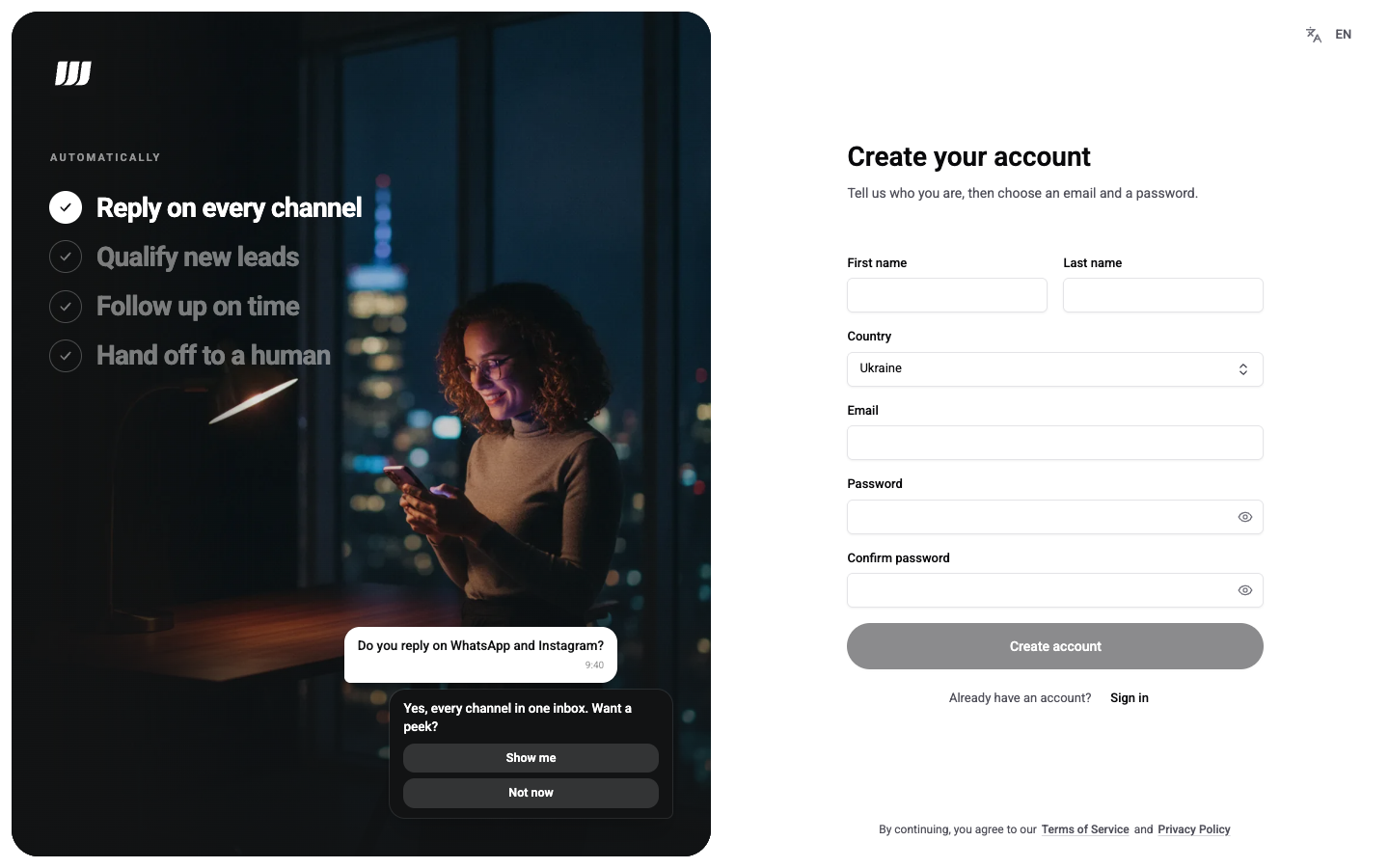
- On the sign-in screen, choose Create an account.
- Enter your First name, Last name and Country. Names use Latin letters only, up to 50 characters each. Wexio pre-selects the country it detects, and you can change it.
- Enter your Email, a Password and Confirm password.
- Click Create account.
- Enter the 6-digit code Wexio emails you.
Wexio does not ask you to solve a puzzle. It runs an invisible check in the background. If it cannot confirm you are human, you see We could not confirm you are human. Please try again.
Password Rules
| Rule | Detail |
|---|---|
| Length | 10 to 128 characters |
| Not common | Wexio refuses passwords from a list of common ones |
| No email | The password cannot contain your email address, or the part before the @ when that part is four characters or longer |
A Password strength meter shows Weak, Fair, Good or Strong as you type. Mixing letters, numbers and symbols is advice, not a rule. If a password breaks a rule, you see a message such as Use at least 10 characters. or This password is too common.
The Verification Code
The code has 6 digits and is valid for 10 minutes. After 60 seconds, Resend code appears. Typing the sixth digit submits the code. An unfinished sign-up is kept for 1 hour.
| You see | What to do |
|---|---|
| That code is not valid. Check it and try again. | The code is wrong, expired or used up. The message is the same in every case. Request a new code. A code is deleted after 5 wrong tries |
| Too many attempts. Try again in N seconds. | Wait. After 10 wrong codes for one email in 24 hours, further tries are blocked for a while |
To fix a typo in your email, choose Use a different email.
When the code is correct, you are signed in and your email counts as verified.
If You Already Have an Account
The screen always says Check your email, so nobody can use it to find out which addresses have accounts. If the address already has a password, Wexio emails you a notice that an account exists instead of a code. Sign in or reset your password.
If the address belongs to an account without a password, for example one you created with Google, the code adds a password to that account. Wexio signs out that account's other devices and emails you that a sign-in method was added.
If the Email Is Registered with a Provider
If you pick a provider whose email already belongs to an account made another way, you land on the sign-in page with the error This email is already registered with {provider}. Please sign in with {provider}. Here {provider} is the stored provider value, for example google. The message is in English only. Sign in with that method instead.
When Sign-Up Is Not Available
Sign-up is closed for some countries. You see Sign-up is not available in your country, with the text We cannot open new accounts from your location. If you already have an account, you can still sign in. Choose Sign in to an existing account to continue. Wexio checks both the country you pick and your network location.
After Sign-Up
If your account has no organisation yet, Wexio opens the onboarding wizard. If a teammate invited you, see Accept an Invitation.
By continuing, you agree to the Terms of Service and the Privacy Policy, which are linked at the bottom of the screen.