Two-Factor Authentication
Turn on an authenticator app, save recovery codes, and turn it off
Two-factor authentication (2FA) adds a code from your authenticator app to sign-in. Turn it on in Account → Security.
Turn On 2FA
- Go to Account → Security.
- Under Two-Factor Authentication, click Enable, then Continue. You need an authenticator app, for example Google Authenticator, Authy, 1Password or Microsoft Authenticator.
- Scan the QR code. If you cannot scan, choose Can't scan? Enter code manually.
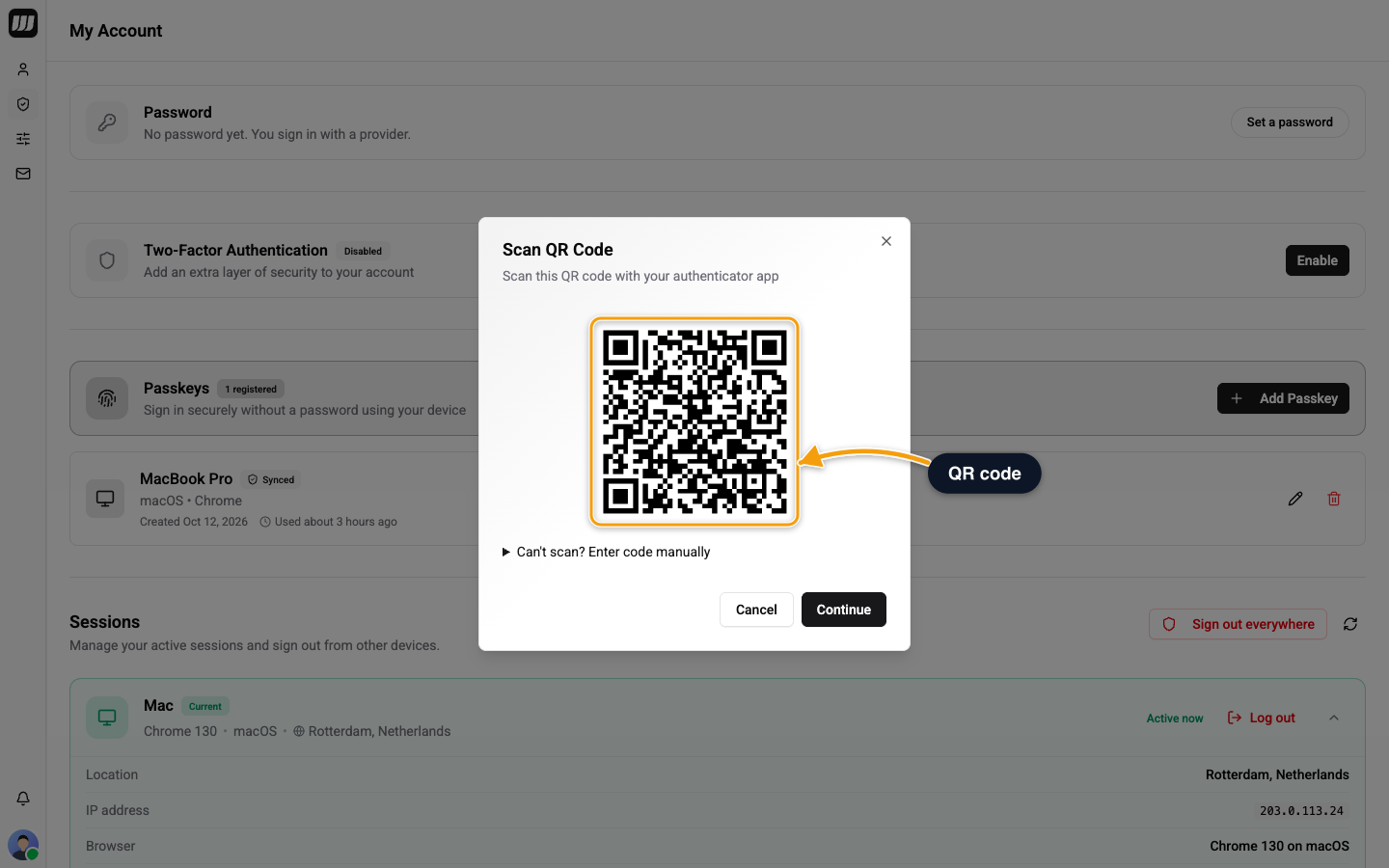
- Enter the 6-digit code and click Verify & Enable. A wrong code shows Invalid code. Please try again.
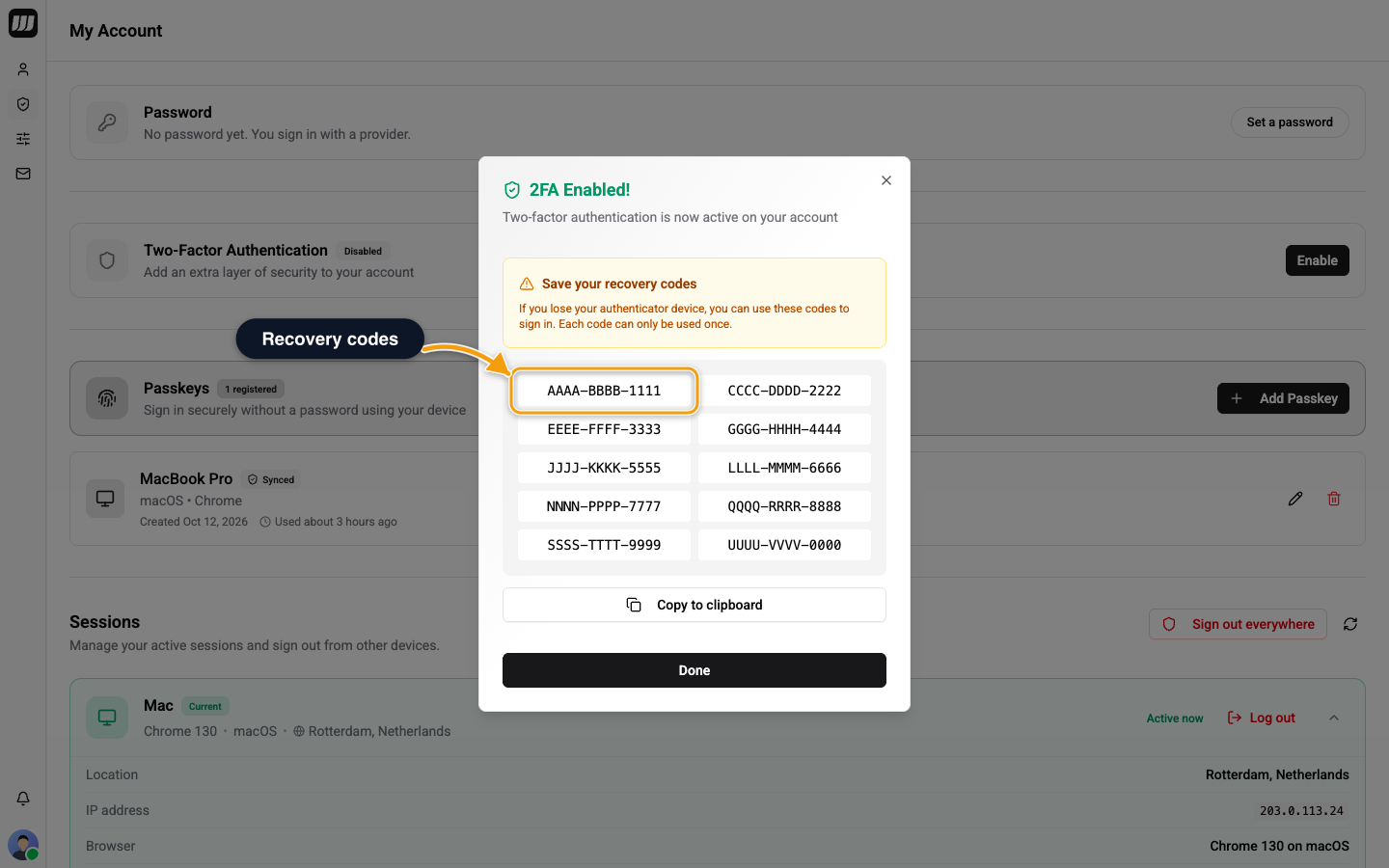
- You see 2FA Enabled! and your recovery codes. Choose Copy to clipboard, save them somewhere safe, then click Done.
If you already have a second factor, Wexio asks you to confirm it is you before it starts. Your first factor needs no confirmation.
Recovery Codes
You get 10 recovery codes of 8 characters. Each works once, in the form XXXX-XXXX. Use one on the sign-in step when you lose your device.
When few remain, the page shows Only N recovery codes remaining. Choose Regenerate, enter the 6-digit code from your authenticator app (a recovery code is not accepted here), and click Generate New Codes. The old codes stop working at once.
Sign In with 2FA
After your password or provider sign-in, the One more step screen asks for a code. See Two-Factor Sign-In.
| Limit | Value |
|---|---|
| Code | 6 digits from the app, valid for 30 seconds |
| Reuse | A code works once. Entering it again counts as a failed try |
| Lockout | 5 wrong codes in a row, authenticator or recovery codes together, lock the factor for 15 minutes. On the sign-in step a wrong code shows Invalid verification code. (Invalid recovery code. for a recovery code). When you confirm a password or email change, a wrong code shows That code is not valid. Try again. After the fifth wrong code, signing in with a code is locked for 15 minutes. |
Passkey sign-in has no code step. If your organisation enforces single sign-on, you cannot add an authenticator app.
Turn Off 2FA
- Go to Account → Security.
- Click Disable next to Two-Factor Authentication.
- Enter the 6-digit code from your authenticator app (a recovery code is not accepted) and click Disable 2FA.
Your account is less secure without 2FA, so turn it back on when you can.