Accept an Invitation
Join a teammate's workspace from an invitation email, as a new or existing user
When a teammate invites you, Wexio emails you. If you have no Wexio account yet, the email holds a link to an invitation page where you accept or decline. If you already have an account, the email opens the organisation and you accept inside Wexio.
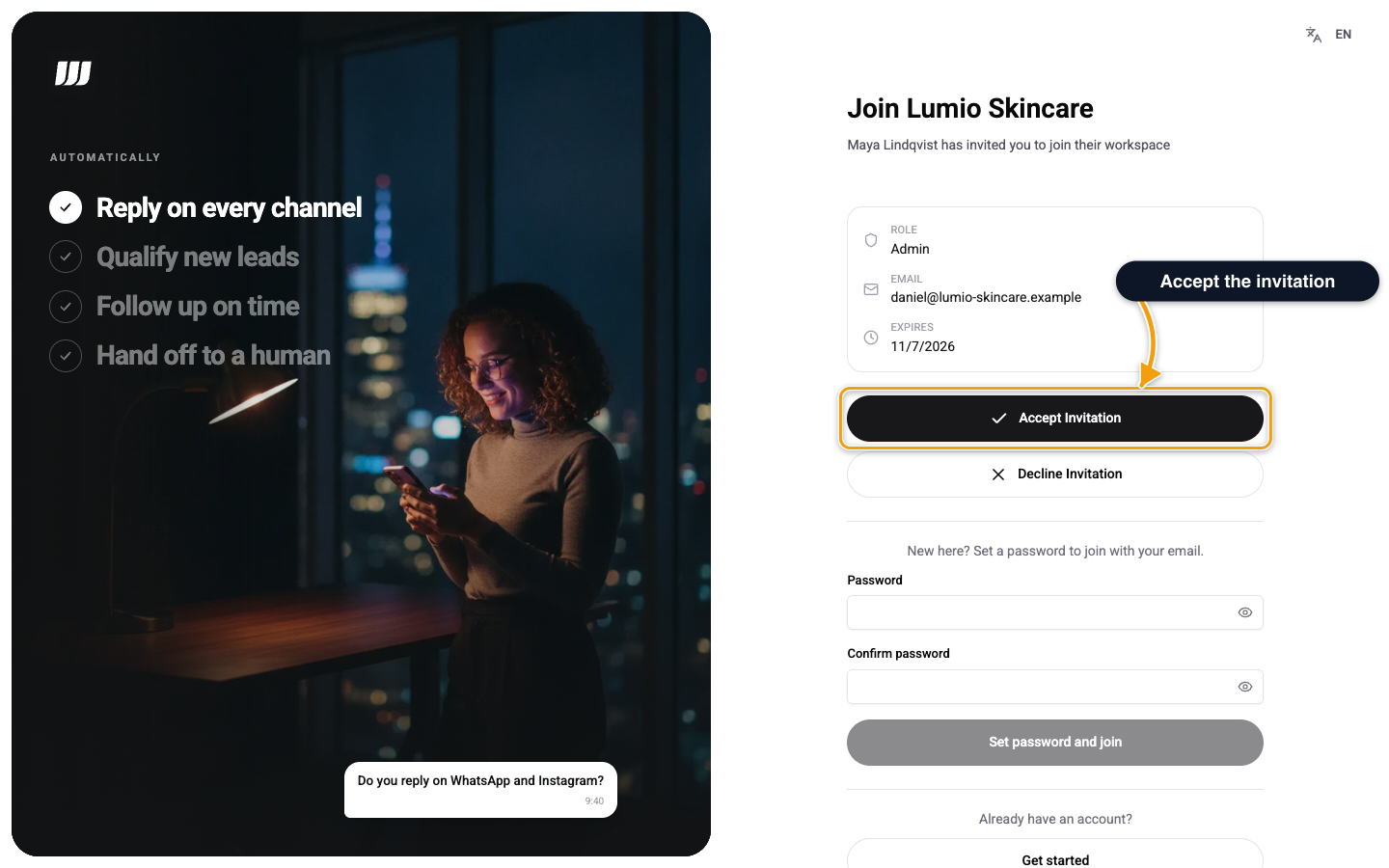
The Invitation Page
The page is titled Join followed by the organisation name. It shows who invited you and three facts:
| Fact | Meaning |
|---|---|
| Role | What you can do in the workspace |
| The address the invitation was sent to | |
| Expires | The date the link stops working. A link is valid for 7 days |
If You Are New to Wexio
Set a password to join with your email.
- Under New here? Set a password to join with your email., enter a Password and Confirm password.
- Click Set password and join.
Wexio accepts the invitation, creates your account with that password on the invited address, signs you in and opens the workspace. The password rules apply. The invitation proves you own the email, so you do not need a verification code.
Another option is Accept Invitation, which joins you without a password. You see Welcome to the Team! and then sign in with a provider or SSO to open the workspace. Sign in with the email the invitation was sent to.
If You Already Have an Account
The invitation email for an existing account has no invitation page link. It opens the organisation. Sign in with the invited address and Wexio shows Pending Invitation with Accept Invitation and Decline Invitation. See Organisation Invitations.
If you open an invitation page link while signed out and the address already has a password account, Wexio asks you to sign in first. The link never sets or resets a password on an existing account.
Under Already have an account?, choose Get started to open the sign-in options. Sign in, and the invitation stays on the page, ready to accept. Back to the invitation returns you to it.
If you try to set a password for an address that already has one, you see You already have an account. Sign in instead. and the sign-in options open.
You can also respond from inside Wexio. A banner shows You've been invited to join the organisation, with Accept, Decline and Dismiss. See Organisation Invitations.
Accepting is limited to 10 attempts per minute from one network. If you hit the limit, wait a minute.
Decline
Choose Decline Invitation. You see Invitation Declined. To change your mind, ask the organisation administrator for a new invitation.
If the Link Does Not Work
| You see | What to do |
|---|---|
| Invalid Invitation and This invitation link is invalid or has expired. | Ask the organisation administrator to send a new invitation. Go to Home returns you to the start |
| Your organisation uses single sign-on. Taking you there... | Your email domain uses single sign-on. Sign in through your identity provider, then accept |
| Failed to accept invitation. Please try again. | Try again. If it keeps failing, ask for a new invitation |