Home
How the Home tab is built, how to add, reorder and remove blocks, show a block to some visitors, and write the greeting with variables
The Home section in the Content group builds the Home tab: a greeting at the top, then a list of blocks. It follows the draft-and-Save model. The Home tab must be on under Layout.
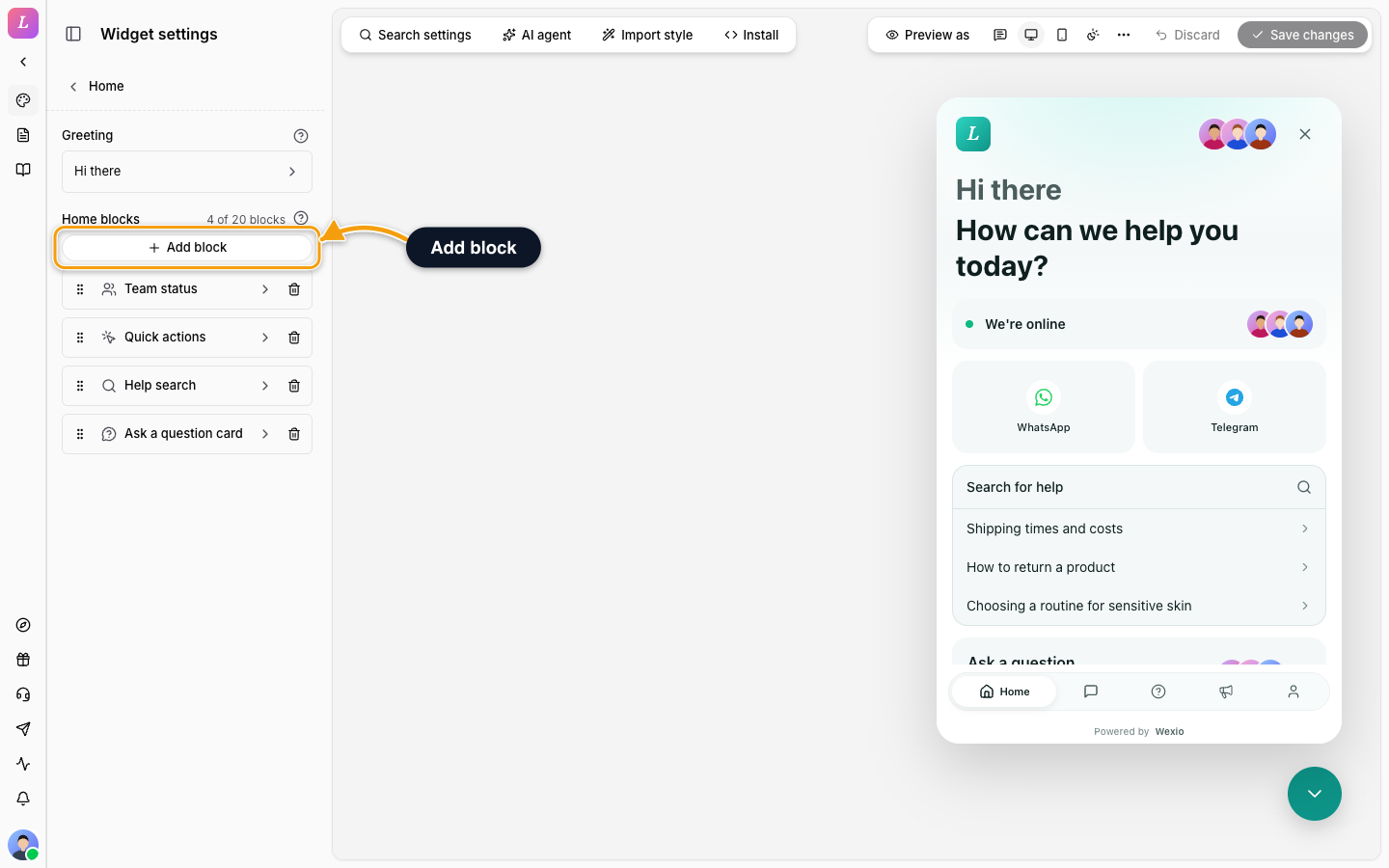
How the Home Tab Works
The Home tab is the greeting plus an ordered list of blocks. Each block is one kind of card. The visitor sees them top to bottom, in the order of your list.
- Greeting. The headline and subline at the top. See Greeting and Variables.
- Blocks. Ten kinds. The block kinds page covers nine, and Quick Actions covers the tenth.
- Block limit. A list holds up to 20 blocks. A counter next to the list shows N of 20 blocks.
- Once-only kinds. Help search, News preview, Team status and Recent message can appear once. The other kinds can repeat.
A new widget, or one whose Home you never edited, shows a bundled default: an Ask a question card, a Recent message, a Featured article and an inline Quick actions block with WhatsApp, Telegram, Instagram and Email tiles. The list in the editor shows this default. Your first edit turns it into your own list.
Add a Block
- Open Home in the Content group.
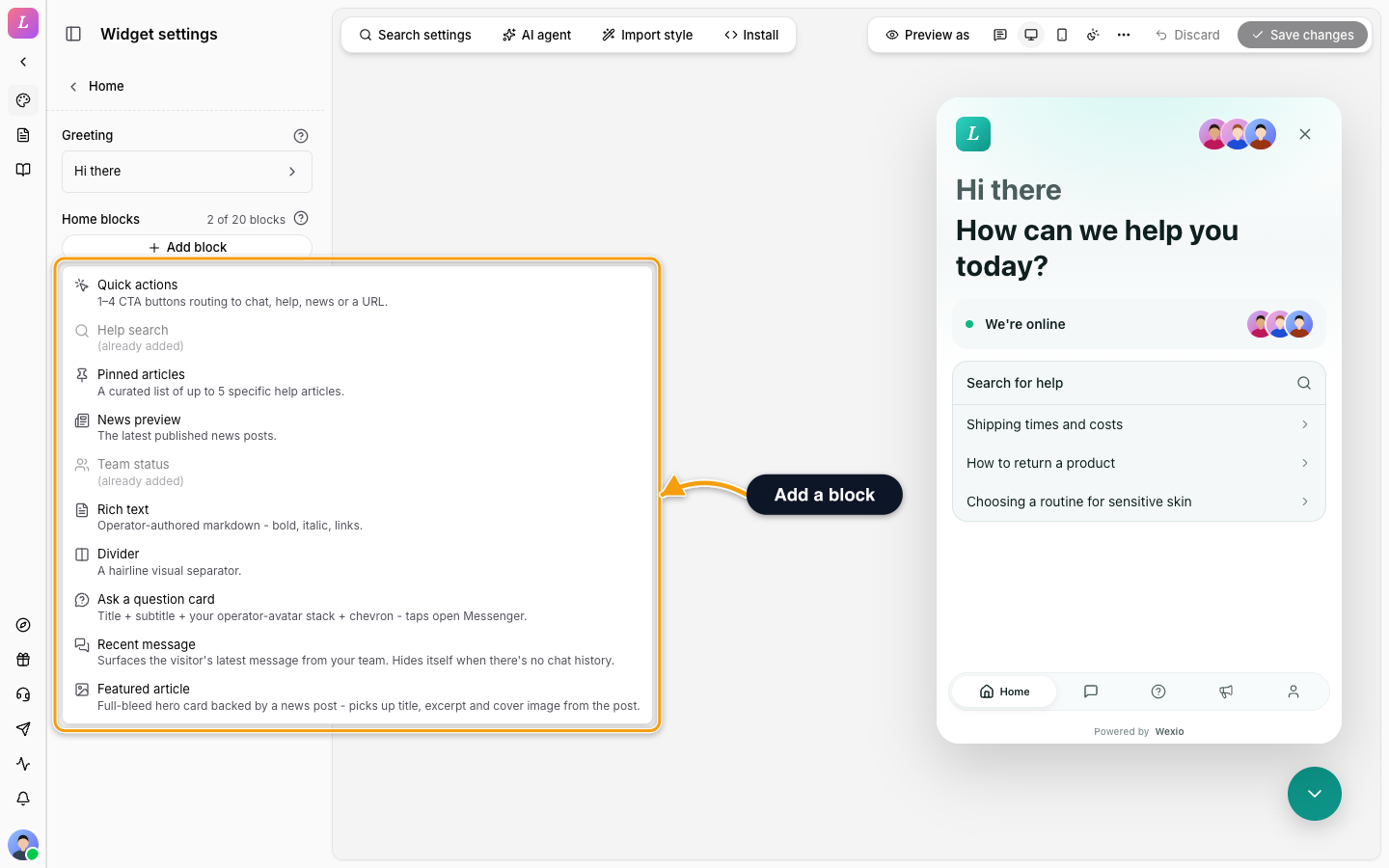
- Click Add block.
- Pick a kind. A kind that can appear once and is already in the list is greyed out and marked (already added).
- The block is added at the end of the list. Click its row to open Edit block in the side panel and set it up.
- Click Save to publish the draft.
Add block is disabled once the list holds 20 blocks. Remove one to make room.
Reorder and Remove
- Reorder. Drag the handle at the start of a row to move a block up or down. The preview follows.
- Remove. Click the bin button at the end of a row. The block leaves the draft. It is gone for visitors when you click Save.
- Open. Click a row to edit it. The open row is highlighted. A red mark on a row means the last Save refused something in that block.
Show a Block to Some Visitors
By default a block shows to everyone. You can limit it to signed-in or anonymous visitors, to some sites or to some pages, and you can give one block several versions with different text for different visitors. These are the same rules as for welcome messages. See Message Targeting for the settings, how page rules match and how a version is picked.
The row of a block shows what applies: a badge with the audience, or the number of versions.
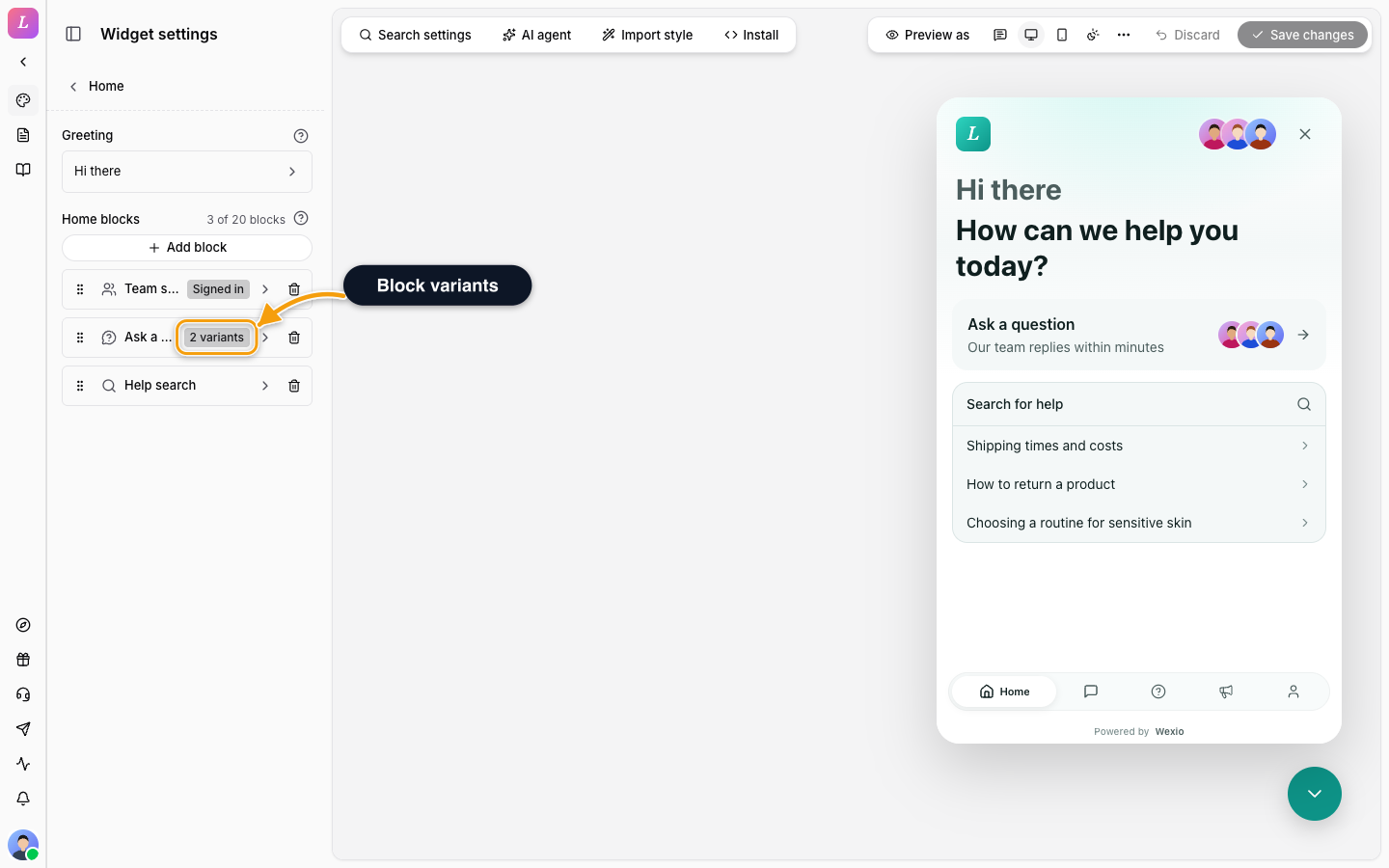
A block with a rule and no default version is hidden from everyone outside the rule. The editor warns you.
Greeting and Variables
The Greeting row is the big text at the top of Home. Click it to open the greeting editor in the side panel.
| Field | Limit |
|---|---|
| Greeting headline | 120 characters. Placeholder: Hi there 👋 |
| Greeting subheadline | 240 characters. Placeholder: How can we help? |
Both accept variables. You can add more versions for different visitors, sites or pages. If the greeting has a rule and no default version, visitors outside the rule see no greeting. With both lines empty the greeting is not shown.
Variables also work in the Content of a Rich text block and in the Title and Subtitle of an Ask a question card. Other fields do not accept them.
Translate the Home Tab
Pick another Editing language in the toolbar and the greeting and each block show their text fields for that language. Which blocks exist, their order, their settings and their versions are edited in the default language. See Localization.
Related
- Block Kinds - every block except quick actions, with its settings.
- Quick Actions - buttons, layouts and the icon set.
- Message Targeting - audiences, sites, pages and versions.
- Messenger - the list of variables.
- Layout - switch the Home tab on or off.
- Config Reference - the block schema for developers.
Content & Surfaces
Where each part of the widget's content is set in the Widget settings
Home Block Kinds
What each Home block shows to the visitor and every setting of the Ask a question card, Recent message, Featured article, Help search, Pinned articles, News preview, Team status, Rich text and Divider