Sign In
Sign in with a provider, email and password, a passkey or single sign-on
You sign in at app.wexio.io. Pick the way you used when you created your account. If you have not created one yet, see Sign Up.
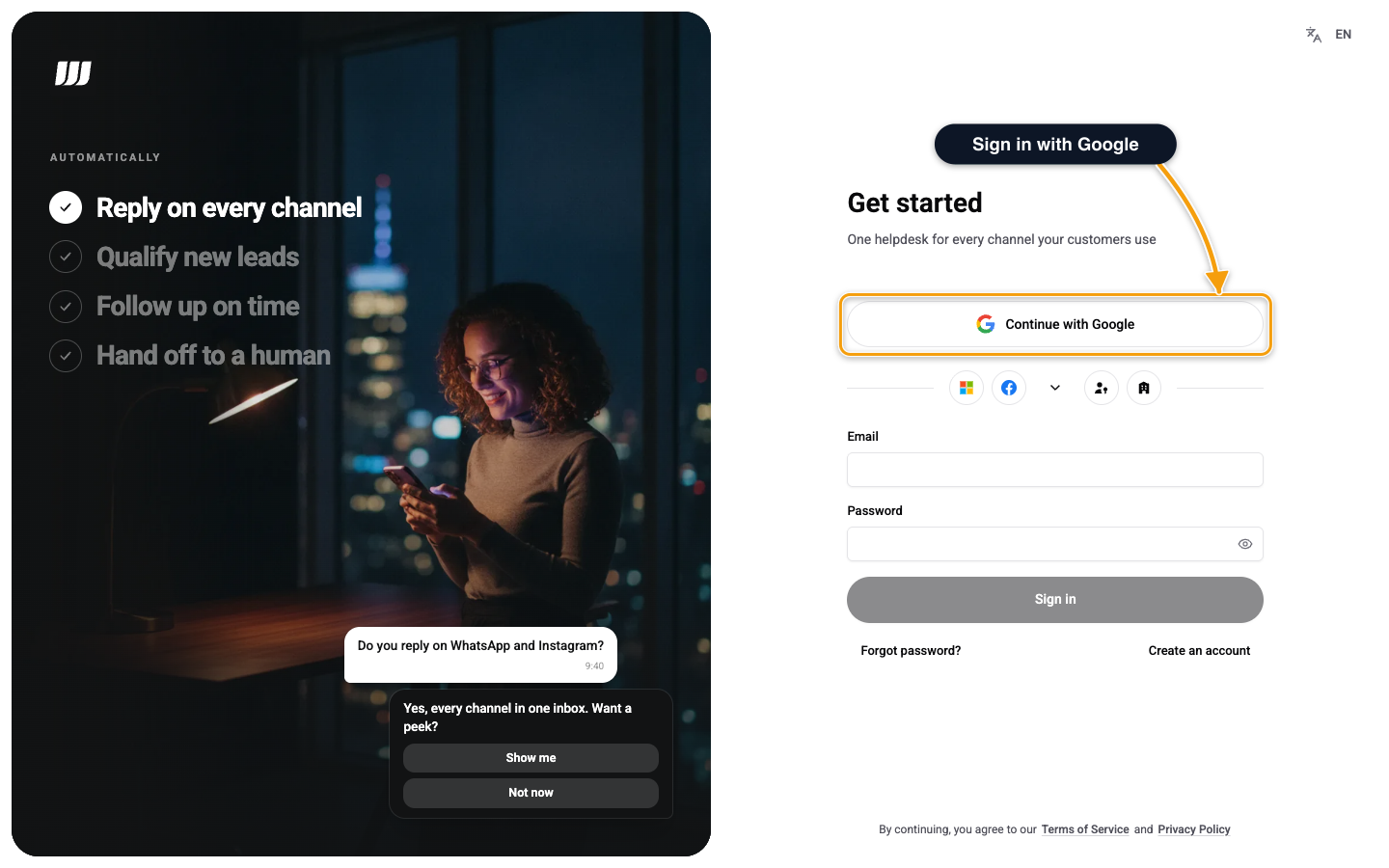
The screen says Get started the first time and Welcome back when this browser has signed in before. The way you used last is marked Last used and moves to the top.
Sign In with a Provider
Choose Continue with Google, Continue with Microsoft, Continue with Facebook or Continue with GitHub. More sign-in options shows all of them, and Fewer options folds the list.
A popup opens for the provider and closes when you finish. This window then continues. If your account has two-factor authentication, the code step appears here, after every provider and after SSO.
Sign In with Email and Password
- Enter your Email and Password. Show password reveals what you typed.
- Click Sign in.
Choose Forgot password? to reset your password, or Create an account to sign up.
If the email or password is wrong, you see Email or password is incorrect. The message is the same when the address has no account or no password, so it does not reveal which one. An account you never verified cannot sign in with a password yet.
After repeated failures from the same email and network, you see Too many attempts. Try again in N seconds. Wait for the time shown.
Sign In with a Passkey
Choose Sign in with Passkey and confirm with your fingerprint, Face ID, Windows Hello or security key. The button appears only when your browser supports passkeys. You add a passkey first, in Account Security.
In browsers that support it, the email field can also offer your saved passkeys as you click into it.
A passkey signs you in without a code step, even when two-factor authentication is on. If it fails, you see Authentication failed with the reason, and you can try again or use another method.
Single Sign-On
Choose Sign in with SSO (under Enterprise when the list is open).
- Enter your work email, for example
name@company.com. - Wexio checks the domain. A line appears with your company's name: Acme uses single sign-on, or Acme requires single sign-on when your company enforces it.
- Click Continue with SSO. Wexio takes you to your identity provider in this window.
If the domain has no SSO, you see SSO is not configured for this email domain. Please use another sign-in method. Your admin sets SSO up in Security Settings.
When your company enforces SSO, other ways in are refused for your email. You see a message such as Your organisation requires single sign-on, with a Continue with SSO button when Wexio knows your address.
Two-Factor Sign-In
If you turned on two-factor authentication, a step called One more step follows your password or provider sign-in.
- Enter the 6-digit code from your authenticator app. It submits when you type the last digit.
- Or choose Lost your device? Use a recovery code, enter a code in the form
XXXX-XXXX, and click Verify & Continue. Each recovery code works once. Choose Use authenticator app instead to go back.
Choose Back to Sign In to start over.
| Limit | Value |
|---|---|
| Time to enter the code | 5 minutes after the first step. Then sign in again |
| Failed attempts | 5 wrong codes lock the account for 15 minutes |
If Your Email Is Already Registered
Each email has one account, and you can use any sign-in method linked to it. Wexio links a method on its own only when the provider confirms your email and your Wexio account has a verified email.
- Google and GitHub. Signing in links the method to your existing account, and Wexio emails you that a method was added.
- Microsoft and Facebook. Wexio never links these by email. Use the method you used before. You land on the sign-in page with the error This email is already registered with {provider}. Please sign in with {provider}. Here {provider} is the stored provider value, for example
google. The message is in English only. - Email and password. You see This email uses email and password. Sign in with your password or reset it.
Sessions and Signing Out
A session lasts 30 days. Each account keeps at most 10 sessions, and the oldest ends when you sign in on an eleventh device. To sign out, click your name at the bottom of the sidebar and choose Log out, or manage devices in Account Security.
Errors You May See
| You see | What to do |
|---|---|
| Authentication failed | Read the line under it. Try again, or use the method you used before |
| Invalid or expired authentication token. | Sign in again |
| Two-factor authentication token is missing. | Start the sign-in again |
| We could not confirm you are human. Please try again. | Try again. If it keeps failing, use another network or browser |
| Your session has expired. Please sign in again. | Sign in again |
| An authentication error occurred. | Try again, or use the method you used before |
| Something went wrong. Please try again. | Try again in a minute |