Settings Files
Export your widget settings to a file, import them into another widget, and reset the theme
The More actions menu in the right toolbar of the Widget settings holds Export, Import and Reset. Use a settings file to copy a look and feel between widgets or to keep a backup.
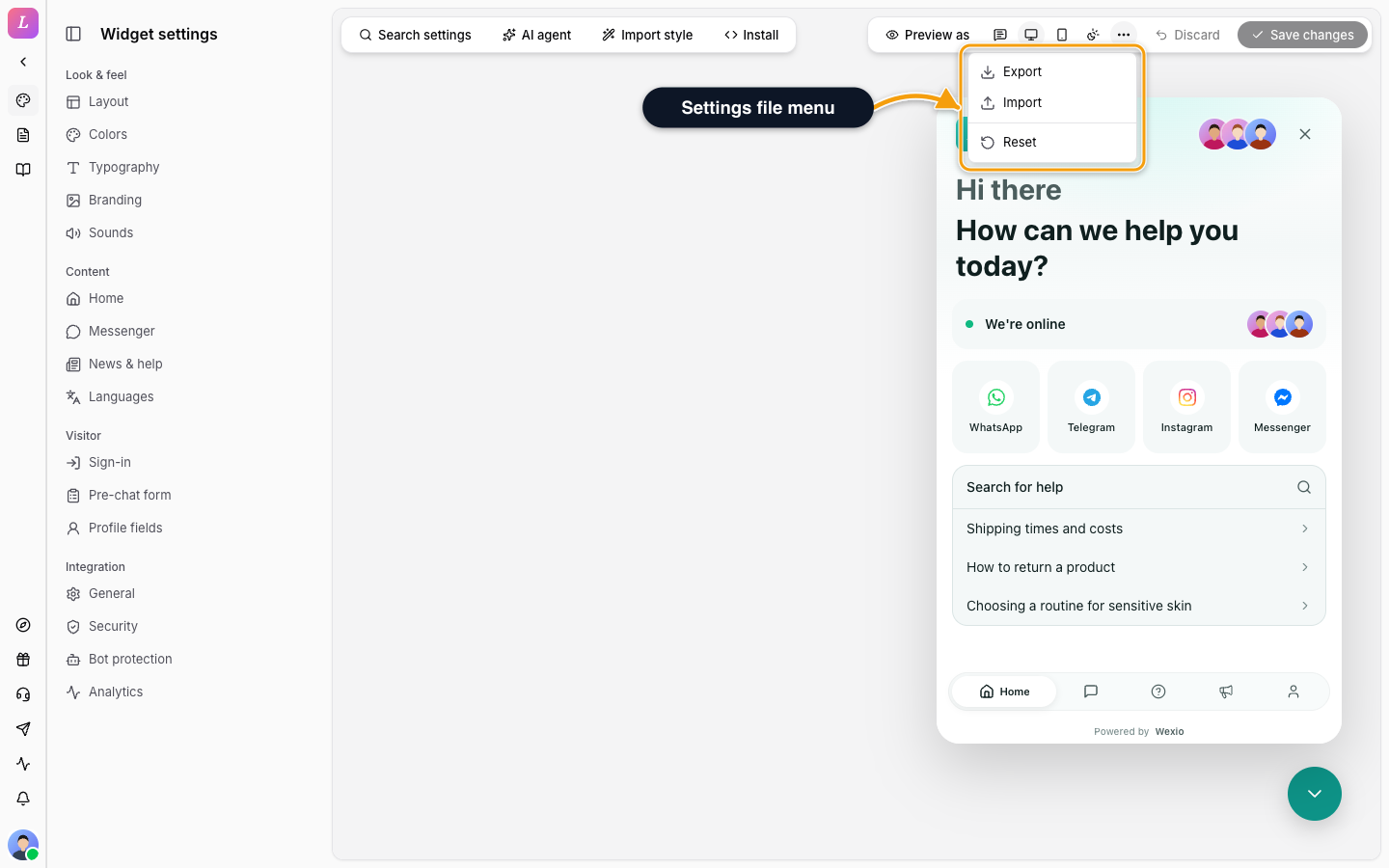
Export
Click Export to download the settings as a JSON file, or to copy them. The file holds what makes the widget look and behave the way it does:
- theme, home layout, greeting and messenger texts with their translations
- the pre-chat form, tabs and default tab, languages
- logo, operator avatars, sounds, the Wexio badge setting and tracking switches
Import
- Click Import and choose a file made by Export (a
.jsonfile up to 1 MB), or paste its contents. - Click Review. A list shows what the file will change.
- Click Stage changes. The changes wait as unsaved edits.
- Check the preview, then click Save changes, or Discard to take them back.
Nothing is saved until you click Save changes. Files carry image, avatar and sound references that belong to one organisation, so a file moves freely between widgets of the same organisation only.
The review step tells you when the file is changed on the way in. Home blocks the editor does not know are left out, a block with a wrong shape is put right, and translations that name no block are dropped. If the file hides the Wexio badge and your plan does not allow it, the badge setting stays as it is.
A file never changes the widget's name, allowed origins, visitor sign-in, bot protection or AI agent. Those settings belong to one widget.
An Editor, Admin or Owner can import. A read-only member cannot.
Reset
Reset asks Reset the theme to its defaults? It puts colours, corners, font and launcher position back to the defaults and the theme to Auto. It is a pending change: Save changes keeps it and Discard takes it back. Reset does not touch texts, blocks or integration settings.
Related
- Brand Editor - how the draft and Save work.
- Appearance - the theme settings a reset restores.