WhatsApp Templates
Create, sync and send every type of WhatsApp template from Wexio - what each type needs, the limits Meta enforces, and what happens when a value is missing
Templates are the pre-approved messages WhatsApp lets you send outside the 24-hour window. In Wexio you create them, sync them from Meta and send them from one place: Library → WhatsApp Templates. The page needs a connected WhatsApp number.
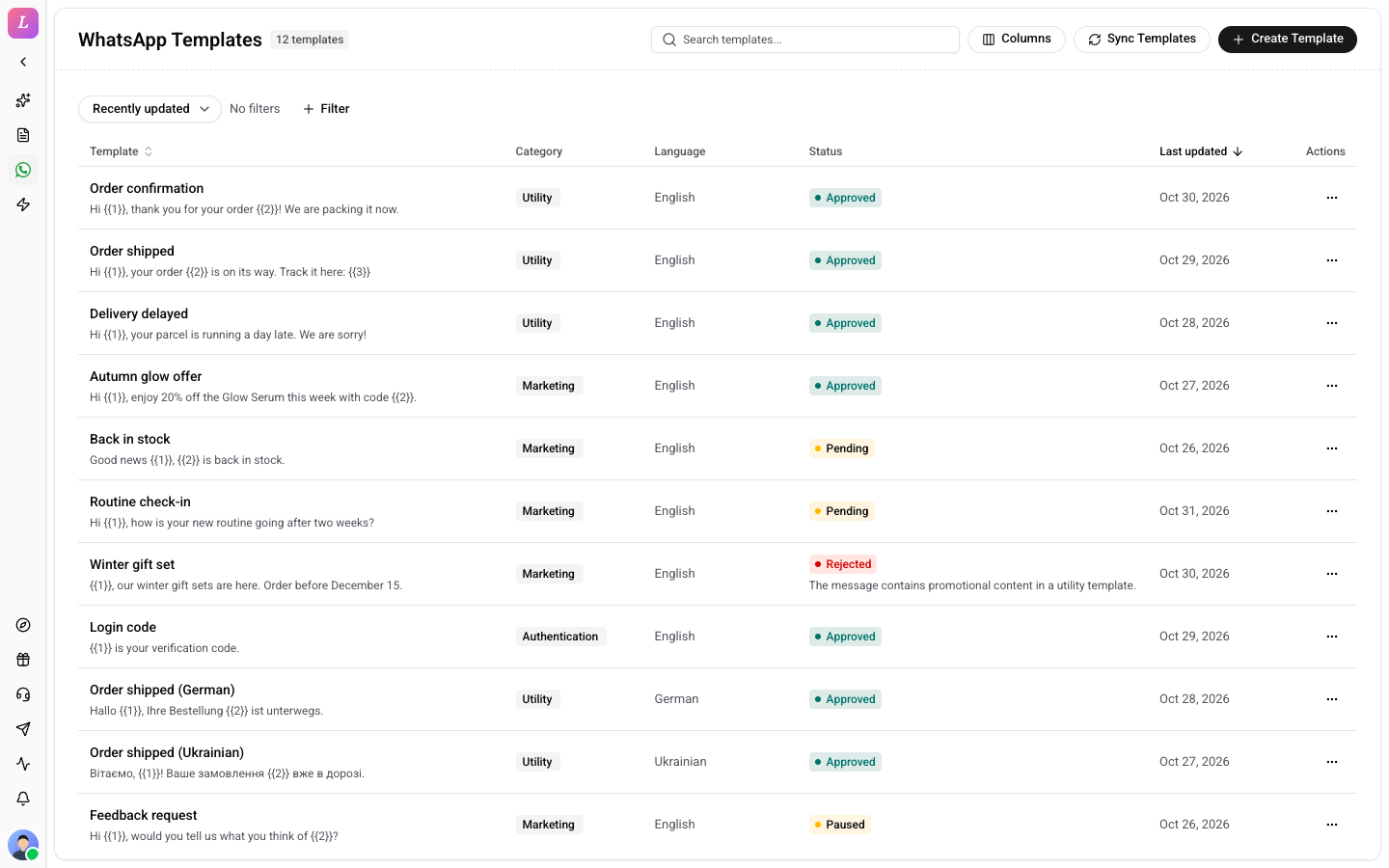
Each template belongs to one WhatsApp number. Meta reviews every new template before you can send it, and Meta decides.
The Template List
The list shows the template name with the start of its text, its Category, Language, Status and Last updated date. The newest changes come first. A rejected template shows the reason Meta gave under its status.
| Control | What it does |
|---|---|
| Search templates... | Finds templates by name. |
| Columns | Shows or hides columns. |
| Sort menu | Recently updated, Newest first, Oldest first, Name A-Z or Name Z-A. |
| Filter | Narrows the list by Status, Category and Language. |
| Number menu | Shows only the templates of one WhatsApp number. It appears when you have more than one number, and its first option is All numbers. |
| Sync Templates | Pulls in the templates that already exist on a number, including ones created in Meta Business Manager. |
| Create Template | Opens the builder and submits the new template to Meta for review. |
The list loads 25 templates at a time. Click Load more for the next ones. A row's Actions menu has Open in New Tab, Copy Template Name and Delete Template.
Sync Templates reads one number at a time. With a number picked in the number menu it syncs that one. With All numbers it syncs every connected number in turn. A toast says Sync complete: {created} created, {updated} updated, {deleted} deleted, or Templates are up to date when nothing changed.
Before You Can Use the Page
- Early access. Until WhatsApp is switched on for your account the page shows Early access and the text WhatsApp Templates are available on request during early access. Contact us to get access.
- No number connected. The page shows Connect WhatsApp and takes you to Settings → Integrations.
Who Can Manage Templates
Every member can read the list and open a template. Owners, Admins and Editors can create, sync, edit and delete. For an Agent the Sync Templates and Create Template buttons are not shown, and a template opens read-only with the note You can view this template but not change it. Ask an administrator who manages WhatsApp templates.
Statuses
| Status | What it means and what to do |
|---|---|
| Approved | Meta accepted it. You can send it. |
| Pending | Meta is reviewing it. You can still edit its variable mappings. |
| Rejected | Meta refused it. The reason shows on the template. Create a new one with changes. |
| Paused | WhatsApp paused this template because of low quality. It cannot be sent until the pause ends. Use Sync from Meta to check the status. |
| Limit exceeded | This template hit its sending limit on WhatsApp and cannot be sent for now. Use Sync from Meta to check the status. |
| In Appeal | This template is in an appeal with Meta and cannot be sent until Meta decides. Sync to see the result. |
| Disabled | WhatsApp disabled this template after repeated low quality. It cannot be sent. Create a new template with different wording. |
| Pending deletion and Archived | The template can no longer be edited or sent. Create a new one if you still need the message. |
| Deleted | Deleted on WhatsApp. It stays visible for reference and cannot be changed. |
| Unknown | WhatsApp reported a status Wexio does not know yet. Use Sync from Meta to refresh it. If it stays, contact support. |
Only Approved templates can be sent.
Open and Edit a Template
Click a row to open the template. Its structure is locked by Meta after approval, so the page marks those parts Locked by Meta after approval. You can still change what makes a send work:
- Variable mappings, which tie a variable to a contact field, for example
\{\{1}}to the contact's first name. - Header media and the default media of carousel cards.
- Send defaults, such as the default coupon code, link ending, products and the end time of a limited-time offer.
Click Save changes. A toast says Template updated successfully, or No changes to update when nothing changed. Sync from Meta refreshes this one template from Meta. The page also shows its Quality score, Last synced date and Meta template ID.
When a template needs values that are not set, its row shows Defaults missing and the Actions menu offers Set defaults. The template page says Send defaults are missing and lists what is still missing. Fill it in once and every send uses it.
Delete a Template
Open the Actions menu and click Delete Template, or click Delete template on the template page. Type DELETE to confirm. The template is deleted from WhatsApp for good, and all of its language versions go with it. A toast says Template deleted.
Template Types
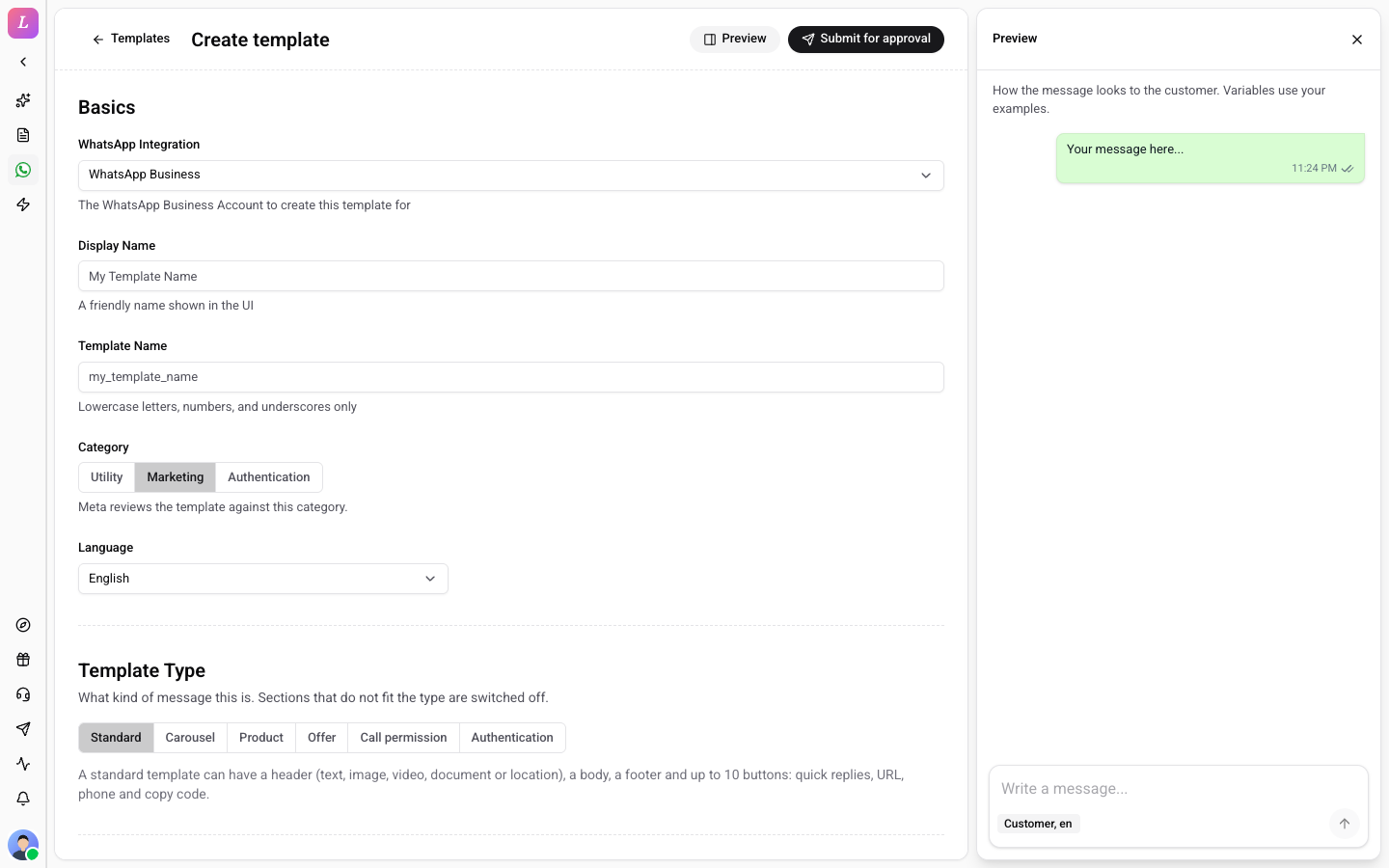
Click Create Template to open the builder. Under Basics choose the WhatsApp Integration (the number), a Display Name, the Template Name (lowercase letters, numbers and underscores, filled in from the display name), the Category and the Language. Meta reviews the template against the category you pick.
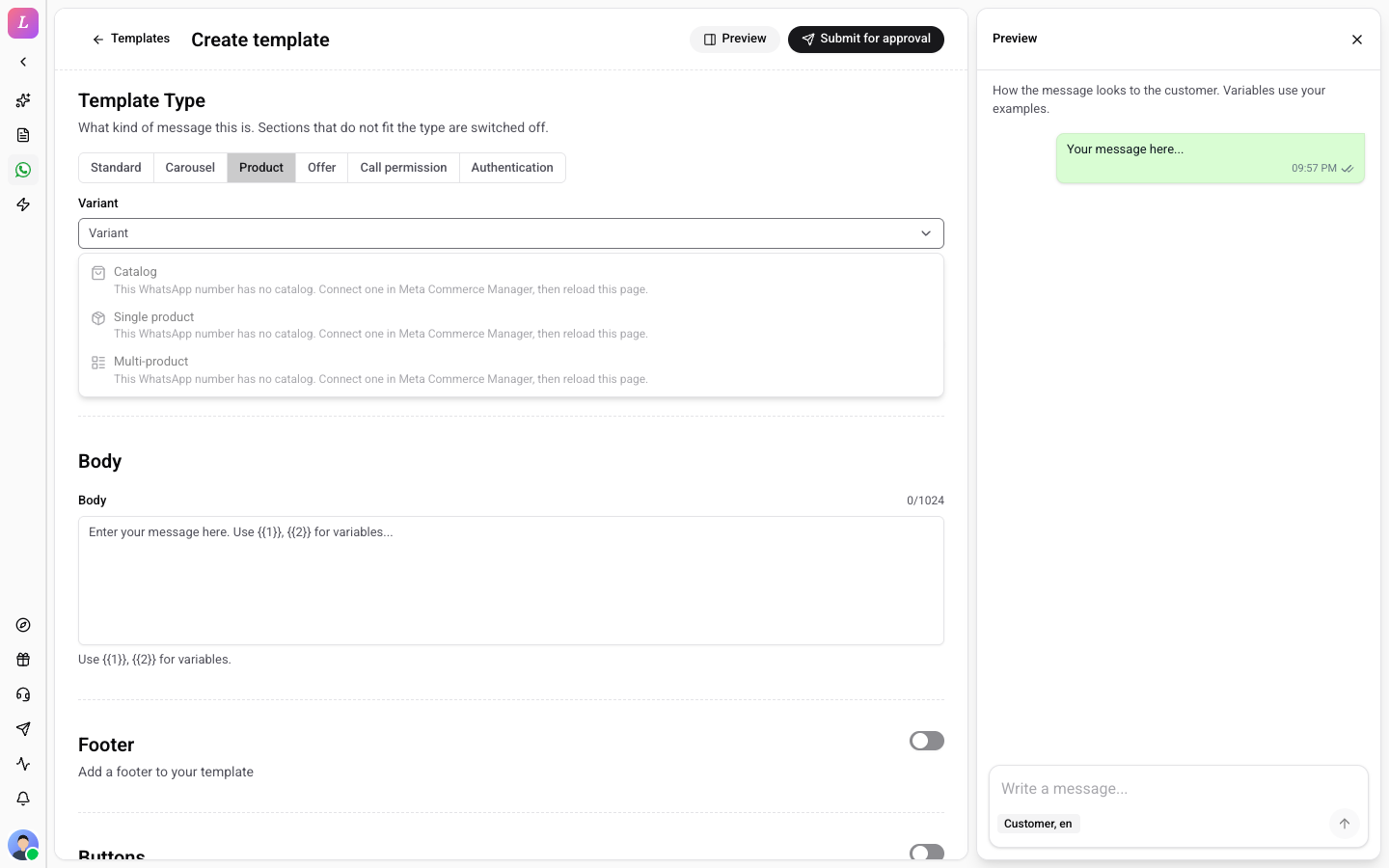
Then pick the Template Type. Choose a kind of message (Standard, Carousel, Product, Offer, Call permission or Authentication) and, where the kind has several, a Variant. Sections that do not fit the type are switched off, so you cannot build a combination Meta would refuse. A preview on the right shows the message as the customer sees it, using your example values.
| Type | What it is | Category |
|---|---|---|
| Standard | A text, image, video, document or location header, a body, a footer and up to 10 buttons. | Marketing or Utility |
| Catalog (Product) | A message that opens your product catalog. No header. | Marketing |
| Multi-product (Product) | A list of products in sections. Needs a text header. | Marketing |
| Single product (Product) | One product with its picture. Needs a product header. | Marketing |
| Media carousel (Carousel) | 2 to 10 swipeable cards, each with an image or a video. | Marketing |
| Product carousel (Carousel) | Product cards from your catalog. | Marketing |
| Limited-time offer (Offer) | A promotion with a countdown. | Marketing |
| Coupon (Offer) | A code the customer can copy. | Marketing |
| Call permission | Asks the customer to allow voice calls. | Marketing or Utility |
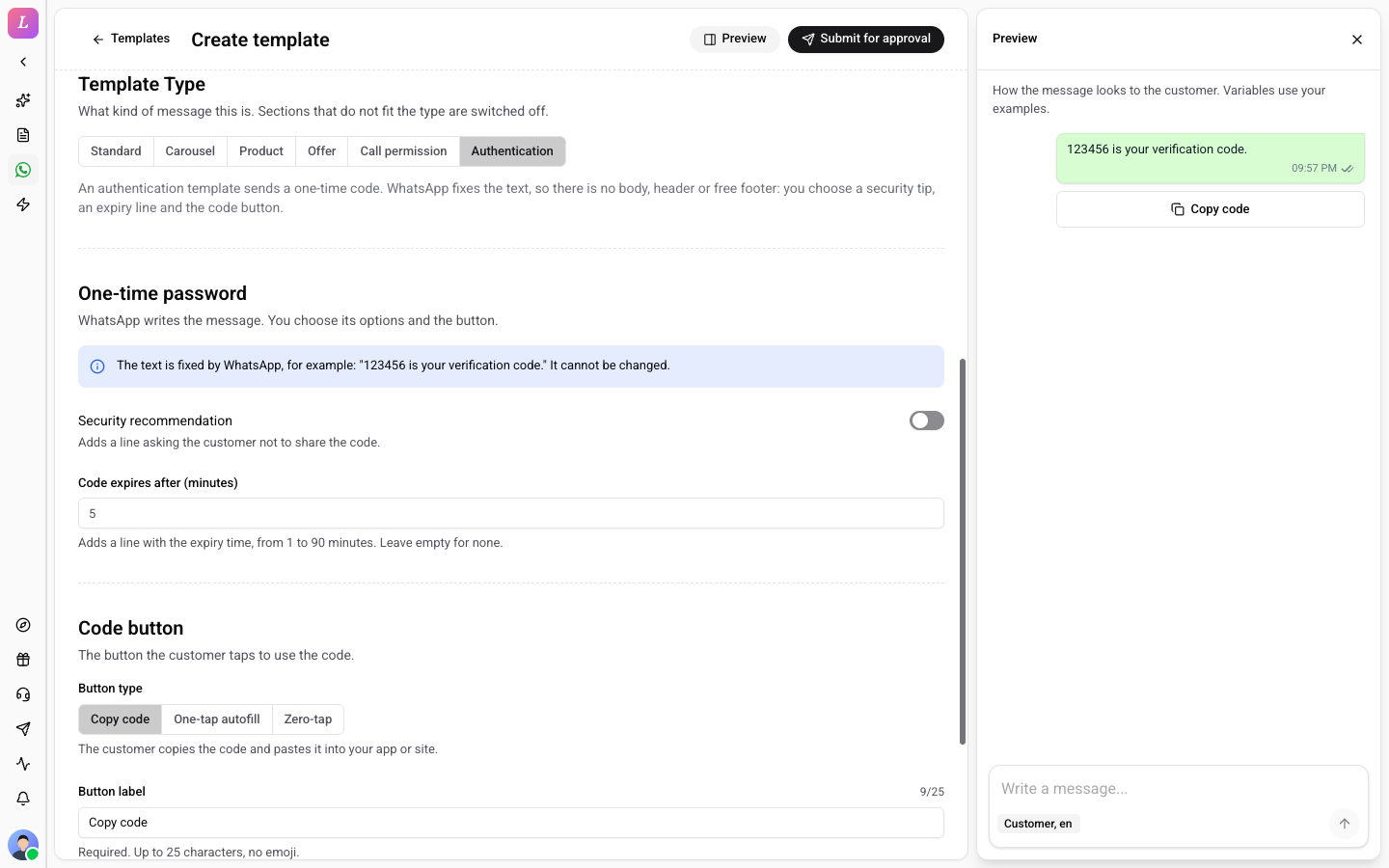
| Authentication | A one-time password for verification. | Authentication |
The four types that show products (Catalog, Multi-product, Single product and Product carousel) are unavailable until you connect a product catalog to that WhatsApp number. The builder tells you why. If the number has no catalog, it says This WhatsApp number has no catalog. Connect one in Meta Commerce Manager, then reload this page. While WhatsApp catalogs are not available yet, it says Product templates are not enabled for your organisation yet. and the product types stay off.
Flow templates are created in Meta, not in Wexio. A template with a WhatsApp Flow button shows up here after Sync Templates, and you can send it, but the builder does not offer it as a type to create.
What each type needs
Writing a Template
These limits apply to every type. Wexio checks them before anything is sent to Meta. If something is wrong, the page shows Fix {n} things before submitting with a list, and each line takes you to the field.
| Part | Limit |
|---|---|
| Name | Lowercase letters, numbers and underscores. |
| Body | Up to 1,024 characters (160 for single product, 600 for limited-time offer). |
| Text header | Up to 60 characters, at most one variable, no formatting characters (*, _, ~, backtick). |
| Footer | Up to 60 characters. |
| Button text | Up to 25 characters. |
| URL button | Starts with https://, up to 2,000 characters, with at most one variable and only at the very end. |
| Phone button | International format: + and 8 to 15 digits. Spaces, dashes, dots and brackets are accepted and removed. |
Buttons. Up to 10 in total: at most 10 quick replies, 2 URL buttons, 1 phone button and 1 copy-code button. Quick replies must sit together as one group: quick reply, quick reply, URL is fine; quick reply, URL, quick reply is not.
Variables. Write them as {{1}}, {{2}} in order with no gaps, or as names such as {{first_name}} (lowercase letters and underscores, each used once). Every variable needs an example value so Meta can review the template. Two Meta rules catch people out:
- A variable cannot be the first or the last thing in the body. A text header such as "Hi
{{1}}" is fine. - Too many variables for the amount of text is rejected by Meta. Wexio cannot check this one in advance, so keep the variables few.
Examples are for review only. Wexio never sends a template's example text, sample link or sample code to a customer.
Media. An image, video or document header needs a file uploaded when you create the template.
| Format | Types | Largest |
|---|---|---|
| Image | JPEG, PNG | 5 MB |
| Video | MP4 | 16 MB |
| Document | 16 MB |
Submit and Errors
Click Submit for approval. A toast says Template submitted for review and the list opens with the new template as Pending.
If Meta or Wexio refuses the template, a message at the top of the page says The template was not accepted and shows Meta's own explanation with its code, for example (Meta code 100). Fix the field it names and submit again. If you leave the builder with unsaved changes, Wexio asks Leave without submitting?.
If you switch the type and that would remove content you typed, Wexio asks first with This change removes your content. Click Keep my content to cancel.
After approval you can only change mappings, media and send defaults. See Open and Edit a Template.
Sending a Template
You can send a template from a conversation in the inbox, from a flow, and in a broadcast.
Every value must be filled in. Wexio takes each value from what you enter, otherwise from the template's saved mapping or default, and nothing else. It never falls back to the example text or a sample image.
In the inbox, open the + menu in the composer and choose Message template, or click Send Template in the window-closed notice. Pick an approved template under Select Template, and use the Fill in tab to enter the values. A preview shows the message as the customer will see it. If a value is missing, the dialog tells you which one and Send Template does not send. Typical lines are Header media is required, Enter the coupon code, Enter the verification code, Select the products to send. and Offer expiration time is required. If values the template needs were never saved, the dialog says Some values this template needs are not set and offers Set defaults.
If the server still finds something missing, nothing is sent. A toast says Some values are missing. Nothing was sent. and lists each one:
| You see | What to do |
|---|---|
Enter a value for the body variable {variable}. | Fill in that variable (header variables work the same way). |
Attach media for the {format} header. | Upload an image, video or document for the header. |
Enter the link value for the "{button}" button. | Fill in the end of the URL, for example the order number. |
| Enter the coupon code for the copy code button. | Type the code to send. |
| Enter the one-time password (1 to 15 characters). | Type the code for an authentication template. |
Select products for the "{button}" button. | Choose products for a multi-product message, and a thumbnail product. |
| Select a product. / Connect a product catalog to this WhatsApp number. | Pick a product, or connect a catalog first. |
| Set the offer expiration time. | Give the end time of a limited-time offer. |
This template needs {n} cards (now {m}). / Attach media for card {n}. | A media carousel must be sent with the same number of cards and media on each. |
Other refusals read This template is not approved yet., Template not found. and No product catalog is connected to this WhatsApp number. When Meta itself refuses a send, the toast shows Meta's explanation.
A few rules to know:
- Only approved templates can be sent.
- A link value is encoded for you. Enter it as you would type it, such as
order 42, and Wexio makes it safe to use in a link. - A one-time password is never stored in the clear. After an authentication template is sent, the conversation shows a row of
*characters as long as the code. - In a flow, the WhatsApp template step sends nothing when a required value is empty and reports it as a flow error. The card warns you in the editor with Not mapped yet, so this step would fail when the flow runs:. See WhatsApp Template Card.
When Sync Cannot Finish
Sync Templates reads every page of your templates from Meta. If a page fails, Wexio keeps what it has already read, says Template sync did not finish. Nothing was marked as deleted., and does not mark any template as deleted, so a temporary Meta problem never makes your templates disappear. Run it again.
A status or category that Wexio does not recognise is shown as Unknown, and Meta's original wording is kept.