Let the AI Book for Customers
Give your AI assistant a calendar and your services so it can offer times, book, cancel and reschedule in chat, and check a customer's email before it touches a booking
An assistant can offer free times, book a meeting, and cancel or move a booking for a customer. It needs a calendar, a skill that uses it and, for the Wexio calendar, the services it may offer.
Give the Assistant a Calendar
- Pick your calendar. The Wexio calendar is always there. For Google Calendar, Cal.com or Calendly, connect it first. See Calendar Integrations.
- Open the assistant and go to the Skills tab.
- Click Add skill, then From template, and pick Book a meeting. Skills need the Standard plan or higher. See Skills.
- In the Integrations step, pick the calendar the assistant should use, or choose Use all connected.
The Book a meeting template covers finding times, booking, cancelling, rescheduling and the email check described below.
The Wexio calendar, your services and specialists are on every plan. The skill and the flow cards Book a Time, Cancel Booking and Reschedule Booking need a paid plan.
Attach Your Services
On the Wexio calendar, the assistant offers only the services attached to it. A service no assistant has attached is invisible to the AI.
- Open the assistant and go to the Knowledge Base tab.
- Find Services and click Add from library.
- Tick the services and click Attach. Detach removes one.
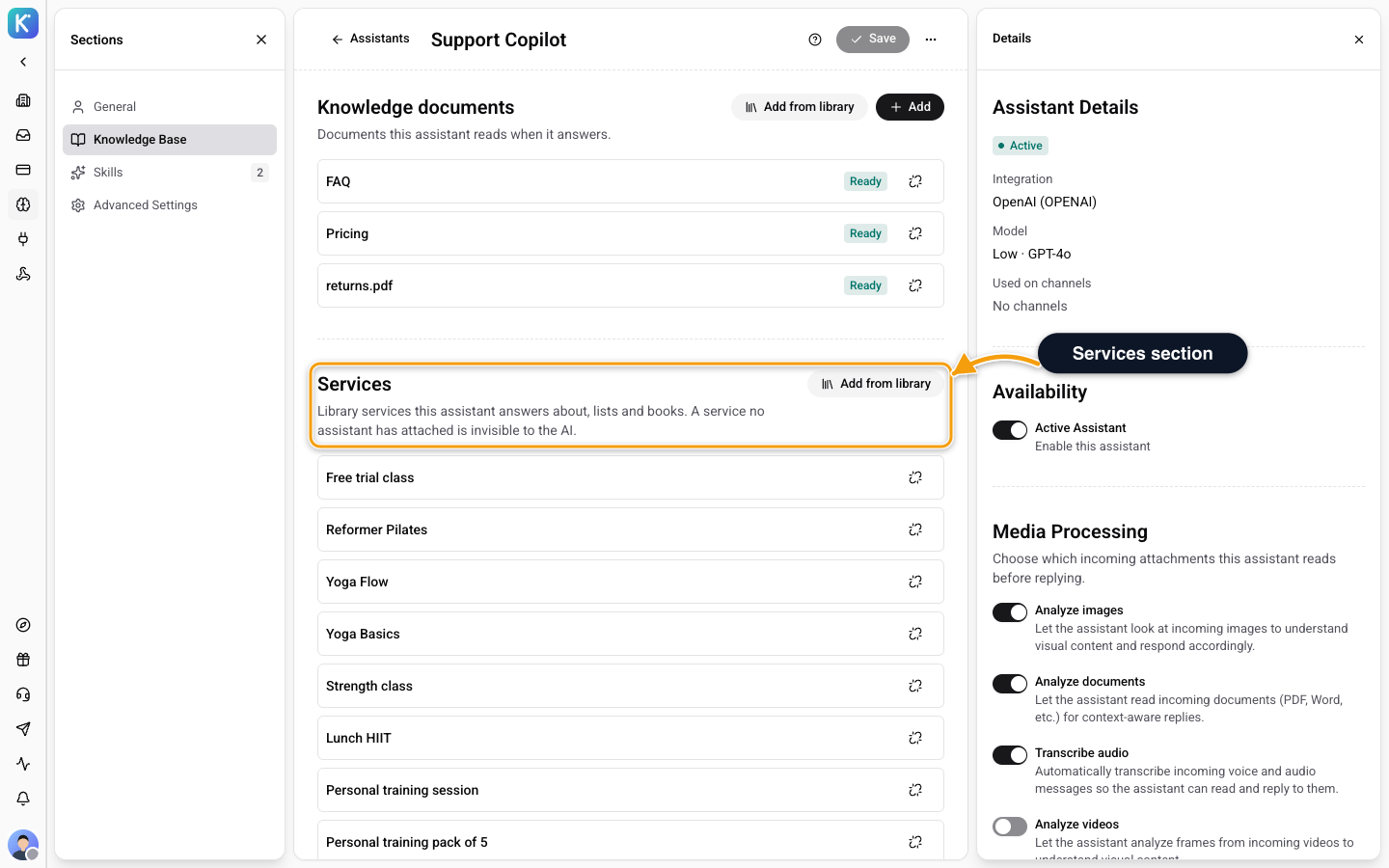
You can also attach from the service itself. See Services as AI Knowledge for drafts, versions and the other way to attach.
What Customers See
When a customer asks for a time, the assistant shows the nearest free times as buttons on the web widget and on messengers. The customer taps one.
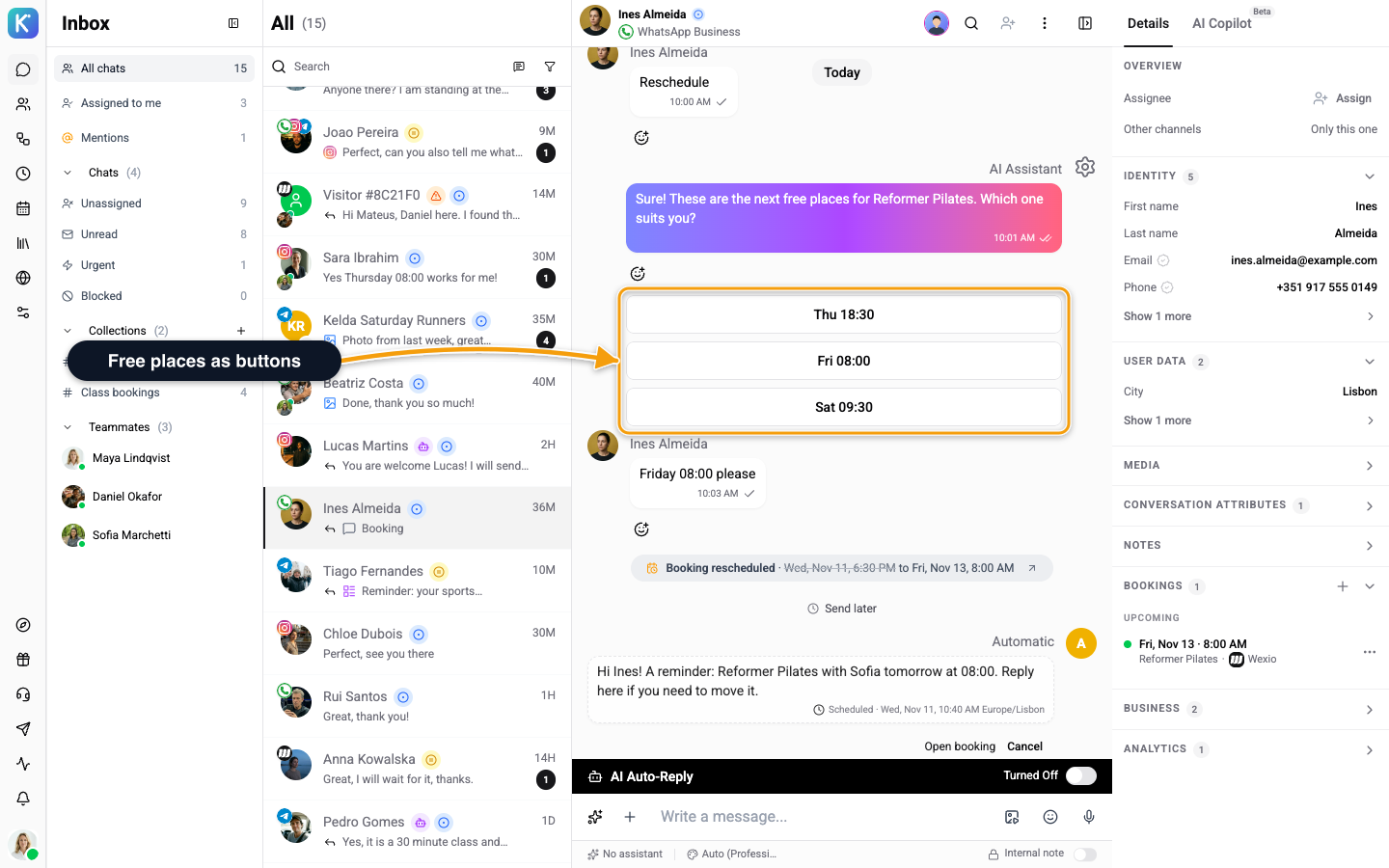
To cancel, the assistant shows the customer's bookings, asks Cancel your booking on ...? and cancels after the customer taps Yes, cancel. No, keep it leaves the booking as it is. To reschedule, the assistant shows the free times for that booking's own service and moves it after a tap. In the web widget, a customer with two or more upcoming bookings gets a Reschedule button on each one. See Set Up Booking in Your Chat Widget.
Customers Verify Their Email
The assistant changes or lists a booking only for an email the customer has proven. If it finds no bookings on the chat, it asks which email the customer booked with and sends a 6-digit code to that address. The customer types the code in the chat. After that, the assistant can show and change the bookings made with that email.
| Detail | What happens |
|---|---|
| Wrong code | The assistant asks the customer to check the code and try again. After too many wrong tries the code stops working and a new one is sent. |
| Code not arrived | The assistant can resend it, with a short wait between codes. |
| Tools missing | The step needs the Send an email code and Verify an email code tools on the skill. The Book a meeting template includes them. Without them, the assistant cannot send a code and does not promise one. |
Send Pictures With Answers
In the assistant's Media Processing section, the Send images from knowledge switch lets the assistant show a picture from your knowledge (website, help articles) before its answer when it helps. It is on by default. Turn it off if you want text-only answers. See Media Processing.
Test It
Open the assistant, click the ... menu and choose Test. A test is a dry run: nothing is booked and nobody is emailed. See Testing Skills.
Related
- Skills - tools, permissions and templates for assistants.
- Calendar Integrations - connect Google Calendar, Cal.com or Calendly.
- Services and Specialists - what the assistant can offer on the Wexio calendar.
- Set Up Booking in Your Chat Widget - the booking screen visitors use.