Services and Specialists
List what customers can book, with prices, lengths, pictures and the people who perform each service
A service is something people can book: a haircut, a consultation, a group class. A specialist is a person who performs services. You manage both in one place, Library → Services. Services, specialists and the Wexio calendar are on every plan, Free included.
Owners, admins and editors can add and change services and specialists. Other team members can only look.
Add a Service
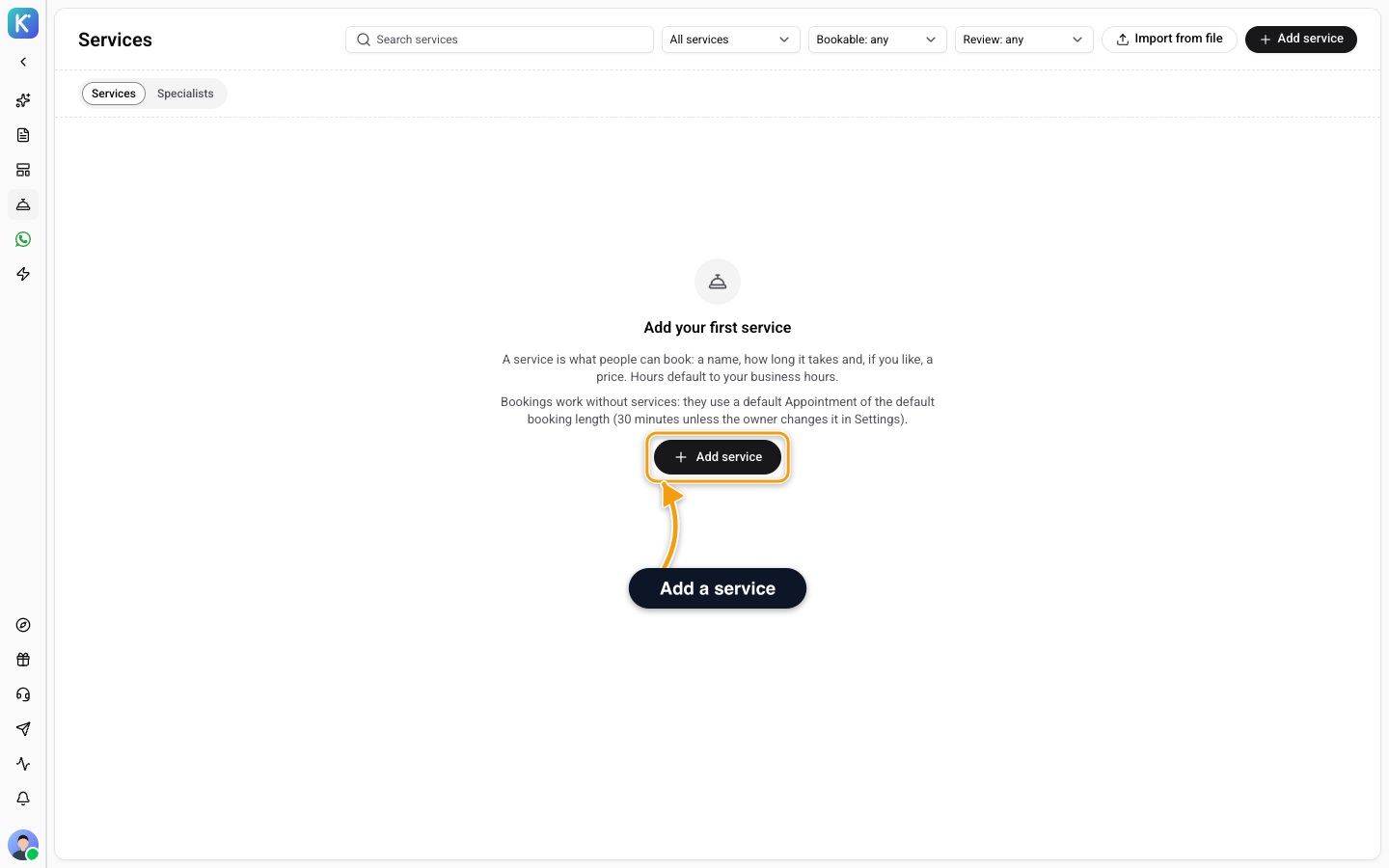
- Open Library → Services and click Add service.
- Enter a Name (up to 80 characters). Add a Description if you like (up to 1000 characters). It is shown when people choose a service.
- Set the Duration, and a Price and Currency if you want one. The price is shown only. Nothing is charged.
- Click Add service at the bottom of the panel.
The first time, the page says Add your first service. Bookings also work without services: they use a default Appointment of the default booking length (30 minutes unless the owner changes it in Settings).
Each service has these settings:
| Setting | What it does |
|---|---|
| Buffer after | Free time kept after each booking. |
| Minimum notice | The shortest time before a start that can still be booked. |
| Availability | Uses your business hours. Turn off Use business hours to set hours for this service only. |
| Closed dates | Days this service takes no bookings, on top of your business closures. |
| Active | Turn off to hide the service. |
You can have up to 200 specialists. If you go past a limit, you see At most {max} services are allowed. or At most {max} team members are allowed., with the number for your organisation in place of {max}.
Price is a label. Wexio does not take payments for services.
Picture and Colour
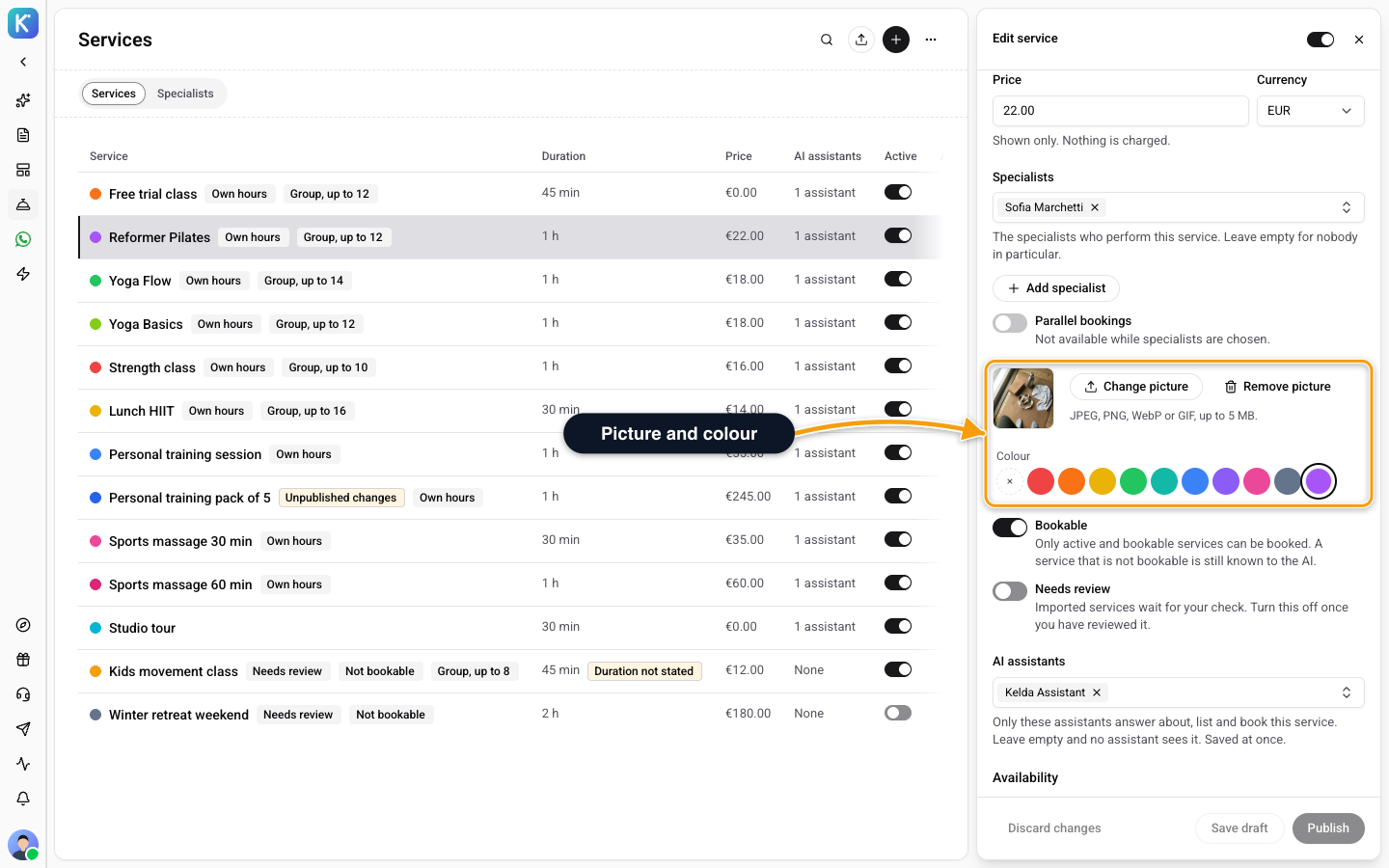
Click Upload picture to add a Service picture (JPEG, PNG, WebP or GIF, up to 5 MB). Drag to choose the part that shows, in Crop the picture. Pick a Colour below it, or choose No colour. The picture and the colour save at once, without a publish.
Bookable and Needs Review
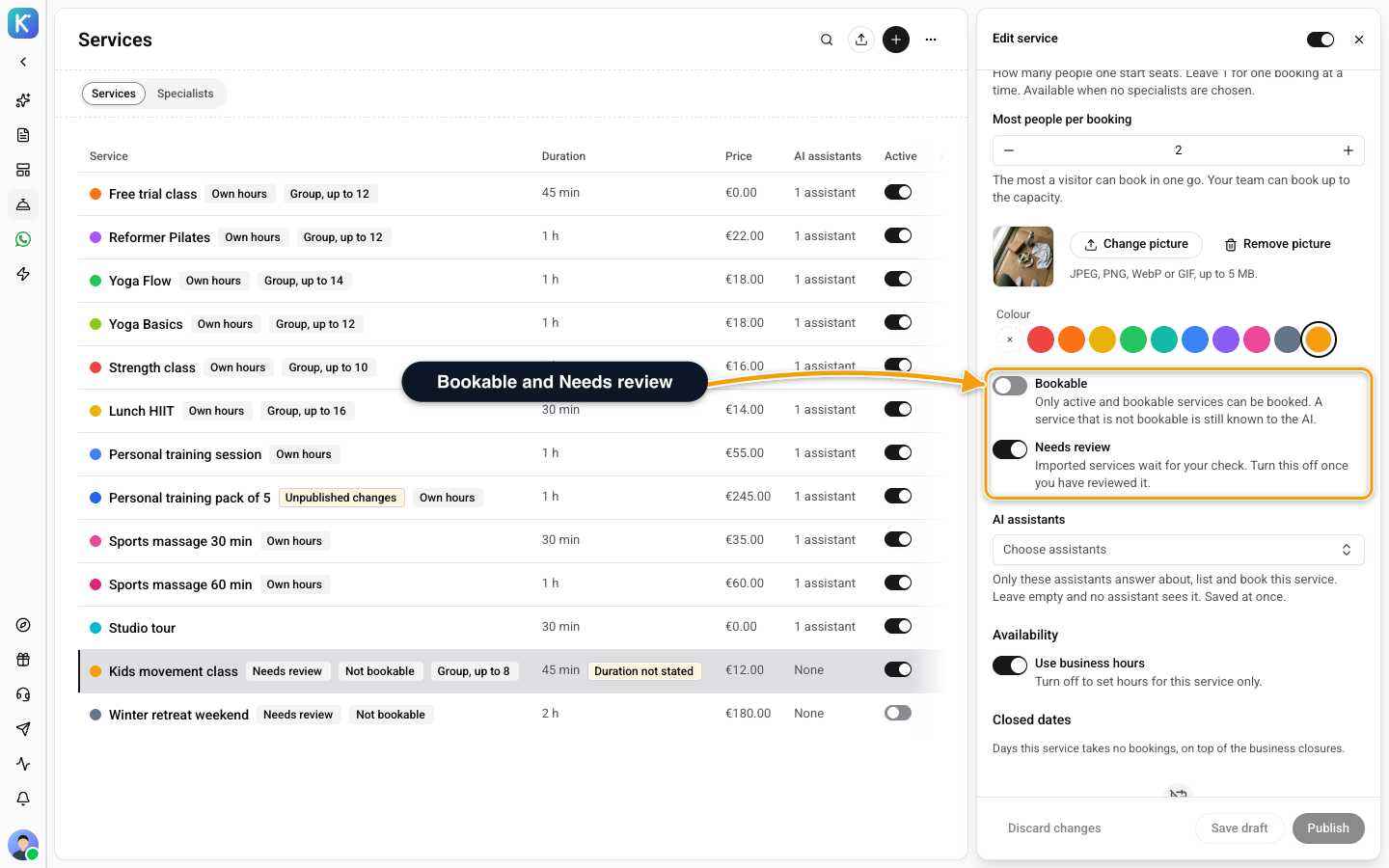
- Bookable. Only active and bookable services can be booked. A service that is not bookable is still known to the AI, so it can describe and quote it.
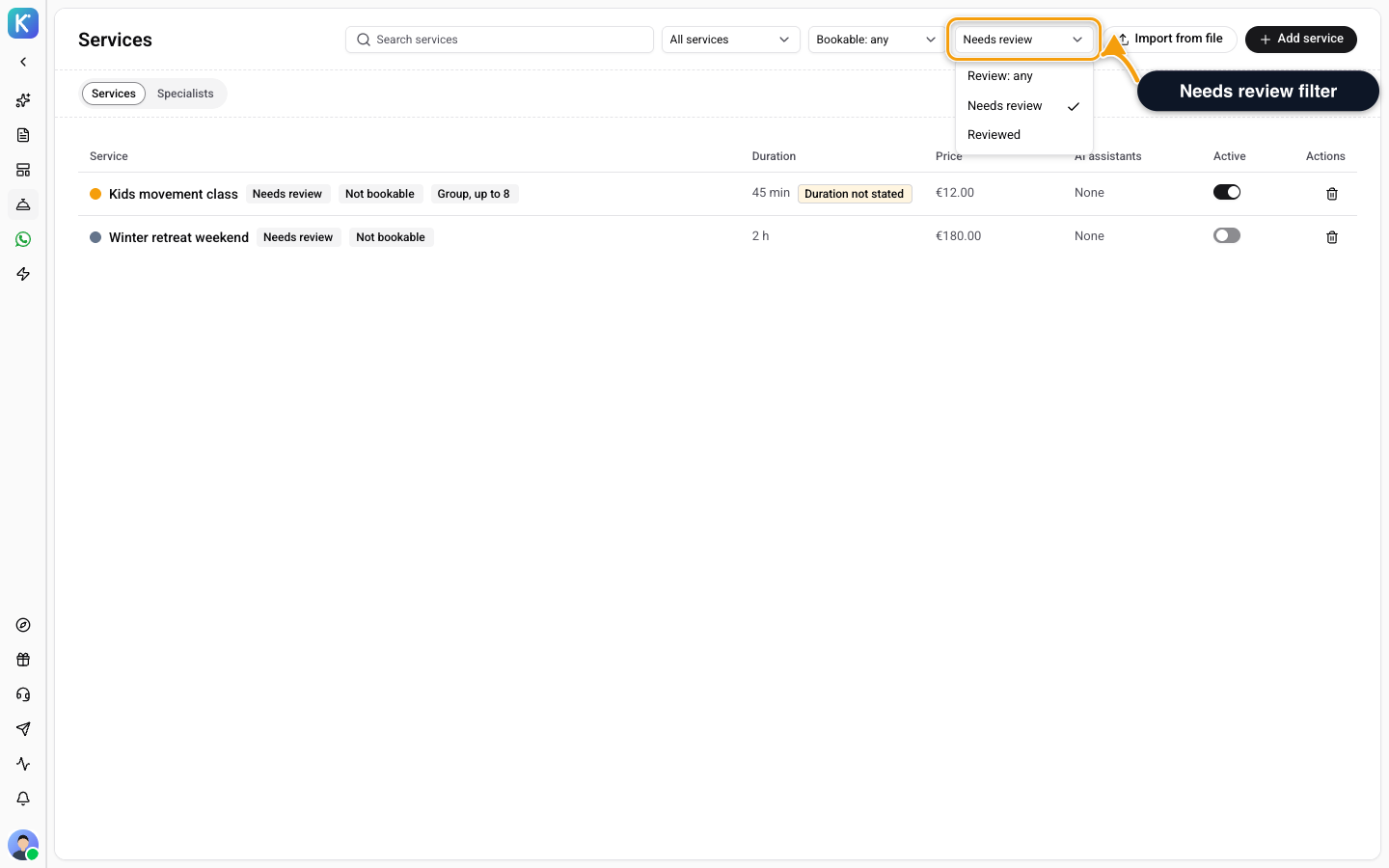
- Needs review. Services you import wait for your check. Open the service, look it over, then turn off Needs review.
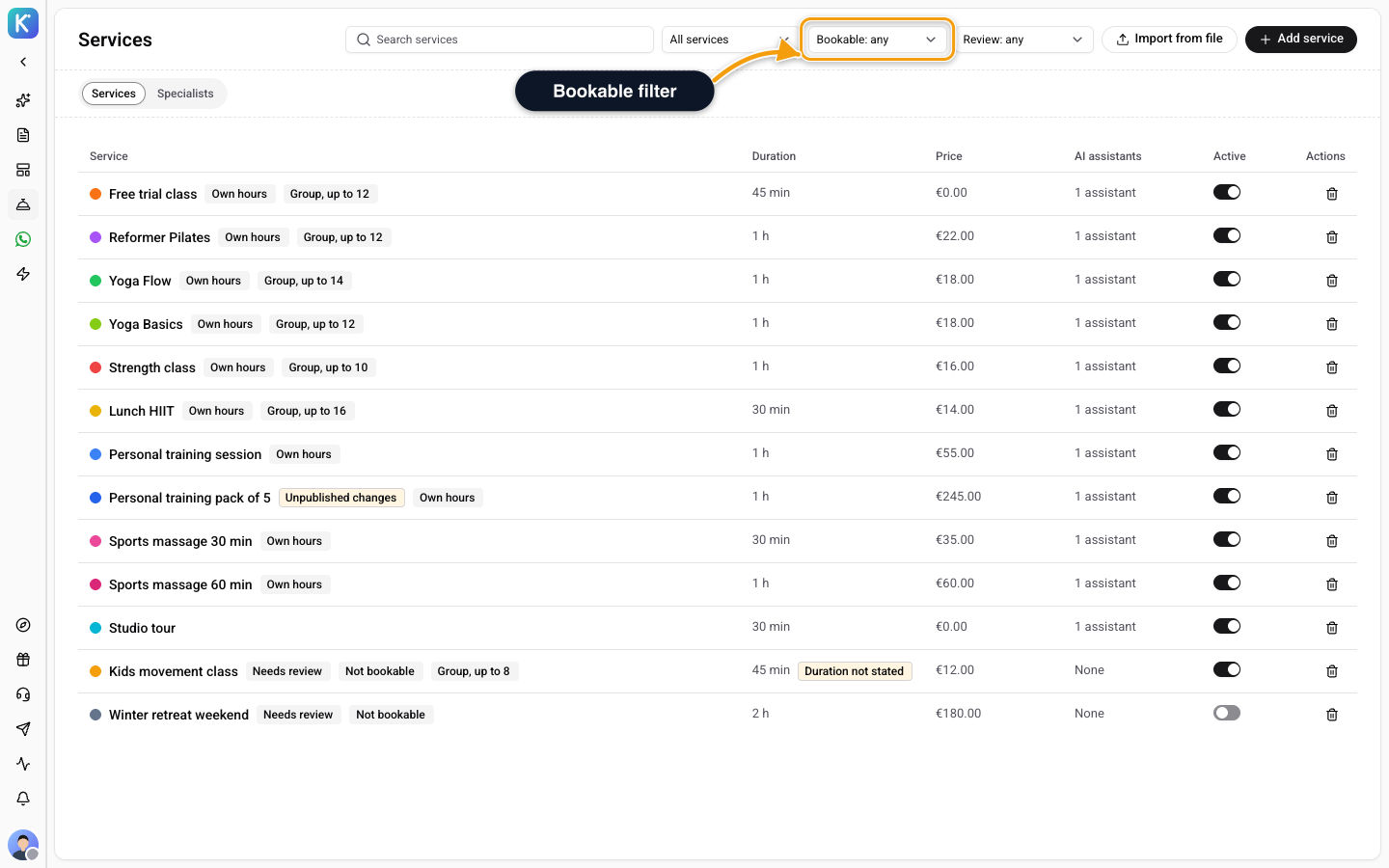
Use the filters above the table to find them: Bookable: any, Bookable, Not bookable, and Review: any, Needs review, Reviewed. A row can also show Unpublished changes or Duration not stated.
Delete a service and people can no longer book it. Bookings already made stay as they are.
Group Classes
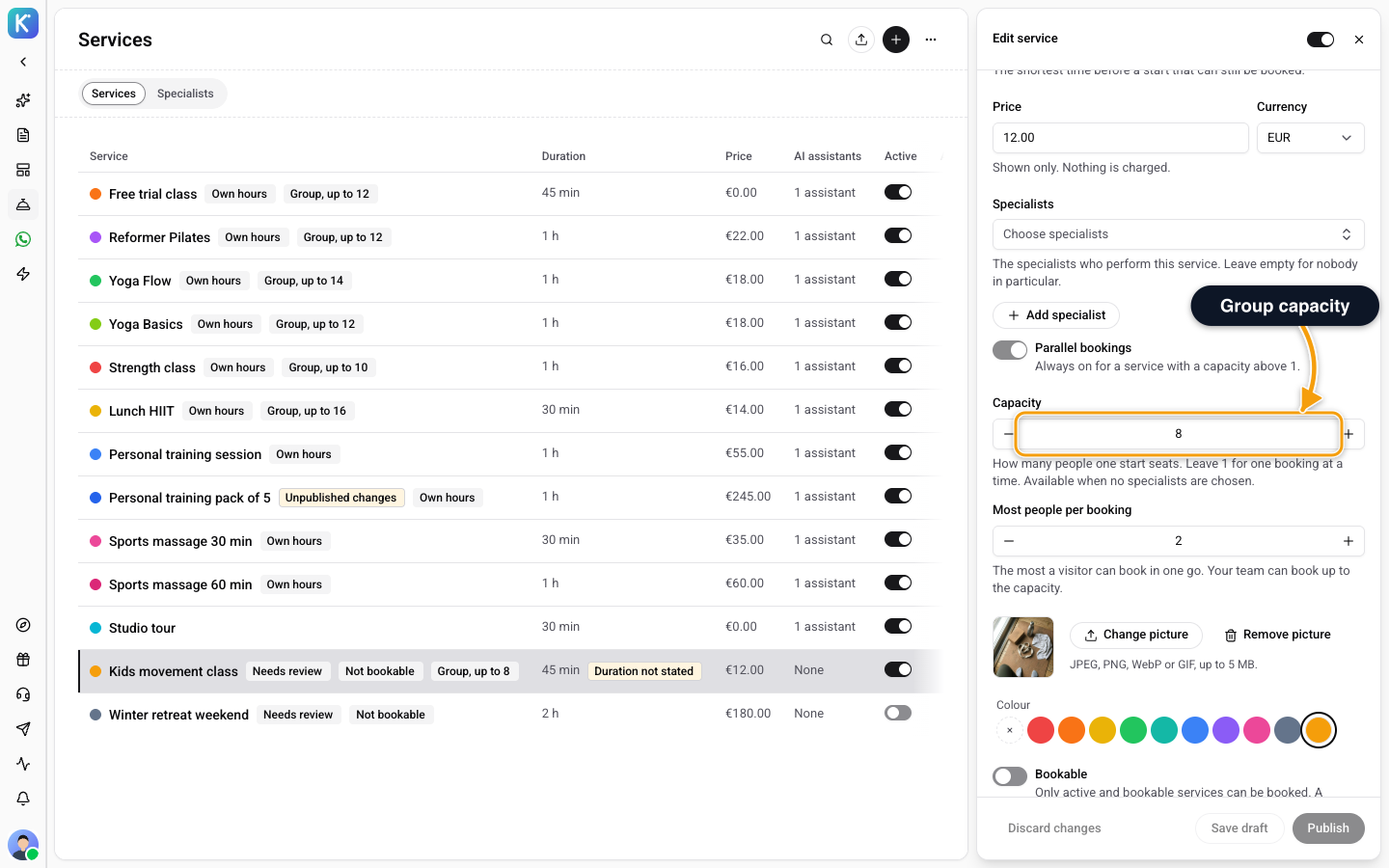
For a class or a kids session, set a Capacity above 1. Capacity is how many people one start seats. Then set Most people per booking: the most a visitor can book in one go. Your team can book up to the capacity.
- Capacity is a whole number from 1 to 500.
- Most people per booking is a whole number from 1 up to the capacity, at most 50.
- The service takes Parallel bookings, always on for a capacity above 1.
- A group service has no specialists and no buffer.
- One contact can hold at most twice Most people per booking in places on the service. See Booking Limits.
If you break one of these, you see a message such as A service for several people at once cannot have specialists. Remove them or set the capacity to 1. The table shows the row as Group, up to and the number.
Add Specialists
- Open Library → Services and click the Specialists tab.
- Click Add specialist.
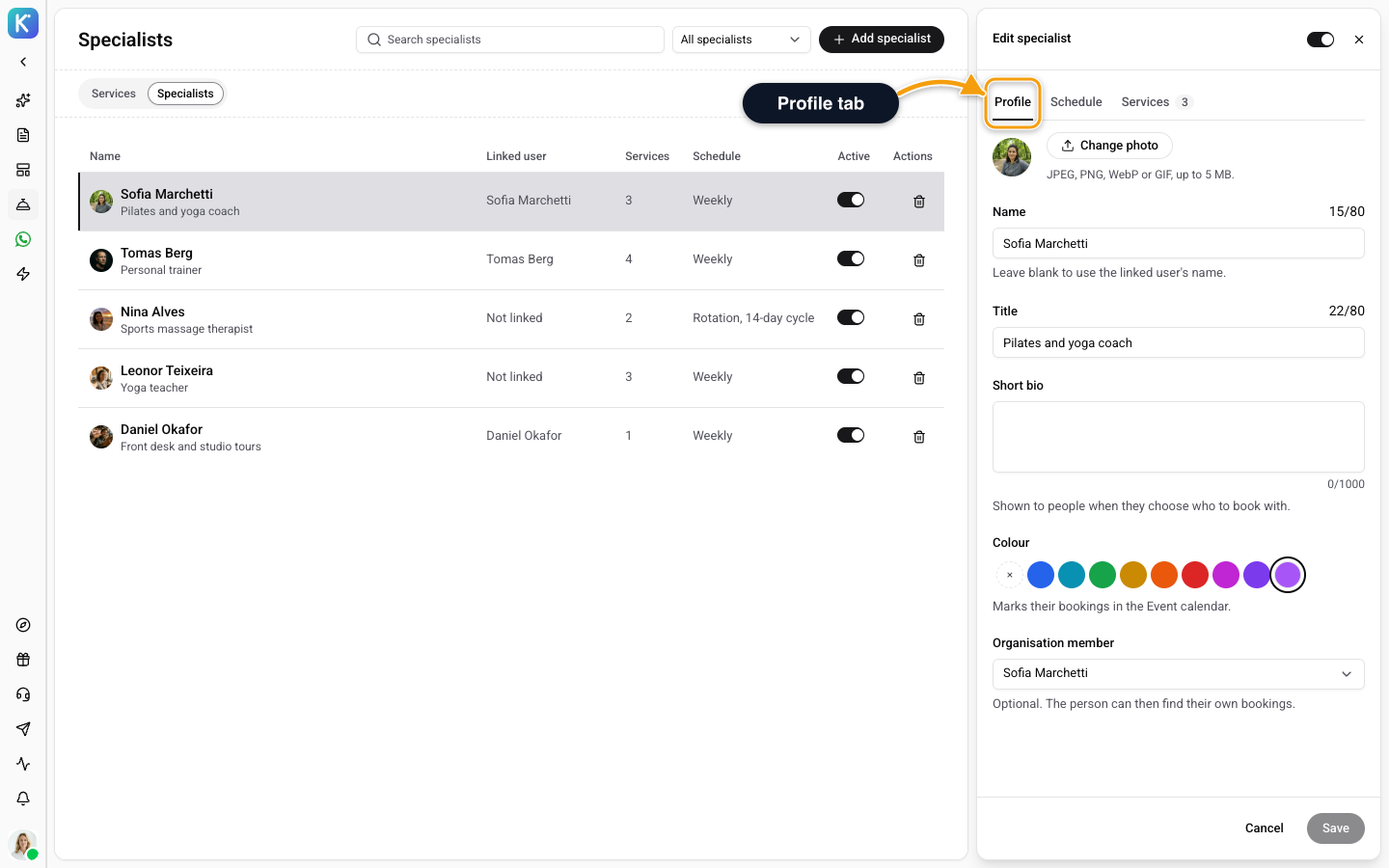
- On the Profile tab, enter a Name. You can leave it blank when you link an Organisation member: the linked person's name is used, and they can find their own bookings.
- Add a Title (for example, Dentist) and a Short bio. People see the bio when they choose who to book with.
- Pick a Colour. It marks their bookings in the calendar.
- Click Upload photo, crop it to the round shape and save.
- Click Add specialist.
Turn off Active for a specialist who should not take bookings.
Schedule
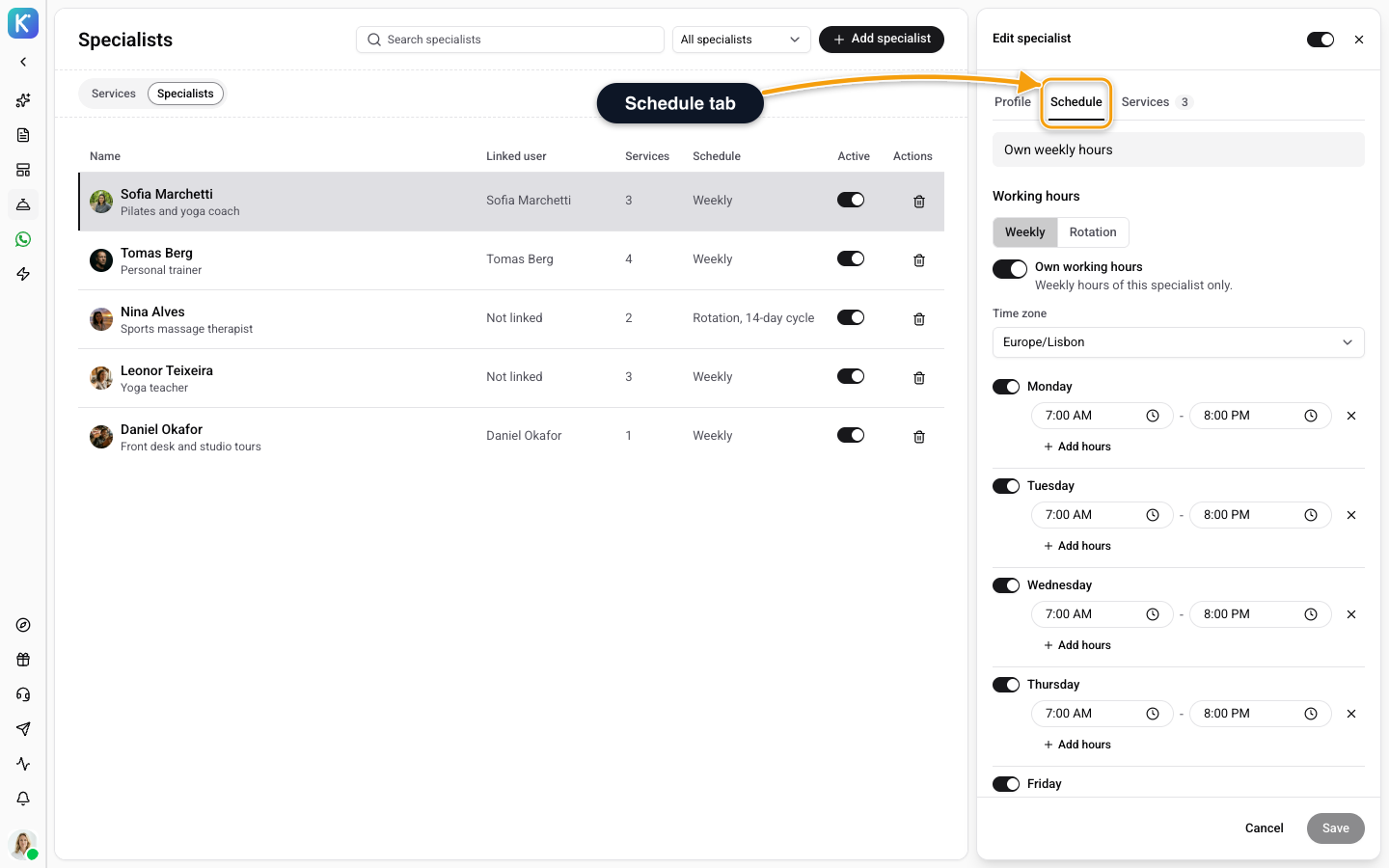
Open the Schedule tab. Without Own working hours, the specialist follows the service hours, or your organisation hours.
You have three tools:
- Weekly. Set the hours for each day of the week.
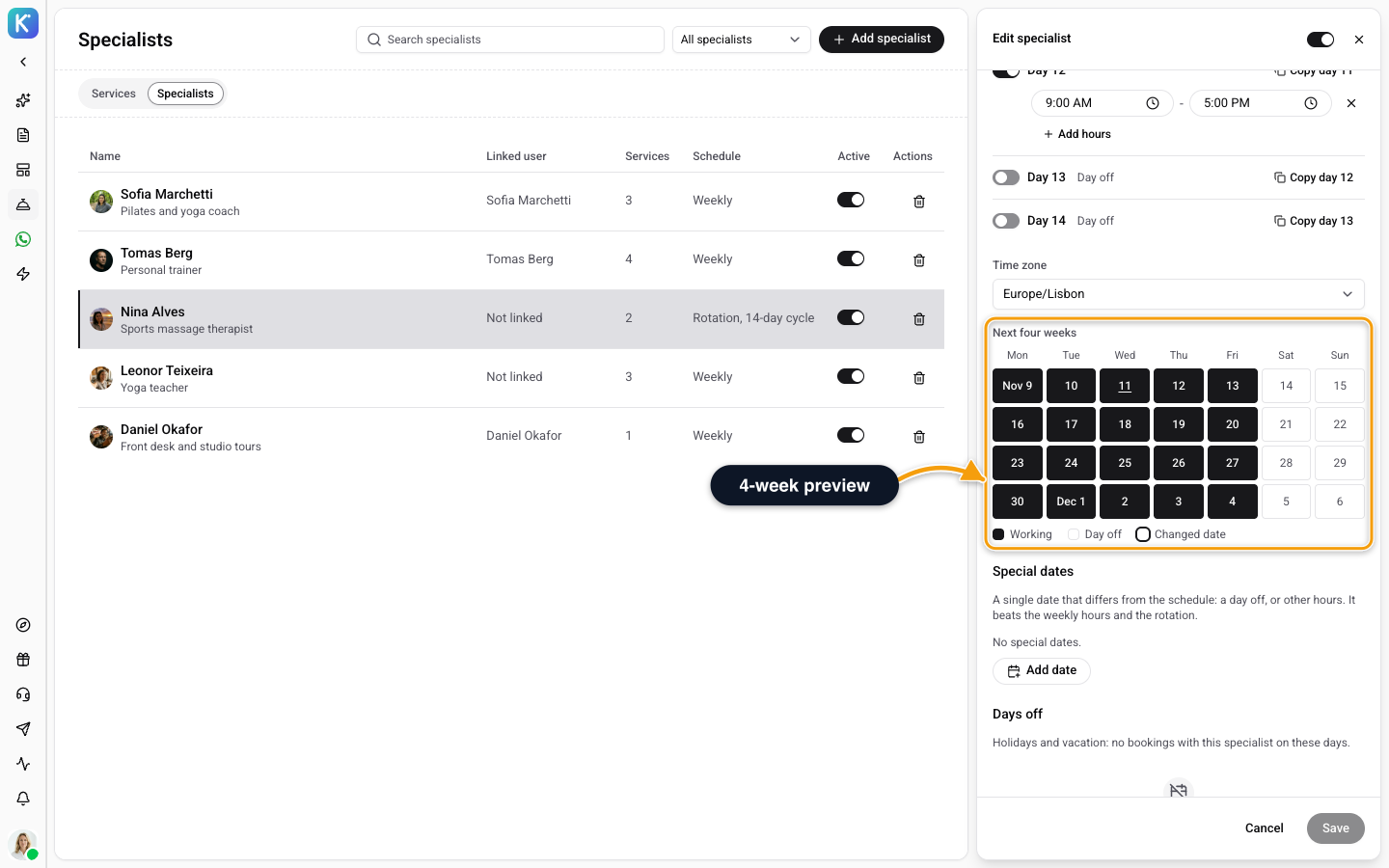
- Rotation. For shifts such as 2 on, 2 off, 3 on, 3 off or Week on, week off. Pick the First day of the cycle and a Cycle length (days) from 2 to 28, then mark the Days of the cycle. Next four weeks shows the result.
- Days off and Special dates. A single date that differs from the schedule, a day off or other hours. It beats the weekly hours and the rotation.
Link Specialists to Services
Open the Services tab and choose the services this person performs. You can also do it from the other side: in a service, use Specialists and Choose specialists, or add a new one with Add specialist without leaving the service. Leave Specialists empty for nobody in particular.
When a customer books a service that has specialists, they can choose with whom.
The specialists on a service follow the service's draft and publish steps. With a draft open, a change to the list saves to the draft and goes live when you click Publish. The picture, colour and assigned AI assistants save at once.
If you delete a specialist, bookings already made stay, but the services they performed lose them. A service left with nobody books on the shared business agenda, and Wexio tells you which services.
Related
- Import Services From a File or Website - Fill the catalog from a document or your site.
- Services as AI Knowledge, Drafts and Versions - Edit safely and choose which assistants use a service.
- Knowledge Documents - The other half of what your AI knows.