Booking Reminders and Custom Reminder Text
Send customers an automatic reminder before a booking, write your own reminder text and check what will go out
Wexio sends your customer a reminder in their chat before a booking. This page shows how to choose when reminders go out and how to write your own text, with a version for each language.
Turn Reminders On and Choose When
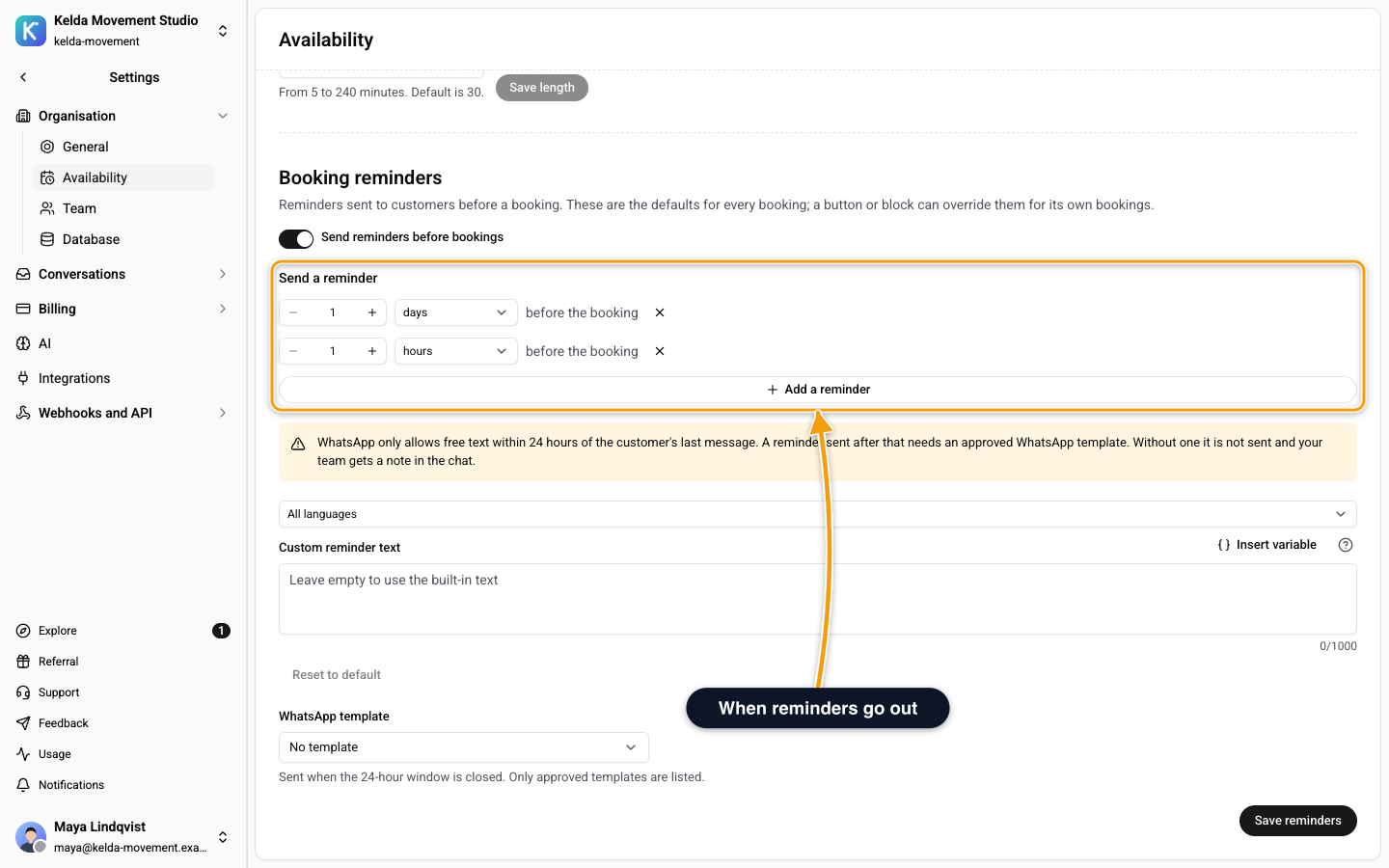
Open Settings, then Availability, and find Booking reminders. These are the defaults for every booking. A button or block in your web widget can override them for its own bookings.
- Switch on Send reminders before bookings.
- Under Send a reminder, set an Amount and a Unit (minutes, hours or days) before the booking.
- Click Add a reminder for a second or third one. Click Remove reminder (the X) to drop one.
- Click Save reminders. You see Booking reminders saved.
If you change nothing, customers get a reminder 24 hours and another 1 hour before the booking.
| Rule | Value |
|---|---|
| Reminders for one booking | Up to 3 |
| Earliest and latest | 10 minutes to 7 days before |
The form tells you when a row is wrong: Enter a whole number greater than 0, Use 10 minutes to 7 days, This reminder is already set or At most 3 reminders.
Only the Owner and Admin can change reminders. Other members see the settings without a Save reminders button.
When a Reminder Goes Out
- After a booking is confirmed. A reminder is planned for every time you set. A booking that is still waiting for confirmation gets its reminders once it is confirmed.
- Not for a time that has passed. If a reminder is due less than 10 minutes from now, for example for a booking made at the last minute, it is not created.
- If the booking moves, the waiting reminders move with it. If the booking is cancelled, nothing is sent.
- If Wexio was late, a reminder planned 1 hour or less before the booking is skipped rather than sent too late.
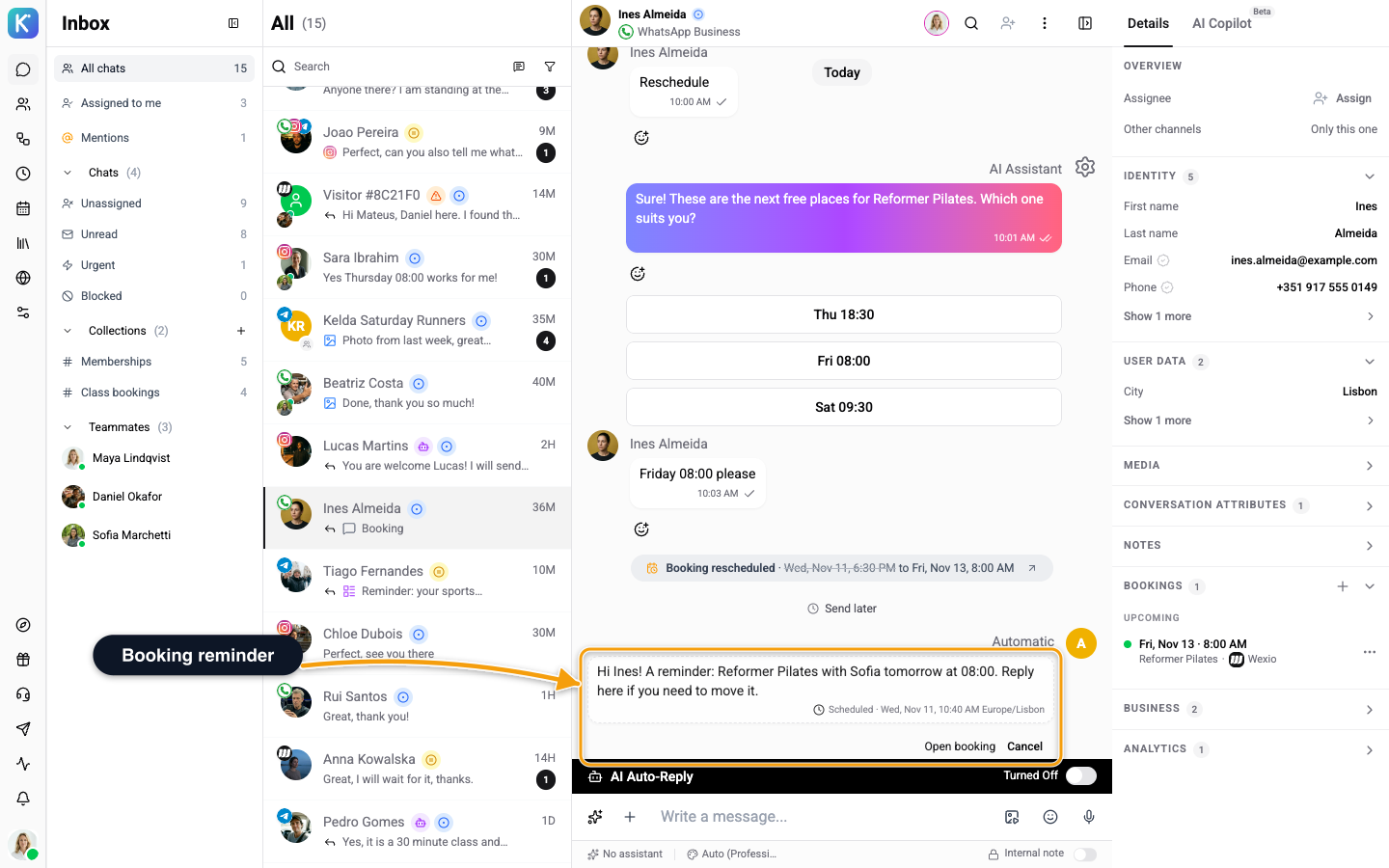
Reminders appear in the customer's chat under Send later, marked Booking reminder and Automatic. Each one has an Open booking link and a Cancel button if you do not want it sent. You cannot edit a reminder or send it early. See Send Later.
Write Your Own Text
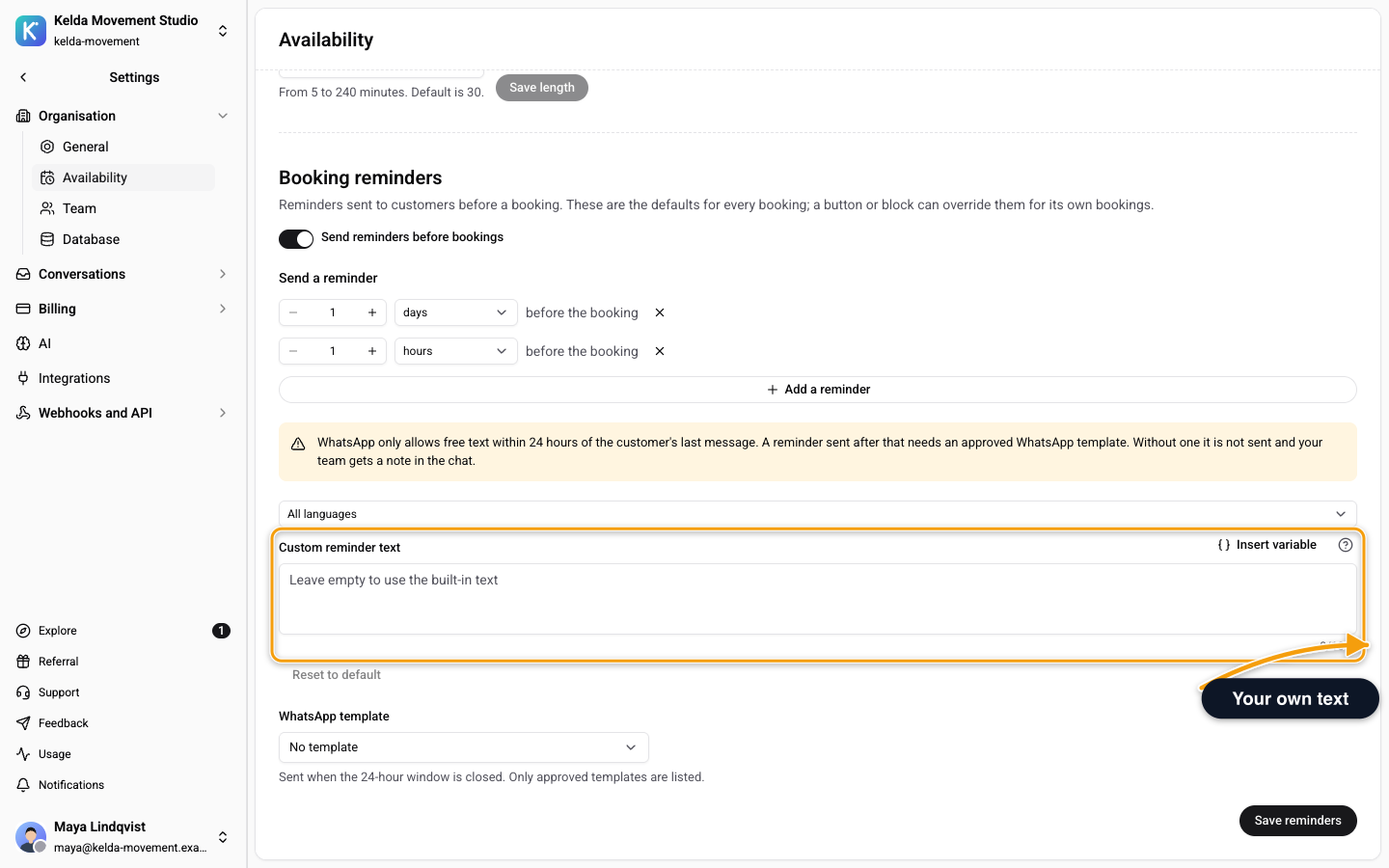
Without your own text, Wexio uses a built-in reminder. To change it, use Custom reminder text in the same card.
- Type your text. Leave it empty to use the built-in text.
- To add a detail, type
{{and pick a variable from the list, for example{{ contact.first_name }}. - Click Save reminders.
Example:
Hi {{ contact.first_name }}, a reminder: {{ booking.service }} on {{ booking.label }}. Need to change it? {{ organisation.phone }}Variables you can use:
| Group | Variables |
|---|---|
| Booking | booking.label (date and time), booking.shortLabel (short date), booking.service, booking.staff, booking.meetingUrl (meeting link), booking.startsAt, booking.endsAt, booking.timezone, booking.durationMinutes, booking.seats (people), booking.status, booking.provider, booking.id |
| Contact | contact.first_name, contact.last_name, contact.full_name, contact.name |
| Organisation | organisation.name, organisation.website, organisation.phone, organisation.email, organisation.description, organisation.id |
The text can be up to 1,000 characters and hold up to 30 variables. If you break a rule you see The text is too long (max 1000 characters), Too many variables (max 30) or The text uses a variable that does not exist. If your text comes out empty for a booking, Wexio sends the built-in text instead.
Click Reset to default to clear your text, in every language.
One Version for Each Language
Pick a language in the Language list above the editor. All languages is your main text. You can also write a version for English, Deutsch, Українська or Português.
A customer gets the version for their language. If you wrote none for it, they get the All languages text, and if that is empty, the built-in text.
WhatsApp Customers
This part shows only when you have a WhatsApp channel connected. WhatsApp allows free text only within 24 hours of the customer's last message. A reminder sent after that must be an approved WhatsApp template.
- Choose one under WhatsApp template. The list holds approved templates only, and the default is No template.
- Without a template, a reminder sent outside the 24 hours is not sent, and your team gets a note in the chat.
- Your custom text is not used when a template goes out, because Meta fixes the template text.
Check What Will Go Out
Open the customer's chat and look under Send later. Each waiting reminder shows the exact text that will be sent, with your variables filled in and the customer's language applied. If the 24-hour window will be closed by then, it shows WhatsApp template instead.
A reminder for a booking that was cancelled or moved does not go out. If a send fails you see A scheduled message was not sent: with the reason, for example the reply window was closed, the contact is blocked or the channel is disconnected.