Services as AI Knowledge, Drafts and Versions
Let your AI assistants answer from your services, edit a service safely as a draft, and go back to an earlier version
Your AI assistants can answer questions about your services: what you offer, how long it takes and what it costs. A service works like a knowledge document: you edit it as a draft, publish it, and can restore an earlier version.
Choose Which Assistants See a Service
A service that no assistant has attached is invisible to the AI. You can attach from either side:
- In a service. Open Library → Services, open the service and use AI assistants to Choose assistants. Only these assistants answer about, list and book this service. It saves at once, with Assistants saved.
- In an assistant. Open the assistant, go to the Knowledge Base tab and find Services. Click Add from library, tick the services and click Attach. Detach removes one.
After an import, the AI cannot see the new services until you attach them to an assistant.
A service that is not Bookable is still known to the AI, so it can describe it, but nobody can book it.
Edit as a Draft
When you change an existing service, your changes become a draft. The assistants and your customers keep using the published version until you publish.
| Action | What it does |
|---|---|
| Save draft | Keeps your changes. Toast: Draft saved. |
| Publish | Makes the draft live. Toast: Published as v3. |
| Discard changes | Deletes the draft after Discard changes?. The live service stays as it is. |
A badge above the form shows where the service stands: Published v3, Unpublished changes or Not saved yet. A new service is added with Add service and has no draft step.
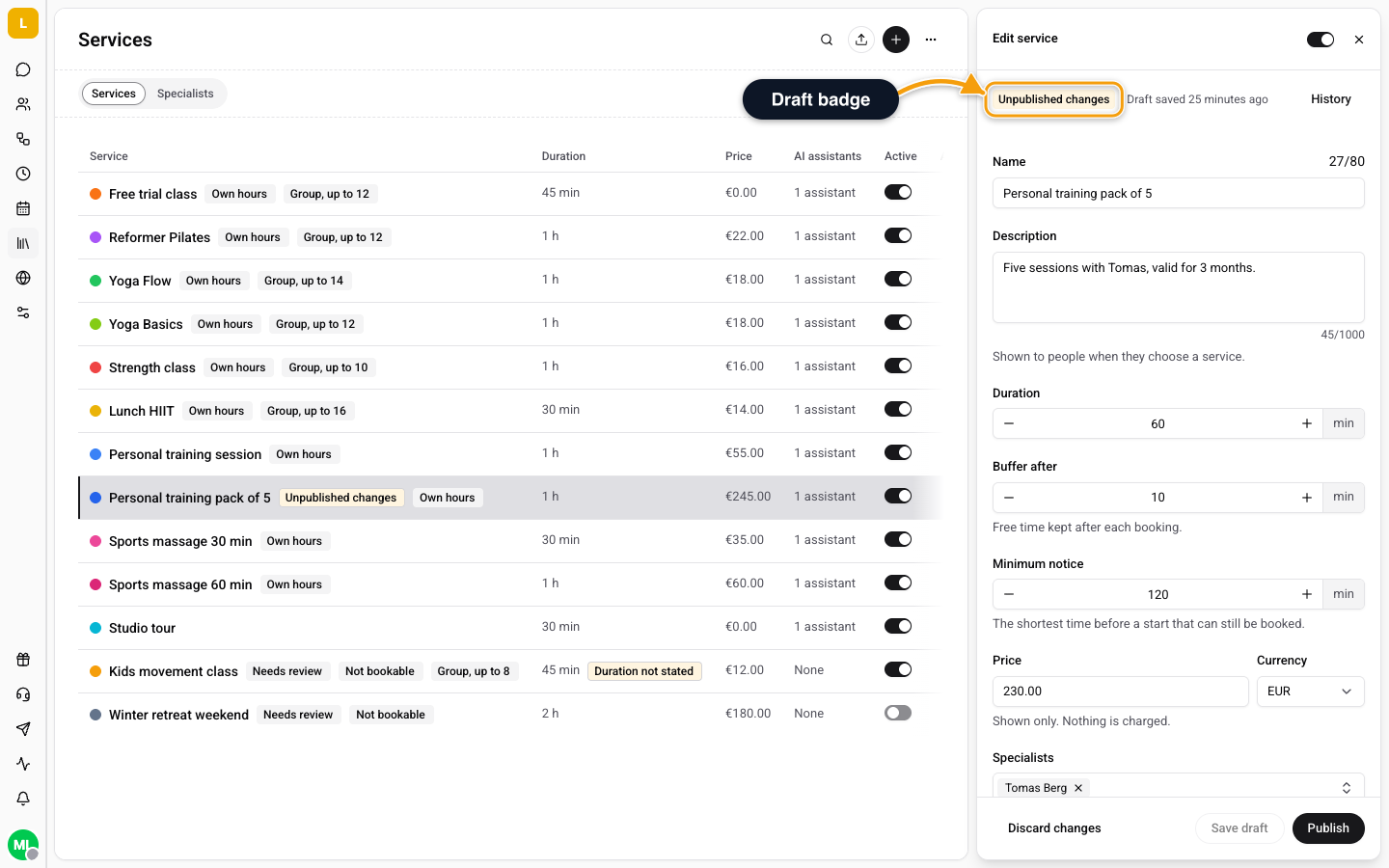
The specialists on a service are part of the draft: a change to the list goes live when you click Publish. The picture, the colour and the assistants are not part of a version. They save at once.
If someone else changed the draft while you were saving, you see The draft was changed elsewhere while you were saving. Reload the latest draft to continue. Click Reload latest draft. If the live service changed after you started, you see This service changed since your draft. Discard the draft and edit again. and a Discard draft button.
Version History and Restore
Click History above the form to open Version history. Each version shows its number, who made it (or API key), and how it came about: Created, Edited, File replaced, Restored from v2, API, Imported or Updated from the website. The live one is marked Live. Click Load more for older ones.
To go back, click Restore next to a version and confirm Restore version 2?. The version replaces the current draft: Version 2 loaded into the draft. Publish it to make it live. Nothing changes for customers until you click Publish.
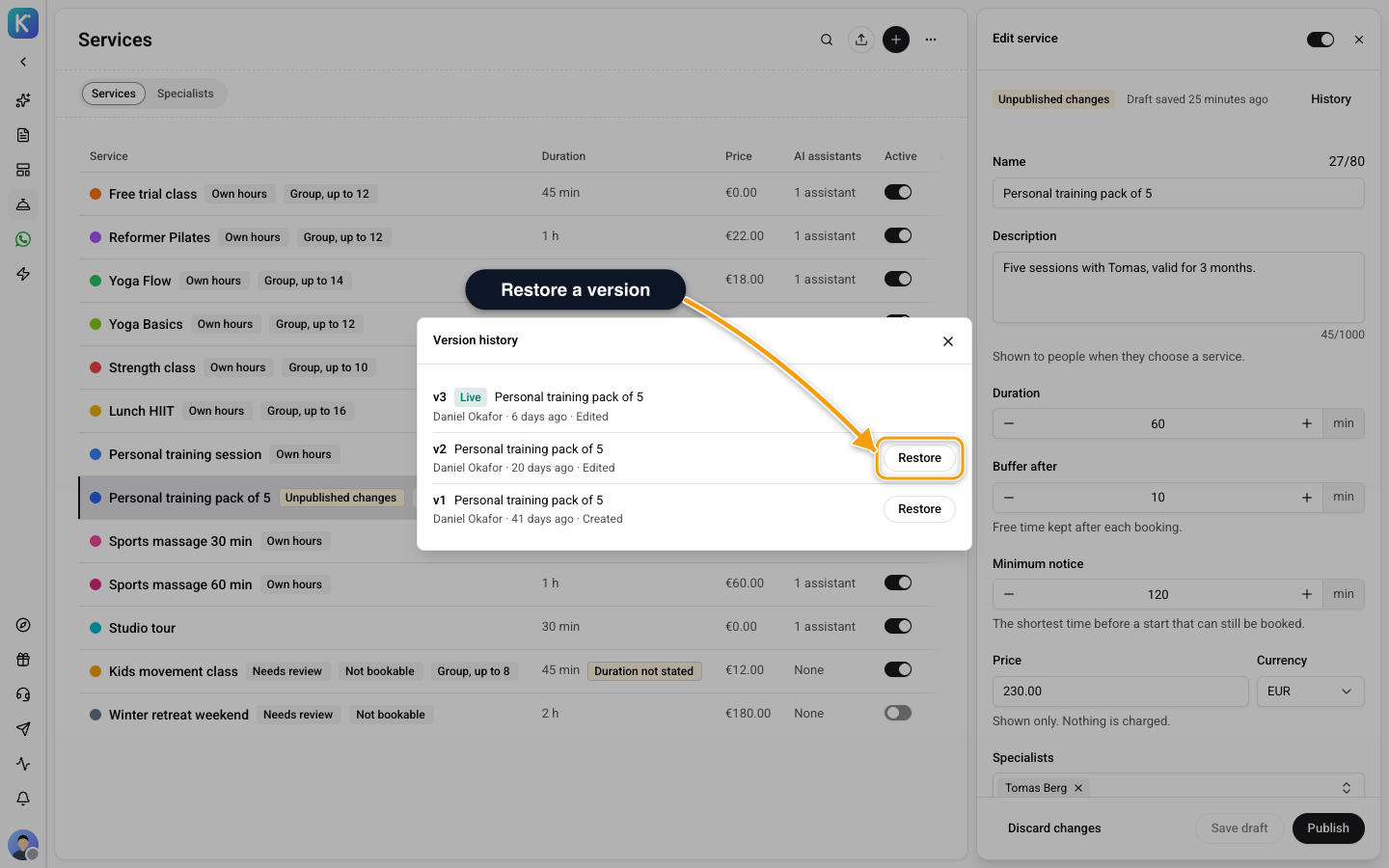
History shows only to people who can manage knowledge documents. See the roles in Knowledge Documents.
Related
- Knowledge Documents - The same drafts and versions for documents.
- Services and Specialists - Add services and the people who perform them.
- Import Services From a File or Website - Bring in a whole catalog at once.