The Calendar Page
See every booking in one place, open the customer, book on their behalf and keep your own view
The Calendar page shows bookings, dates from your contacts and messages waiting to go out, all on one calendar. From here you can open a customer, book a time for them, move a booking or cancel it.
Open Calendar in the main menu, under Broadcasts. The page is for Owners, Admins and Editors. Agents do not see it in the menu and are sent back to the Library if they open its link.
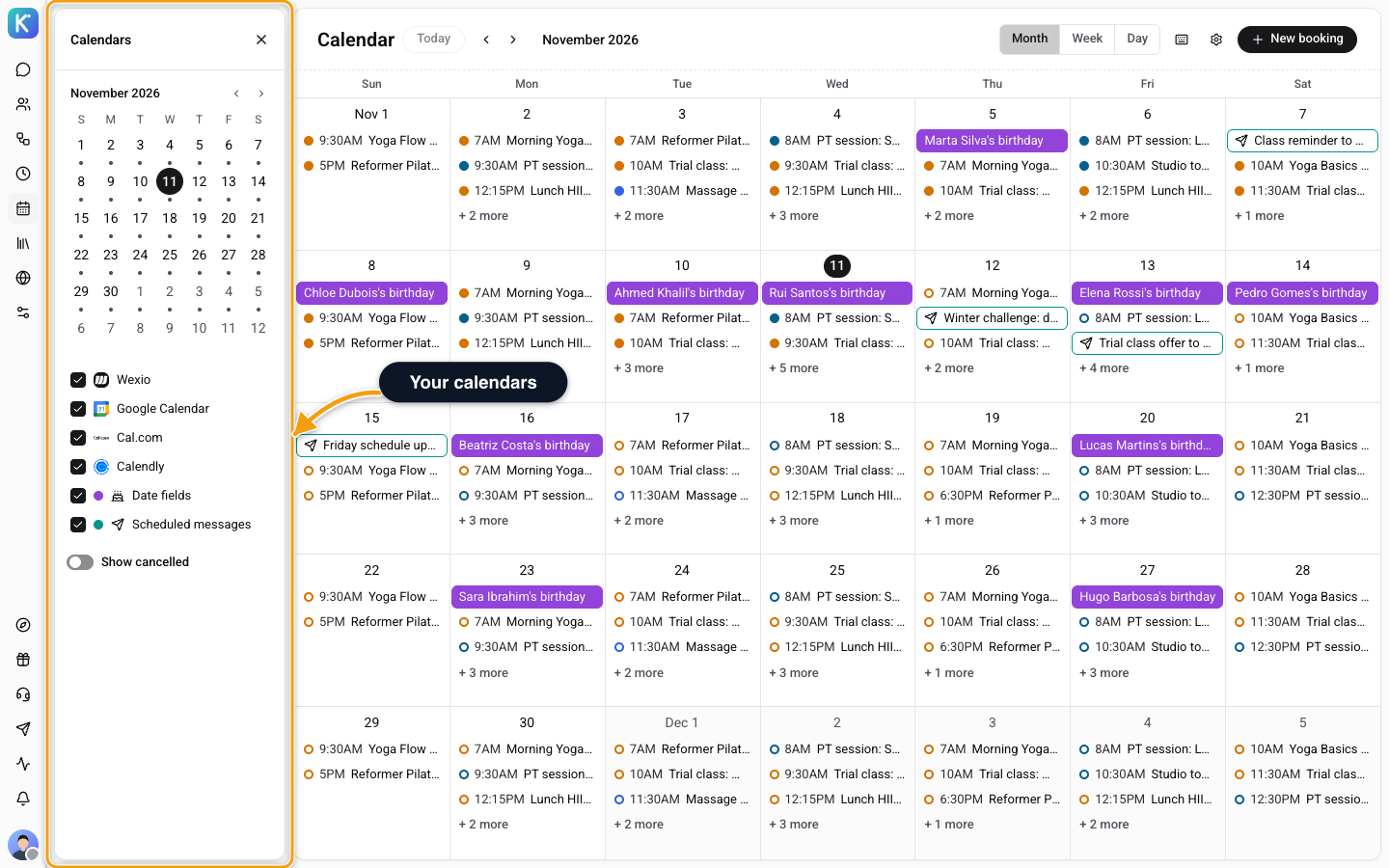
Find Your Way Around
- Views. Switch between Month, Week and Day. On a phone there is no Week view.
- Move in time. Use Today and the arrows for Previous and Next. In the panel on the left, Jump to a day is a small month.
- Calendars panel. It lists the calendars you have connected, with a tick box for each. Click Only to show a single one, or Hide calendars to give the grid more room.
- Show cancelled. Cancelled bookings are hidden until you tick this.
- Keyboard shortcuts. Click the keyboard button for the list. They go to today, change the view, step forward and back and start a new booking.
The grid shows three kinds of items, marked by Type: Booking, Contact date and Scheduled message. Contact dates are dates from your People fields, such as a birthday. Reminders and messages you scheduled with Send later appear as Scheduled message.
If the calendar cannot load, you see Could not load the calendar. Try a shorter view or fewer filters, or click Show only bookings.
Open a Booking and Its Customer
Click an item to open Event details on the right. It shows When, the Calendar, a Meeting link (Join meeting), the Contact, the Attendee email, the Event type, People for a group booking, Type and Booked via: AI agent, Flow, Operator, Widget button or Widget home block.
If the booking was made in another time zone, you see Booking time zone under your own time.
| Button | What it does |
|---|---|
| Open contact | Opens the customer in People |
| Open chat | Opens their conversation in the inbox |
| Open in calendar | Opens the booking in the connected calendar service |
| Cancel booking | Cancels it after you confirm. The dialog says the event is removed from the calendar and the guest is notified |
| Reschedule | Picks a new time, see below |
Cancel booking and Reschedule show only for a booking that is not cancelled and has not started. A scheduled message cannot be changed here: This message is sent from its chat. Open the chat to edit or cancel it.
You can also open a booking from a customer's chat with Open booking. A customer's bookings are in the Bookings section of their profile, where you can book, move and cancel too. See Contact Profile.
Book on a Customer's Behalf
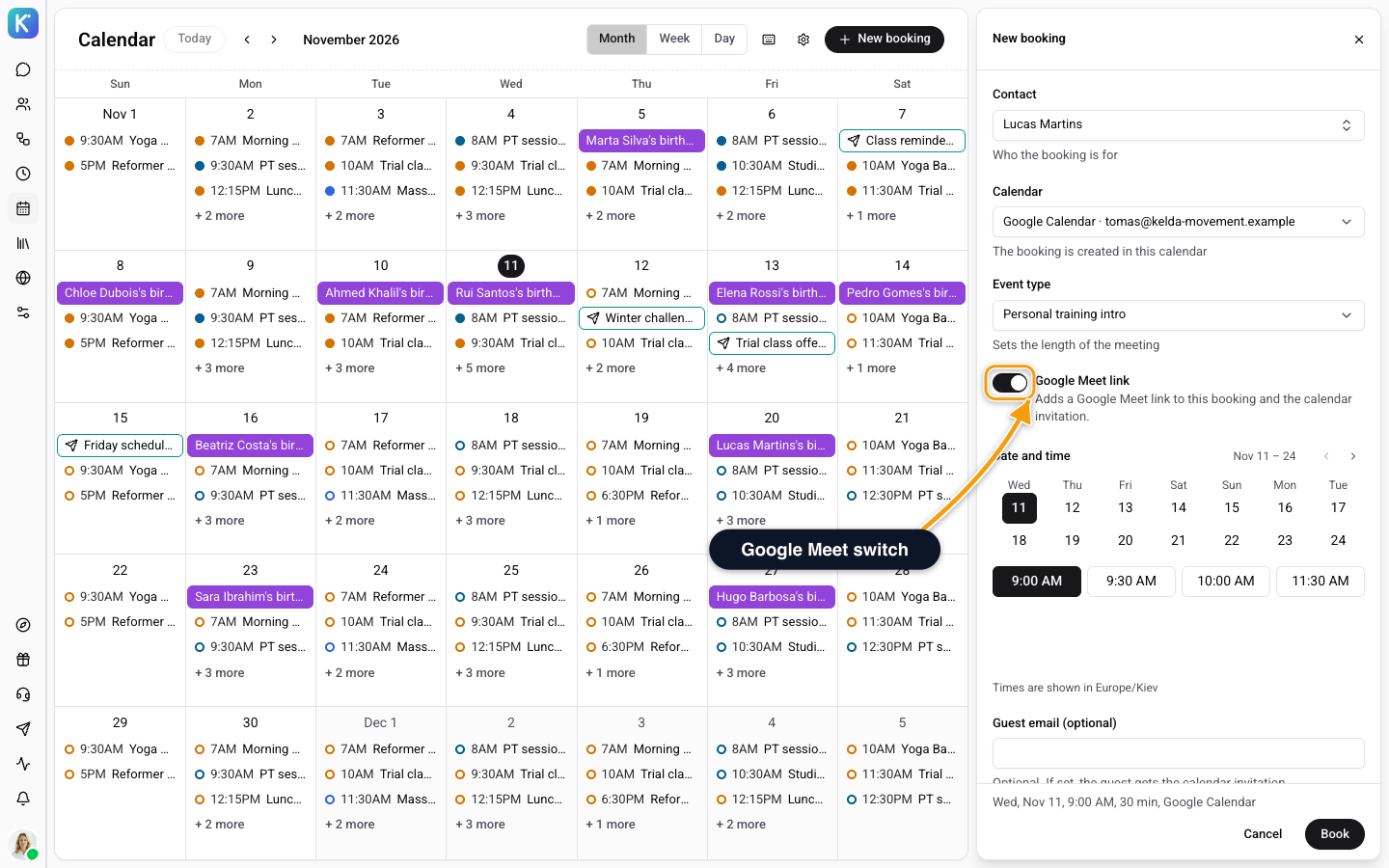
- Click New booking, or click an empty time on the grid. A time or length you drag out on the grid is carried into the form.
- Choose the Contact. Type to search. When you start from a customer's profile, the contact is already filled in.
- Choose the Calendar and the Event type. Every organisation has the Wexio calendar, so it is always in the list. A calendar you connect in Settings → Integrations is added next to it. With whom lets you pick a specialist, or leave it on Anyone. For a group service, set People.
- Under Date and time, pick a day from Days with free times, then a time under Free times on that day. Use Earlier days and Later days to look further. Times are shown in your own time zone, as Times are shown in your zone.
- Add a Guest email if you want the guest to get an invitation or a confirmation, see Booking Emails and Calendar Files.
- Check the line at the bottom: when, how long, which calendar. Click Book. You see Booking created and the booking flashes on the grid.
Only free times are offered, so you cannot double-book. If a time is taken before you click Book, Wexio refuses it and shows the reason. Some event types cannot be booked here: Needs a payment or a location, so it cannot be booked here.
For Google Calendar bookings, a Google Meet link switch can add a meeting link. It shows only where the calendar supports it.
Move a Booking
Click Reschedule in Event details, or drag a booking to another time on the grid. The panel says Reschedule booking and shows the current time under Now. Pick a new time and click Move booking. You see Booking moved. The guest is told, see Booking Emails and Calendar Files.
Keep Your Own Calendar View
Your choices are saved for you, not for the team, and come back on any device:
- the view (Month, Week or Day)
- the calendars you hide
- Show cancelled
- the width of the panels
You can hide up to 50 calendars. Past that you see You can hide at most 50 calendars. The first 50 were kept. If saving fails, you see Could not save your calendar preferences. The previous values were restored.
Choose Which Contact Dates Show
The Owner and Admin see a Calendar settings button in the header. Under Date fields on the calendar, choose the contact fields whose dates should appear as all-day events and click Save. You see Calendar settings saved. This applies to everyone. With no date fields yet, the dialog says No date fields yet. Add one in the People settings.
Booking Limits
| Limit | Value |
|---|---|
| Bookings per day, per organisation | 200 for visitors on the widget, and 200 for the AI assistant and flows. Bookings your team makes are not counted. |
| Upcoming bookings per contact | 3 |
| Free times lookup | At most 42 days at a time |
When a limit is reached, the booking is refused with The daily booking limit for this organisation has been reached. Try again tomorrow., This contact already has the maximum of {limit} upcoming bookings. or, for a visitor, You already have {limit} upcoming bookings. Please cancel one to book another. On a group service, one contact can hold at most twice the Most people per booking in places: You already hold the maximum number of places for this service.
On a calendar that needs a paid plan with its provider, booking is refused with Booking through this calendar needs a paid plan with the calendar provider.
Tour
The guided tour has a Calendar chapter. It runs on a computer only, not on a phone.