Book a Time Card
Offer free times from a calendar in the chat and book the one the contact picks
The Book a Time card shows the contact free times from one of your calendars. When they pick one, the card books it and the flow goes on. It sits in the Bookings dropdown of the card palette, next to Cancel Booking and Reschedule Booking.
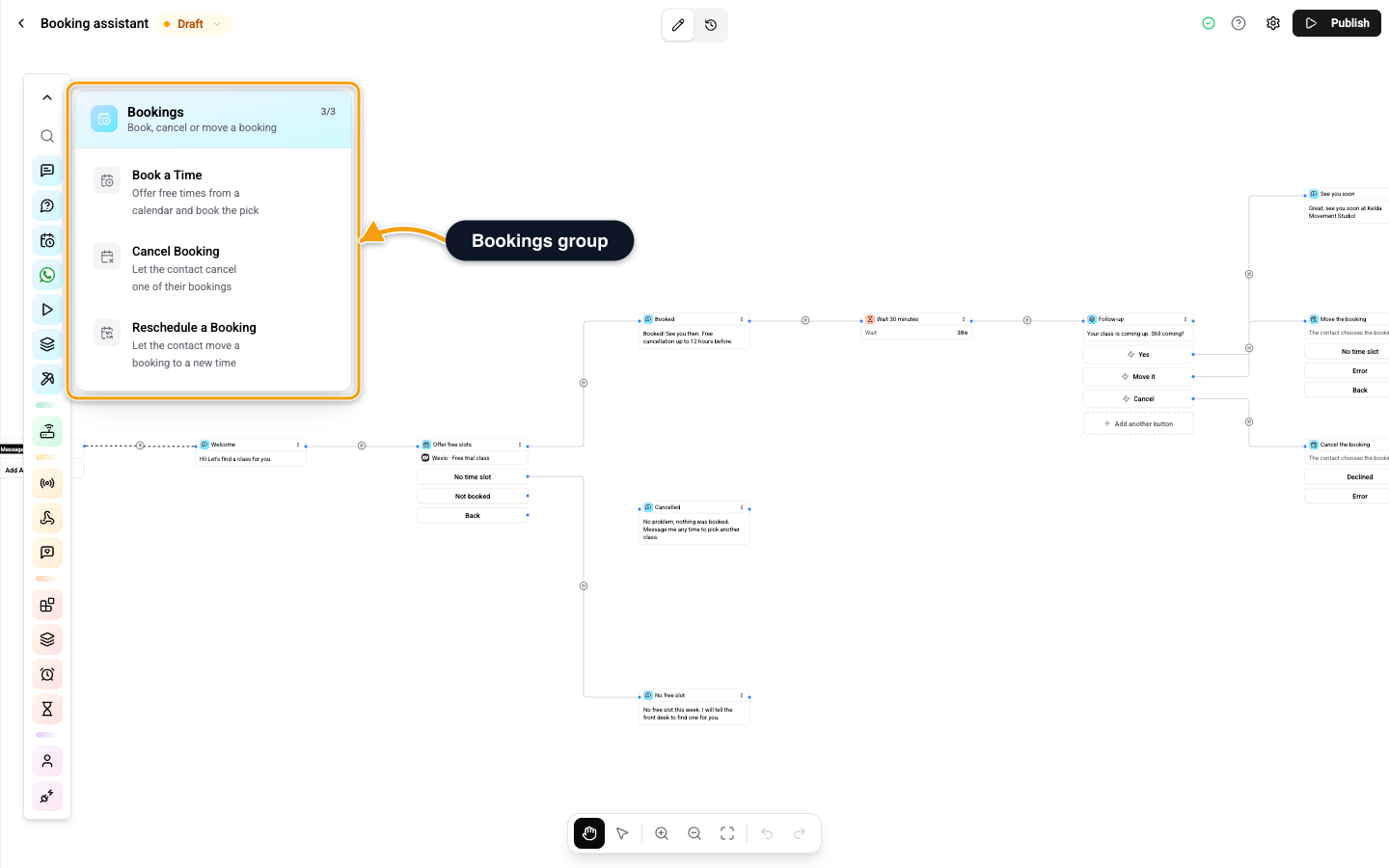
The booking cards are available on Standard, Pro and Enterprise plans. On Free they show greyed out in the palette. Each run costs 1 operation, see Operations Cost. The calendar you pick follows its own plan, see Calendar Integrations.
Settings
Click the card to open its settings.
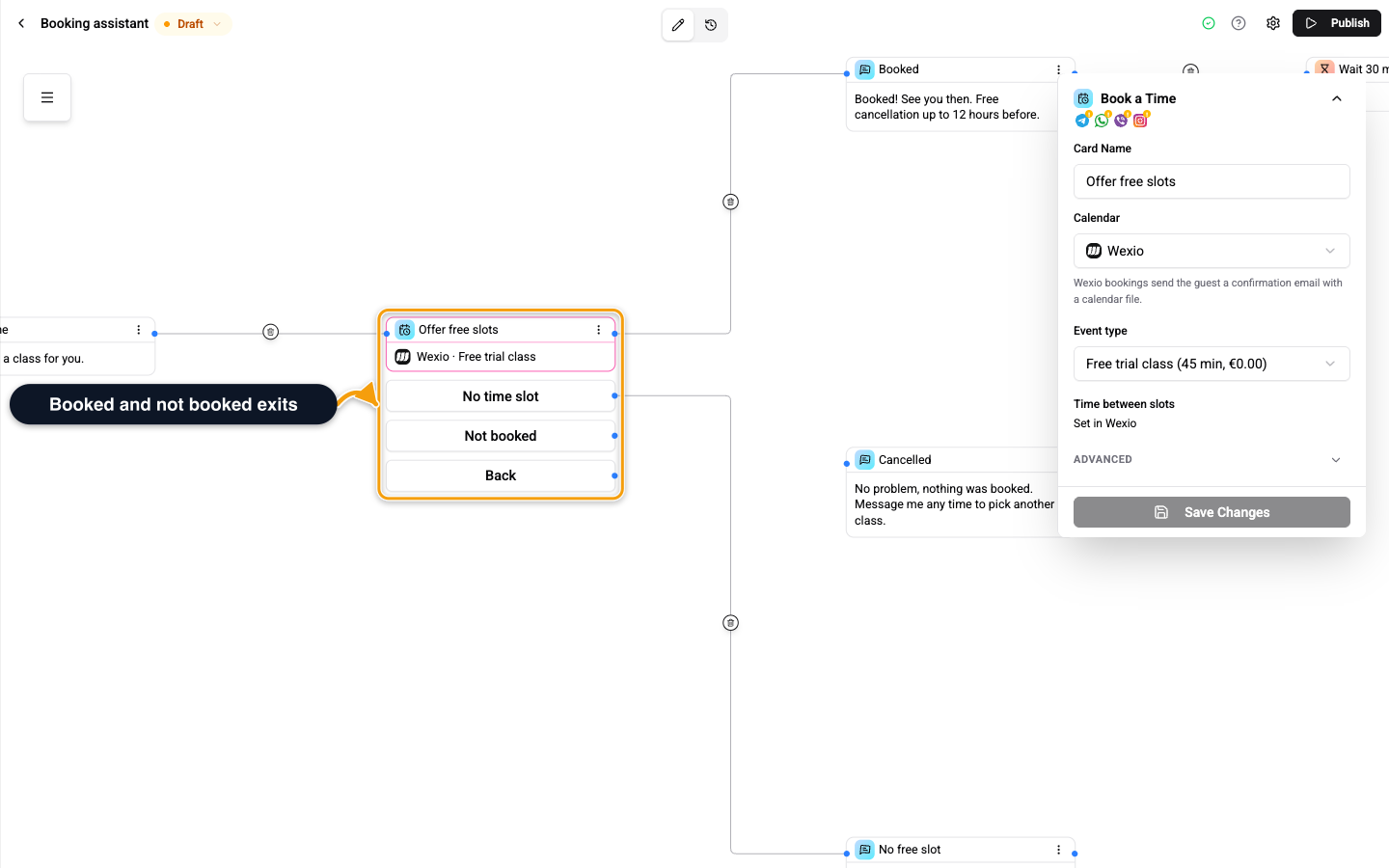
| Setting | What it does |
|---|---|
| Calendar | Where the booking goes. If none is listed, the note No calendar is connected yet. links to the integrations page. |
| Event type | Which kind of meeting is booked. The list marks events the card cannot book in a chat: Paid event, cannot be booked in a chat and Asks the guest for a place, cannot be booked in a chat. Shown as Meeting length for Google Calendar. If left empty on Cal.com or Calendly, the card uses the calendar's default event type (Cal.com default, or the first active Calendly one). |
| Times to offer | How many free times the card shows, 1 to 10. Empty uses 6. |
| How far ahead | How many days ahead the contact can book, 1 to 60. |
| Minimum notice | The earliest a contact can book, counted from now. |
| Time between slots | How often a new start time is offered. Not every calendar lets you set it here. |
| Event title | Shown in the calendar invitation. Empty uses the default. |
Under Advanced you also find:
- Two-step date picker. The contact first picks Next available or Choose a date, then a time. Off shows one flat list of times.
- Button and message texts. Optional texts for Next available, Choose a date, More times, Back to dates and Back. Empty uses the built-in text in the contact's language.
If the calendar needs the contact's email, collect it first with a Question card set to Email address. Without it, the card leaves through Not booked.
When you publish, a missing calendar or event type shows Choose a calendar and an event type. A value out of range shows A booking setting is out of range (times shown 1-10, days ahead 1-60, notice 0-43200 minutes, duration 5-240 minutes).
The Three Outcomes
The card has three ways out. An exit you do not connect ends the flow there.
| Exit | Leaves here when |
|---|---|
| Right edge of the card | The contact picked a time and it was booked. |
| No time slot | Nothing is free in the booking window. |
| Not booked | The booking failed, a limit was reached or the contact has no email. |
With the two-step picker on, a fourth exit, Back, is optional. When you connect it, the contact gets a Back button on the first screen of the picker.
What the Contact Sees
The picker adapts to the channel.
| Channel | Times shown as |
|---|---|
| Telegram | Up to 6 buttons |
| A list of up to 10 times, grouped by day | |
| Viber | Up to 24 buttons |
| Up to 13 quick replies |
On the web widget the contact books in the widget's booking screen, and the flow continues once the booking is made.
Use the Result Later
After a booking, later cards can use these values. {cardId} is the ID of this card.
| Variable | Holds |
|---|---|
flow.{cardId}.status | The result of the card |
flow.{cardId}.reason | Why it did not book |
flow.{cardId}.bookingId | The booking ID |
flow.{cardId}.startsAt | The start time |
flow.{cardId}.startsAtLabel | The start time as text, in the contact's language |
A booking.* group holds the same booking for later cards, with booking.startsAtLabel, booking.title, booking.meetingUrl and booking.manageUrl. See Variables.
Related
- Cancel Booking Card - let the contact cancel a booking.
- Reschedule Booking Card - let the contact move a booking.
- Booking Created Trigger - start a flow when a booking is made.
- Calendar Integrations - connect a calendar.