Import Services From a File or Website
Fill your services catalog from a price list or your website, then review what was found before it goes live
You do not have to type every service by hand. Upload a file with your services, or import your website, and Wexio adds what it finds. Imported items wait for your review before people can book them.
Import From a File
- Open Library → Services and click Import from file.
- Click Choose a file. Use xlsx, csv, docx, doc, pdf, md or txt, up to 5 MB.
- Wait while the window shows Uploading the file..., Waiting in the queue... and Reading the file....
This can take a minute. You can close the window: the import keeps running in the background.
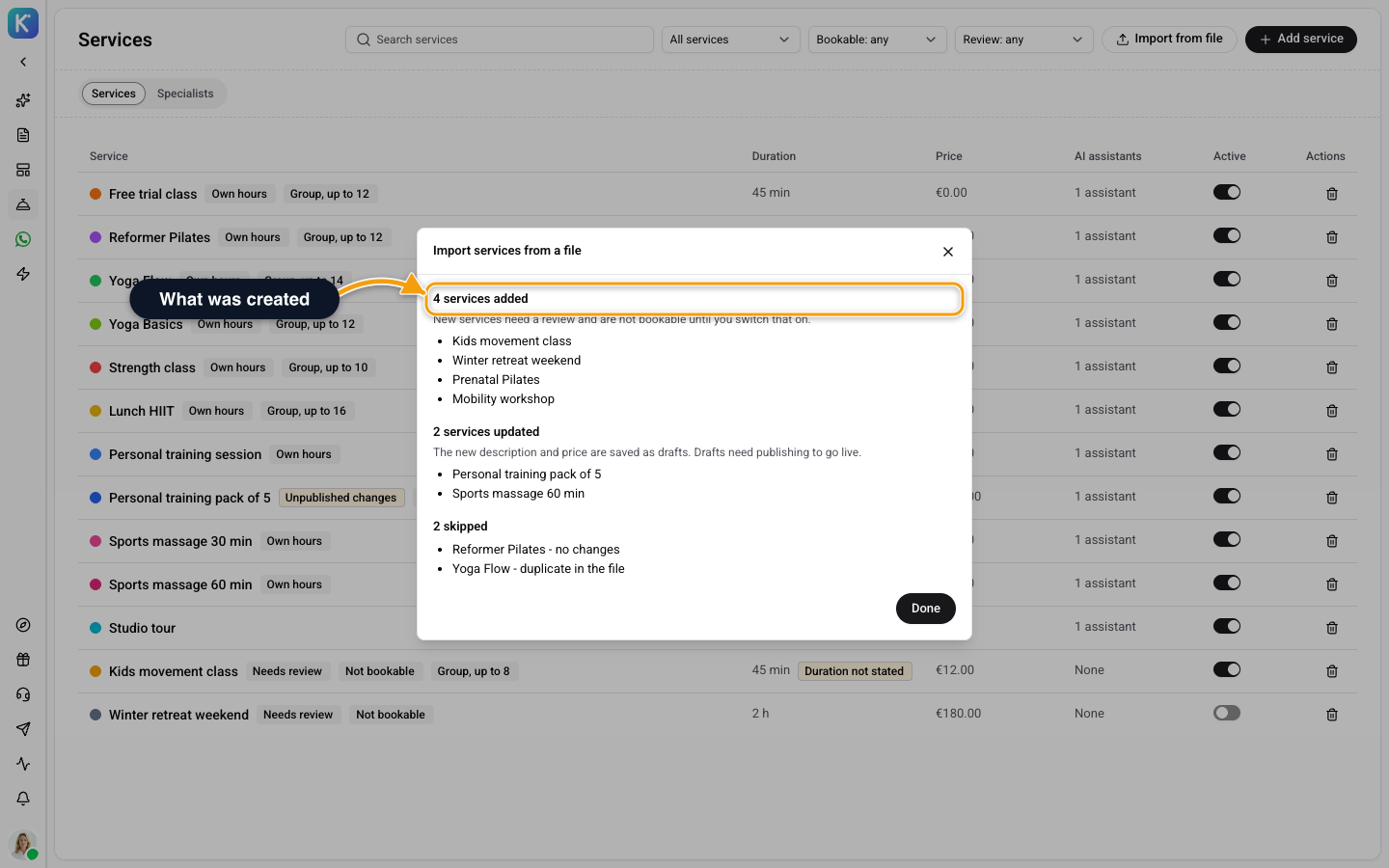
When it finishes, the window shows what happened:
- # services added. New services need a review and are not bookable until you switch that on.
- # services updated. A service you already have gets the new description and price as a draft. Publish the draft to make it live. The duration is never overwritten.
- # skipped. Each skipped item has a reason: has an unpublished draft, service limit reached, not a valid service, no changes or duplicate in the file.
You may also see No services were found in the file. or The file is long, so only the first part was read. Import the rest as a separate file. If a part could not be read, some services may be missing. For The AI could not read the file right now, so nothing was imported. Try again later., wait and try again. A wrong file shows This file type is not supported. Use xlsx, csv, docx, doc, pdf, md or txt., The file is larger than 5 MB. or The file is empty.
Import From Your Website
When you import your website into the Library, Wexio also looks for services and for the team. Enter your website, choose the pages and click import, as described in Knowledge Documents. Website import of services is available on every plan, Free included.
Wexio reads only pages the AI sorts as a service or pricing page that stand on their own, up to 30 pages in one run. From each page the AI takes the name, the exact price, the currency, the length and the description. A price range, a "from ..." price or "on request" leaves the price empty.
- Not bookable. Imported services are created as not bookable and marked Needs review.
- Length missing. A service whose length was not found is flagged Duration not stated.
- Same name. A service with the same name as one you already have is never overwritten.
The report that opens at the end tells you what was created:
- # created as services. Click Open services to review them.
- # specialists imported (inactive, review and activate). Click Open specialists, check each person, then turn on Active.
Pages that are not imported as services stay documents. The report notes limits it hit, for example Services were limited to the first 40 AI calls, the remaining pages were saved as documents when the AI call budget runs out, and Some items without a price were not imported as services on a priced site, their pages stay documents for items dropped for having no price. Notes also say Specialist already exists, skipped and Specialist imported without a photo.
Review and Publish
- Open Library → Services and set the filter to Needs review.
- Open each service. Fix the Name, Duration, Price and Description. A service whose length was not found shows Duration not stated, please check.
- Turn on Bookable if people should book it, and turn off Needs review.
- If the service changed through an import, click Publish to make the new text live.
- Attach the services to an assistant, or it cannot see them. See Services as AI Knowledge, Drafts and Versions.
Related
- Services and Specialists - Add and edit services by hand.
- Services as AI Knowledge, Drafts and Versions - Publish, history and assistants.
- Knowledge Documents - The website import in full.