Set Up Booking in Your Chat Widget
Let visitors book, move and cancel appointments inside your website chat, with a Book a time block on Home, a booking button in a message and a My bookings block
Visitors can book a time without leaving your site. You pick a calendar, choose what can be booked and how far ahead, then place a Book a time block or button where visitors will see it.
Before You Start
Pick the calendar the bookings go into. You can use any of these.
| Calendar | Plan | What visitors book |
|---|---|---|
| Wexio | All plans | The services you add in the Library |
| Google Calendar | Standard, Pro, Enterprise | A meeting of the length you choose |
| Cal.com | Pro, Enterprise | An event type from your Cal.com account |
| Calendly | Pro, Enterprise | An event type from your Calendly account |
To use Google Calendar, Cal.com or Calendly, connect it first. See Calendar Integrations. Until a calendar is set up for the widget, nothing changes for your visitors.
Set Up a Booking
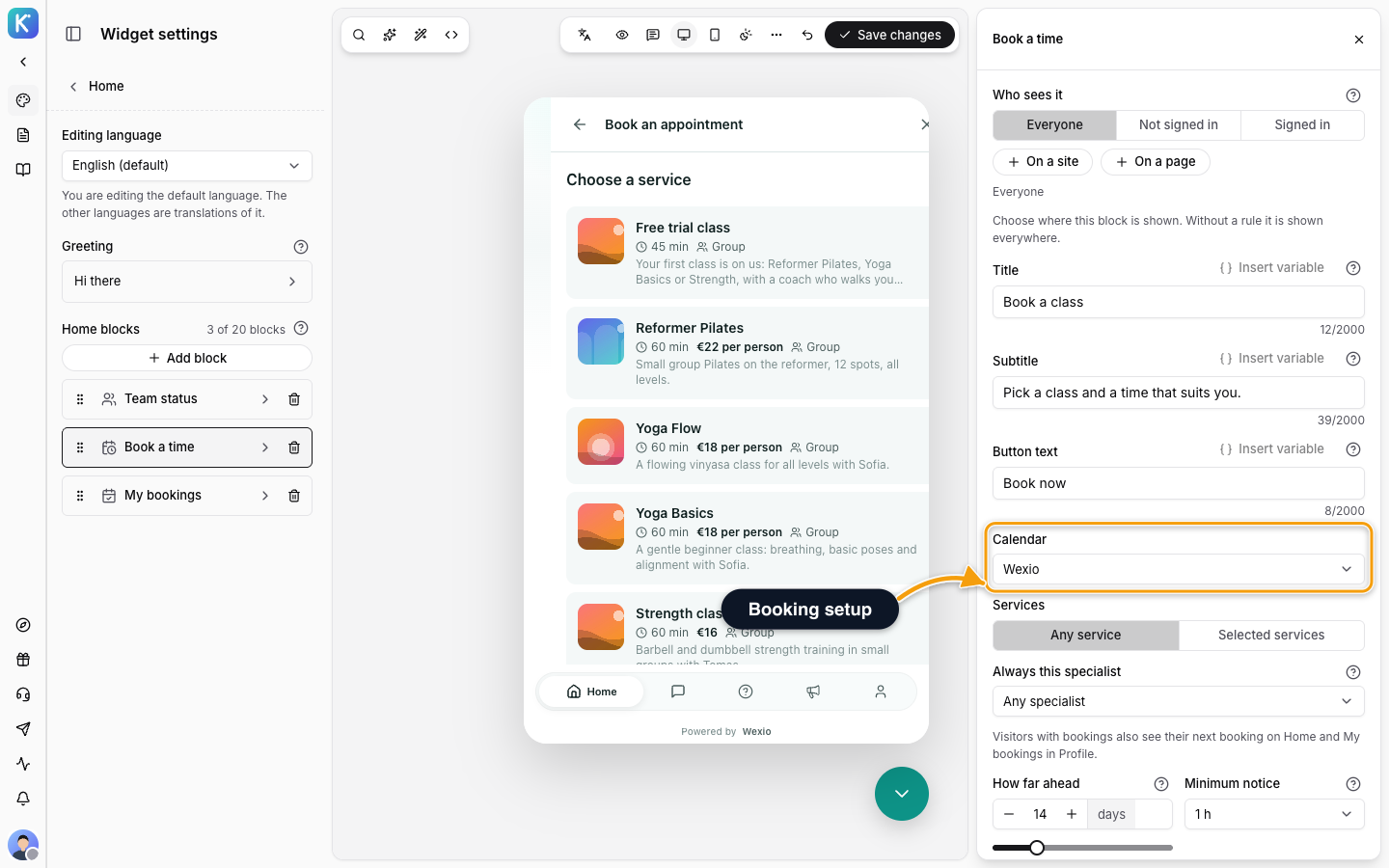
The same setup appears in the Book a time block and in a Book a time button. Open it from the Home or Messenger section of your widget settings, as shown in the next two sections.
| Setting | What it does |
|---|---|
| Calendar | Where the bookings go. If none is listed, the note No calendar is connected yet. links to Settings → Integrations. |
| Services | Wexio calendar only. Any service offers all bookable services. Selected services offers up to 20 you choose. |
| Always this specialist | Wexio calendar only. Leave Any specialist to let the visitor choose, or pin one team member. |
| Event type | Cal.com and Calendly. On Google Calendar this field is Meeting length. |
| People | Shown for group events. Sets how many people one booking is for. |
| Time between slots | Google Calendar only: how often a new start time is offered. Other calendars set this themselves. |
| How far ahead | Visitors can book up to this many days from now. From 1 to 60 days, 14 by default. |
| Minimum notice | The earliest a visitor can book, counted from now. From No notice up to 2 days, 1 hour by default. |
If your Wexio calendar has no bookable service, visitors can still book the built-in Appointment.
Under More options you can set an Event title, shown in the calendar invitation, and the Details to ask. Email is always asked and required. You can add up to 8 details, mark each one Required, and the answers fill the visitor's profile in People.
Some event types cannot be booked from the widget. The picker marks them Paid event, cannot be booked from the widget or Asks the guest for a place, cannot be booked from the widget. An event type that waits for your approval is marked Bookings wait for your confirmation.
Add a Book a Time Block to Home
- Open Home in the Content group.
- Click Add block and pick Book a time.
- Click the new row to open Edit block. Write the Title, Subtitle and Button text, or keep the placeholders Book a consultation, Pick a time that suits you and Choose a time.
- Set up the booking as above.
- Click Save.
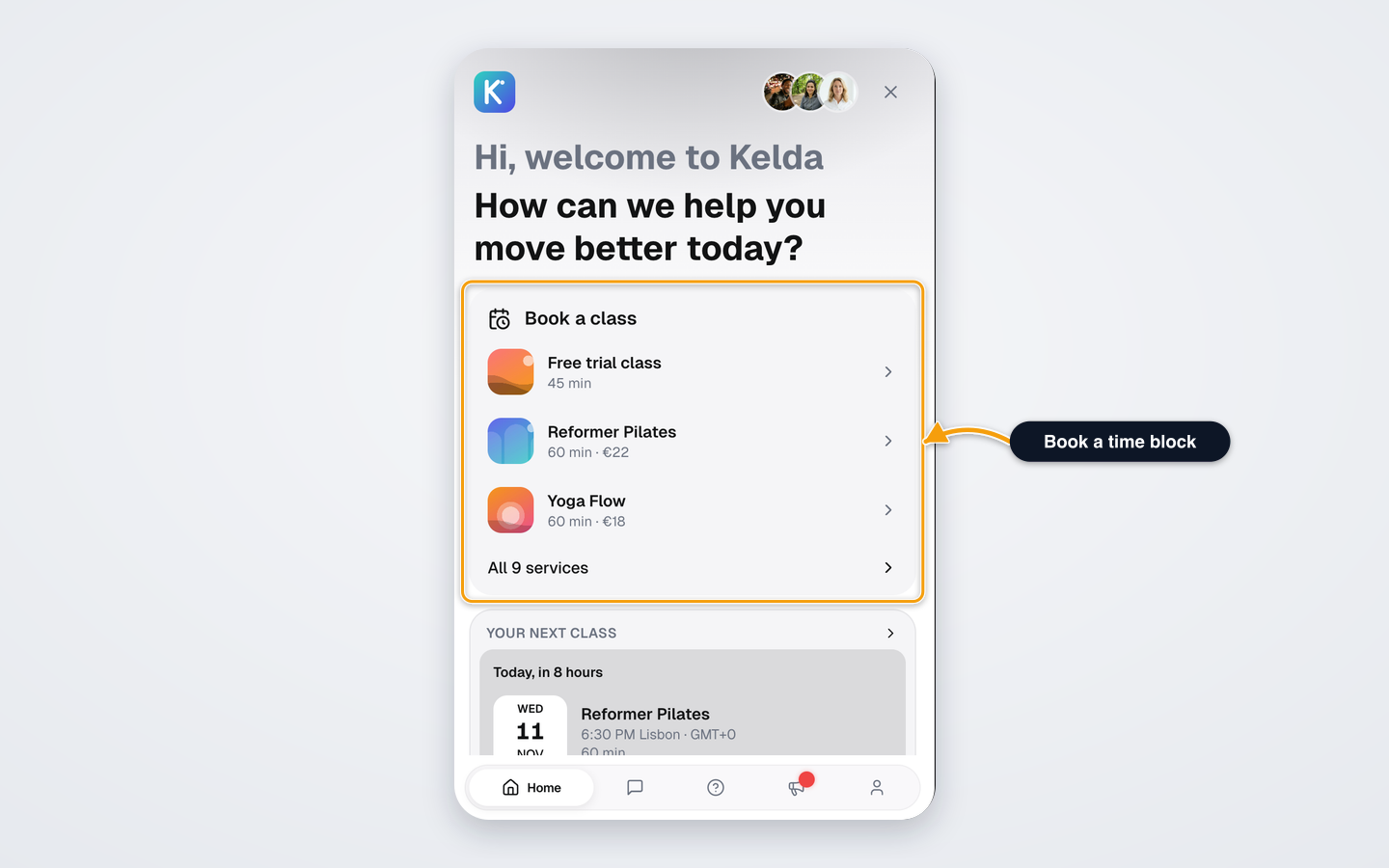
With the Wexio calendar, the card lists the first services with their length and price. Visitors tap one to open its calendar, or open the full list.
To add a block, see Home.
Add My Bookings to Home
Add a My bookings block the same way. It shows the visitor's next upcoming booking and hides itself when they have none. The only setting is the Title, with the placeholder My bookings. On the card, visitors see Your next booking.
Add a Book Button to a Message
A message from your team can carry up to 3 buttons. For each button, set Type of button to Book a time. The button opens the booking screen and uses its own booking setup.
- Open Messenger in the Content group and click a message under Default messages.
- Make sure its Type is Agent message. Only this type can have buttons.
- Add a button, set Type of button to Book a time, and write its Label.
- Set up the booking and click Save.
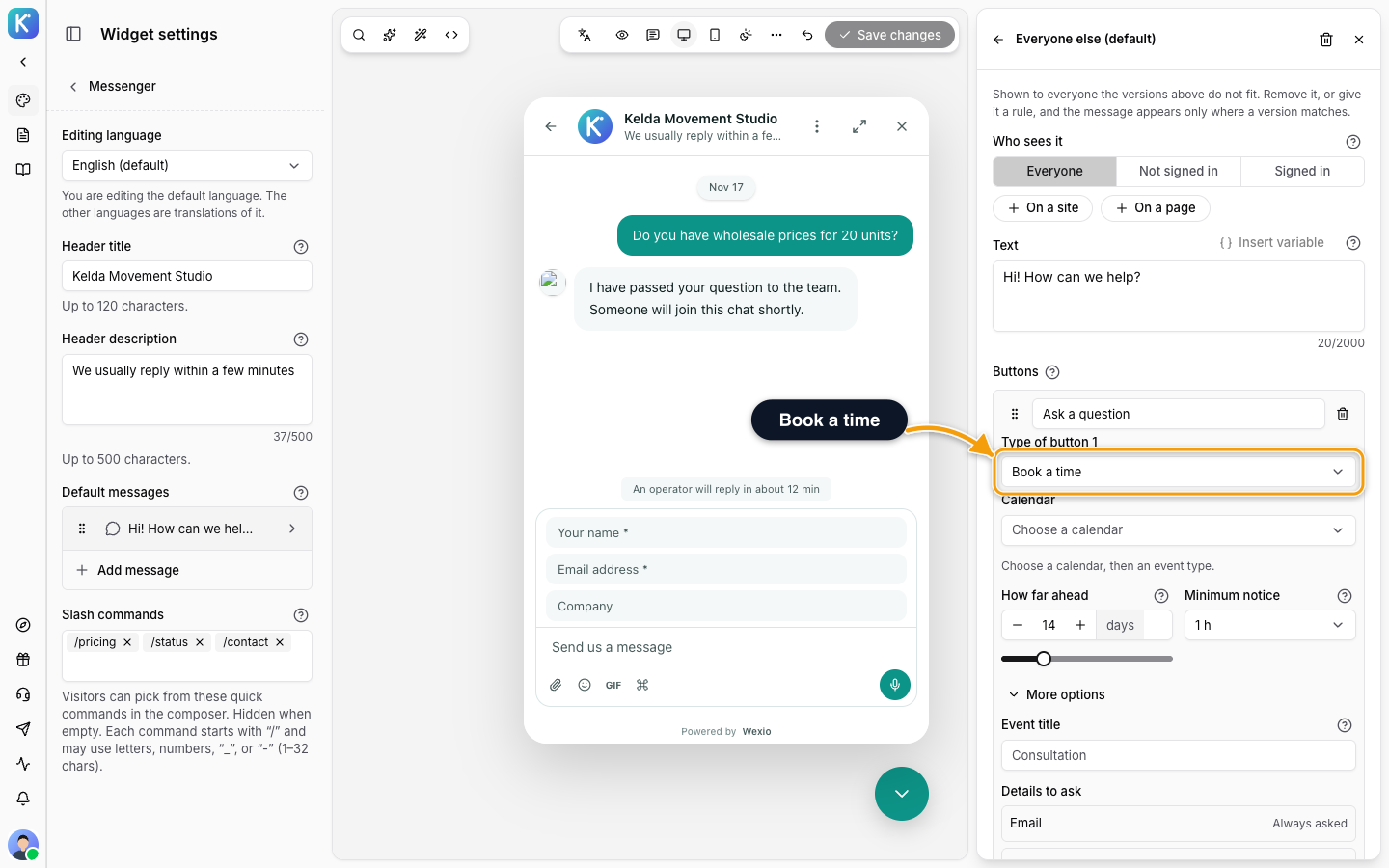
The same button types work on the message shown above the closed chat button. A Link button can also open a phone number (tel:+380...) or an email (mailto:...). See Messenger for labels and limits.
Limit the Services From Your Site
Your page can narrow the services a visitor sees to a few of the ones your booking block offers. Pass the service ids in the embed option for your install. It never adds a service the block does not offer.
| Embed | Option |
|---|---|
| Script loader | data-booking-services="sv-1,sv-2" on the script tag |
| Web Component | booking-services attribute or bookingServices property |
| React | booking={{ services: [...] }} |
| Vue | booking-services prop |
| Angular | bookingServices input |
| Ember | setBookingServices(ids) on the service |
Try It in the Playground
The preview next to your settings runs the real widget. Open a booking block or button and the preview jumps to its booking screen, with your unsaved changes.
A booking made in the preview is a real booking. It sends the invitation and appears in your calendar. Cancel it in the calendar or in the preview's My bookings. See Testing Your Widget.
What Visitors See
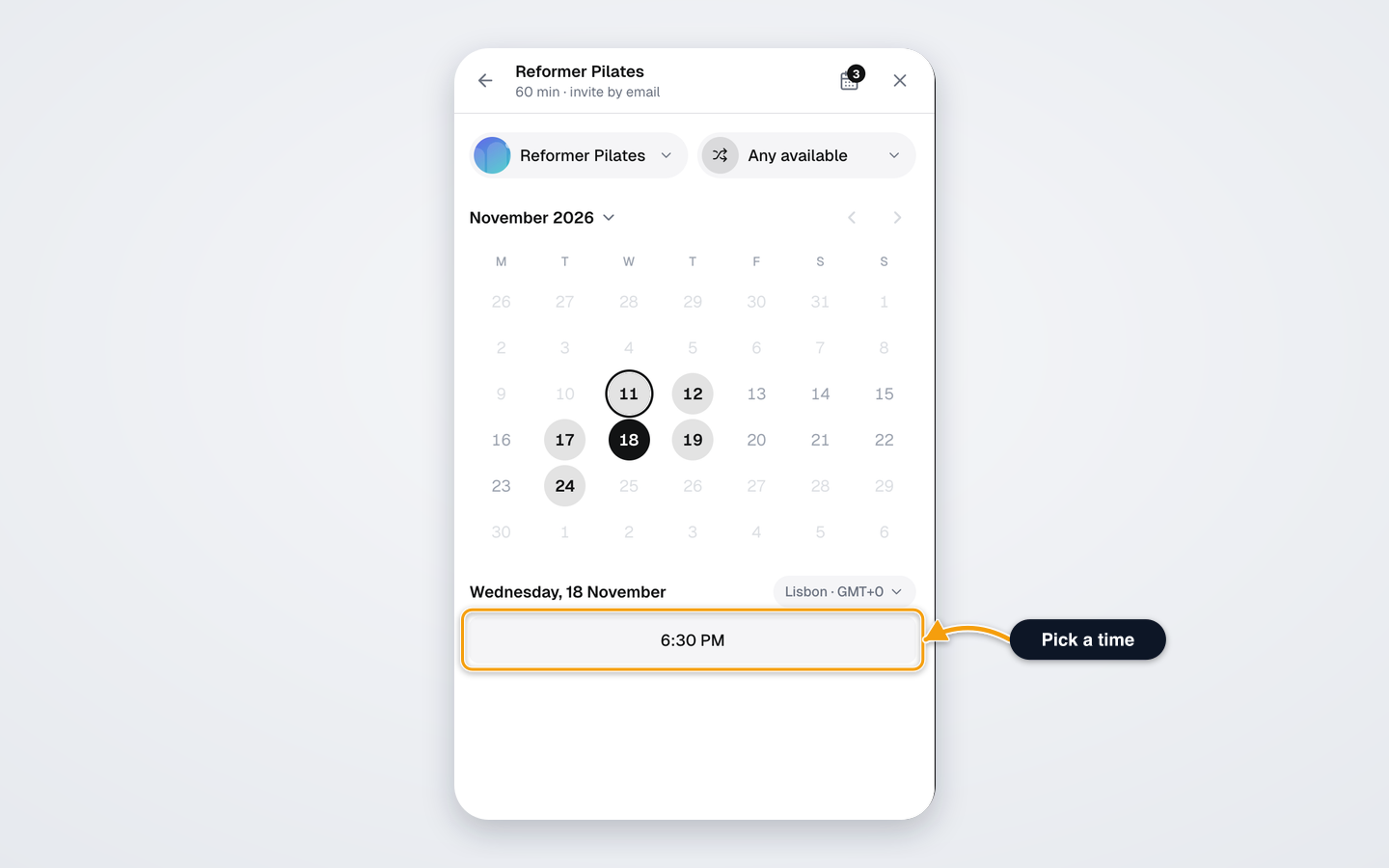
- Pick a day and a time. Times show in the visitor's own time zone. They can change the time zone.
- Check their details. A signed-in visitor's verified email and phone are filled in and can be edited.
- Confirm. The screen says You are booked, or Awaiting confirmation when you approve bookings yourself. The visitor gets a calendar invite by email.
My bookings opens from the Home block, from a row in the visitor's Profile tab, or from the More menu in a conversation. These entries show only when your Home has a Book a time block. It lists upcoming bookings by month and past bookings. For each booking, the visitor can Cancel (with an optional reason) or Reschedule. Past bookings have Book again.
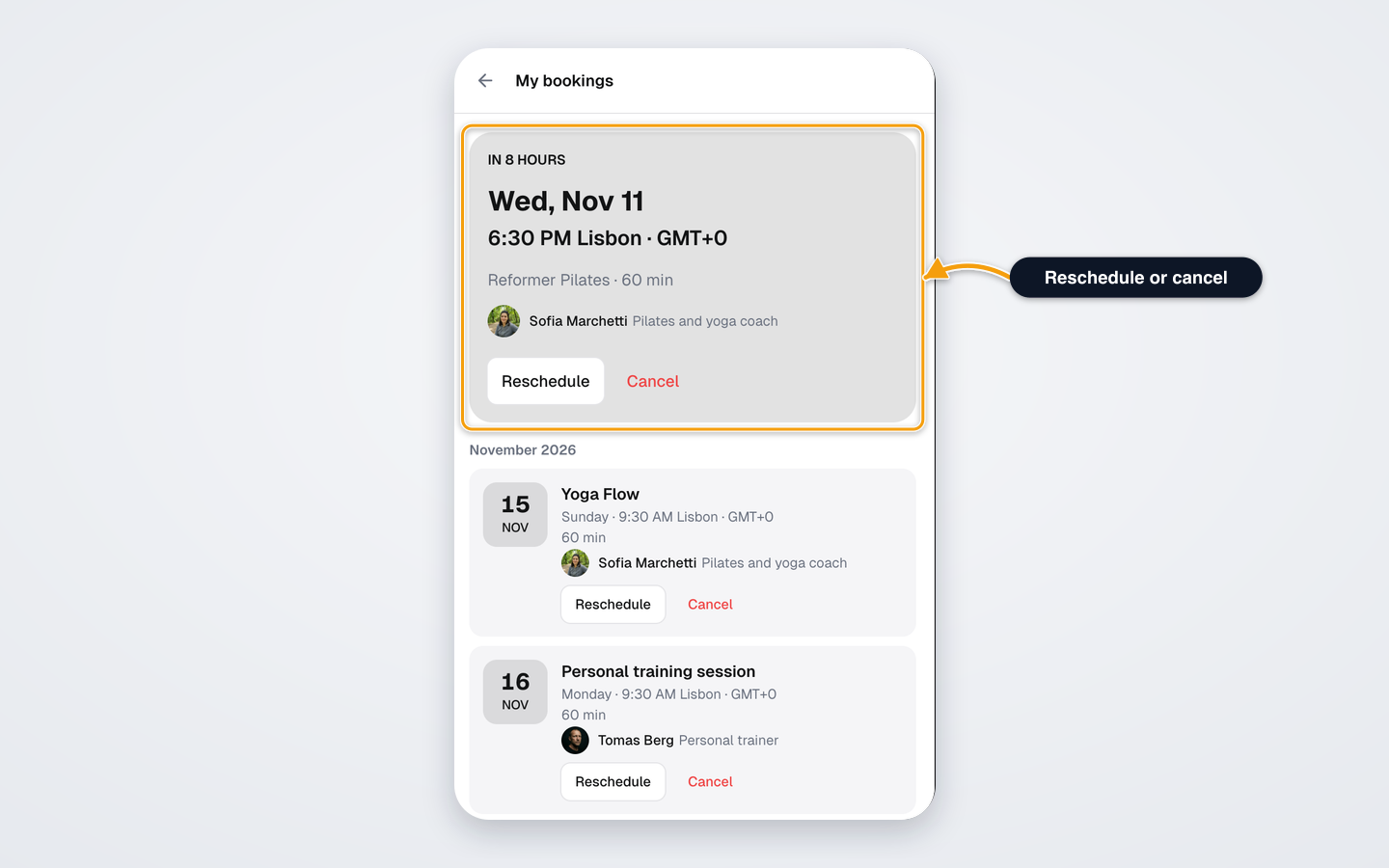
A visitor can hold a limited number of upcoming bookings. At the limit they see Booking limit reached and can move or cancel one first.
When your AI assistant asks a visitor which of their bookings to move, and they have two or more upcoming, each booking in the chat has a Reschedule button. It opens the booking screen for that booking.
Related
- Calendar Integrations - connect Google Calendar, Cal.com or Calendly.
- Services and Specialists - what visitors can book on the Wexio calendar.
- Home - add and order Home blocks.
- Let the AI Book for Customers - let your assistant offer times and book in chat.
- Testing Your Widget - what a test leaves behind.